This guide explains how to use the payment credit card screen in the Self-Checkout (SCO) system. It covers screen behavior across providers, expected user interactions, error handling, and post-payment flow to the Good bye screen.
Overview
-
The credit card payment screen appears after selecting the Credit Card method on the Payment screen.
-
Behavior varies by card provider (e.g., different prompts, confirmation dialogs, or device messages).
-
Most transactions require no user interaction beyond tapping/inserting the card and entering PIN/signature on the payment terminal.
-
Some providers may request additional confirmations or data (e.g., user data) via on-screen dialogs.
-
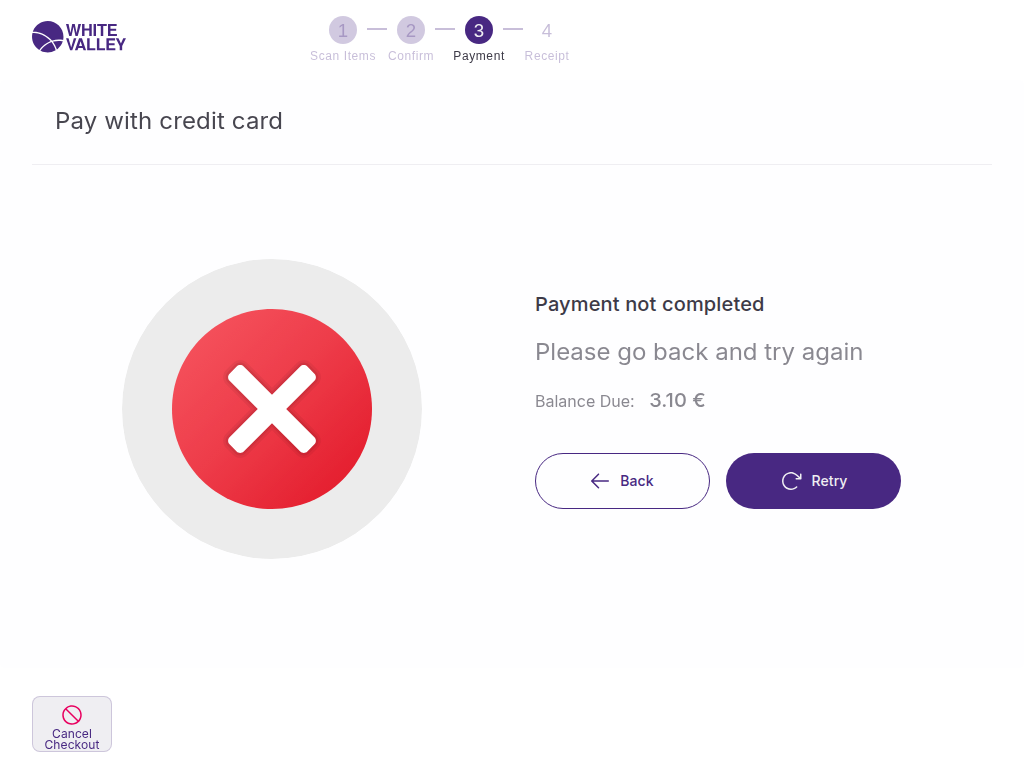
If the payment fails, the user will be prompted to retry, choose another method, or cancel.
User Journey at a Glance
|
Step |
What the User Sees/Does |
System Behavior |
|---|---|---|
|
User selects Credit Card on the Payment screen in SCO. |
|
|
|
|
|
May see confirmation windows or text dialogs (e.g., select currency, confirm amount). |
|
|
|
|
|
User sees confirmation and proceeds to the Goodbye screen automatically. |
|
Common Steps – Screen Captures
Visual walkthrough of typical credit card payment steps in SCO.
Step: Payment – Follow terminal instructions
%20(5).png?cb=203b1ec2e0a59291c73e99208a768058)
Step: Payment – Insert Card
%20(7).png?cb=077ad7c59ec750ffad53687ea76ea594)
Step: Payment – Enter PIN on terminal
%20(6).png?cb=42bc0027aa4dbeb7b7ee7b249fbb202c)
Step: Payment – Remove card
%20(8).png?cb=d00333cfc6d0cd0cc2007ae503e46487)
Step: Payment – Payment completed
%20(10).png?cb=ec13f4b0a6fc3fec284dd92ee773e446)
Error Cases - Screen Captures
1. Transaction Rejected
This error occurs when the card provider declines the payment. The user is informed and prompted to retry or choose another payment method.
%20(14).png?cb=517e98fac0779220aa49226517a843c0)
%20(15).png?cb=f66298784746d0b0b9cfb8196299685d)
2. Transaction Canceled by User
This error occurs when the user cancels the operation before completing the payment.