
Printing Options
Within the routing configuration, you can define whether a document should be printed when confirming a task for a specific route:
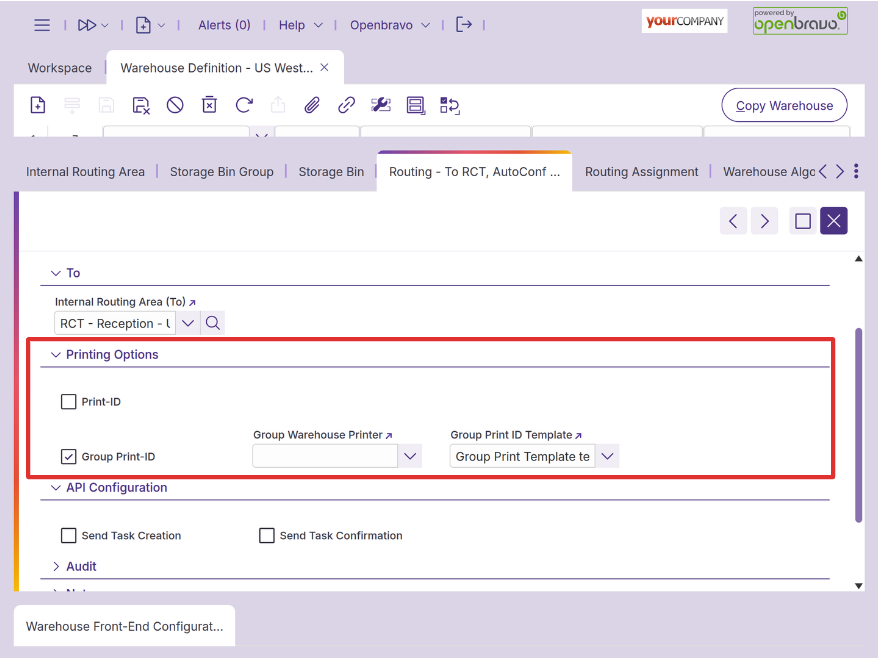
To enable printing, you need to select either the ‘Print ID’ or ‘Group Print ID’ option and assign a template. The template is configured in the ‘Print ID Template’ window:
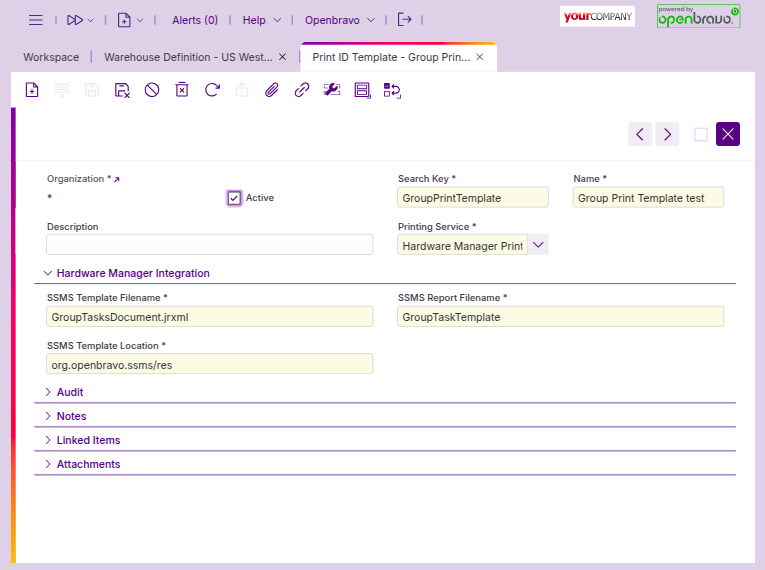
To print these templates in the backoffice, no additional configuration is needed. However, to print these templates from SSMS using the ‘Print Management’ dialog, you can additionally configure the printer where you want to print the templates.
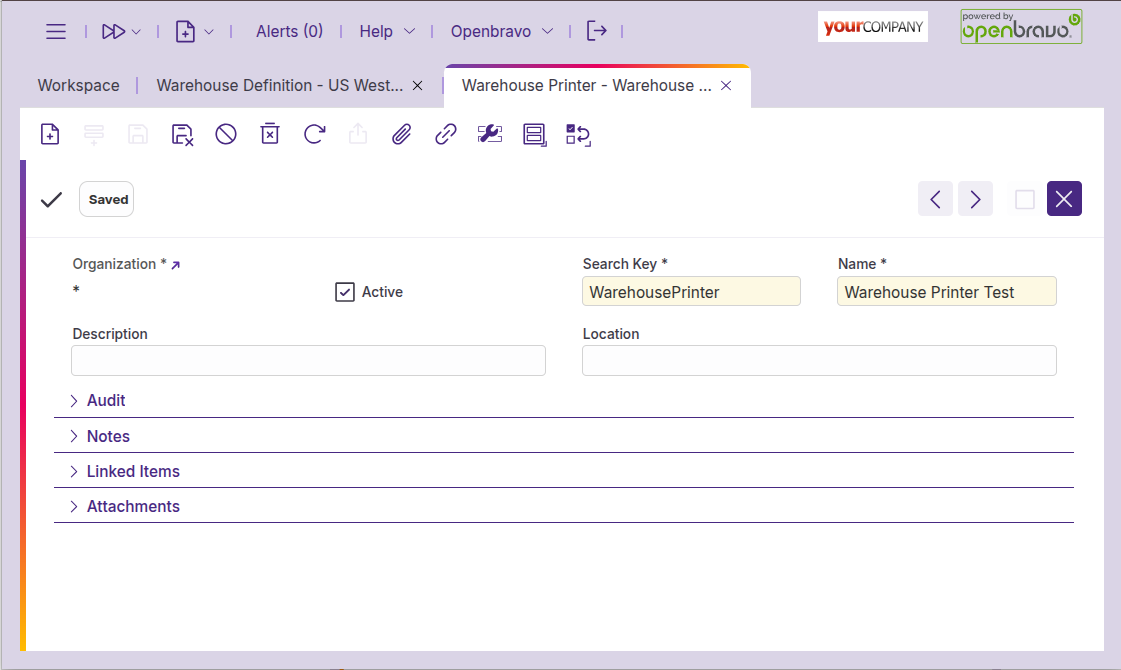
A printer can be set for either the ‘Print ID’ or ‘Group Print ID’ option, and it is configured in the ‘Warehouse Printer' window. Users can specify a custom URL in the ‘Location’ field if they want to use a specific printer; if this field is left empty, the Hardware Manager will be used instead
Note: If the Hardware Manager throws the error “Content is not allowed in prolog", it is likely because the endpoint is expecting XML, but a PDF is being sent instead. This usually happens when the printer is configured with the URL http://127.0.0.1:8090/printer (which only accepts XML) while attempting to print a PDF.
For PDF printing, the ‘Location’ must be set to http://127.0.0.1:8090/process/printpdf.
Ensure the ‘Location’ field is configured correctly; otherwise, you can leave it empty and the default printer will be used.
With this setup, print orders will be generated and available in the ‘Print orders’ window.