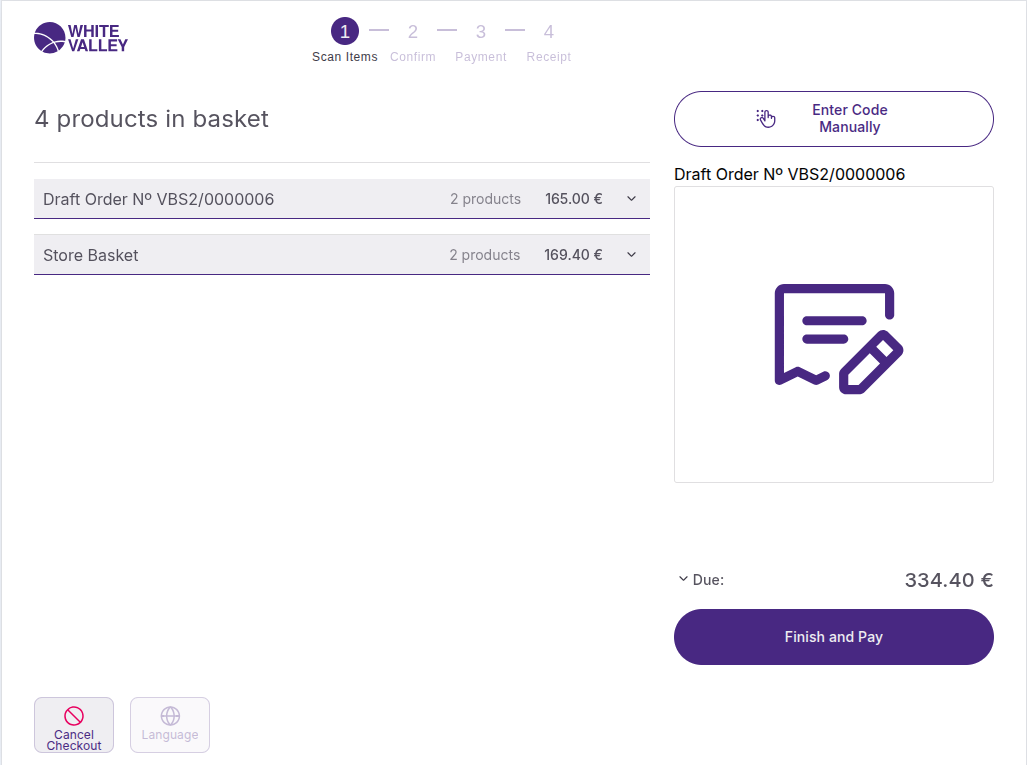
This guide explains how to use the search by code functionality in the self-checkout (SCO) system. The search by code screen allows customers to manually enter product codes when scanning is not possible or preferred. This feature handles various types of products and orders, including unknown or obsolete products, as well as external or draft orders.
Access search by code
To access the manual code entry feature:
-
From the Welcome screen or Scanning window, customers click the 'Enter code manually' button
-
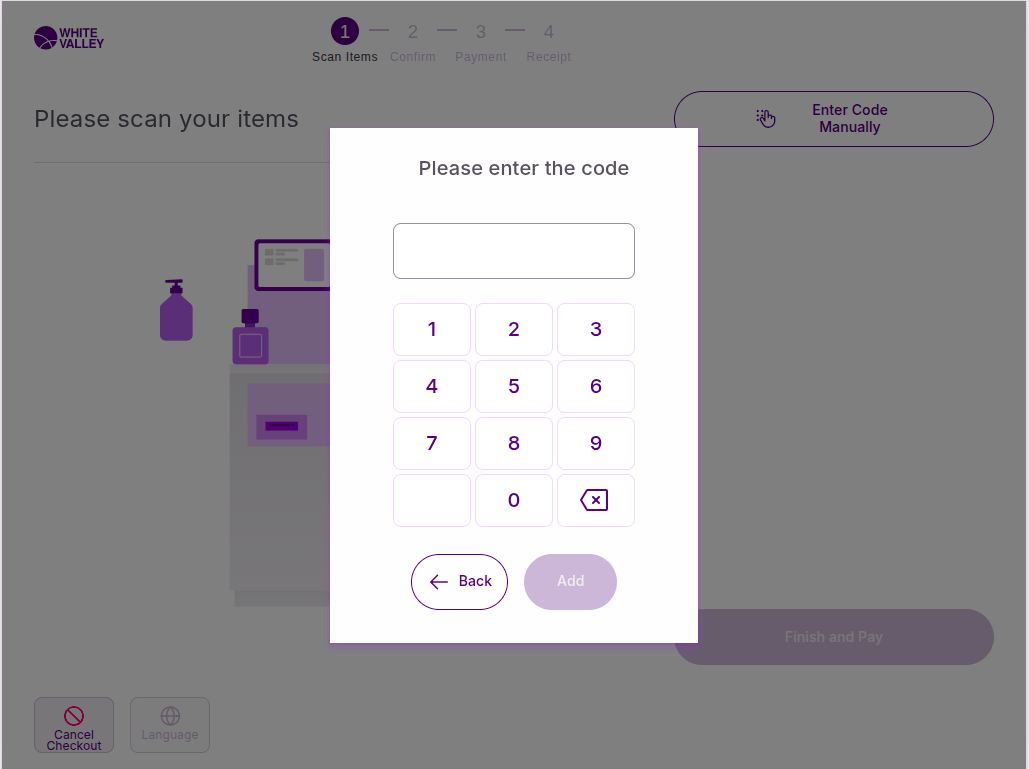
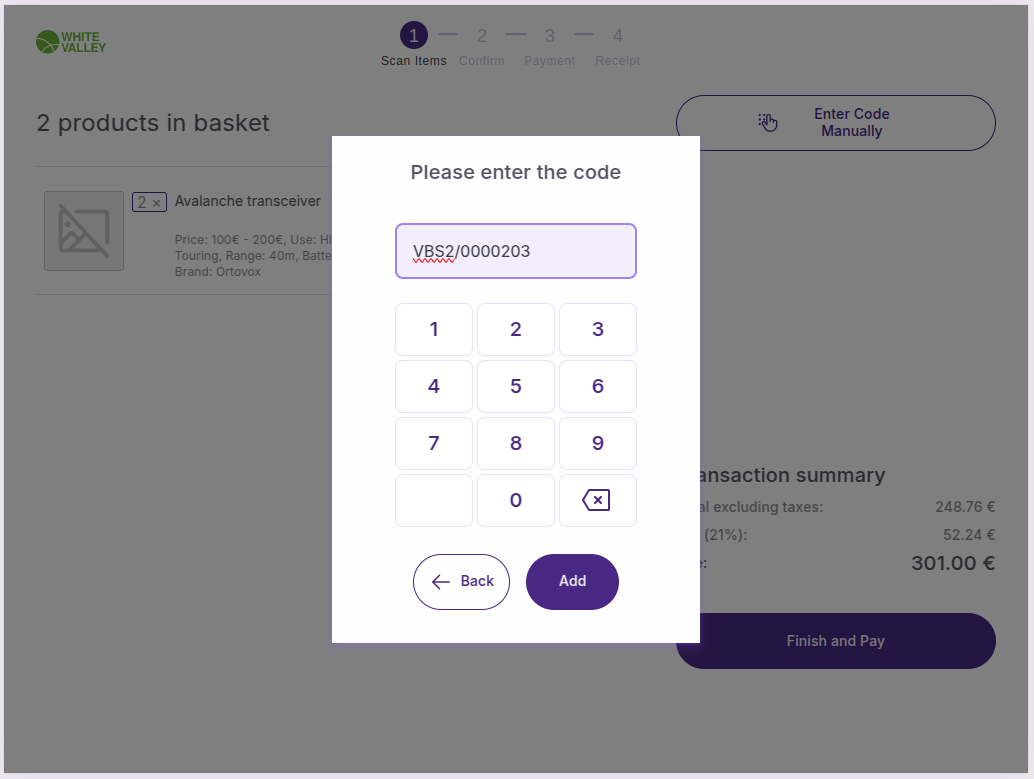
A popup will appear requesting the product code
-
Customers enter the desired code using the on-screen interface
Code entry process
When the code entry popup appears:
-
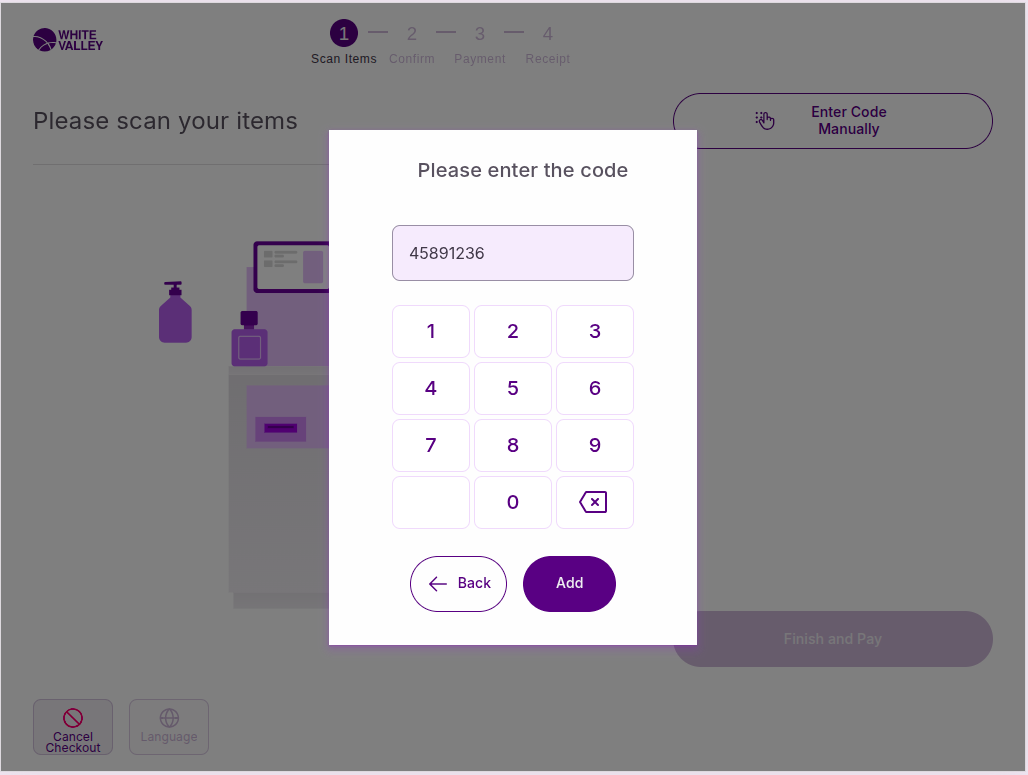
Customers enter the product code in the popup window
-
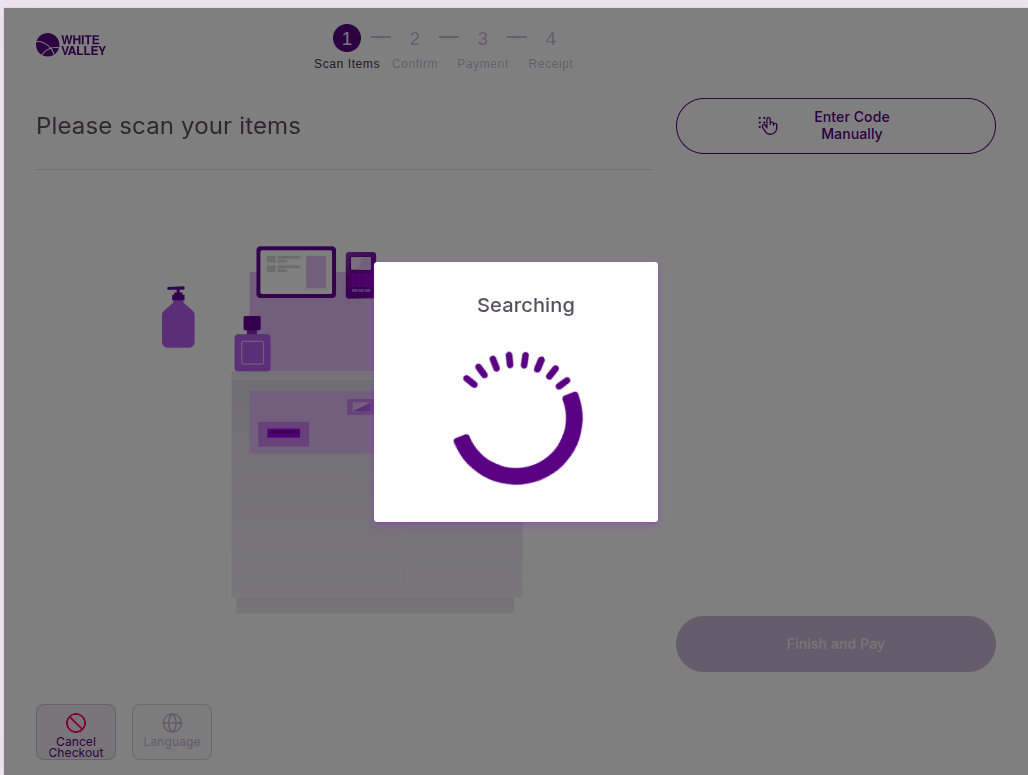
The system displays a "Searching" spinner while processing the request
-
If the entered code matches with any product, external order, or draft order, the corresponding item will be added to their ticket
-
A confirmation popup may appear indicating the successful addition
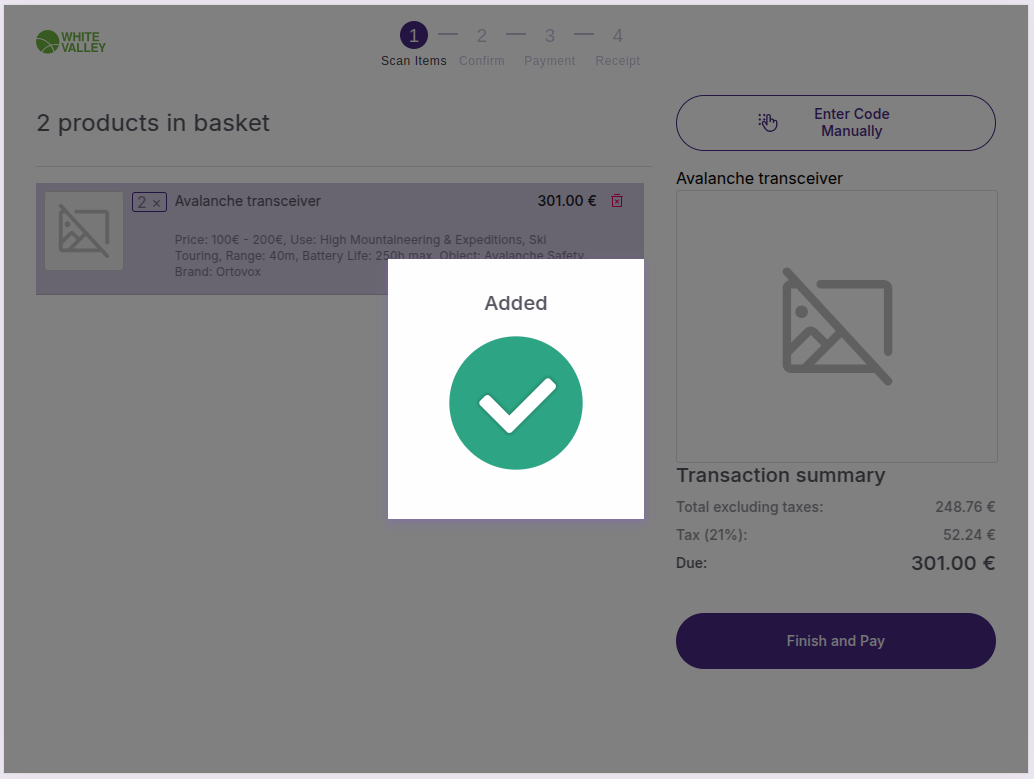
Once products are added through code entry, they will appear on the left side of the screen, displaying their image, name, price, description and any applied discounts.
Unknown product handling
When a code scanned or entered does not match any product, external order, or draft order, the same "Searching" spinner will appear while the search is in progress. If no match is found, the system behavior depends on the configuration:
Block and call assistance enabled
If assistance blocking is enabled:
-
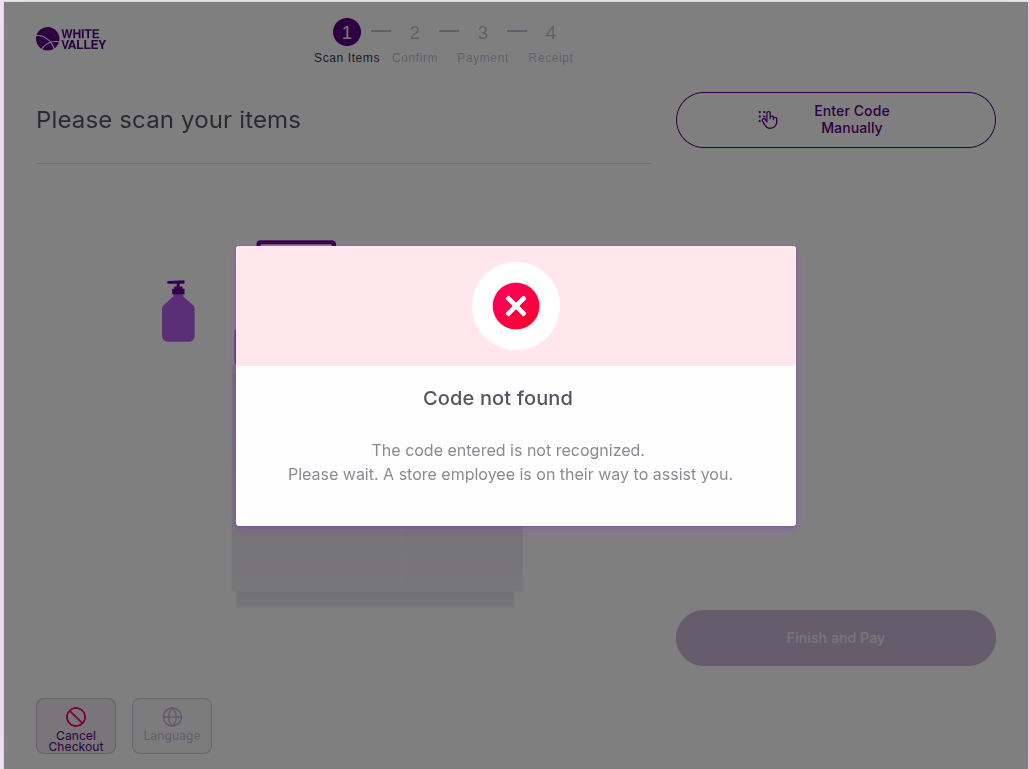
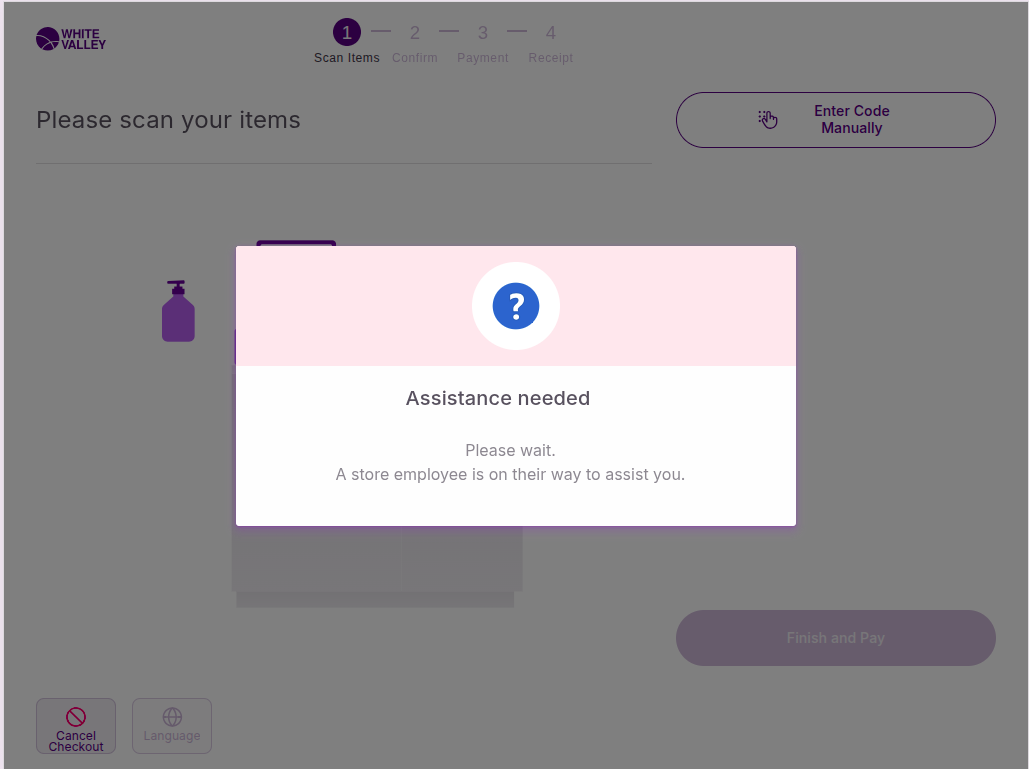
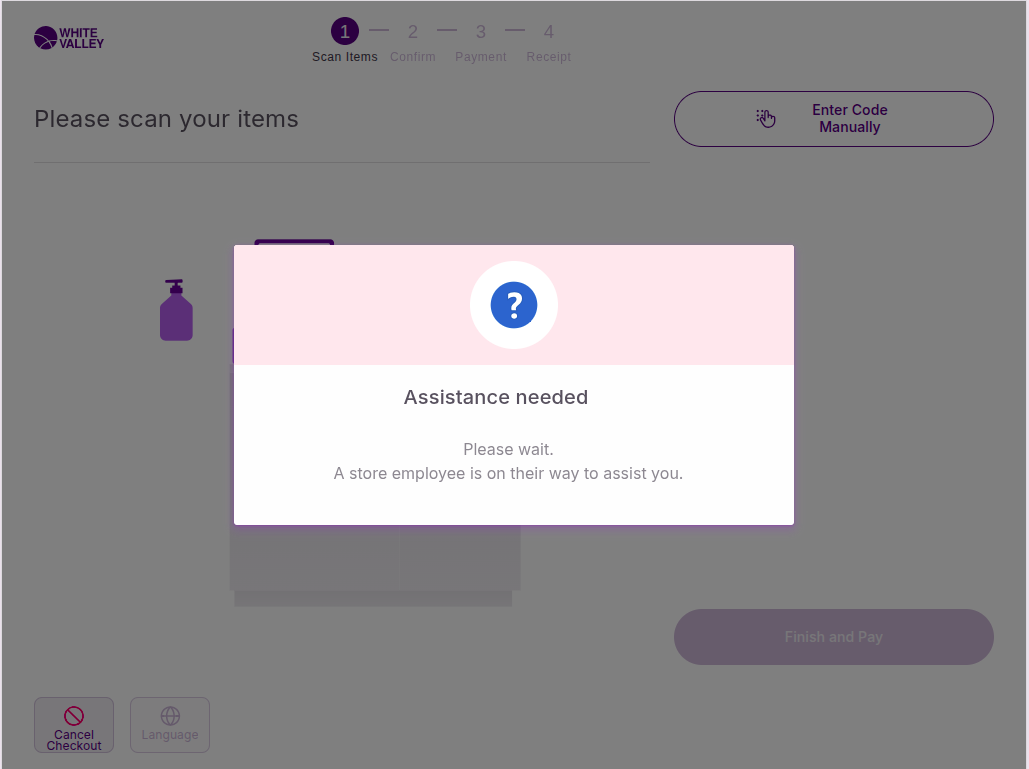
Assistance will be called automatically and a popup will appear
-
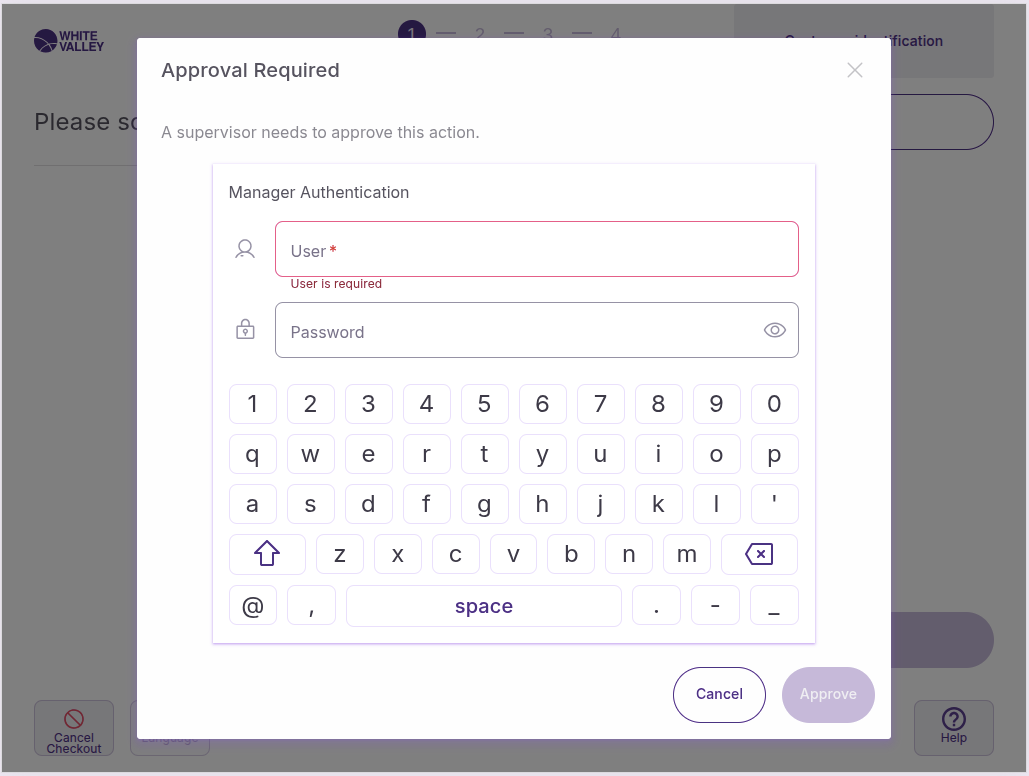
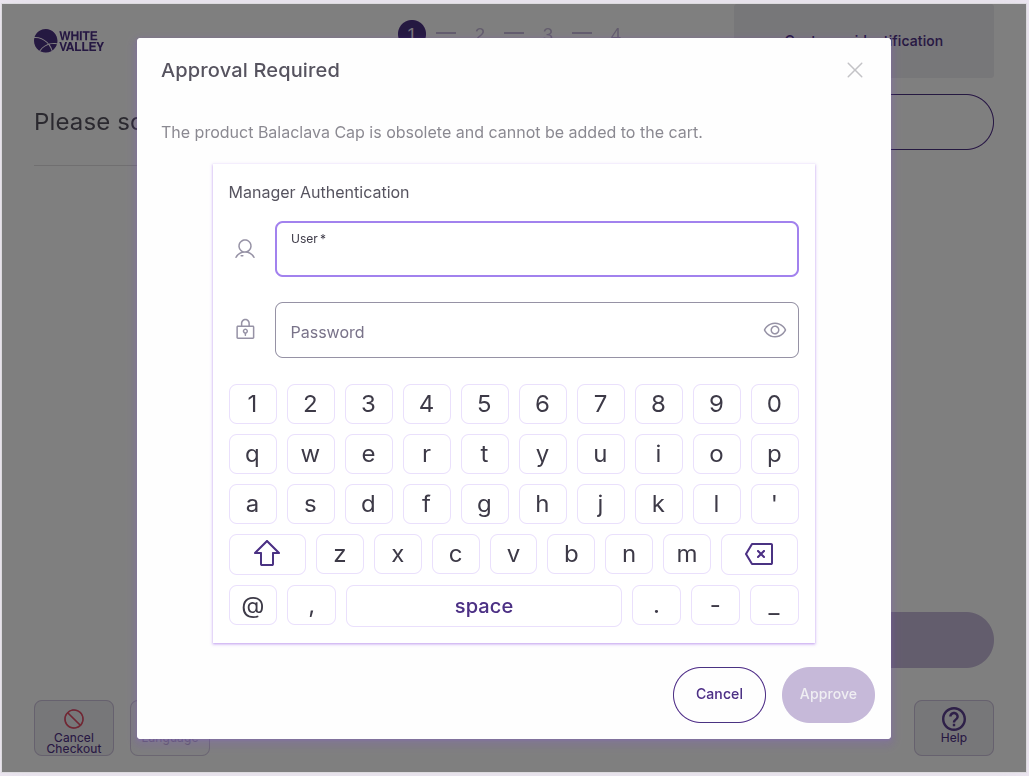
After a double-click outside the popup, if the user role has the 'Unknown product added' user action assigned, a supervisor approval popup will appear requesting approval from a supervisor
-
A screen keyboard will appear to enter the credentials
-
When approved or canceled, the flow will remain in the scanning window
Help button enabled
If assistance blocking is not enabled and help options are available:
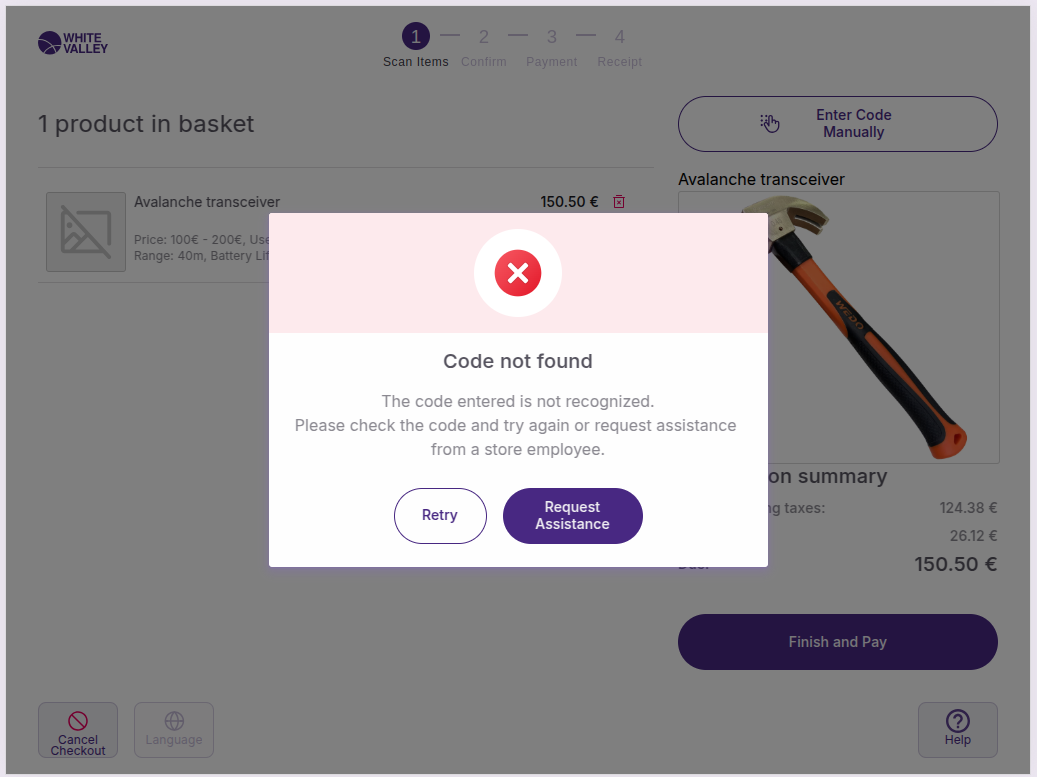
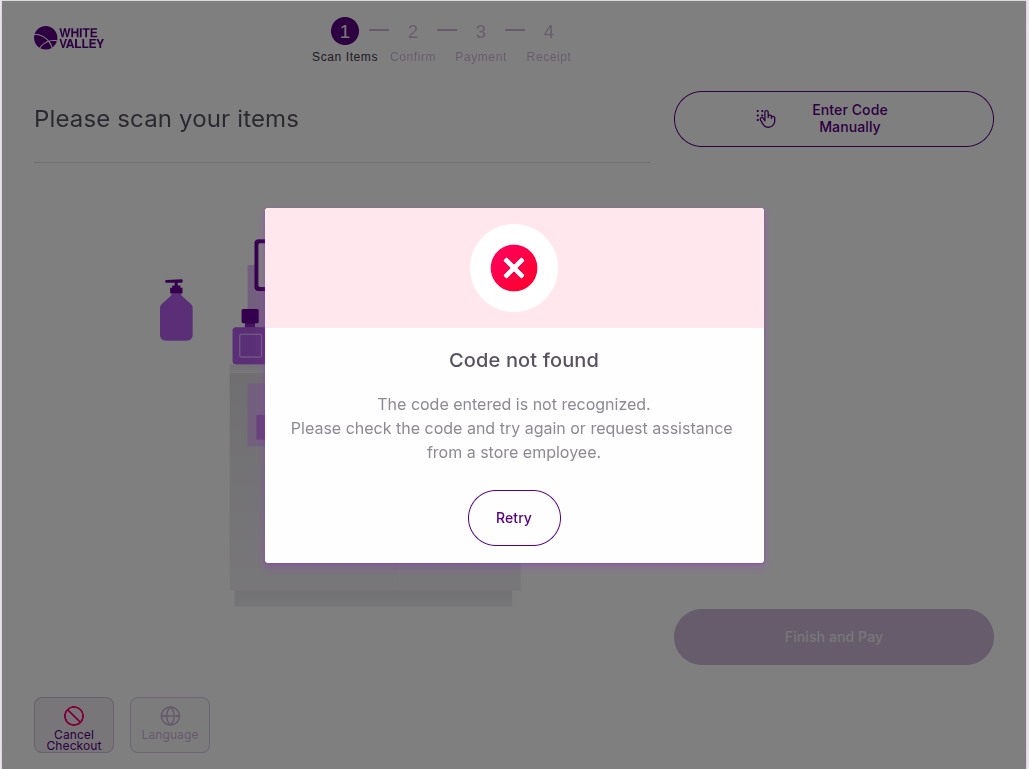
A popup will appear warning the customer with two options:
-
Retry button: Reopens the popup with the incorrect code displayed
-
Request assistance button: Calls help and shows the same popup as when blocking is enabled
No help option
If both assistance blocking and help options are disabled, the popup will only show the retry option.
Obsolete products
When customers enter codes for obsolete products, the system behavior depends on configuration.
Block and call help enabled
If obsolete product assistance blocking is enabled:
-
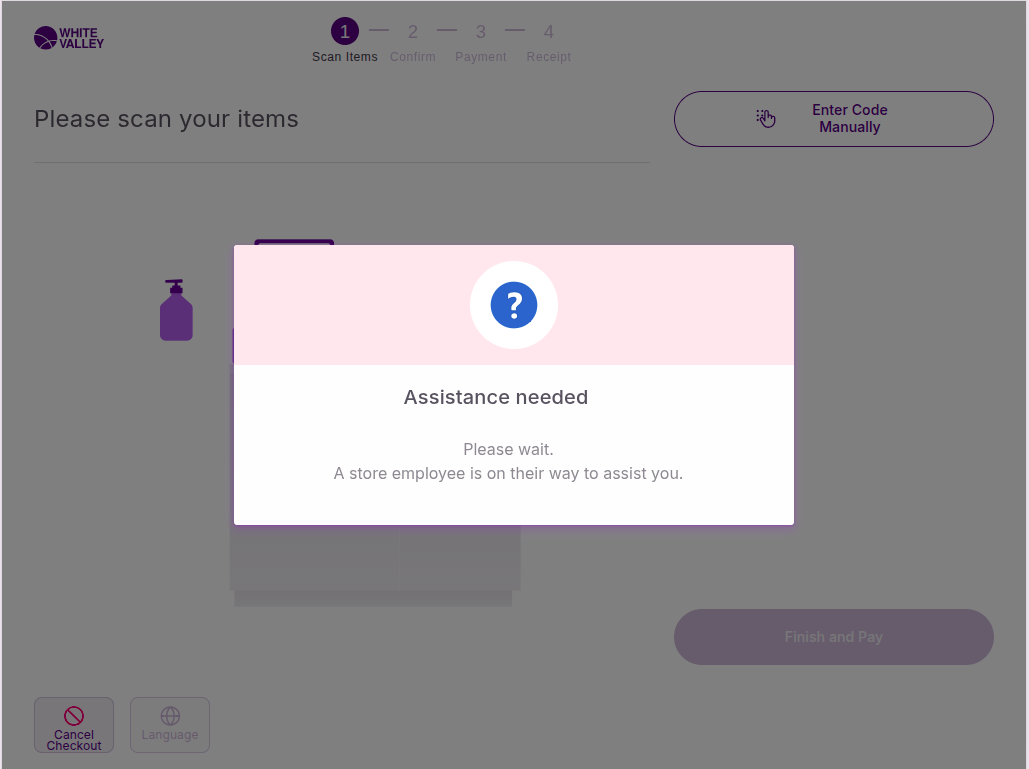
An assistance popup will appear automatically
-
Customers double-click outside the popup to proceed
-
A supervisor approval popup will appear for authorization
Help button enabled
If obsolete product assistance blocking is disabled and help options are available:
-
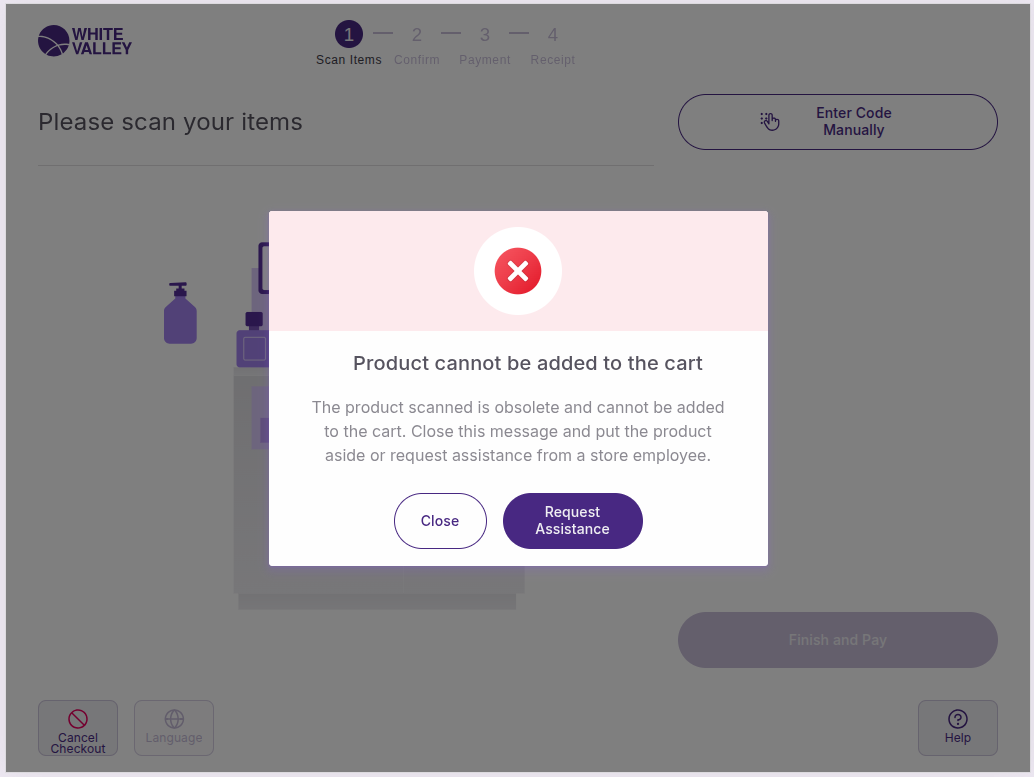
Customers click 'Request assistance' to call for help
-
An assistance popup will appear
-
A supervisor approval may be required
No help option
If both obsolete product assistance blocking and help options are disabled, the popup will only show the retry option.
Price request products
When customers enter codes for products with price requests configured:
Block and call help enabled
If price request blocking is enabled:
-
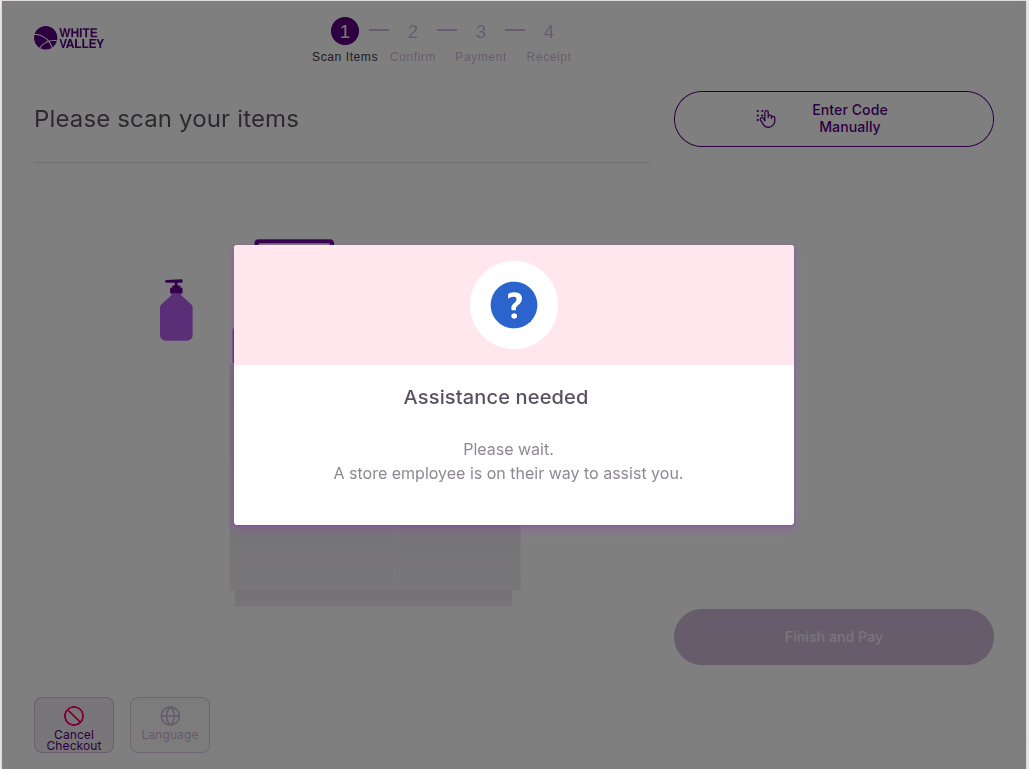
An assistance popup will appear automatically
-
Customers double-click outside the popup to continue
-
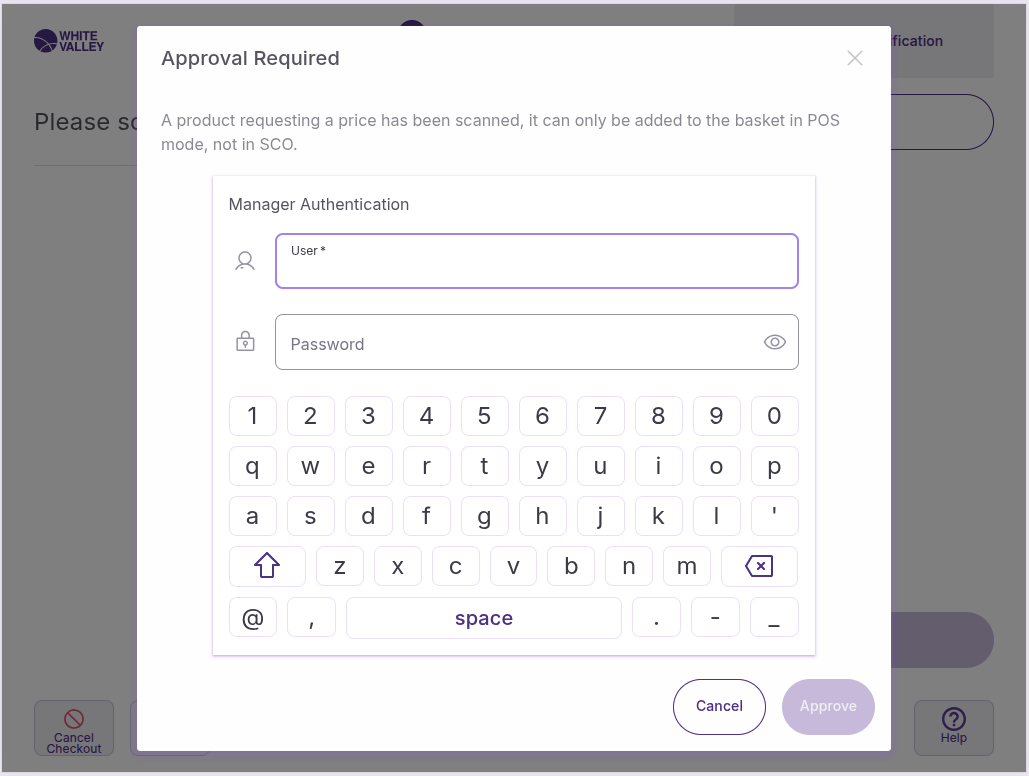
A supervisor approval popup will appear
Help button enabled
If price request blocking is disabled but help options are available:
-
Customers click 'Request assistance' to call for help
-
Follow the same assistance and approval process
No help option
If both options are disabled, the system processes the price request product without additional prompts.
Merge orders
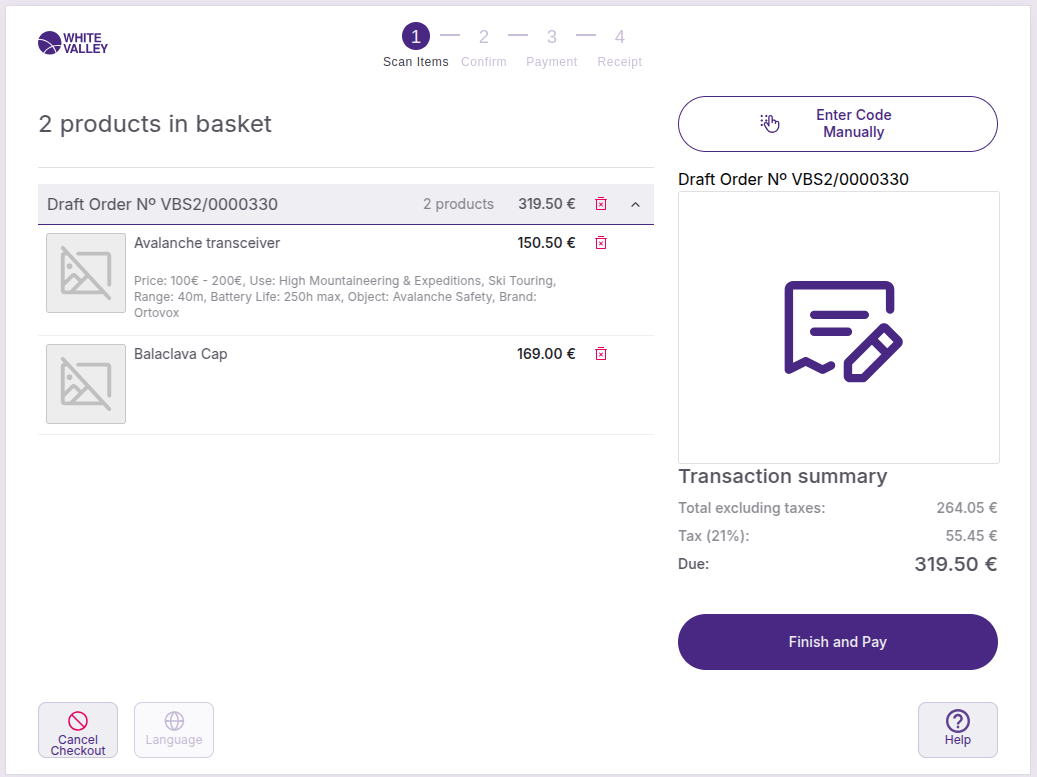
When an order is scanned in the ‘Basket’ screen, it can be merged with the current order. The merged order lines will appear alongside their individually scanned items, providing a complete view of all products in the transaction.
The merged items integrate seamlessly with their existing products, maintaining all order information and pricing. The appearance and handling of merged order lines follow the same display rules as regular products, ensuring consistency in the basket screen presentation.
Customer assignment when merging orders
If the original order and the merged order have different customers assigned, the selected customer will be determined by the back office configuration. For more information on automatic customer assignment when merging orders, refer to the back office manual.
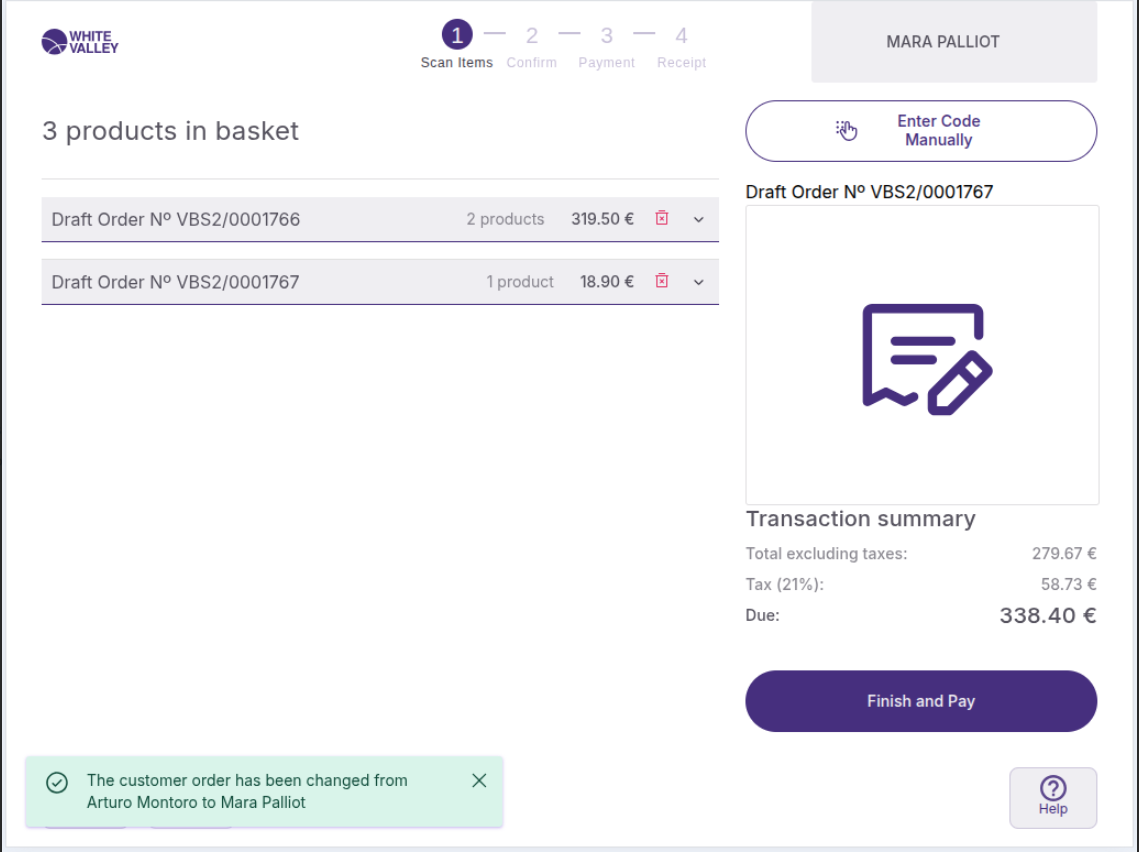
When the customer is changed, a snackbar is displayed indicating that the order has been changed from one customer to another.
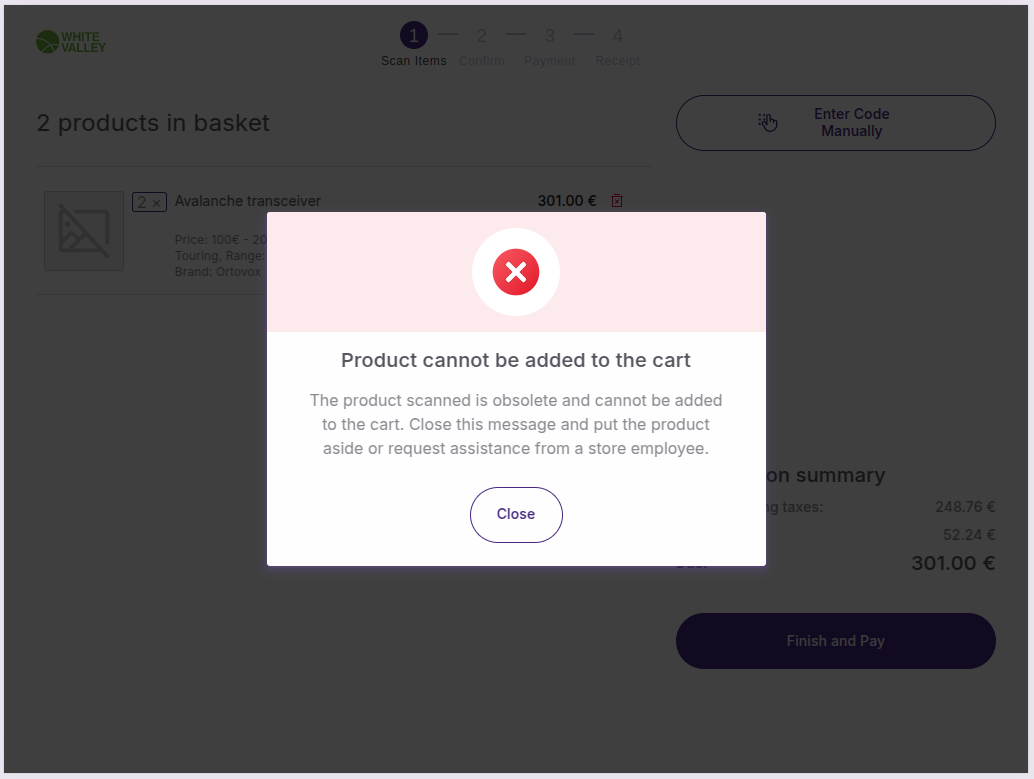
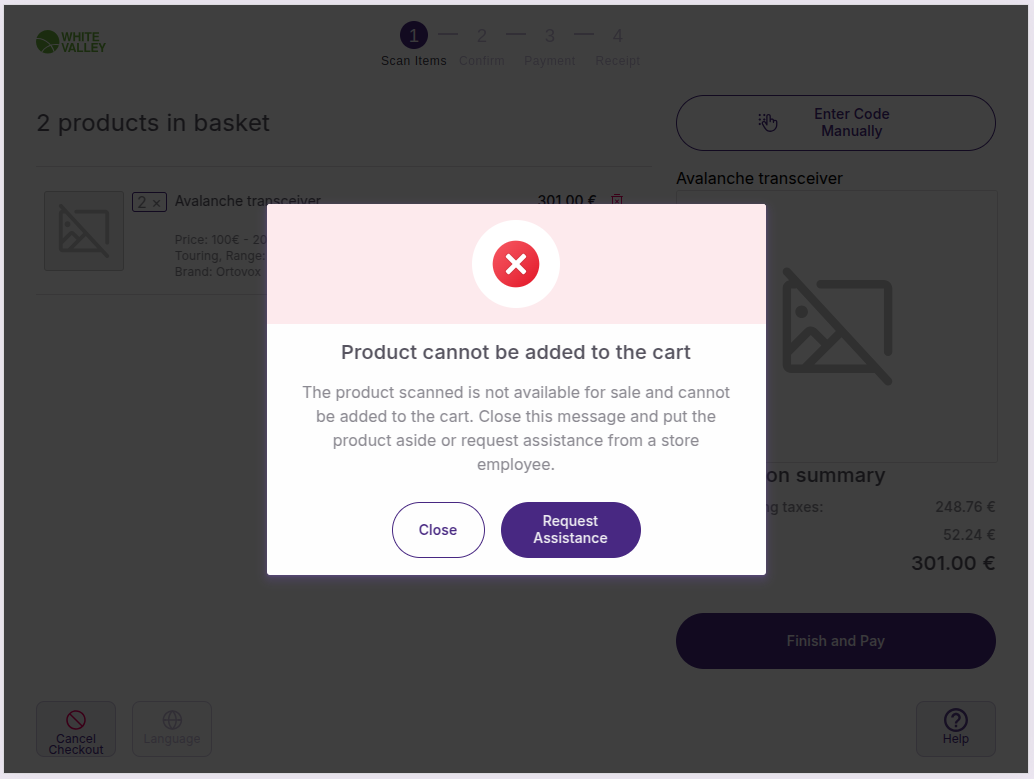
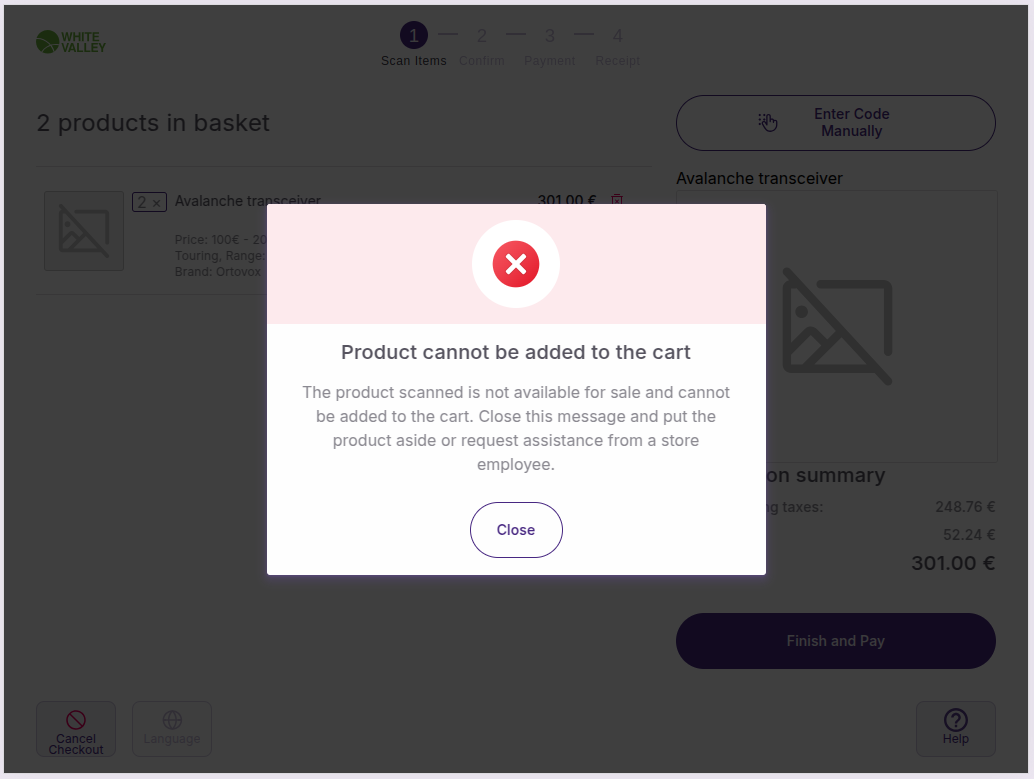
The flow can be configured in the back office to prevent merging orders from different customers. If this occurs, the system will display the error message: 'Order cannot be added to the cart'.
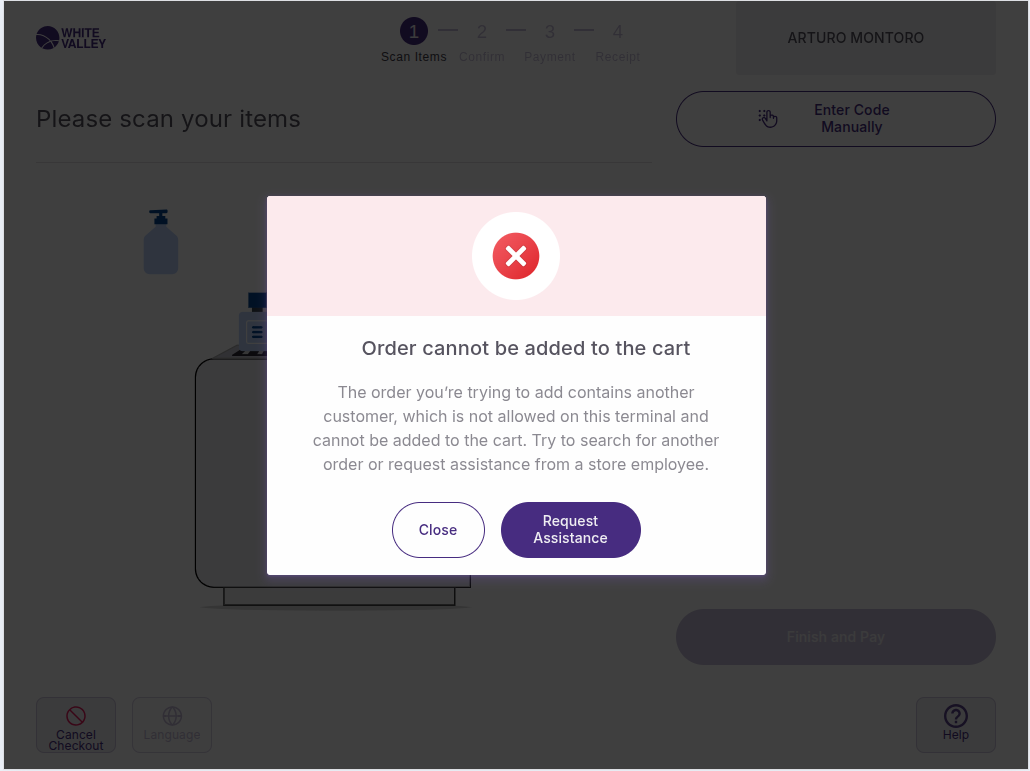
From this error message, the following options are available:
-
Close: Dismisses the pop-up and returns to the ‘Basket’ screen.
-
Request Assistance: Opens the approval dialog (if user approval is configured in the back office).
The ‘Request Assistance’ button and its approval flow must be enabled in the back office. To configure the button's visibility, refer to the ‘SCO Configuration' window manual. For setup instructions regarding user approvals, refer to the Role/Access - Back office configuration manual.
Address management when merging orders
When merging orders, the original and merged orders may have different addresses. How the system resolves this depends on the store configuration.
If the system permits merging orders with different addresses, it resolves the conflict based on the current order's status:
-
If the current order has an address. The system uses the address of the selected customer (if merging different customers) or retains the current order's address (if merging the same customer).
-
If the current order has no address. The system applies the address from the last merged order, based on the selected customer.
If the system is set to strict matching, orders with different addresses cannot be merged. Merging is only allowed if the orders share the same address or have no address assigned.
Please note that, depending on the store setup, scanning an order with an address that conflicts with the current order may trigger the ‘Order cannot be added to the cart’ warning pop-up.
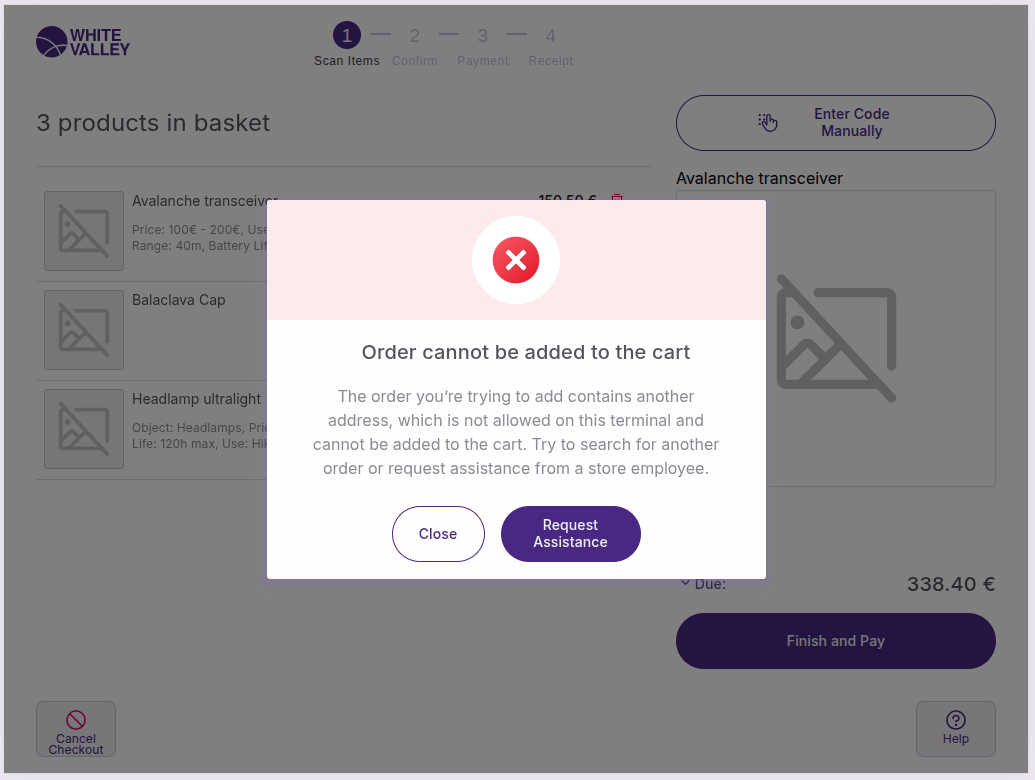
From this pop-up, the following options are available:
-
Close: Dismisses the pop-up and returns to the ‘Basket’ screen.
-
Request Assistance: Opens the approval dialog (if user approval is configured in the back office).
To configure the ‘Request Assistance’ button's visibility and approval settings, refer to the ‘SCO Configuration' window and the Role/Access - Back office configuration guides, respectively.
External order processing
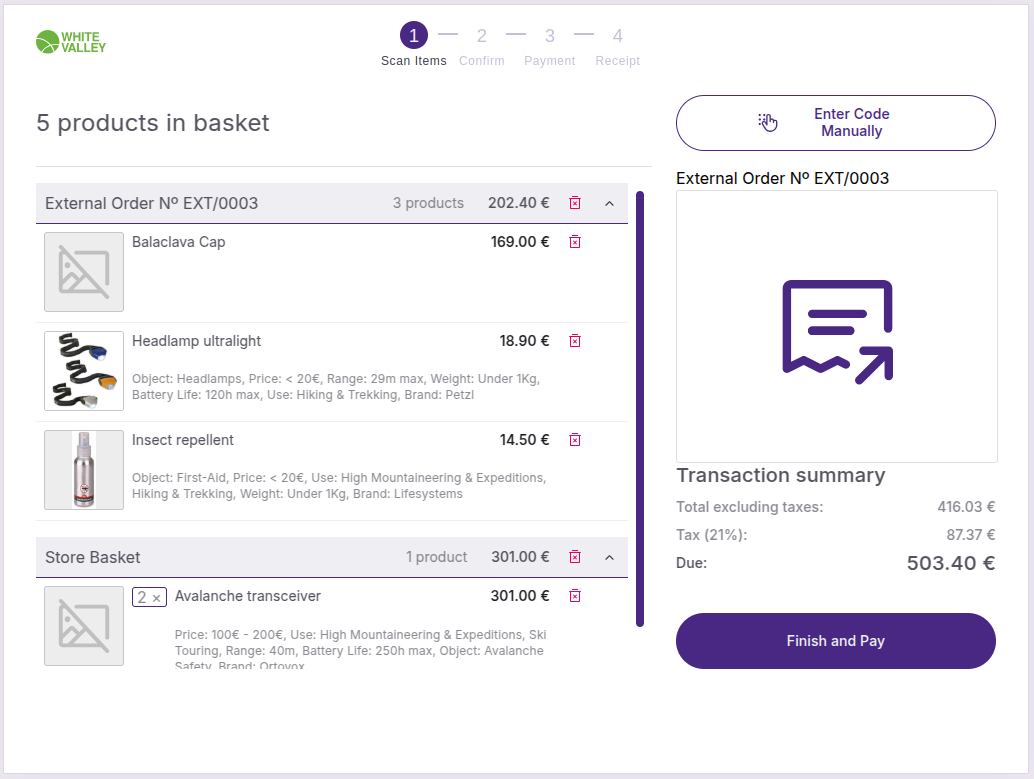
When customers enter a code that matches an external order:
-
The system will display the "Searching" spinner during processing
-
If found, the external order will be added to their current ticket
-
External orders appear with a specific icon to distinguish them from regular products
-
The order details merge with their current transaction seamlessly
External orders integrate with their existing basket, maintaining all order information and pricing while following the same display rules as regular products.
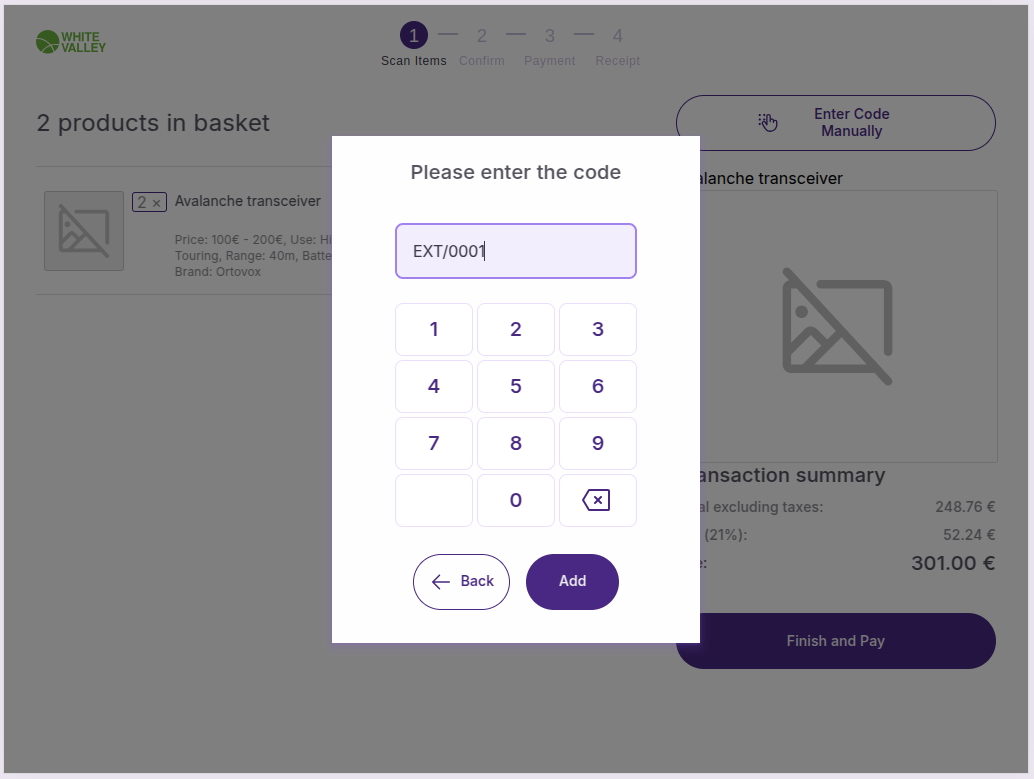
Draft order processing
When customers enter a code that matches a draft order:
-
The system searches for the draft order during the "Searching" process
-
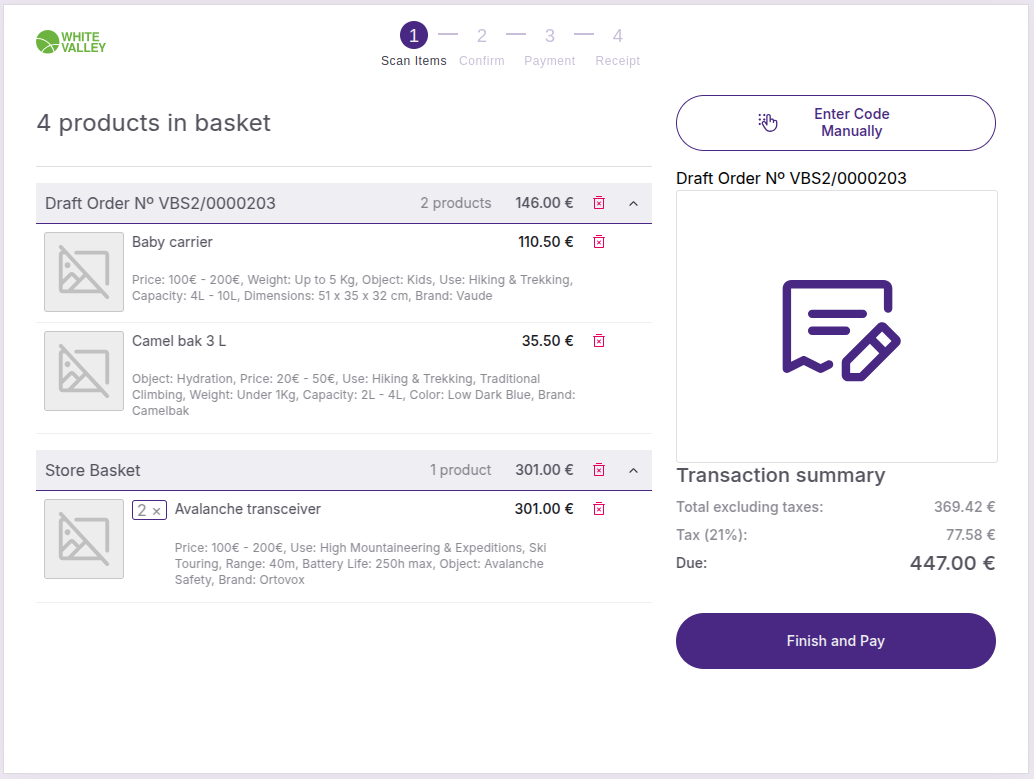
If found, the draft order contents are added to their current ticket
-
Draft orders integrate seamlessly with their current transaction
-
All items from the draft order become part of their active basket
Draft orders merge completely with their existing transaction, allowing customers to continue adding individual products or other orders to their basket.
Delete merged order button
Customers may be able to delete merged orders from their basket depending on the store configuration. When this option is available, a delete button will appear next to merged order, allowing customers to remove them directly from their transaction.
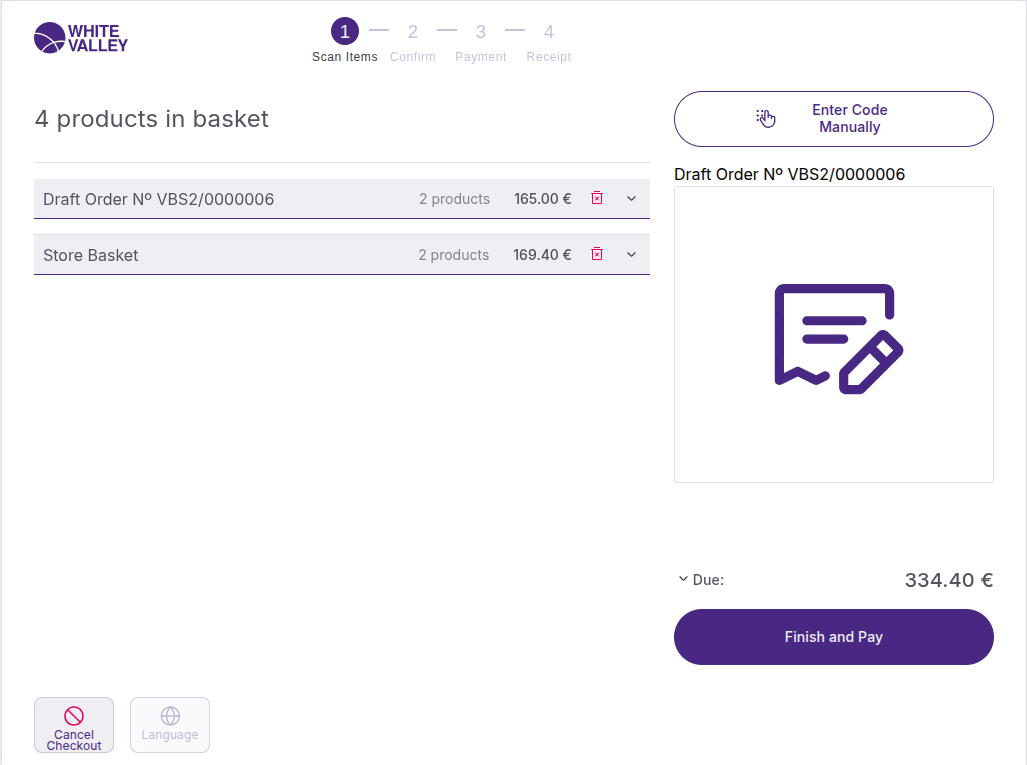
But if this option is not configured, the delete button does not appear in the order.