This guide explains how to configure the Channel -Touchpoint Type window for SCO functionality in the back office. The Channel -Touchpoint Type configuration serves as the bridge between your terminal hardware and SCO capabilities, enabling self-checkout mode on specific terminals while defining how customers receive their receipts. Proper configuration ensures seamless SCO activation and customization tailored to each terminal's operational requirements.
Application mode
Steps to configure the terminal for SCO :
-
In the 'Channel - touchpoint type' window, select the record of the terminal where SCO functionality will be implemented
-
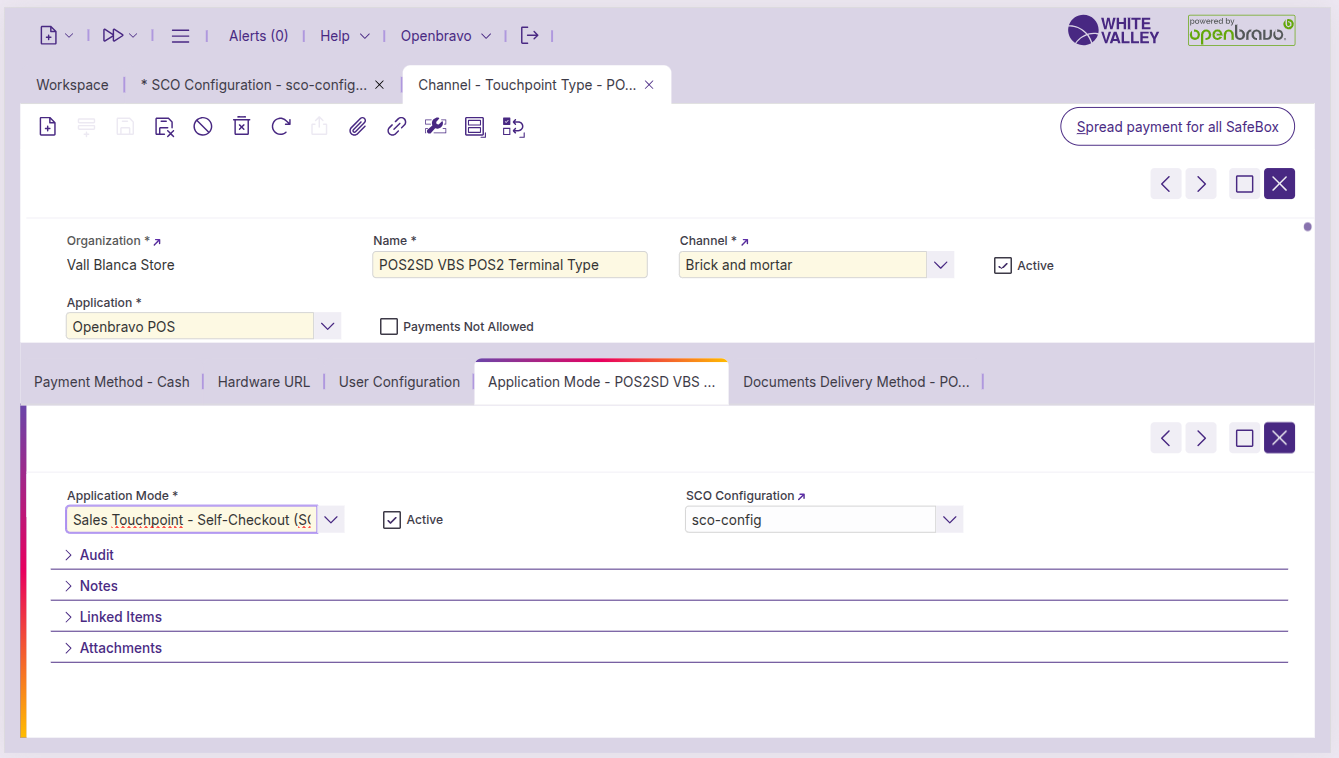
Navigate to the 'Application mode' subtab
-
Select the record which contains the following value in the application mode: 'Sales Touchpoint - Self-Checkout (SCO)'. If there is not any record with that value, create a new one
-
In the SCO configuration field, select the configuration created previously in the SCO Configuration window
-
Save the configuration
With these requirements fulfilled, the SCO button will be available in POS after a master data refresh.
Document delivery method
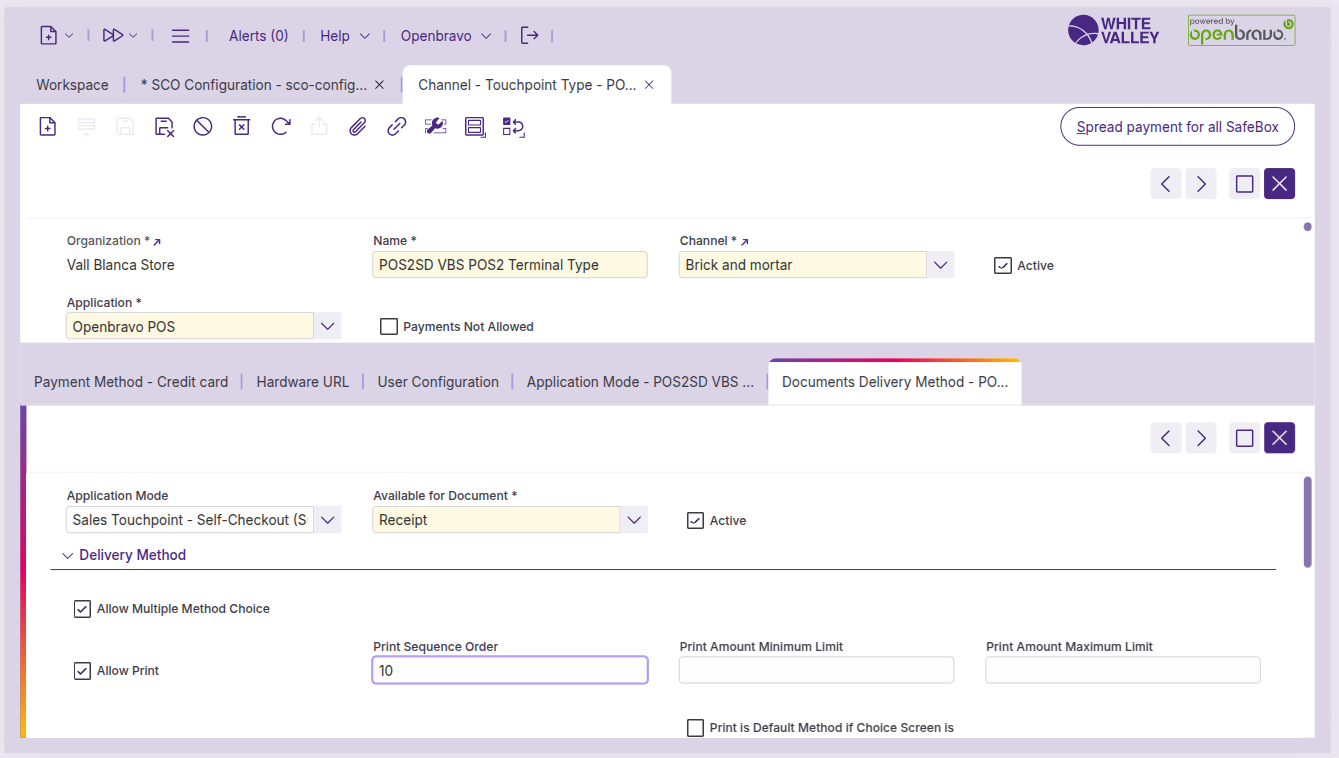
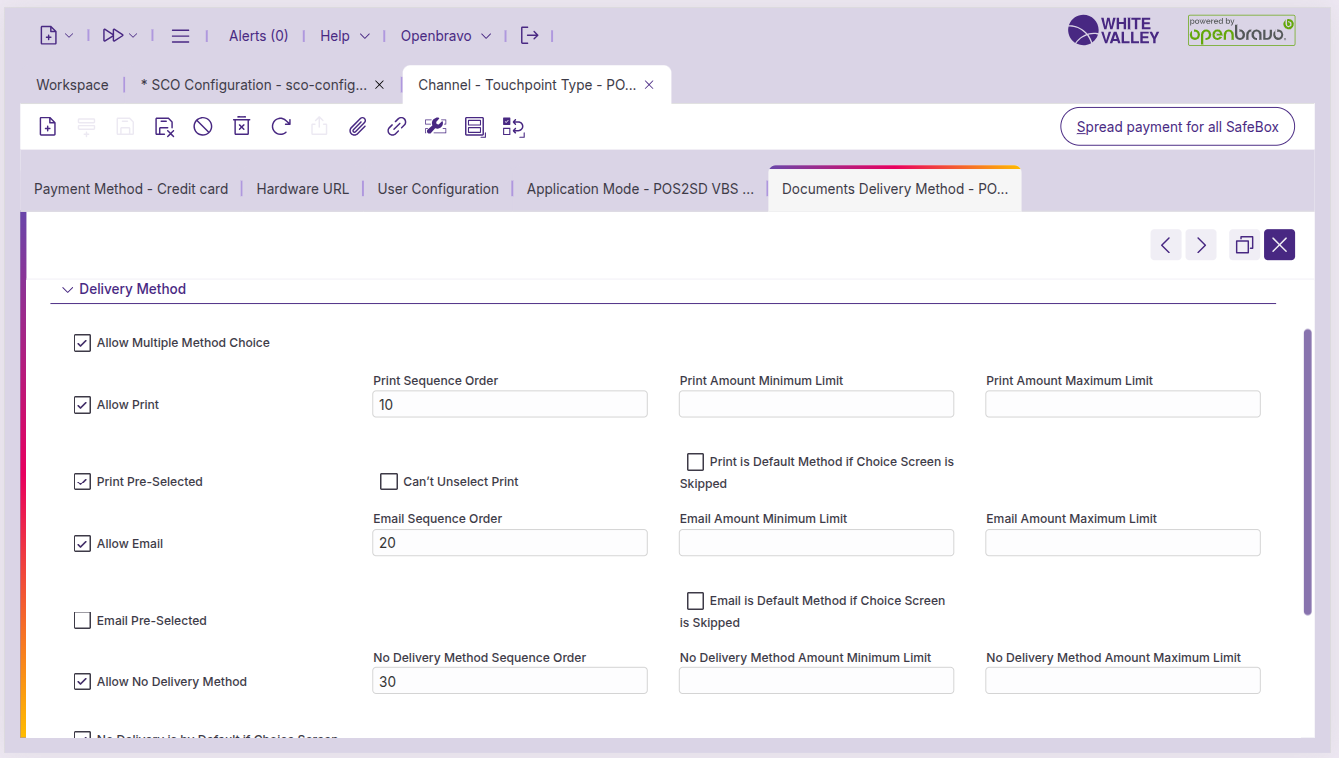
In this subtab it is possible to define for each type of document how the document delivery method window should behave.
Header
-
Application mode. Defines to which application mode this configuration will be used. For now, it is only available for SCO
-
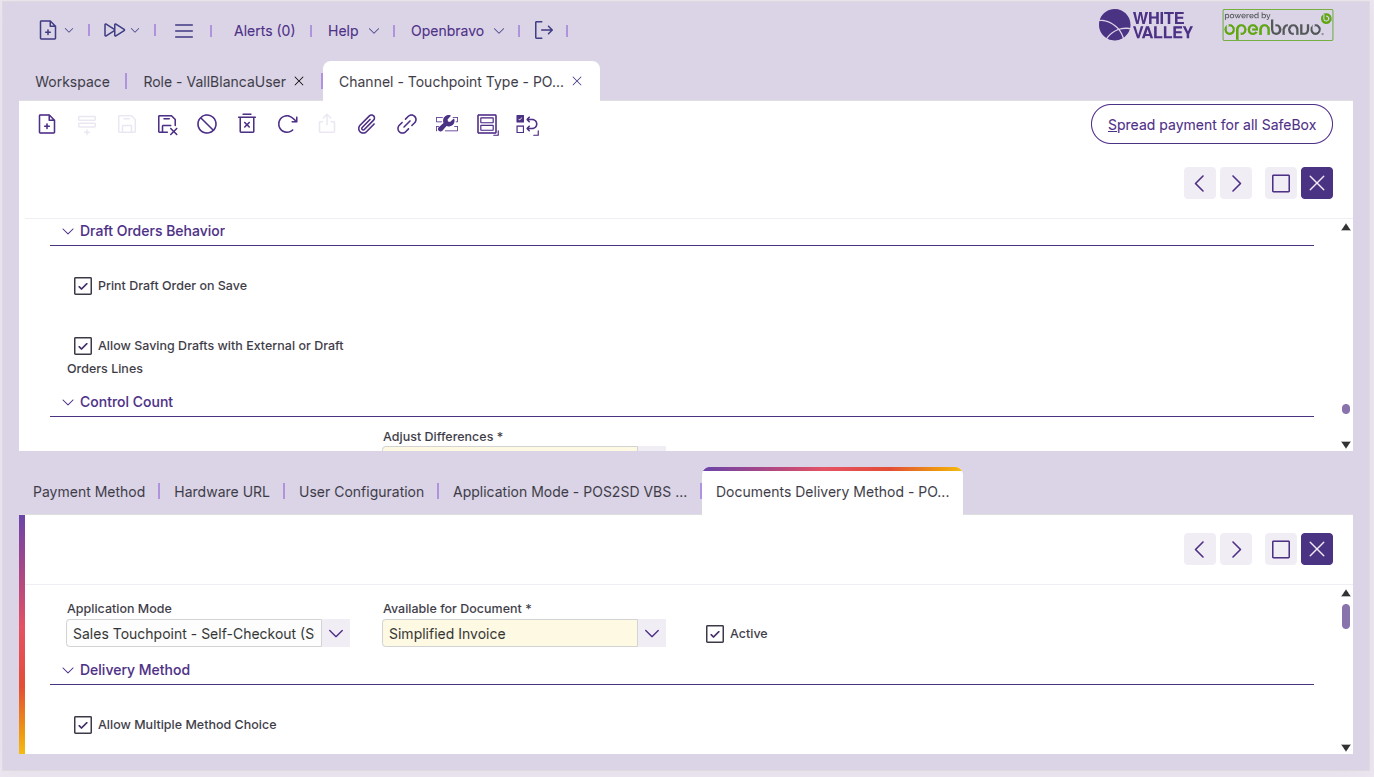
Available for document. List of documents available. For now it is only possible to define receipt or simplified invoice depending on the touchpoint type configuration
Delivery method
-
Allow multiple method choice. Defines if it is possible to choose more than one delivery method. By doing so, the buttons in SCO will behave as checkbox instead of buttons
-
Autoselect and hide the field in SCO. Defines if it is possible to hide the delivery method option when there is only one allowed and move directly to the next screen
-
Allow print. Allows printing the receipt as an option
-
Print sequence order. Defines the sequence number that will be used to order the different options
-
Print amount minimum limit. Defines the minimum value for which this method should be available
-
Print amount maximum limit. Defines the maximum value for which this method should be available
-
Print pre-selected. Only available if 'Allow multiple method choice' is active. Defines if the method should be preselected upon reaching to the window
-
Can't unselect print. Only available if 'Print pre-selected' is active. Defines if it is possible or not to unselect the pre-selected option
-
Print is default method if choice screen is skipped. Defines if the method should be executed when the timeout reaches zero or when the screen’s timeout is unset or set to zero
-
Allow email. Allows send by email as an option. Upon activating it similar configuration options to Print will be displayed with the same field structure and behavior
-
Allow no delivery method. Allows not getting a receipt as an option. Upon activating it similar configuration options to Print will be displayed with the same field structure and behavior
Payment method
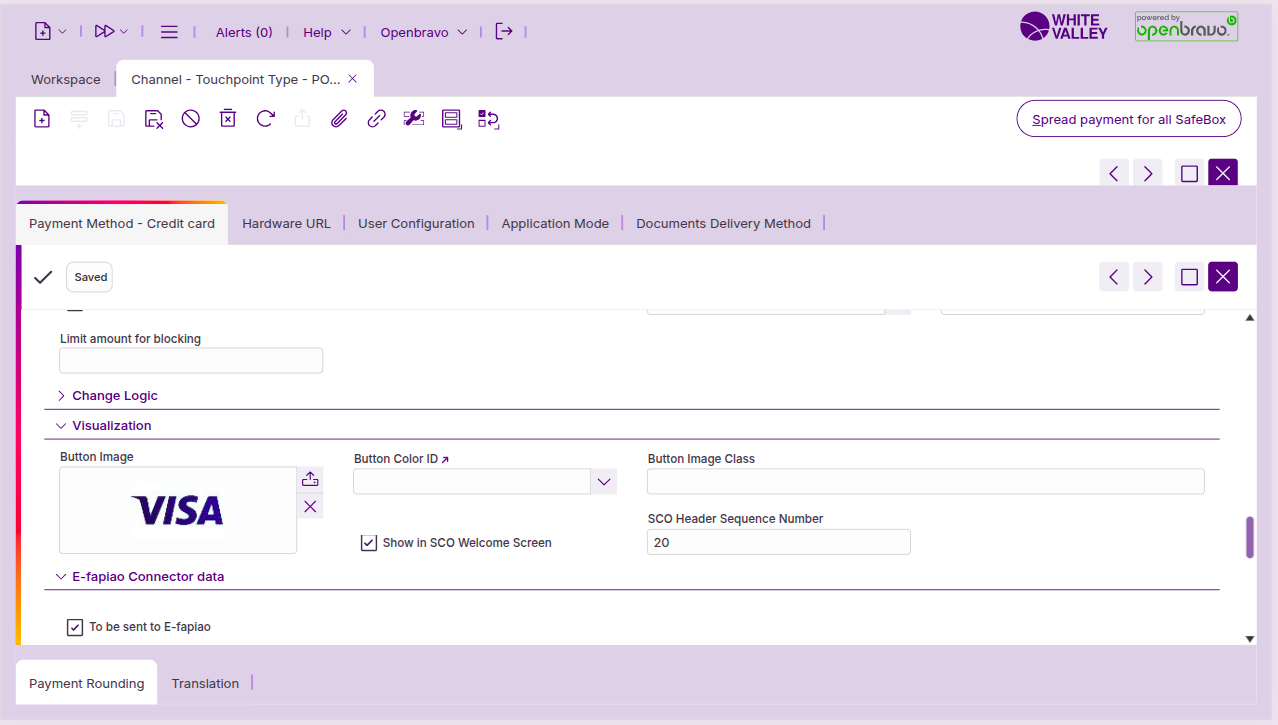
Configure which payment methods appear on the SCO welcome screen:
-
In the 'Channel - touchpoint type' window, navigate to the 'Payment method' subtab
-
For each payment method you want to display on the welcome screen:
-
Go to Visualization section
-
Check the 'Show in SCO welcome screen' option
-
Set a unique value in the 'SCO header sequence number' field to determine the display order
-
-
Save the configuration
The payment method images will appear at the top right corner of the welcome screen, helping customers understand which payment options are available for their transaction.