
The user actions are the possible actions or processes that a user can execute from a front end device. In general, they are related to buttons in the front end, when clicking on a button, a user action is executed.
In the ‘Role’ window in back office it is possible to define the user actions access that a role has, meaning that the users assigned to this role will be able to execute the user actions with access.
SSMS uses this same concept and provides an extensive set of user actions that need to be configured properly to provide access, or not, to a role for them.
Also, in SSMS, if the role does not have access to a user action, by default, the button related to that action will be hidden in the front end, thus removing clutter from the user interface and showing to the user only the actions that can be executed.
This is the list of available user actions for SSMS organized per business flow.
General User Actions
Switch To Workspace
-
Name: SwitchToWorkspaceWindow
-
It is necessary to have access to the user action to be able to log in SSMS, since it is necessary to open the main screen
Tasks User Actions
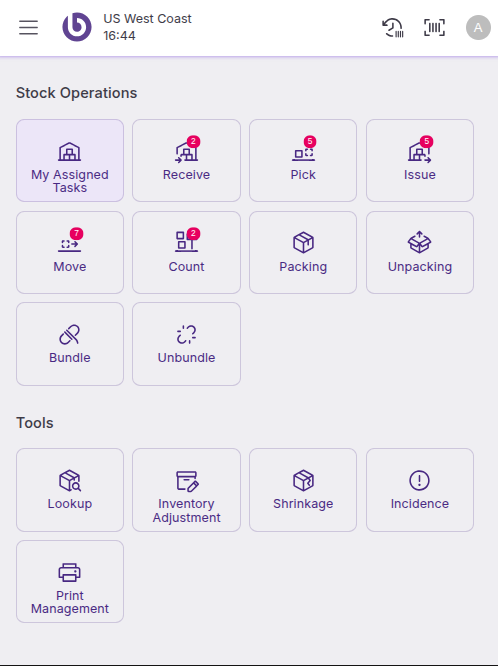
Switch To Assigned Tasks
-
Name: SwitchToAssignedTasksWindow
-
Description: Switch To Assigned Tasks Window
Open Grouped Tasks
-
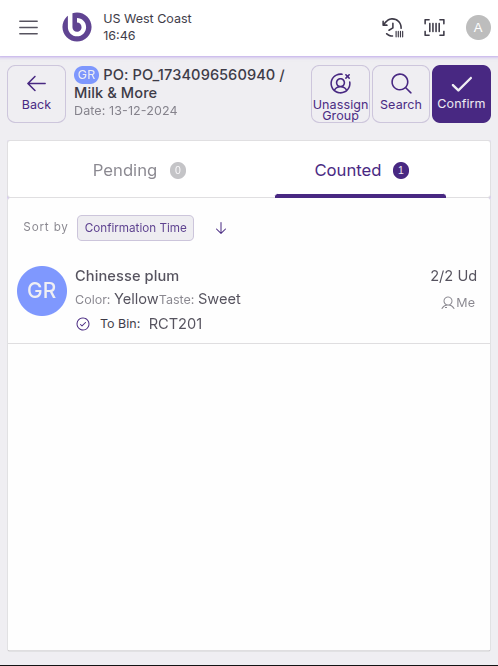
Name: SwitchToGroupedTasksWindow
-
Description: Switch To Grouped Tasks Window
-
Necessary to open Tasks that behave as a group, like Reception Tasks
Refresh Tasks
-
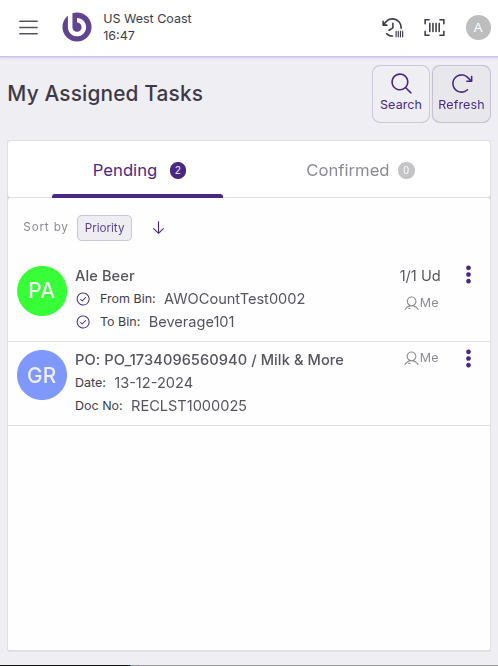
Name: RefreshTasks
-
Description: Action to discard local changes and retrieve tasks from the backend.
Assign Tasks
-
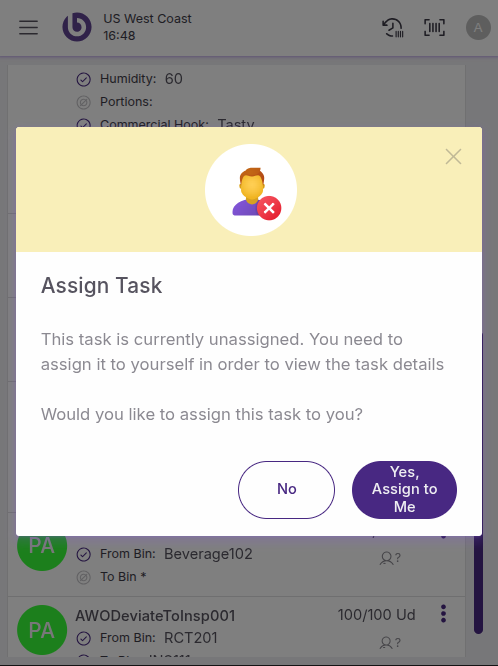
Name: AssignTaskAction
-
Description: Action to assign a task or group of tasks to a user.
Unassign Tasks
-
Name: UnassignTaskAction
-
Description: Unassign a task
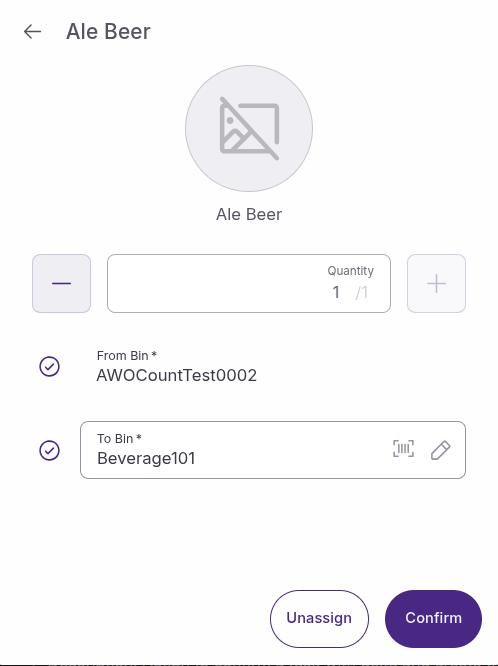
Confirm Tasks
-
Name: ConfirmTask
-
Description: Confirm a task.
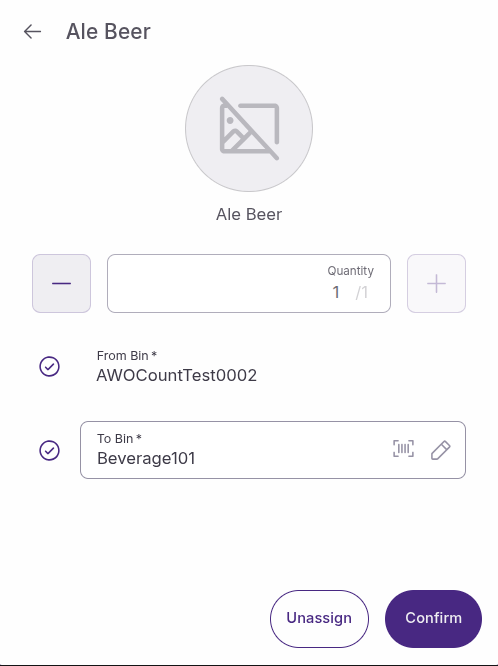
Confirm Tasks With Delta Quantities
-
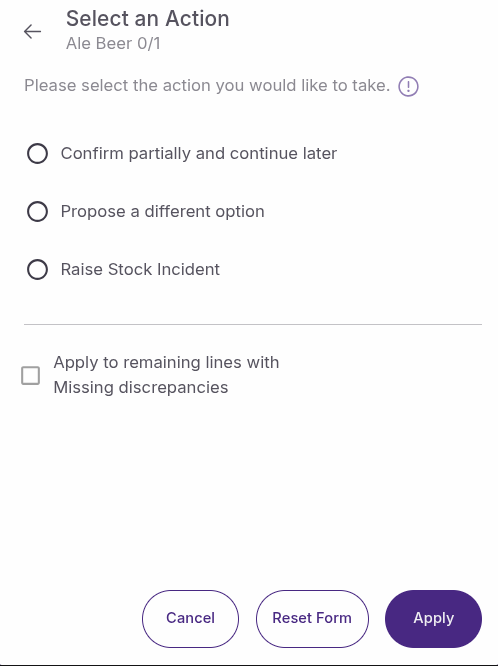
Name: ConfirmTaskDiffDelta
-
Description: Action to confirm a task with delta and create the remaining task in a different bin.
-
Name: ConfirmTaskSameDelta
-
Description: Action to confirm a task with delta and create the remaining task in the same bin.
-
Name: ConfirmTaskNoDelta
-
Description: Action to confirm a task that theoretically has delta, but mark it as no delta.
This three confirm with Delta options can be found when confirming a Task with a different quantity than the expected one
Reception User Actions
Switch To Receptions
-
Name: SwitchToReceiveWindow
-
Description: Switch to Receive Window
New Reception
-
Name: OpenNewReceiveDialogNew
-
Description: Opens new receive dialog
New Assisted Reception
-
Name: OpenNewAssistedReceiveDialog
-
Description: Opens new assisted receive dialog
New Blind Reception
-
Name: OpenNewBlindReceiveDialog
-
Description: Opens new blind receive dialog
Pick User Actions
Switch To Pick
-
Name: SwitchToPickWindow
-
Description: Switch to Pick Window
New Pick
-
Name: OpenPickMultiActionDialog
-
Description: Opens pick dialog
New Pick From Document
-
Name: OpenNewFromDocumentPickDialog
-
Description: Open new from document pick dialog
New Assisted Pick
-
Name: OpenNewAssistedPickDialog
-
Description: Open new assisted pick dialog
New Pick On The Fly
-
Name: OpenNewOTFPickDialog
-
Description: Open new OTF pick dialog
Issue User Actions
Switch To Issue
-
Name: SwitchToIssueWindow
-
Description: Switch to Issue window
New Issue
-
Name: OpenNewIssueDialog
-
Description: Opens a dialog to choose how to create a new issue.
New Issue From Document
-
Name: OpenNewFromDocumentIssueDialog
-
Description: Open From Document Issue Dialog
Open Multi Issue Dialog
-
Name: OpenIssueMultiActionDialog
-
Description: Open Issue Multi Action Dialog
Confirm Distribution Order
-
Name: ConfirmDistributionOrder
-
Description: User action to confirm a distribution order issue in the frontend.
Move User Actions
Switch To Move
-
Name: SwitchToMoveWindow
-
Description: Switch To Move Window
New Move
-
Name: OpenNewMoveDialogNew
-
Description: Opens new move dialog
New Assisted Move
-
Name: OpenNewAssistedMoveDialog
-
Description: Open new assisted move dialog
New Single Move
-
Name: OpenNewSingleMoveDialog
-
Description: Opens new single move dialog
New Multi Move
-
Name: OpenNewMultiMoveDialog
-
Description: Opens new multi move dialog
Count User Actions
Switch To Count
-
Name: SwitchToCountWindow
-
Description: Switch to Count window
New Count
-
Name: OpenCountMultiActionDialog
-
Description: Open Count MultiAction Dialog
New Assisted Count
-
Name: OpenNewAssistedCountDialog
-
Description: Open Assisted Count Dialog
New Count From Location
-
Name: OpenNewLocationCountDialog
-
Description: Open Location Count Dialog
New Count On The Fly
-
Name: OpenNewOTFCountDialog
-
Description: Open New OTF Count Dialog
Packing User Actions
Switch To Packing
-
Name: SwitchToBoxWindow
-
Description: Switch to Box window
New Packing
-
Name: OpenBoxMultiActionDialog
-
Description: Open Box Multi Action Dialog
New Assisted Packing
-
Name: OpenNewAssistedBoxDialog
-
Description: Open Assisted Box Dialog
New Packing On The Fly
-
Name: OpenNewOTFBoxDialog
-
Description: Open OTF Box Dialog
New Ongoing Document Dialog
-
Name: OpenNewOngoingDocumentBoxDialog
-
Description: Open New Ongoing Document Box Dialog
New Nested Box
-
Name: OpenNewNestedBoxDialog
-
Description: Open New Nested Box Dialog
Unpacking User Actions
Switch To Unpack
-
Name: SwitchToUnboxWindow
-
Description: Switch to Unbox window
New Unpack
-
Name: OpenNewUnpackageDialog
-
Description: Action to open the dialog to choose what packing task to create.
New Multi Unpack
-
Name: OpenUnboxMultiActionDialog
-
Description: Open Unbox Multi Action Dialog
New Assisted Unpack
-
Name: OpenNewAssistedUnboxDialog
-
Description: Open New Assisted Unbox Dialog
New Unpack On The Fly
-
Name: OpenNewOTFUnboxDialog
-
Description: Open New OTF Unbox Dialog
Confirm Unpack
-
Name: ConfirmUnpackage
-
Description: Action to confirm an unpackage proposal.
Bundle User Actions
Switch To Bundle
-
Name: SwitchToBundleWindow
-
Description: Switch to Bundle window
Assign a Bundle
-
Name: AssignBomProduction
-
Description: Assign a BoM Production
Unassign a Bundle
-
Name: UnassignBomProduction
-
Description: Unassign a BoM Production
Confirm a Bundle
-
Name: ConfirmBoMProduction
-
Description: User action to confirm BoM Production in the frontend.
Unbundle User Actions
Switch To Unbundle
-
Name: SwitchToUnbundleWindow
-
Description: Switch to Unbundle window
Lookup User Actions
Open Lookup
-
Name: OpenLookupDialog
-
Description: Opens the lookup dialog
Open Inspect Handling Unit
-
Name: OpenInspectReferenceInventoryDialog
-
Description: Action to open inspect reference inventory dialog that allows checking what is inside of a reference inventory
Inventory Adjustment User Actions
Open Inventory Adjustment
-
Name: OpenInventoryAdjustmentOptions
-
Description: Open Inventory Adjustment Options
Open Increase Quantity
-
Name: OpenIncreaseQuantityDialog
-
Description: Allows opening increase and decrease quantity dialog in Inventory Adjustmen section in SSMS app.
Open Decrease Quantity
-
Name: OpenDecreaseQuantityDialog
-
Description: Open Decrease Quantity Dialog
New Transform
-
Name: ShowNewTransformItemPopup
-
Description: Open New Transform Item Popup
Shrinkage User Actions
New Shrinkage
-
Name: OpenNewShrinkageDialog
-
Description: Open New Shrinkage Dialog
Incident User Actions
New Incident
-
Name: OpenNewIncidenceDialog
-
Description: Open New Incidence Dialog
Print Management User Actions
Open Print Management
-
Name: OpenPrintManagementDialog
-
Description: Open Print Management Window
Distribution Order Issue User Actions
Switch To Distribution Order Issue
-
Name: SwitchToDistributionOrderIssueWindow
-
Description: Switch to Distribution Order Issue window
New Distribution Order Issue
-
Name: OpenDistributionOrderMultiActionDialog
-
Description: Open Distribution Order dialog
New Assisted Distribution Order Issue
-
Name: OpenNewAssistedDistributionOrderDialog
-
Description: Open new assisted distribution order dialog
New Distribution Order Issue On The Fly
-
Name: OpenNewOTFDistributionOrderDialog
-
Description: Open new OTF distribution order dialog
Requisitions User Actions
Switch To Requisitions
-
Name: SwitchToRequisitionWindow
-
Description: Switch to Requisition window
Inventory Count User Actions
Switch To Inventory count
-
Name: SwitchToInventoryCountWindow
-
Description: Switch to Inventory Count window
Return User Actions
Switch To Return
-
Name: SwitchToReturnWindow
-
Description: Open the return window in the front end
New Return
-
Name: OpenReturnMultiActionDialog
-
Description: Open Return Multi Action Dialog
New Return From Document
-
Name: OpenNewFromDocumentReturnDialog
-
Description: Open From Document Return Dialog
New Pick For Returns
-
Name: OpenNewPickReturnDialog
-
Description: Open Pick Return Dialog
New Issue For Returns
-
Name: OpenNewIssueReturnDialog
-
Description: Open Issue Return Dialog
Confirm Return
-
Name: ConfirmReturn
-
Description: Confirm the return from the front-end
Delivery Note User Actions
Switch To Delivery Notes
-
Name: SwitchToDeliveryNoteWindow
-
Description: Switch to Delivery Note Window
Shortcuts User Actions
Open Assisted Distribution Order Issue
-
Name: OpenShortcutAssistedDistributionOrderDialog
-
Description: Opens New Distribution Order Issue dialog in assisted mode
Open Distribution Order Issue On The Fly
-
Name: OpenShortcutOTFDistributionOrderDialog
-
Description: Opens New Distribution Order Issue dialog in "on the fly" mode