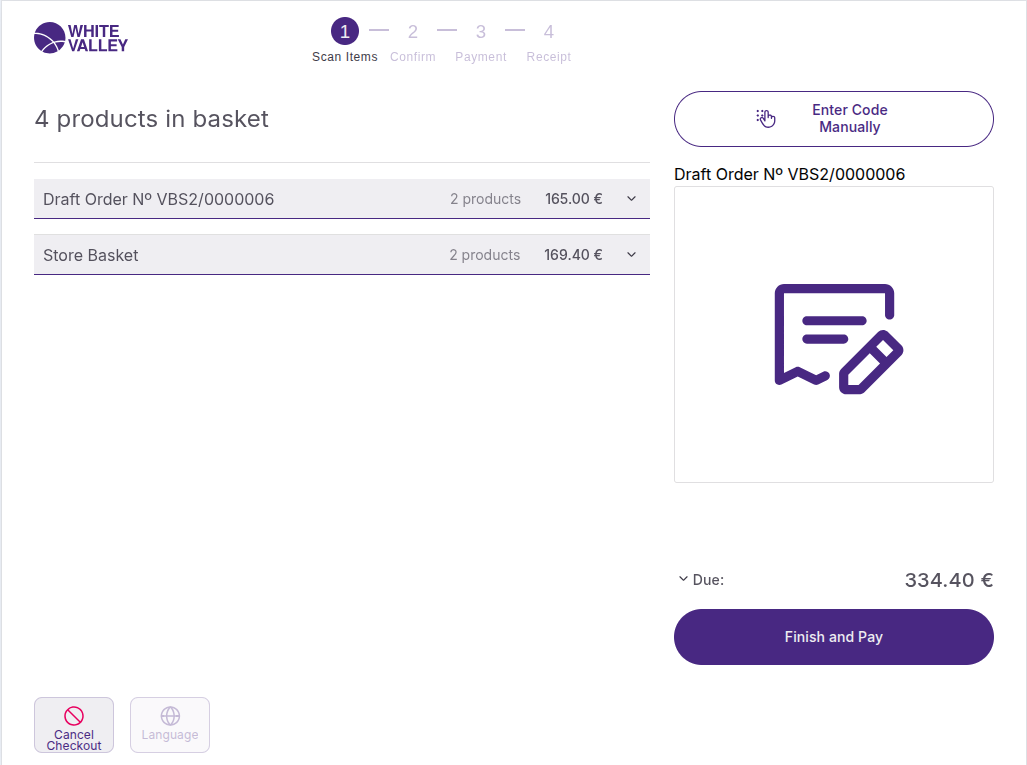
This guide explains how to use the search by code functionality in the self-checkout (SCO) system. The search by code screen allows customers to manually enter product codes when scanning is not possible or preferred. This feature handles various types of products and orders, including unknown or obsolete products, as well as external or draft orders.
Access search by code
To access the manual code entry feature:
-
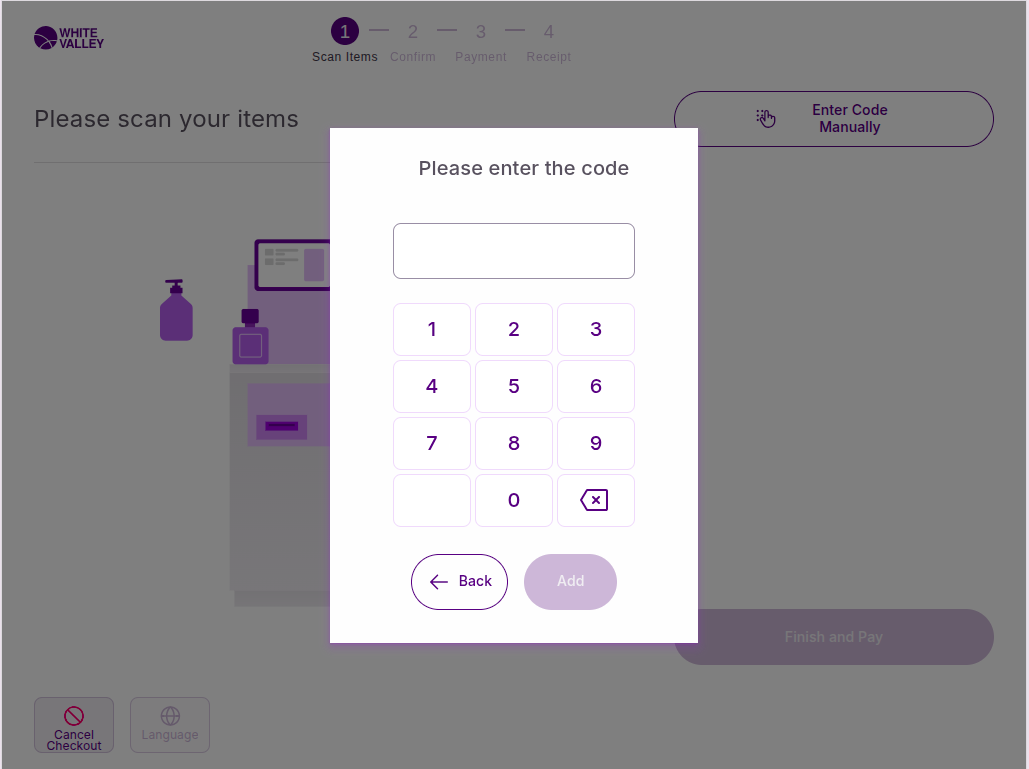
From the Welcome screen or Scanning window, customers click the 'Enter code manually' button
-
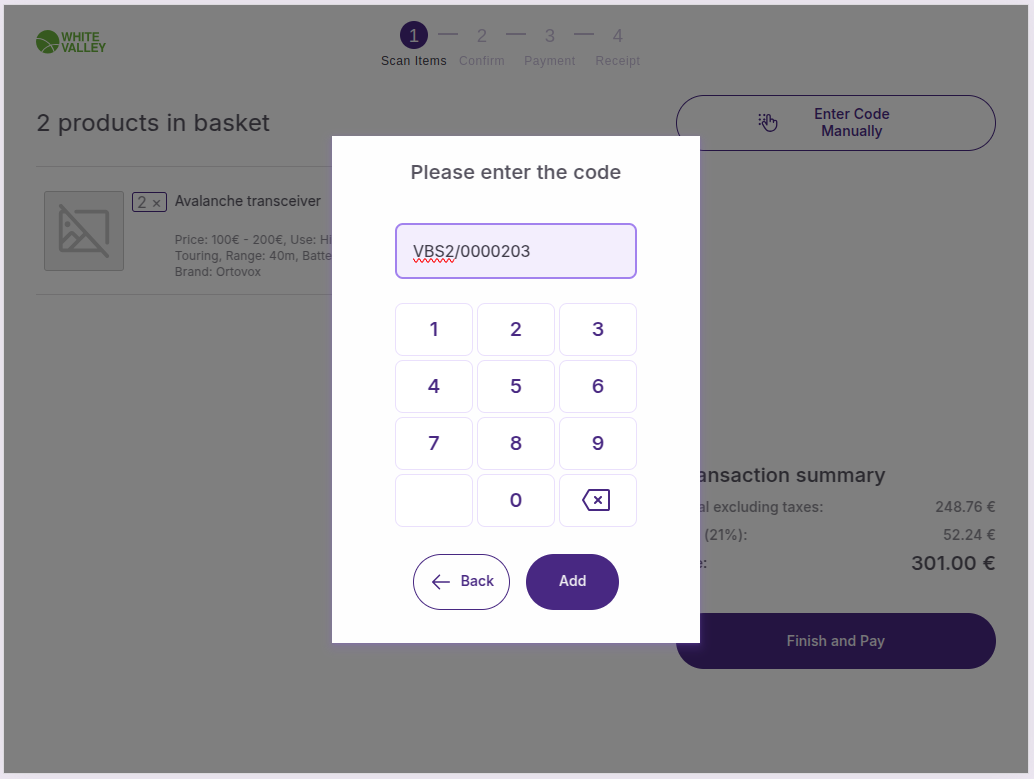
A popup will appear requesting the product code
-
Customers enter the desired code using the on-screen interface
Code entry process
When the code entry popup appears:
-
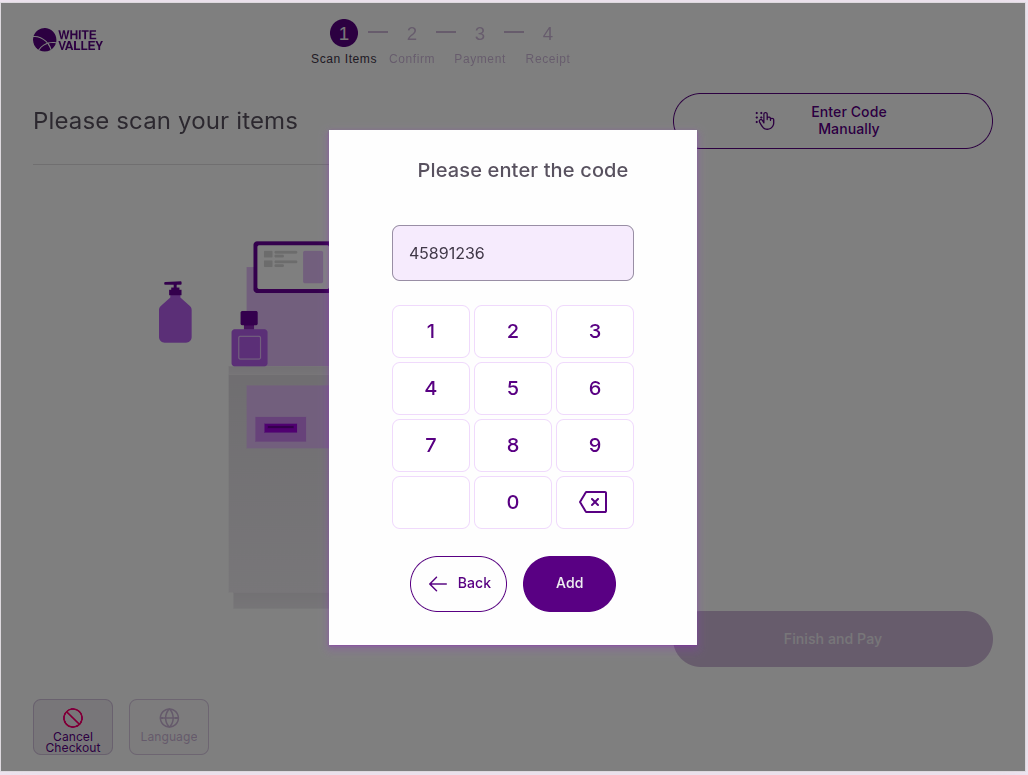
Customers enter the product code in the popup window
-
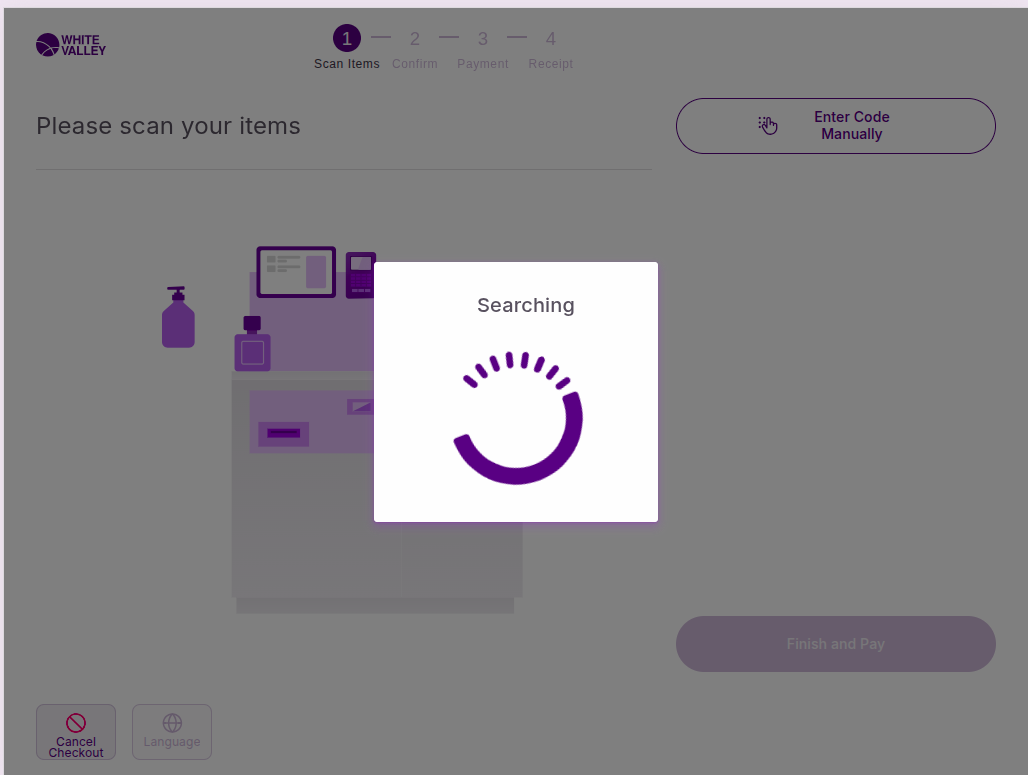
The system displays a "Searching" spinner while processing the request
-
If the entered code matches with any product, external order, or draft order, the corresponding item will be added to their ticket
-
A confirmation popup may appear indicating the successful addition
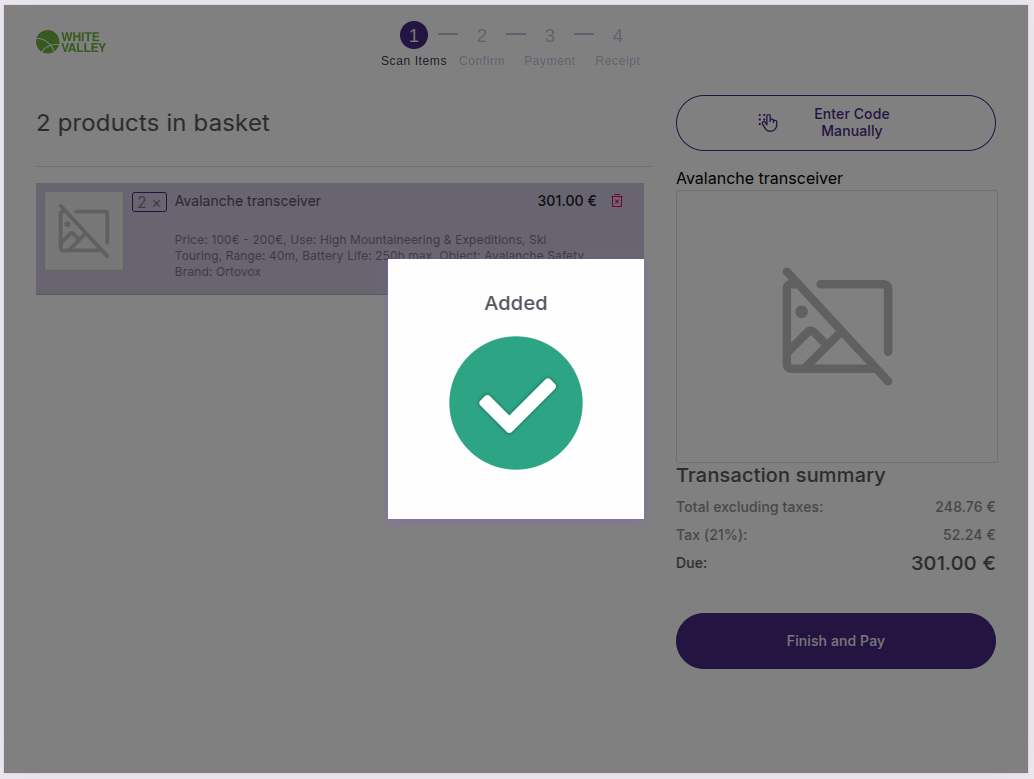
Once products are added through code entry, they will appear on the left side of the screen, displaying their image, name, price, description and any applied discounts.
Unknown product handling
When a code scanned or entered does not match any product, external order, or draft order, the same "Searching" spinner will appear while the search is in progress. If no match is found, the system behavior depends on the configuration:
Block and call assistance enabled
If assistance blocking is enabled:
-
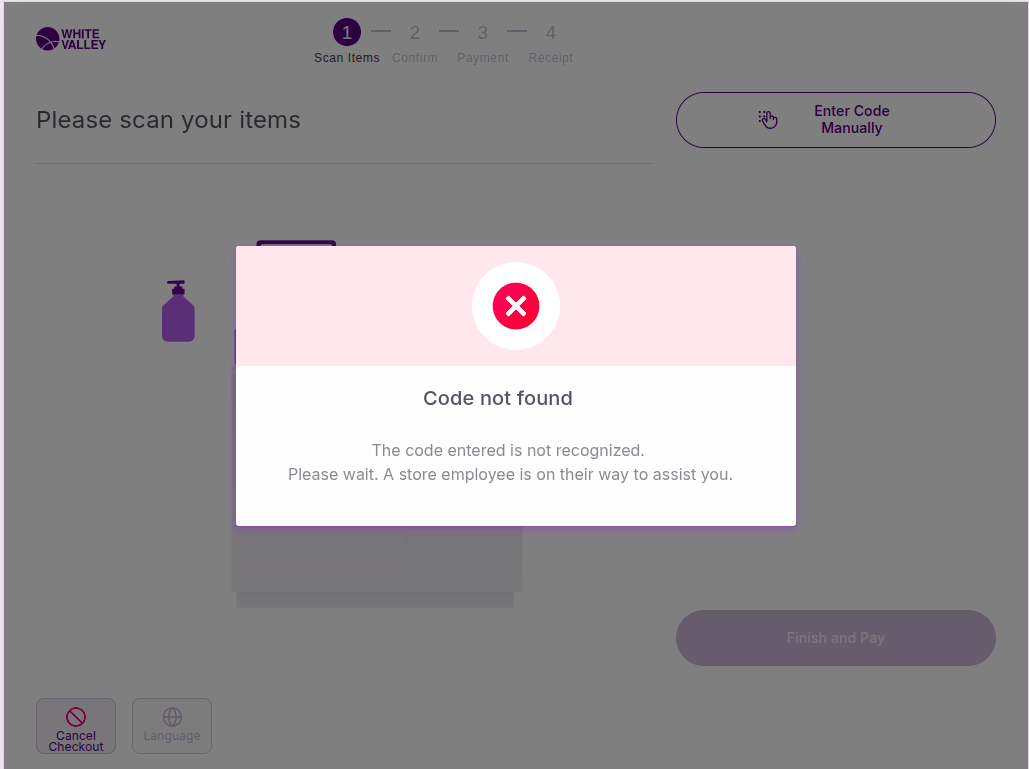
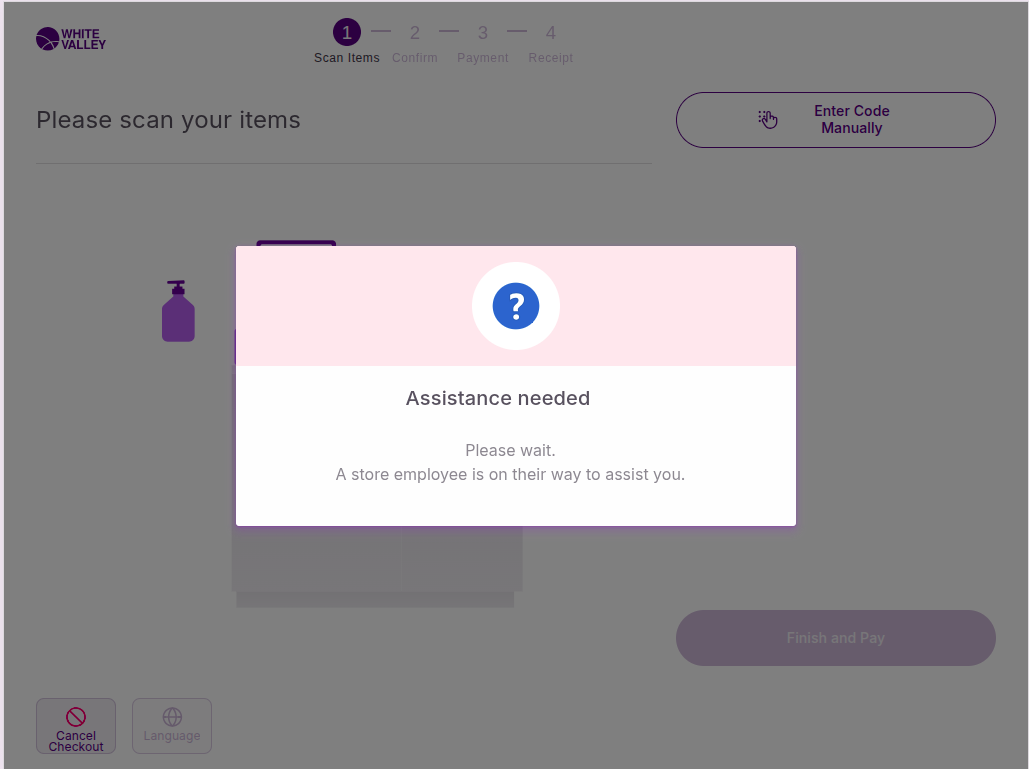
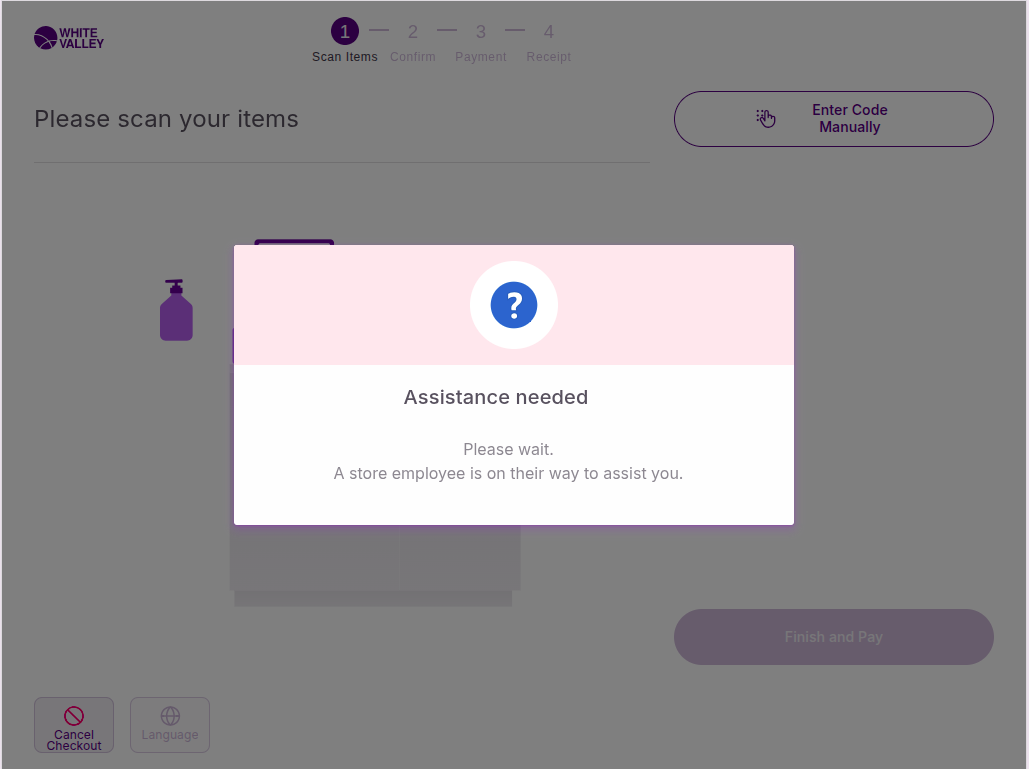
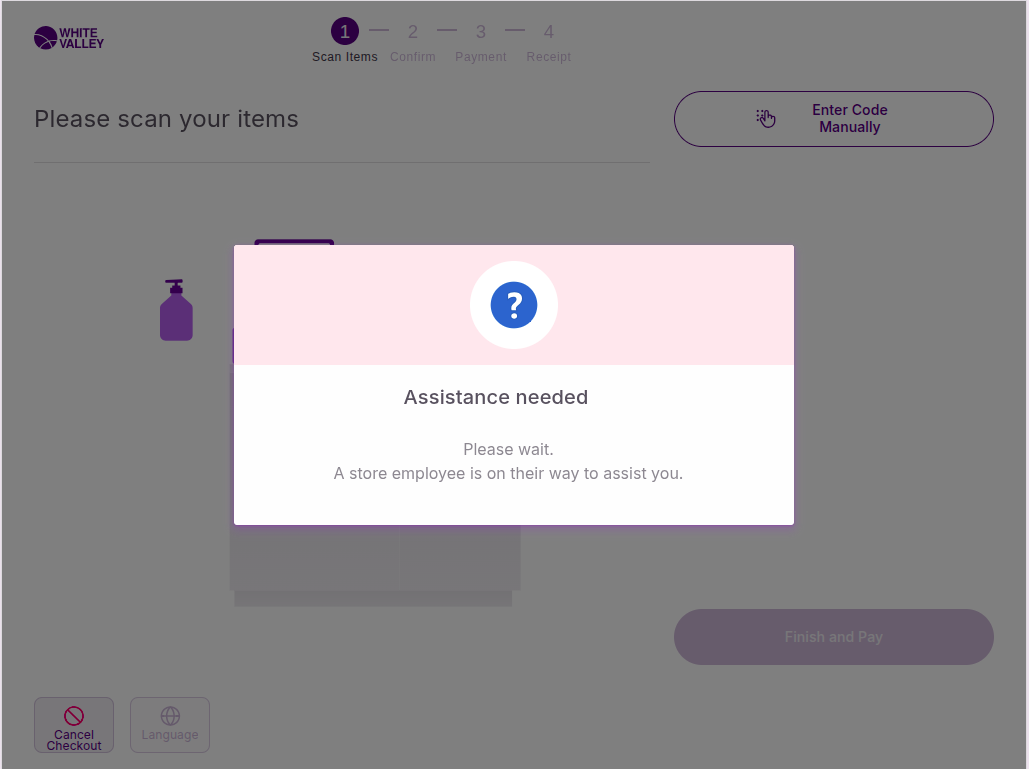
Assistance will be called automatically and a popup will appear
-
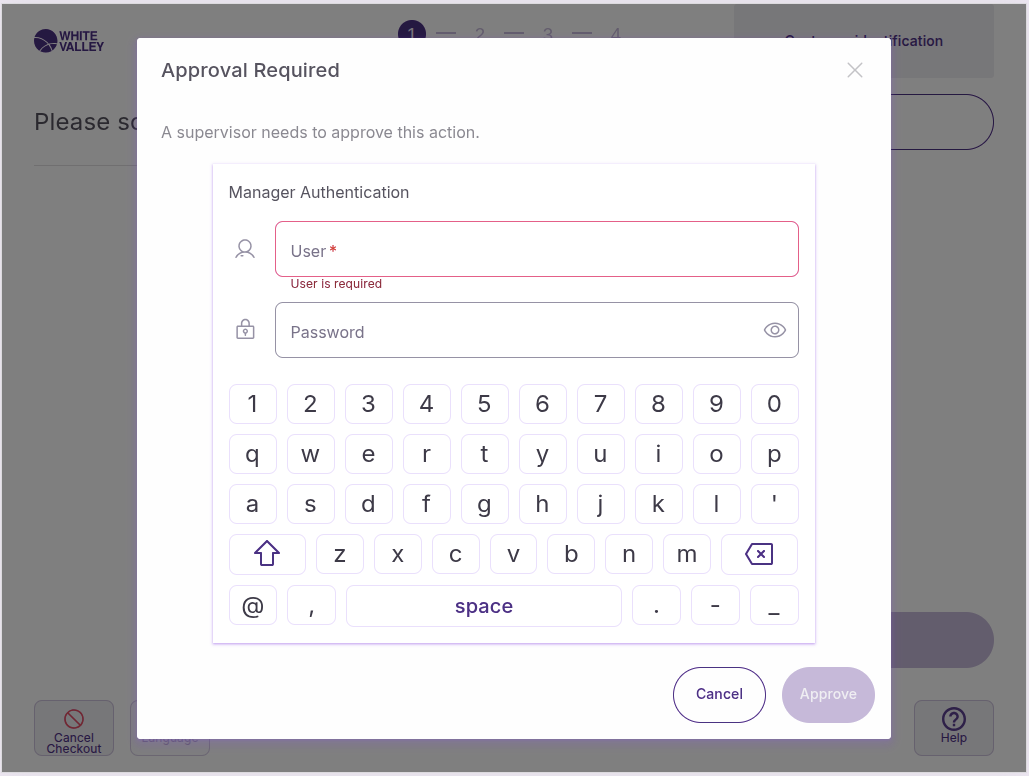
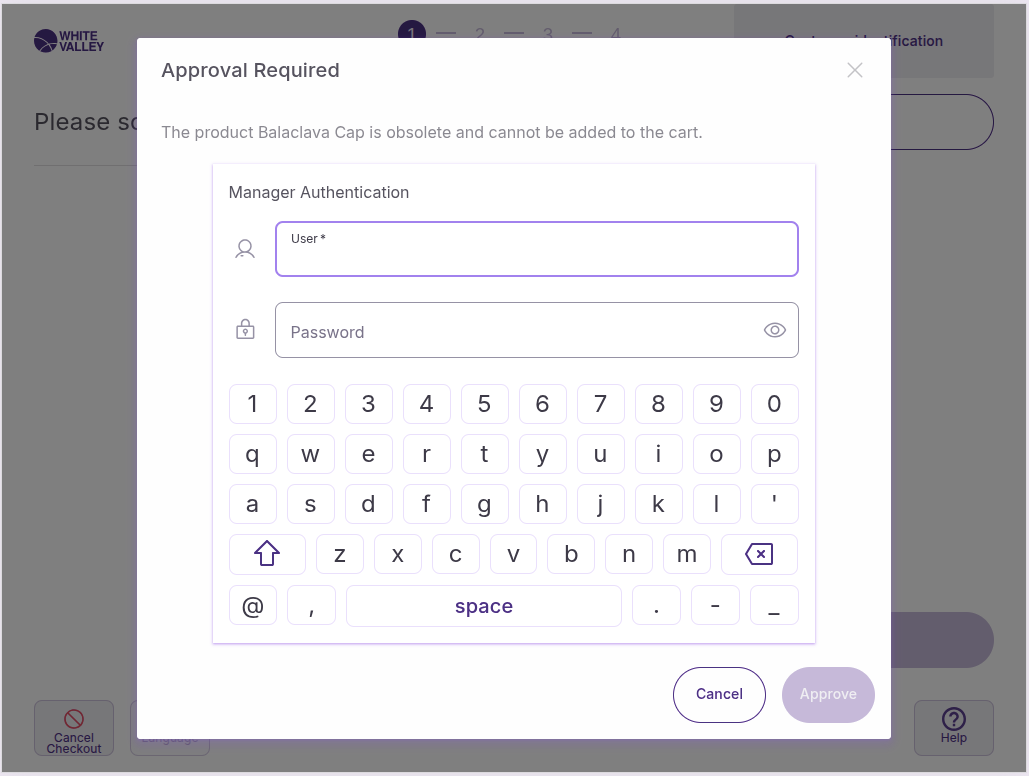
After a double-click outside the popup, if the user role has the 'Unknown product added' user action assigned, a supervisor approval popup will appear requesting approval from a supervisor
-
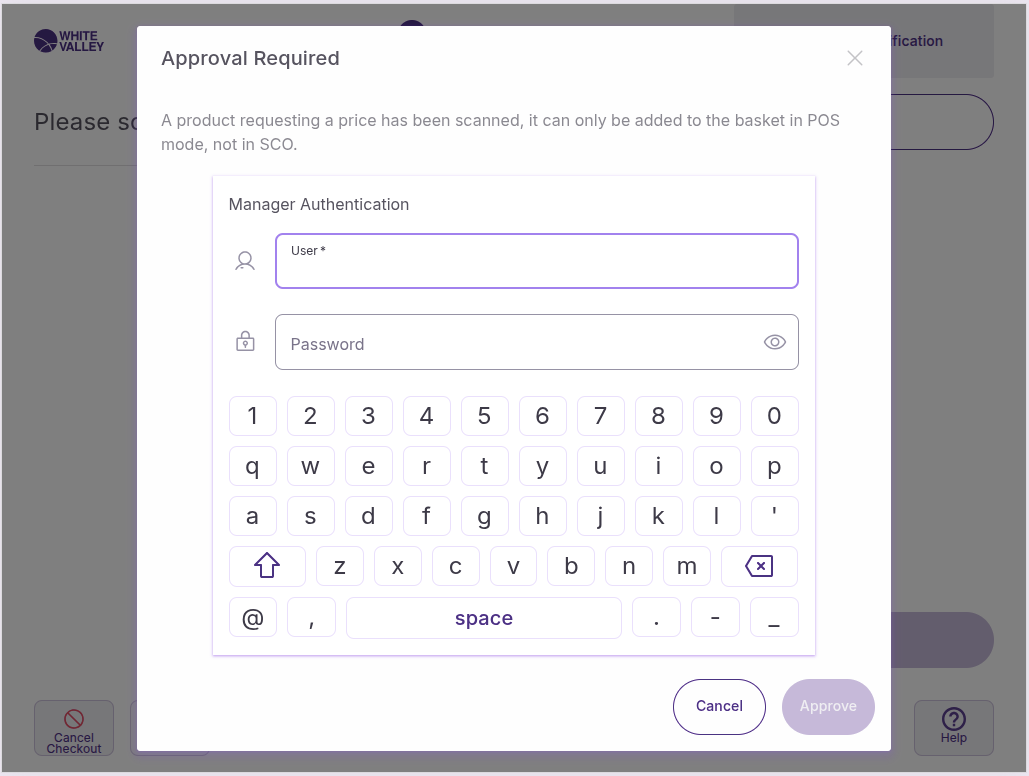
A screen keyboard will appear to enter the credentials
-
When approved or canceled, the flow will remain in the scanning window
Help button enabled
If assistance blocking is not enabled and help options are available:
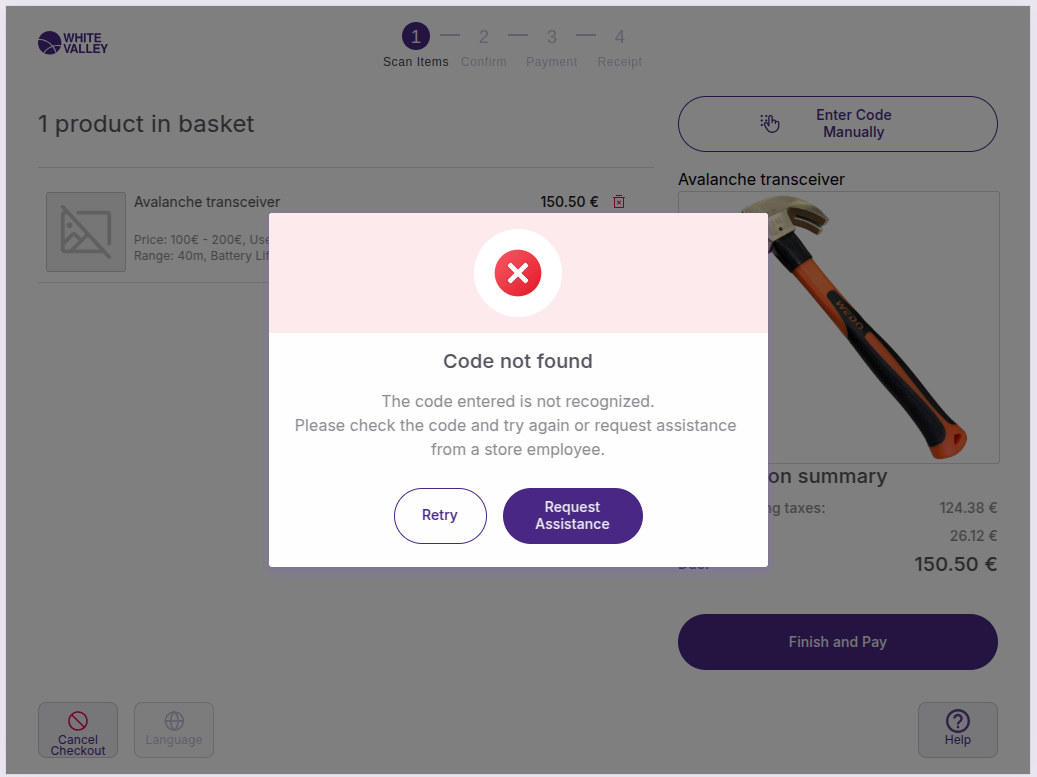
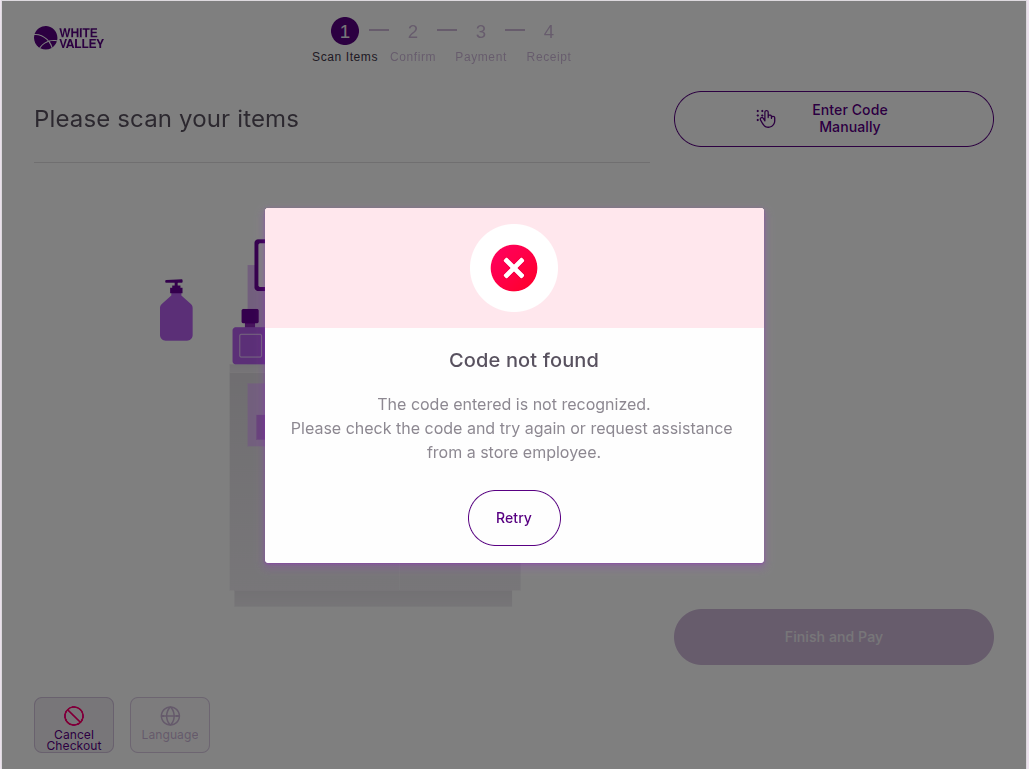
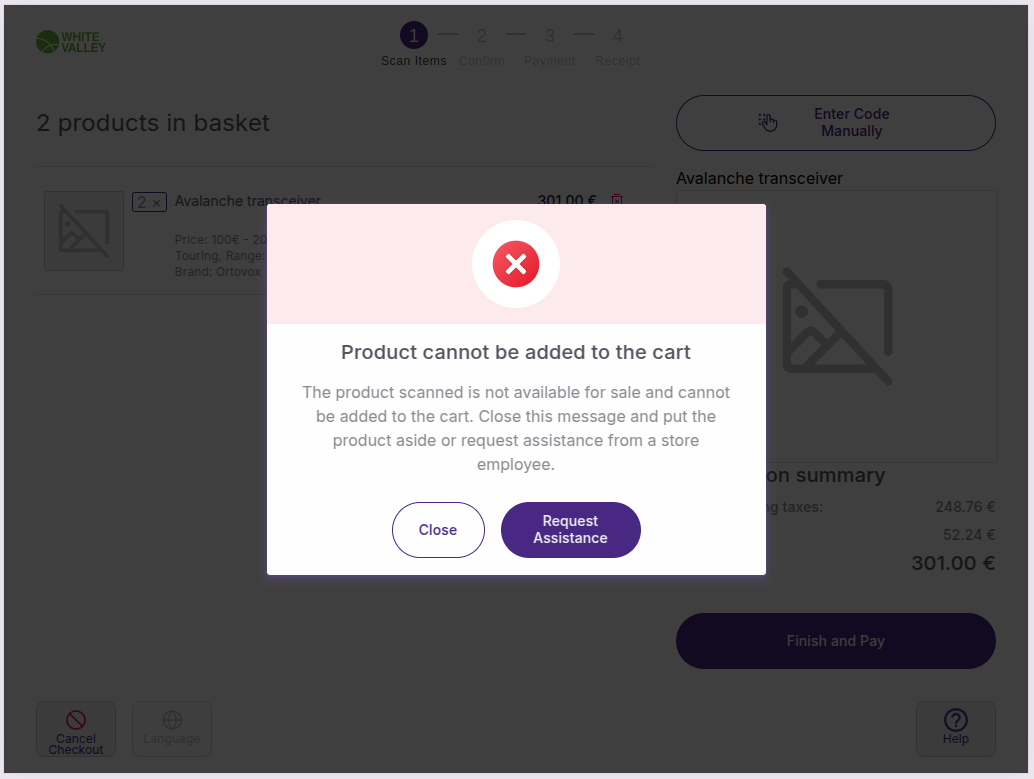
A popup will appear warning the customer with two options:
-
Retry button: Reopens the popup with the incorrect code displayed
-
Request assistance button: Calls help and shows the same popup as when blocking is enabled
No help option
If both assistance blocking and help options are disabled, the popup will only show the retry option.
Obsolete products
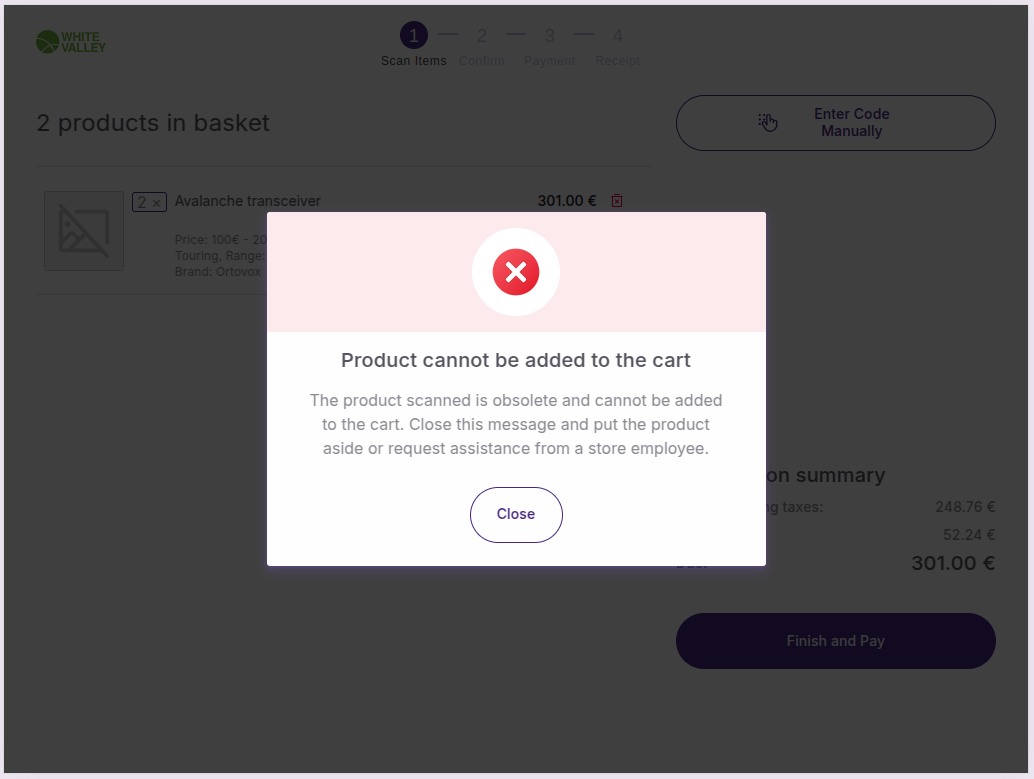
When customers enter codes for obsolete products, the system behavior depends on configuration.
Block and call help enabled
If obsolete product assistance blocking is enabled:
-
An assistance popup will appear automatically
-
Customers double-click outside the popup to proceed
-
A supervisor approval popup will appear for authorization
Help button enabled
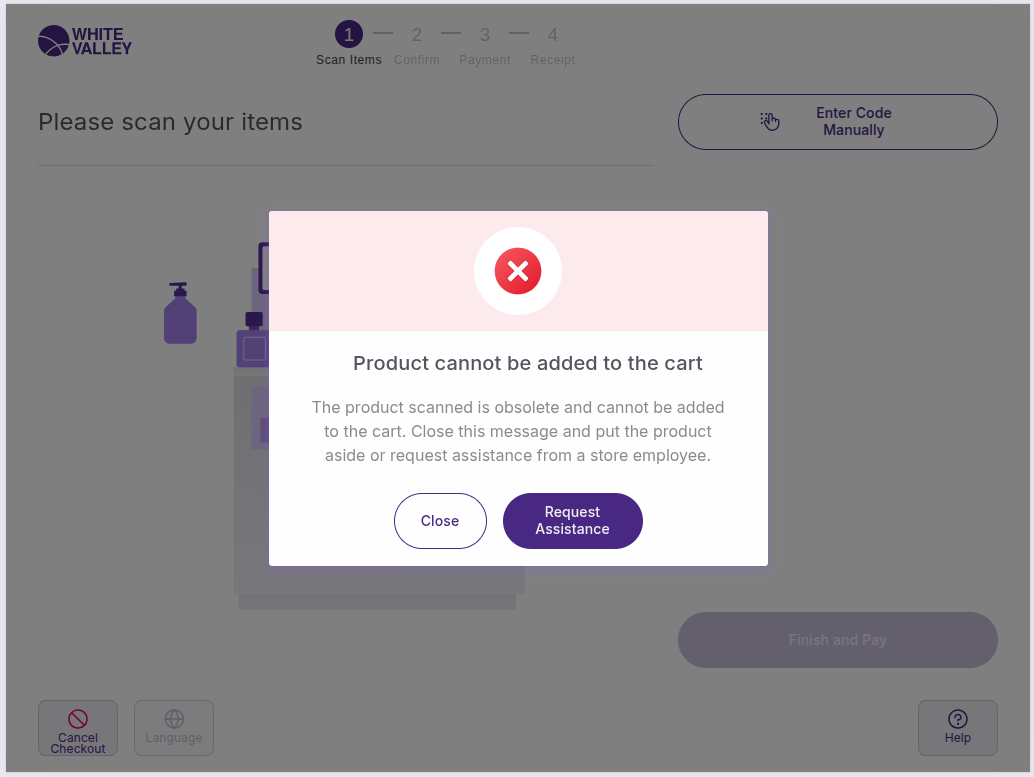
If obsolete product assistance blocking is disabled and help options are available:
-
Customers click 'Request assistance' to call for help
-
An assistance popup will appear
-
A supervisor approval may be required
No help option
If both obsolete product assistance blocking and help options are disabled, the popup will only show the retry option.
Price request products
When customers enter codes for products with price requests configured:
Block and call help enabled
If price request blocking is enabled:
-
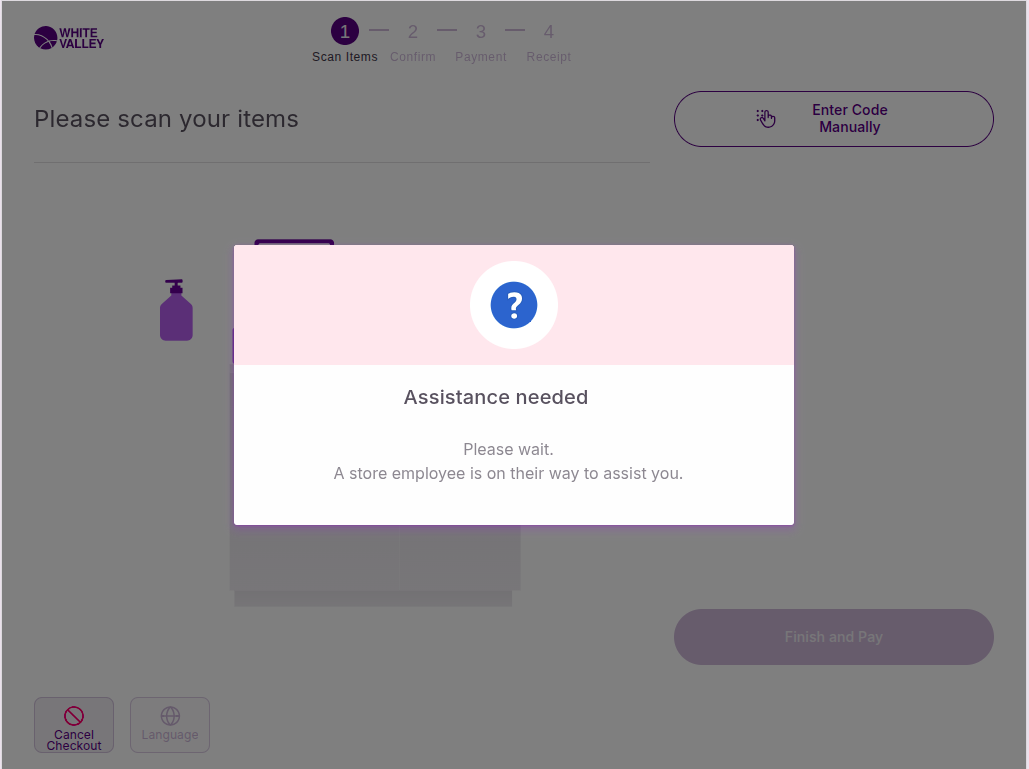
An assistance popup will appear automatically
-
Customers double-click outside the popup to continue
-
A supervisor approval popup will appear
Help button enabled
If price request blocking is disabled but help options are available:
-
Customers click 'Request assistance' to call for help
-
Follow the same assistance and approval process
No help option
If both options are disabled, the system processes the price request product without additional prompts.
Merge orders
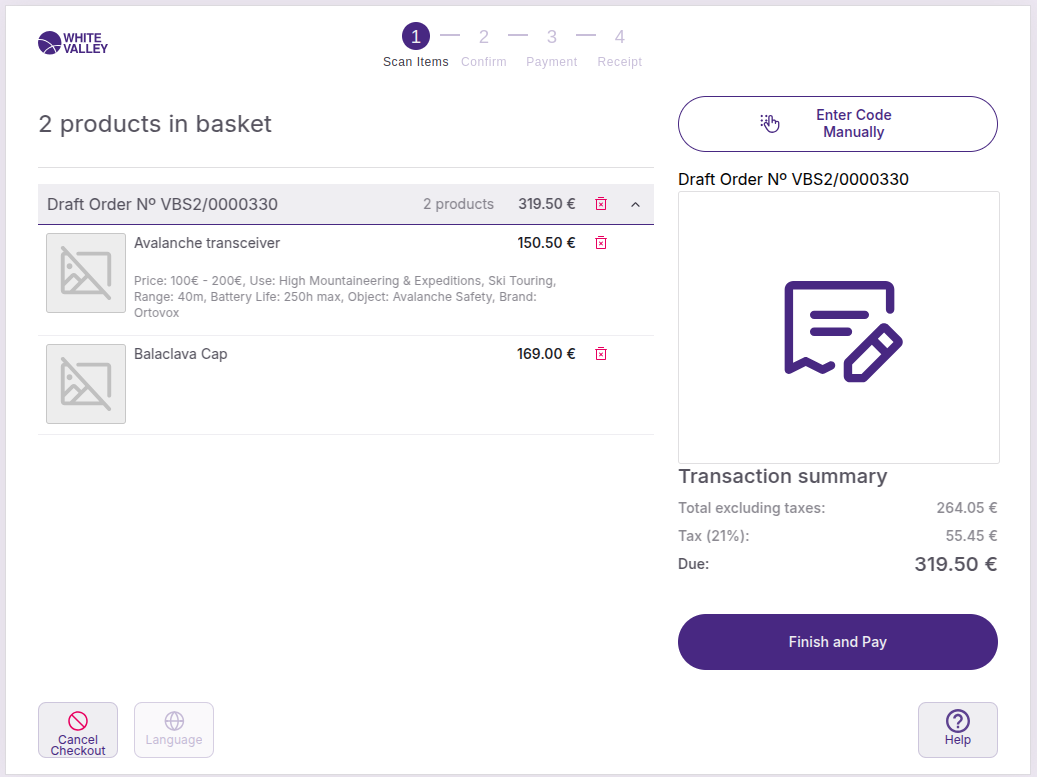
When an order is scanned, it can be merged with the current order in the customer’s basket. The merged order lines will appear alongside their individually scanned items, providing a complete view of all products in the transaction.
The merged items integrate seamlessly with their existing products, maintaining all order information and pricing. The appearance and handling of merged order lines follow the same display rules as regular products, ensuring consistency in the basket screen presentation.
Customer behavior in merge ticket
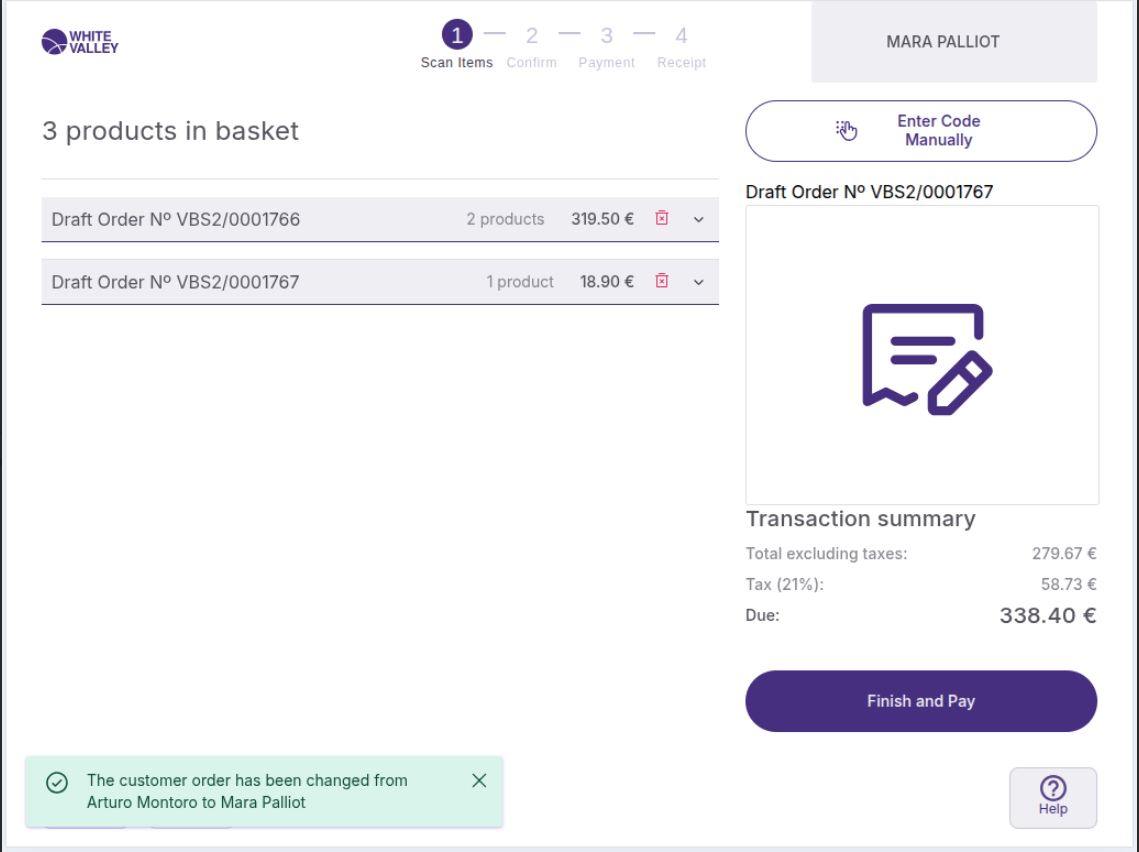
In case the origin order and the merged one have informed customers, the customer selected will be defined by the configured ‘Customer Overwrite’ field.
When the customer is changed a snackbar is displayed indicating it.
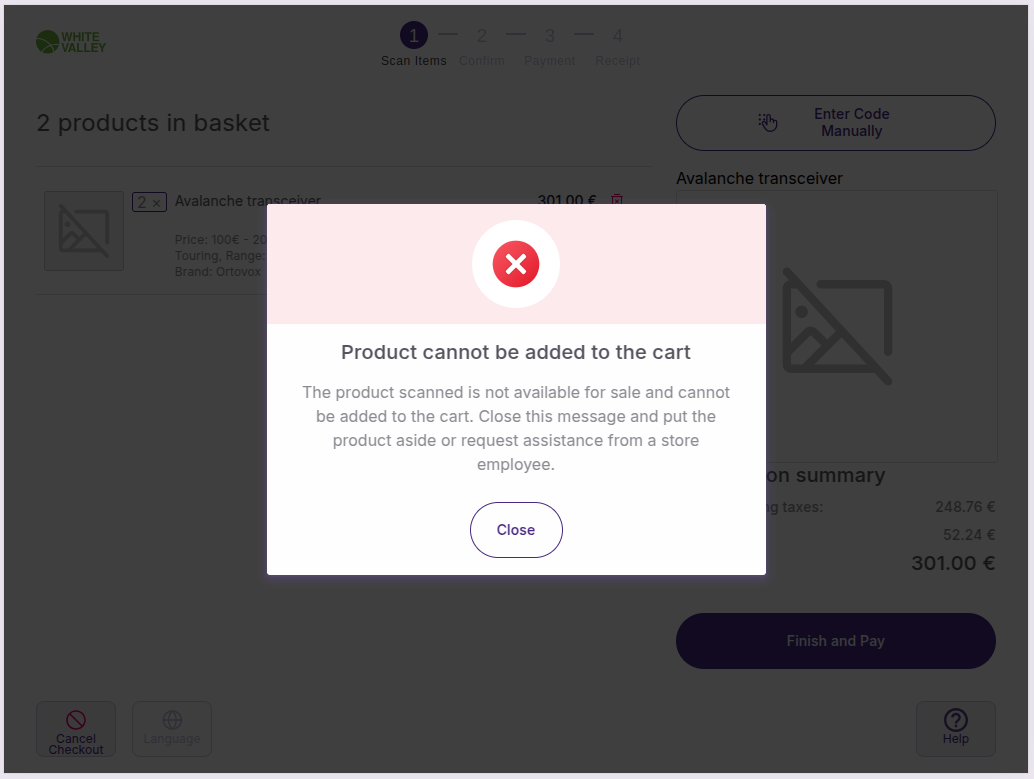
When scanning an order with a different customer from the current one and having the 'Do Not Allow Orders From Different Customers' option selected, the following popup will be displayed.
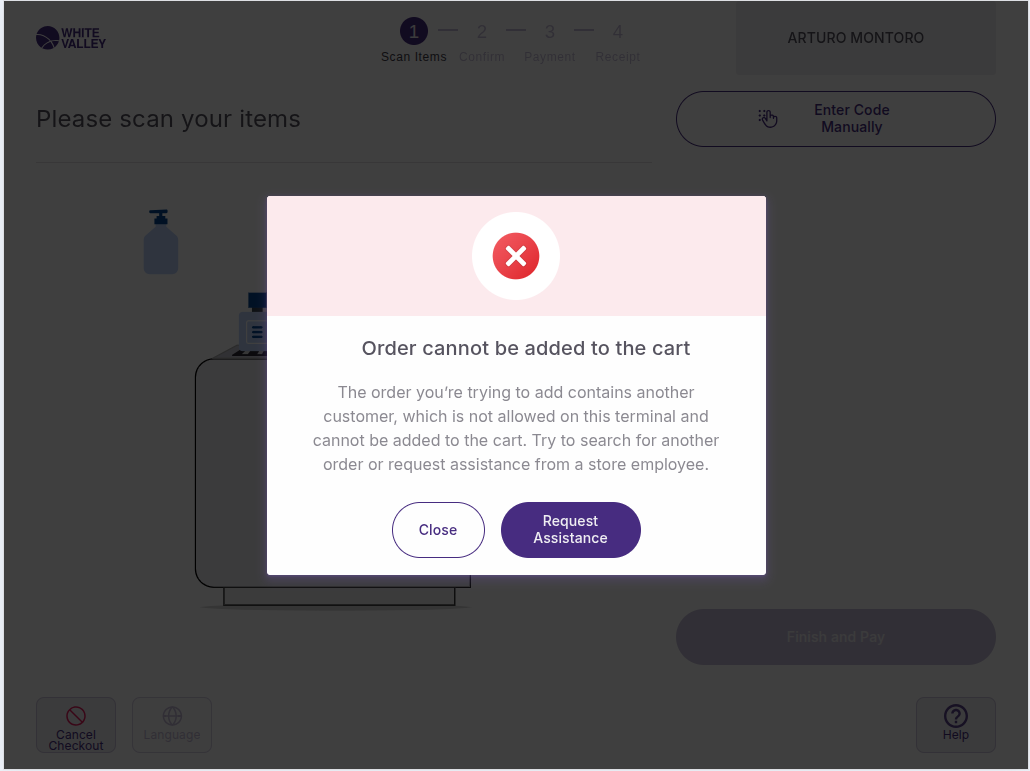
If "Close" option is selected, the popup is closed and the flow returns to the previous screen (Basket).
If "Request assistance" is option selected, and the user role has the Call Help When Merging Orders With Different Customers user action assigned with approval required the usual blocking popup and approval will be displayed.
It is worth mentioning the fact that the Request Assistance button will only be displayed, if the ‘Show Help Button’ check in the SCO Configuration is selected
External order processing
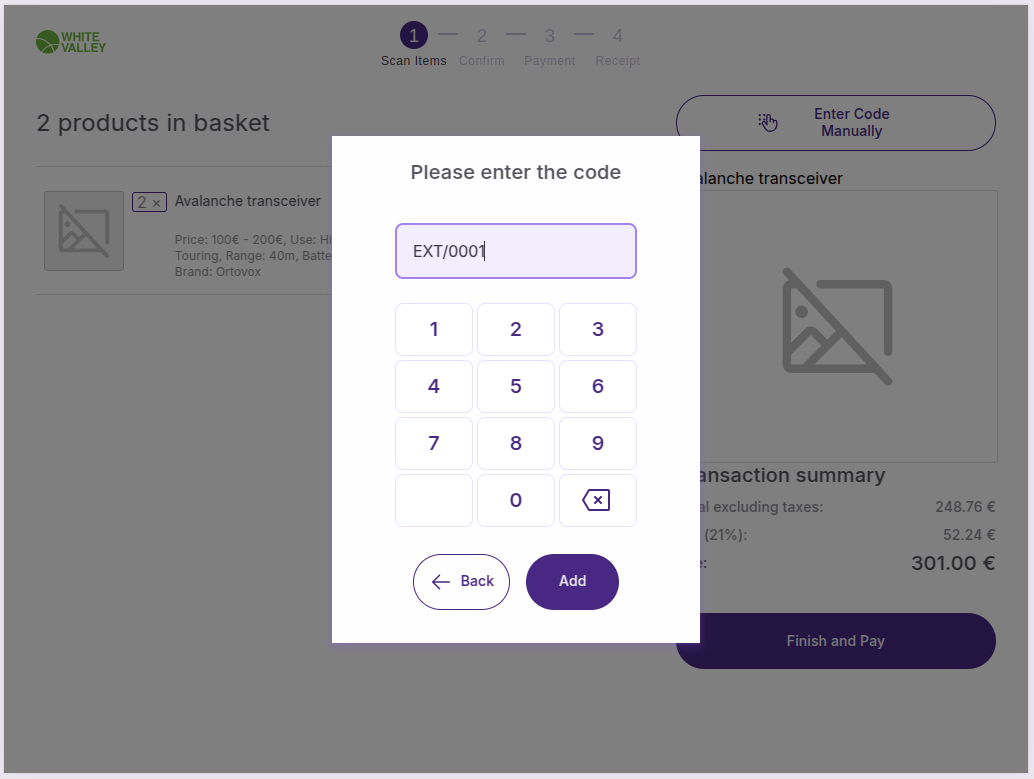
When customers enter a code that matches an external order:
-
The system will display the "Searching" spinner during processing
-
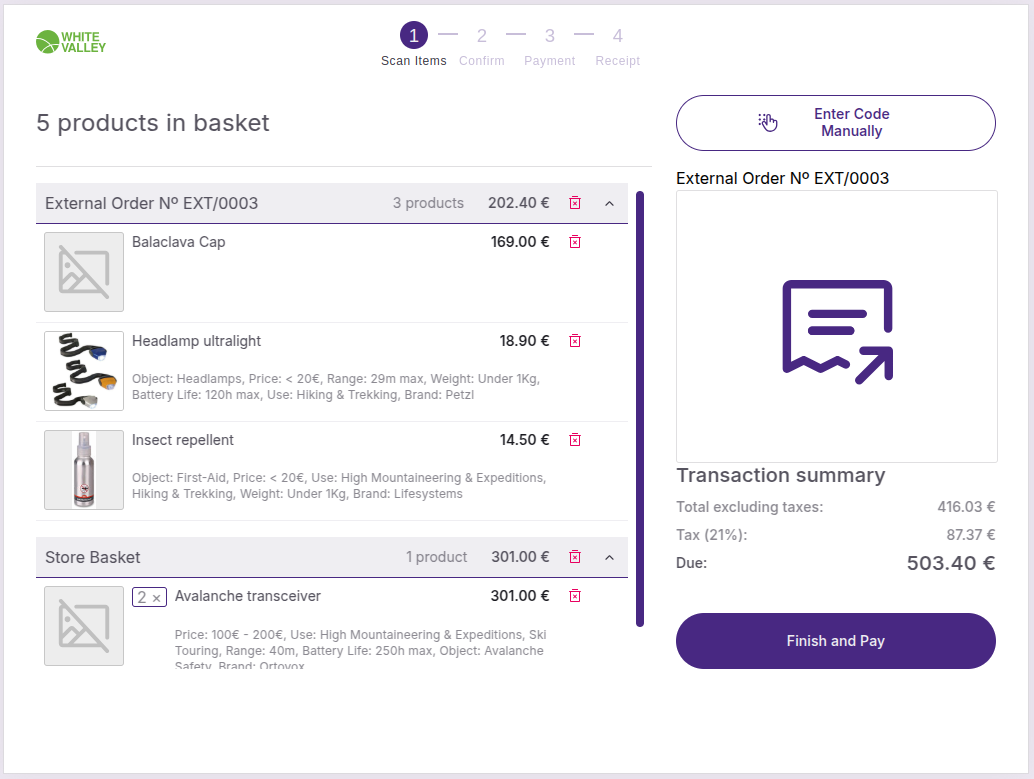
If found, the external order will be added to their current ticket
-
External orders appear with a specific icon to distinguish them from regular products
-
The order details merge with their current transaction seamlessly
External orders integrate with their existing basket, maintaining all order information and pricing while following the same display rules as regular products.
Draft order processing
When customers enter a code that matches a draft order:
-
The system searches for the draft order during the "Searching" process
-
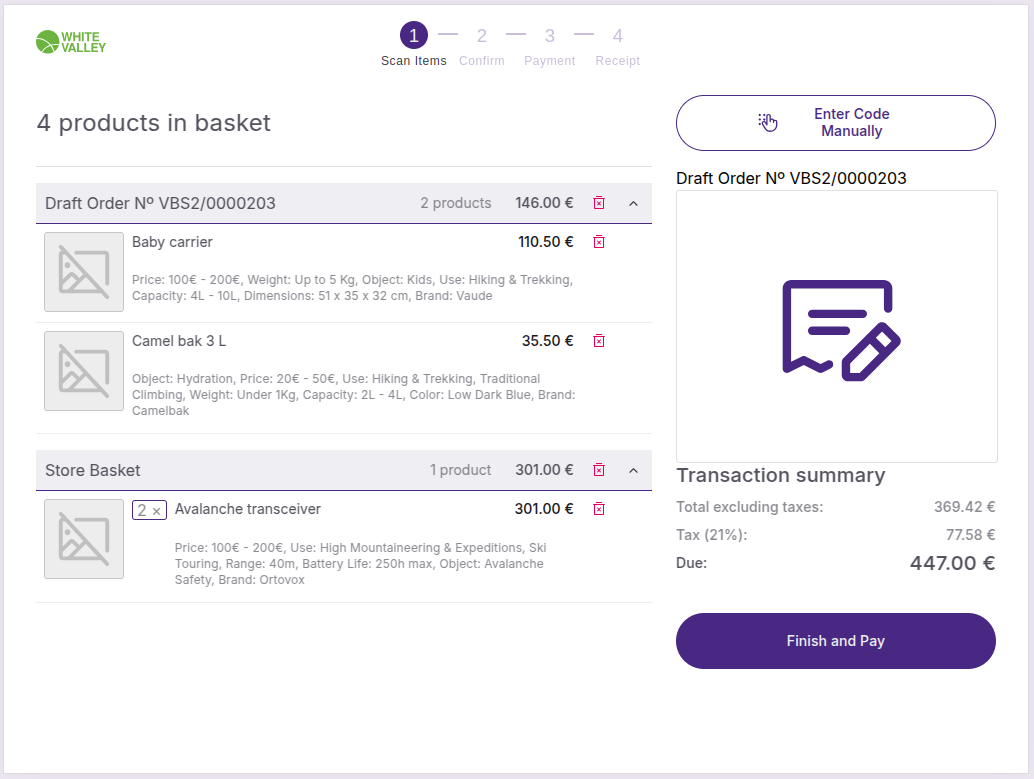
If found, the draft order contents are added to their current ticket
-
Draft orders integrate seamlessly with their current transaction
-
All items from the draft order become part of their active basket
Draft orders merge completely with their existing transaction, allowing customers to continue adding individual products or other orders to their basket.
Delete merged order button
Customers may be able to delete merged orders from their basket depending on the store configuration. When this option is available, a delete button will appear next to merged order, allowing customers to remove them directly from their transaction.
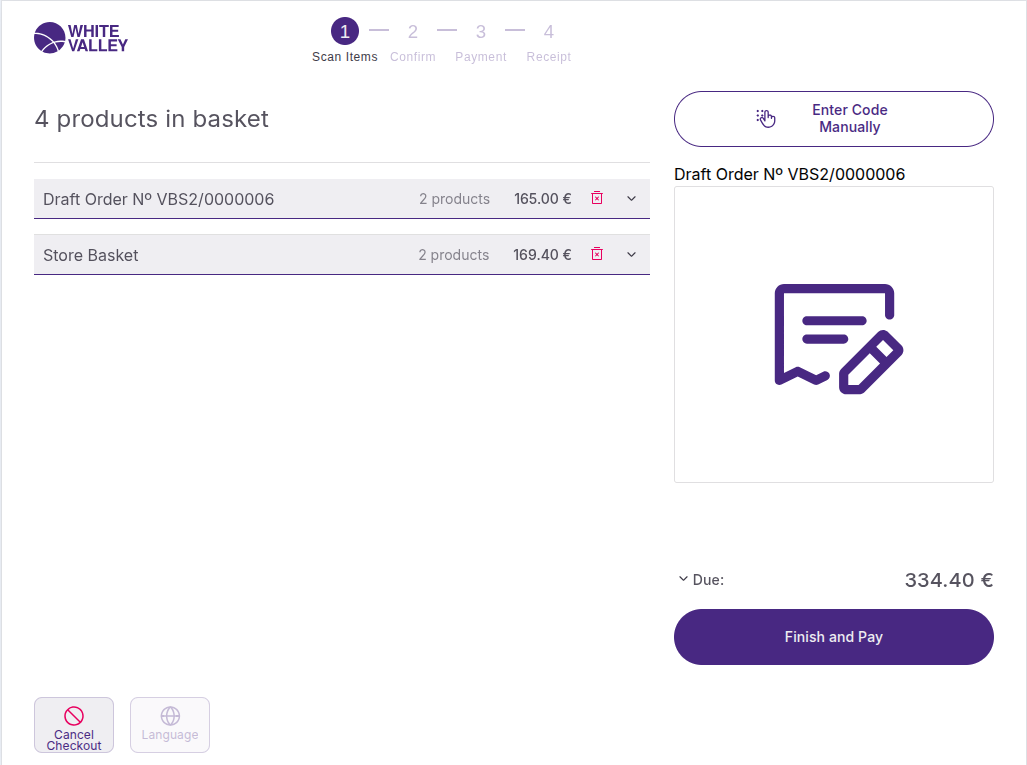
But if this option is not configured, the delete button does not appear in the order.