This guide explains how to configure user roles and access permissions for SCO functionality in the back office. User role configuration defines the required permissions for staff members to use SCO mode and handle supervisor approval scenarios. Proper role configuration ensures appropriate authorization levels for SCO operations.
User role requirements
Specific configurations must be created for manual user roles to enable SCO functionality. The following user actions and permissions must be properly assigned to enable SCO operations and supervisor approval workflows.
Required user action assignments
Configure the following user actions with specific permissions:
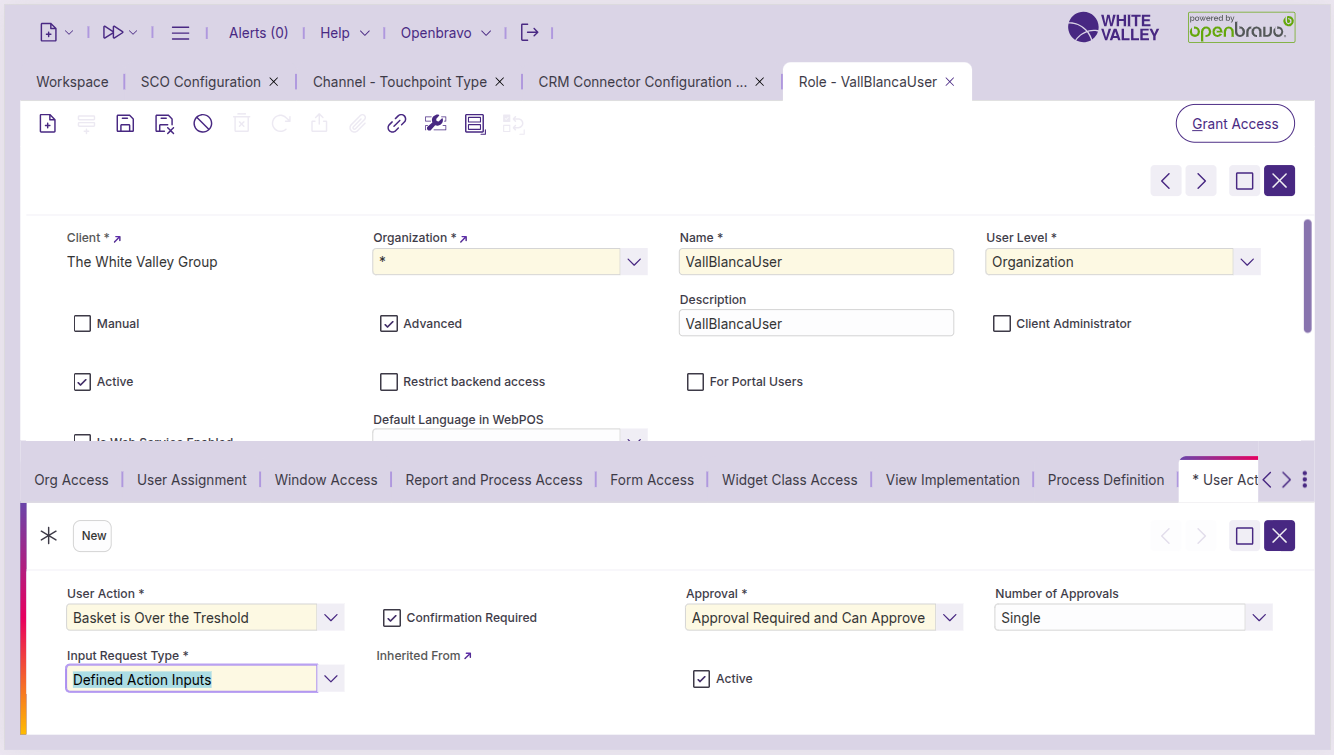
Basket is over the threshold. The user role must have assigned the user action 'Basket is over the threshold' with 'Approval required' and 'Can approve' permissions for showing the approval window when the ticket total amount is over the threshold.
Unknown product added. The user role must have assigned the user action 'Unknown product added' with 'Approval required' and 'Can approve' permissions for showing the approval window when the user tries to add an unknown product to the ticket.
Incorrect customer identification. The user role must have assigned the user action 'Incorrect customer identification' with 'Approval required' and 'Can approve' permissions for showing the approval window when the customer identification fails more than the allowed number of times set in the 'Block & call assistance after how many identification tries' field of the SCO configuration.
Call help approval popup. The user role should have assigned the user action 'Call help approval popup' with 'Approval required' permissions to handle approval scenarios when customers request help and the help button functionality is enabled in SCO Configuration.
Block Terminal After Inactivity Timeout. The user role should have assigned the user action ‘Block Terminal After Inactivity Timeout’ with ‘Approval required’ and ‘Can Approve’ permissions for showing the approval when the terminal is blocked due to inactivity.
Call Help When Merging Orders With Different Customers. The user role should have assigned the user action ‘Call Help When Merging Orders With Different Customers’ with ‘Approval required’ and ‘Can Approve’ permissions for showing the approval when trying to merge ticket with different customers when it is not allowed.
These user actions directly correspond to the blocking and assistance conditions configured in the SCO Configuration window, ensuring that when these conditions are triggered, the appropriate approval workflows are available.
SCO application mode access
Configure exclusive SCO access for the user role:
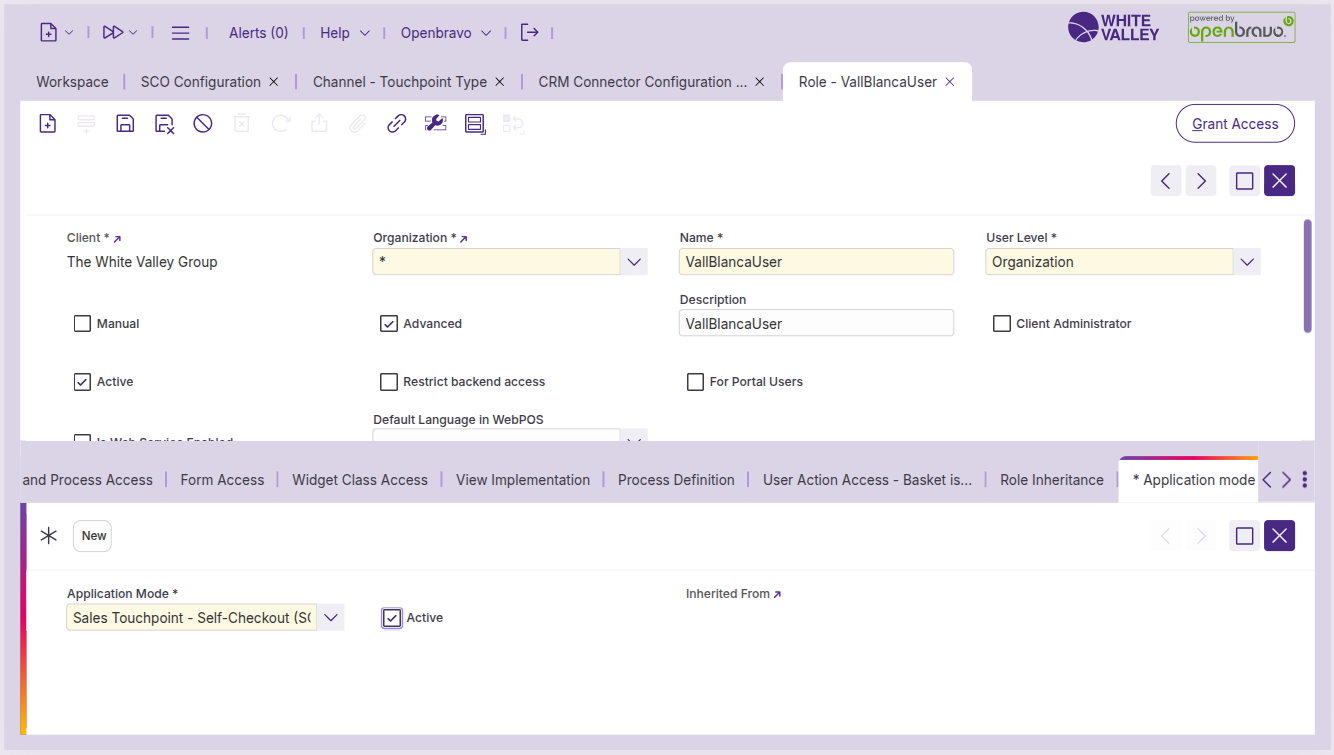
Application mode requirement. The user role must have access to SCO in the Application mode tab.
Exclusive access rule. To do this, this role must have access to SCO application mode only. Adding this mode while having another mode, or modifying an existing application mode access will lead to an error message.