
This guide explains how to use the document delivery screen in the self-checkout (SCO) system. The document delivery screen appears after successful payment completion, allowing customers to choose how they want to receive their receipt. This screen provides options for printing, email delivery, or both methods depending on the configuration.
Document delivery overview
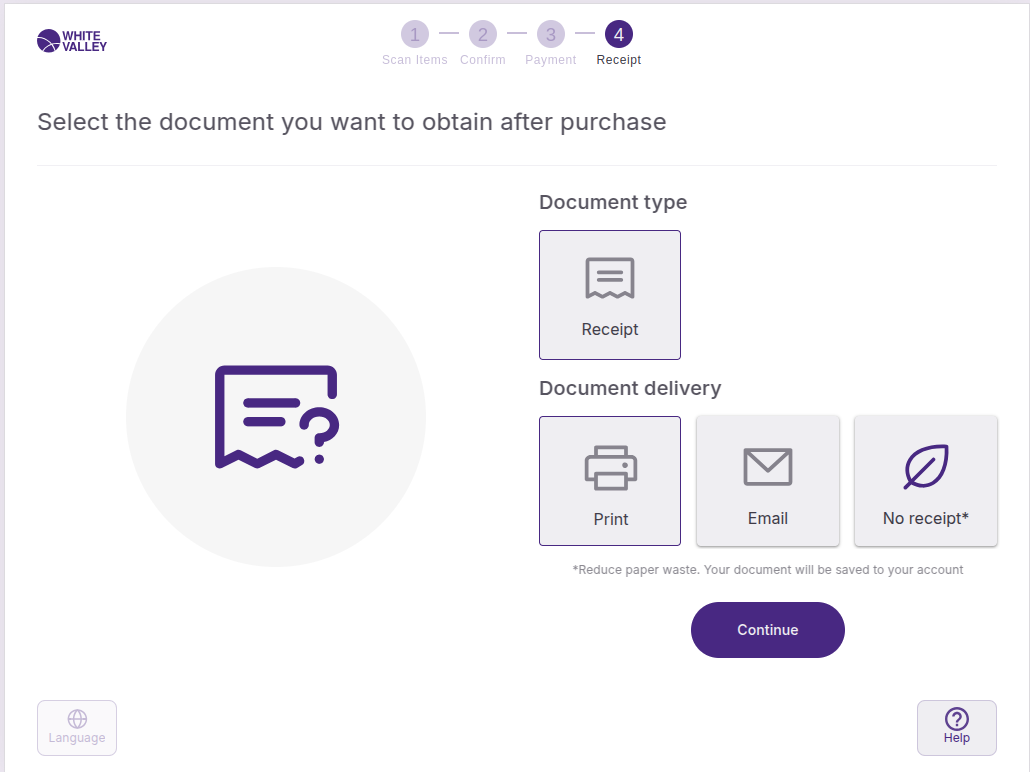
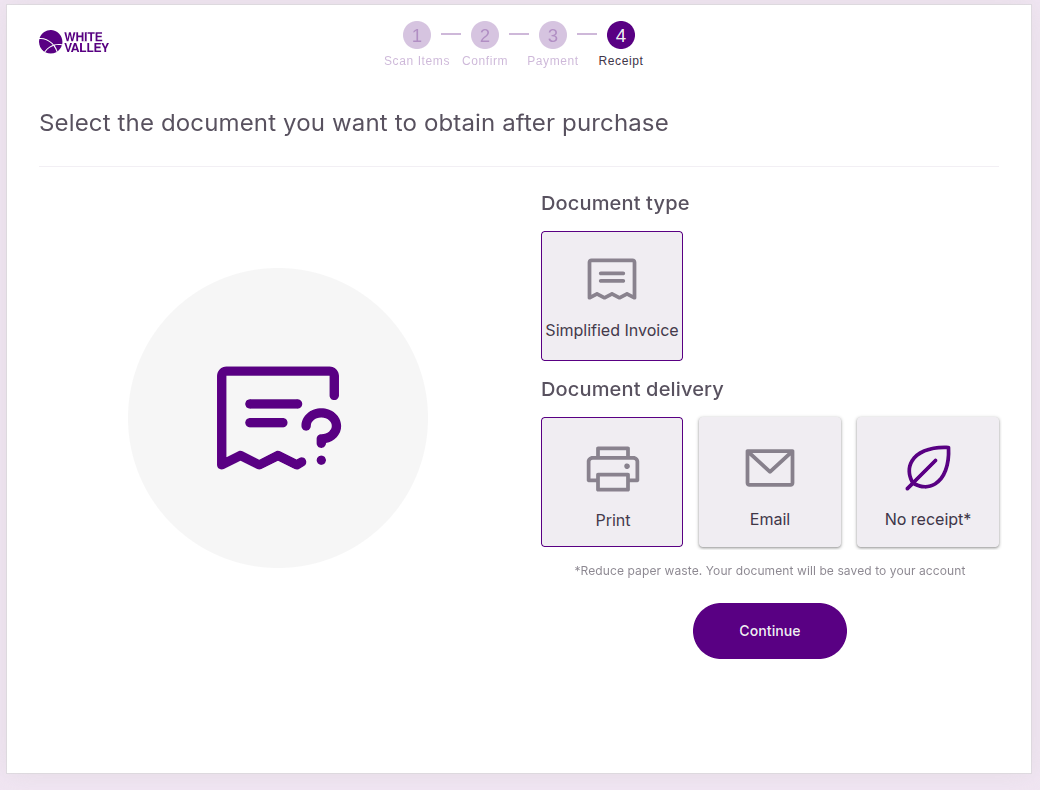
After the payment flow has successfully been executed, the document delivery window will be shown based on the configuration defined in the back office. This screen allows customers to select their preferred method for receiving their purchase receipt or simplified invoice.
The available delivery options depend on the store's specific configuration and may include print, email, or multiple delivery methods.
Document type selection
Automatic selection
If the 'Autoselect and hide the field in SCO' field is selected in the configuration:
-
The flow will move directly to the next screen based on the delivery method allowed
-
No manual document type selection is required
Manual selection
If the 'Autoselect and hide the field in SCO' field is not selected, different options for that document will be displayed for customer selection.
Delivery method options
Print delivery
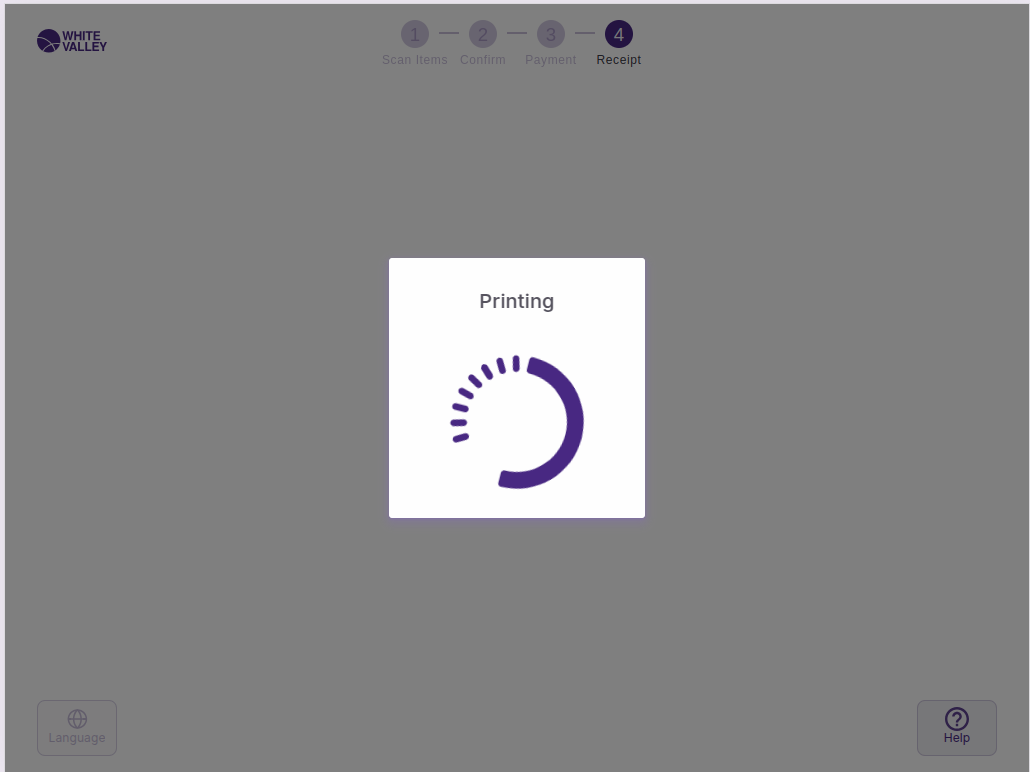
If the delivery method selected is print:
-
The receipt will be printed automatically
-
Customers can collect their printed receipt from the printer
-
The system processes the print request immediately
Email delivery
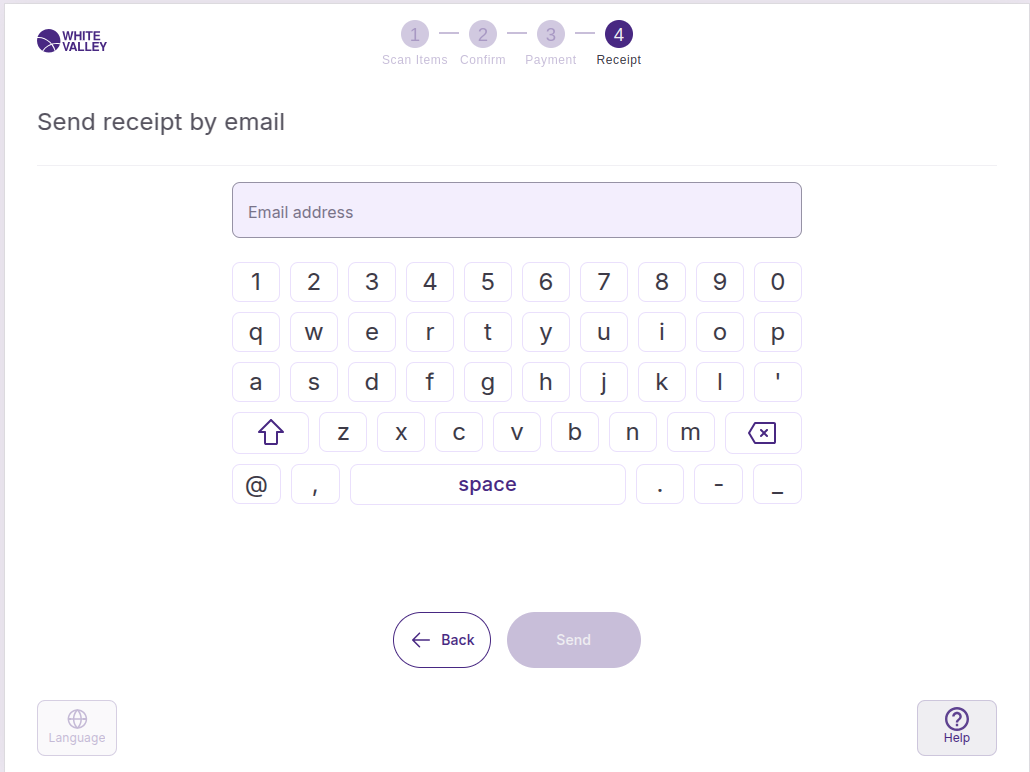
If the delivery method selected is email:
-
An email input screen will be displayed
-
Customers enter their email address using the on-screen keyboard
-
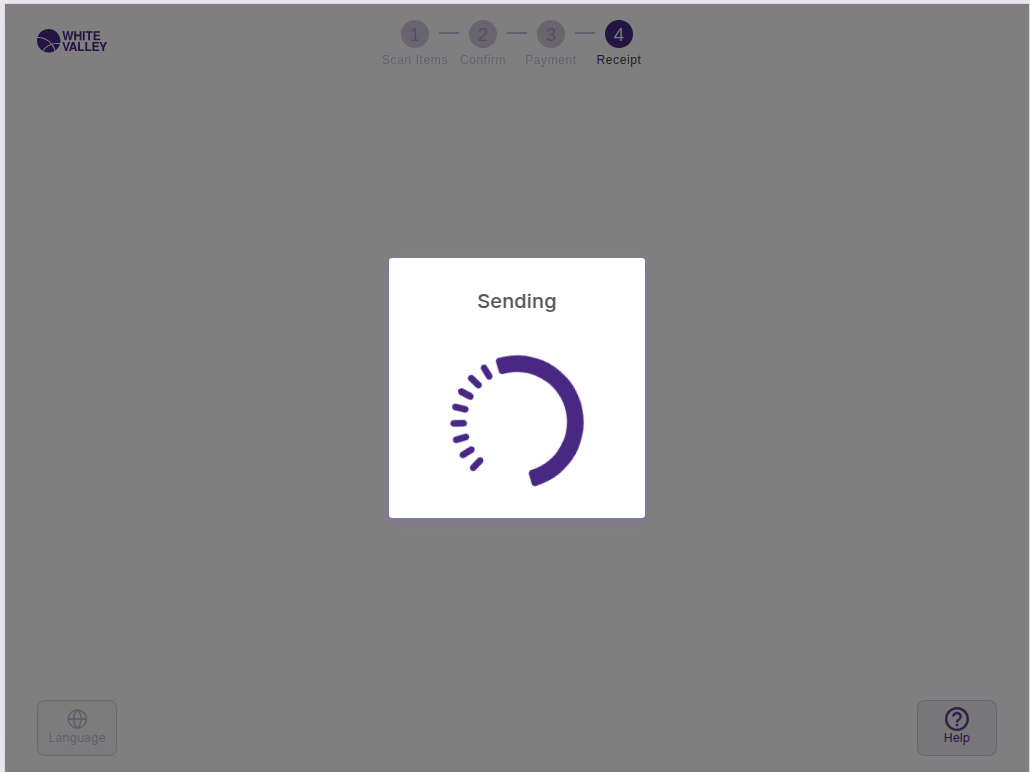
Upon pressing 'Send', the ticket will be sent by email to the specified address
No receipt
Customers can choose not to receive a receipt:
-
Select the no receipt option to skip receipt delivery
-
The transaction completes without generating any receipt
-
This option is environmentally friendly and speeds up the checkout process
Choice modes
Single choice mode
In single choice mode:
-
Customers select one delivery method from the available options
-
Upon pressing on a document delivery type, the selected option will be triggered
-
The system processes the chosen delivery method immediately
Multiple choice mode
In multiple choice mode:
-
Customers can select multiple delivery methods
-
Press 'Continue' after making selections
-
All selected delivery options will be processed