
This guide explains how to use the Confirm window in the self-checkout (SCO) system. The Confirm window appears after customers click the 'Finish and pay' button, allowing them to review their order details before proceeding to payment. This screen serves as the final verification step before completing the transaction.
Confirm window overview
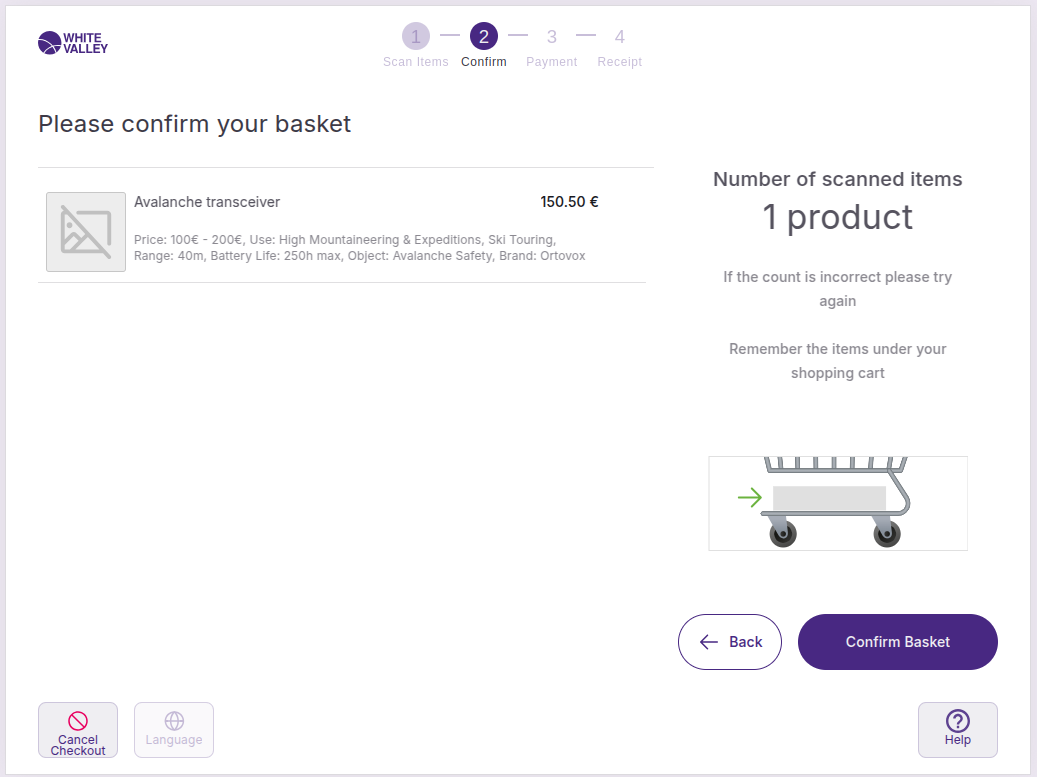
The confirmation step is reached when customers select the 'Finish and pay' button at the bottom of the transaction summary is clicked. At the right side of the screen, information about the number of products scanned is displayed.
This window provides customers with a final opportunity to review their purchase before moving to the payment process.
Navigation options
The Confirm window provides customers with two main navigation options.
Return to basket
Customers can select the 'Back' button to return to the scanning page. This allows them to make additional changes to their order, add more products, or remove items before proceeding to payment.
Proceed to payment
When customers consider their order complete, the can click the 'Confirm basket' button to switch to the payment screen and complete the transaction.
Amount verification
Standard confirmation
When the total amount is within normal limits, customers can proceed directly by selecting 'Confirm basket' to move to the payment window.
High amount blocking
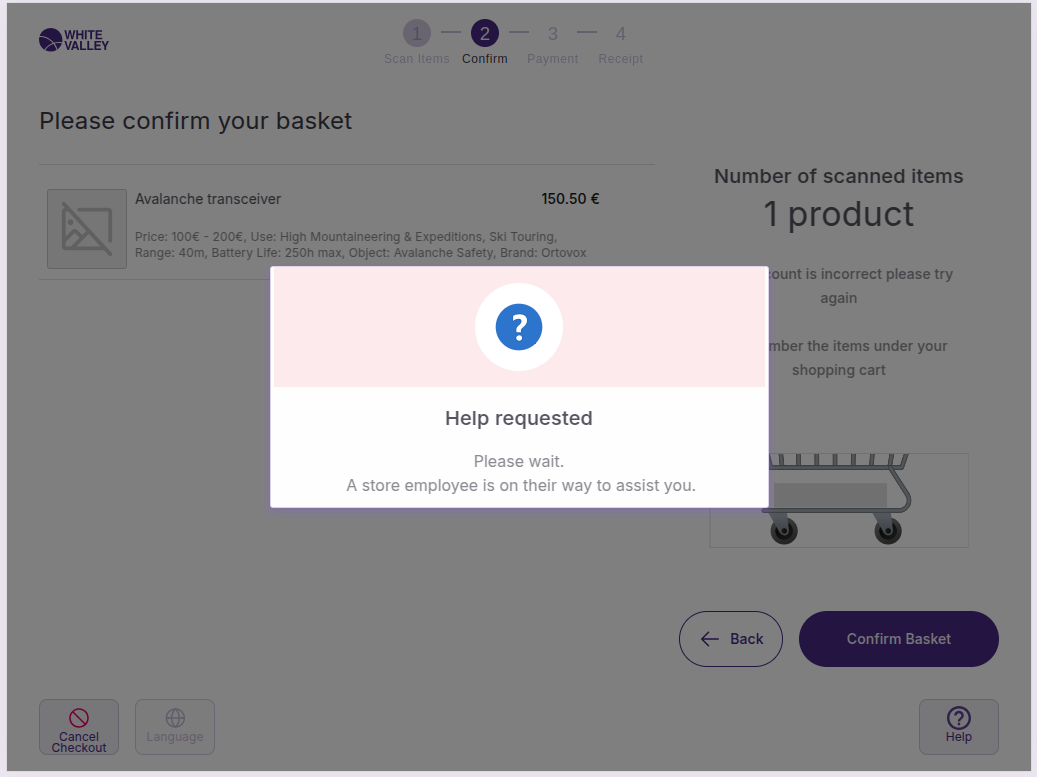
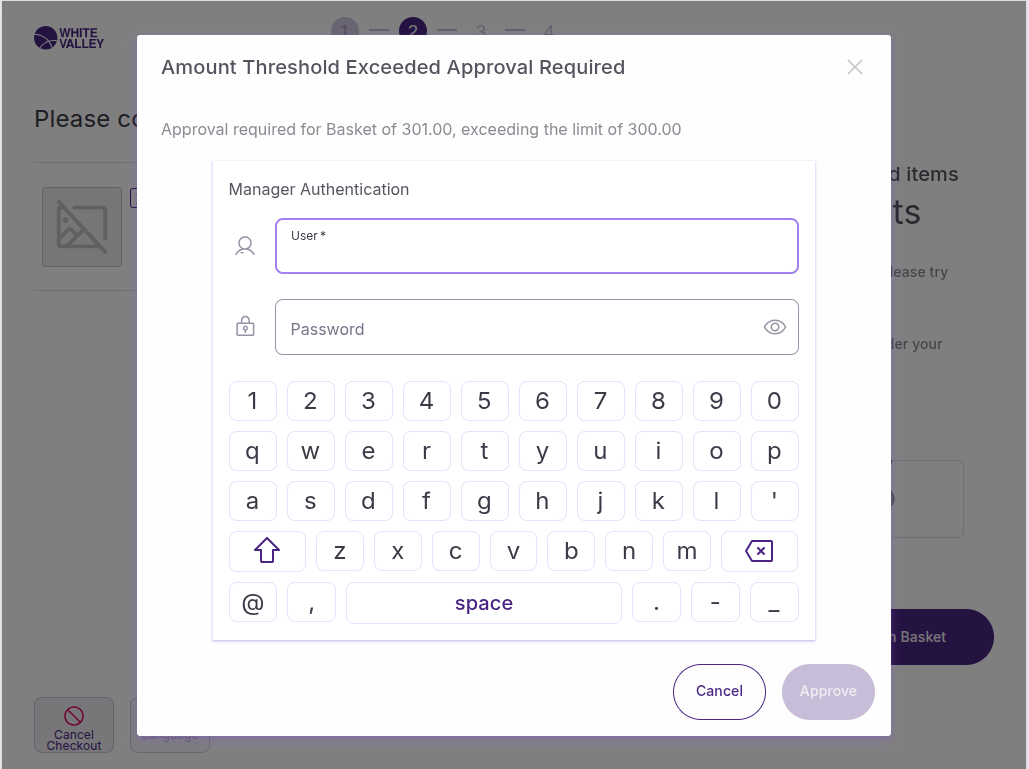
If the total amount exceeds the amount defined in the 'Block basket over specified amount' field, a popup will appear preventing immediate progression to payment.
After a double tap outside the approval window will be opened, if the user action is assigned to the specific role. If it is approved, the flow will go to the payments window. Otherwise, it will return to the scanning window.
Tax exemption handling