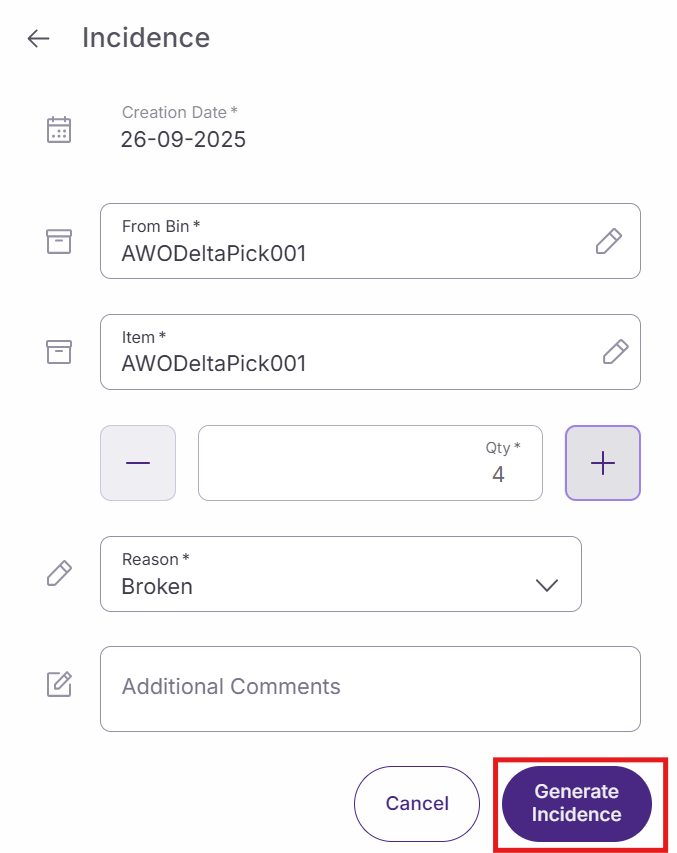
Store inventory incidents occur when products are damaged, lost, or need to be moved between locations outside of regular receiving processes. This guide explains how to report these incidents using SSMS. You'll learn to document inventory discrepancies and specify reasons that help track and manage store operations.
Access the incident reporting tool
Log in to SSMS. The main dashboard displays various inventory management options.
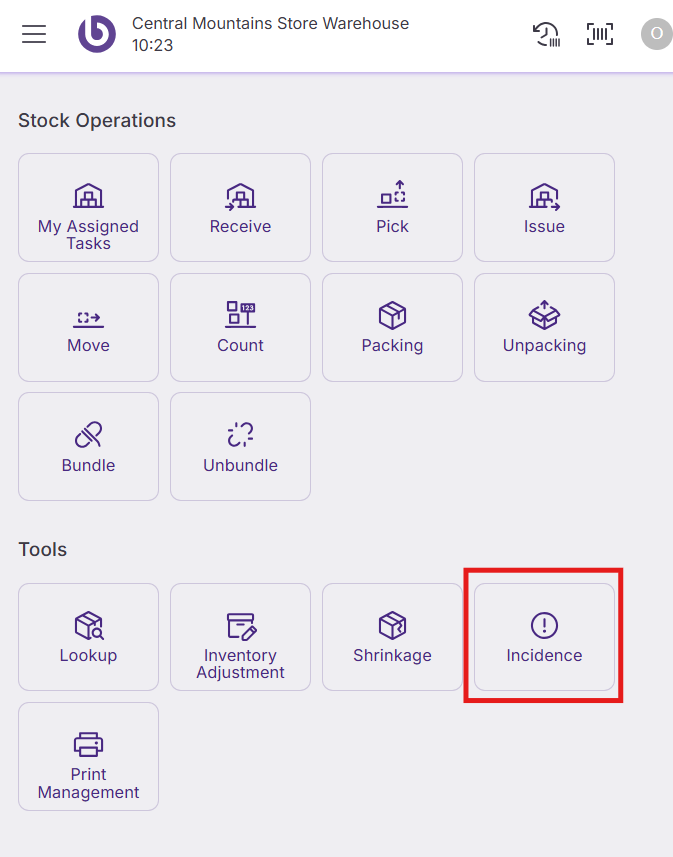
Click the 'Incidence' button to open the incident reporting window.
Create an incident report
The 'Incidence' window opens with several fields that must be completed to document the inventory issue properly.
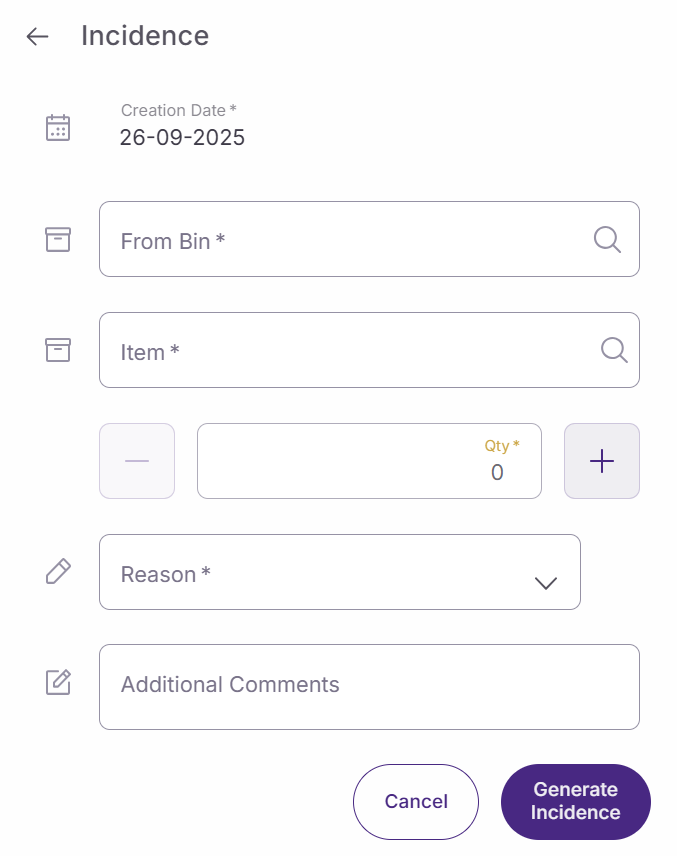
Complete the following fields:
-
Creation date. The system automatically sets today's date for the incident report. This date represents when you're documenting the incident, not necessarily when it occurred.
-
From bin. Select the specific storage location where the affected inventory is currently located. This field helps track which area of the store experienced the incident.
-
Item. Click this field to open the product search window. Browse or search for the affected product and click on it to select it. The window closes automatically after selection.
-
Quantity selector. Specify how many units are affected by the incident. Use the minus (-) and plus (+) buttons to adjust the quantity, or tap directly in the field to enter the number manually.
-
Reason. Choose from the available incident reasons configured in the back office. These reasons determine what happens to the reported quantity and may trigger additional actions like moving items to different locations or creating litigation cases for tracking purposes.
-
Additional comments. Add any relevant details about the incident that might help with tracking or resolution. This field is optional but recommended for providing context.
Finalize the incident report
Review all entered information to ensure accuracy. The incident report creates permanent inventory records that affect store stock levels.
Click on 'Generate incidence' to submit the report and update inventory records. The system processes the incident according to the selected reason's configuration.
Click on 'Cancel' if you need to abort the process without saving any changes.