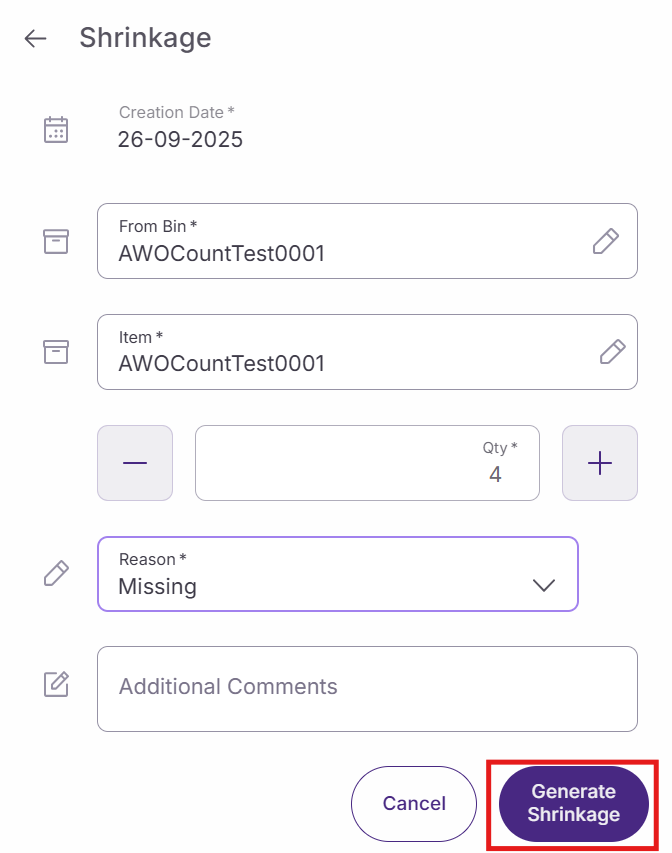
Inventory shrinkage involves permanently removing damaged or unsellable products from store inventory through destruction. This guide explains how to report markdowns using SSMS. Unlike regular incidents, markdowns specifically handle items that must be destroyed and removed from inventory permanently.
Access shrinkage reporting
Log into the SSMS application. The main dashboard provides access to various inventory management functions.
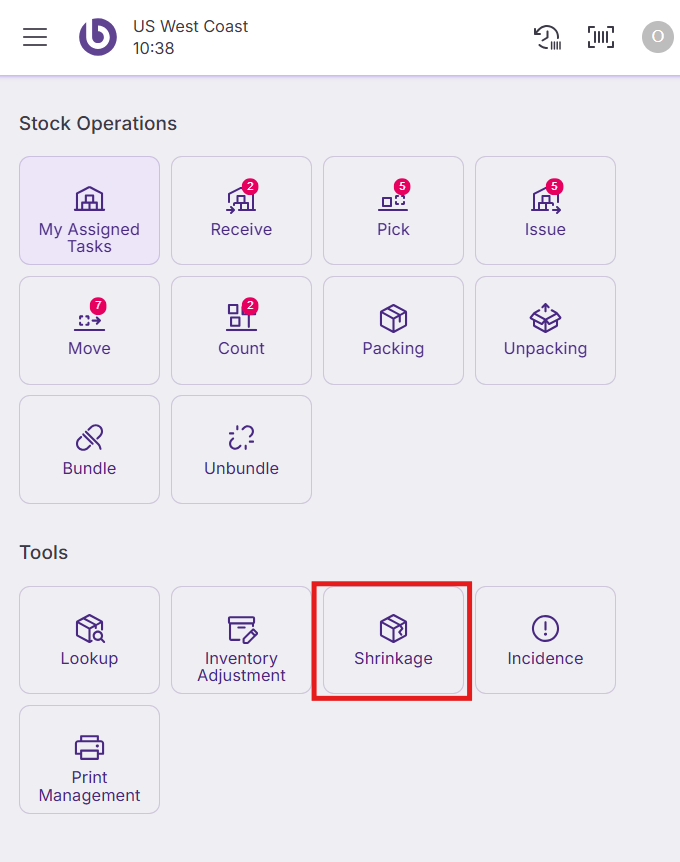
Click the 'Shrinkage' button to open the markdown reporting window.
Create a shrinkage report
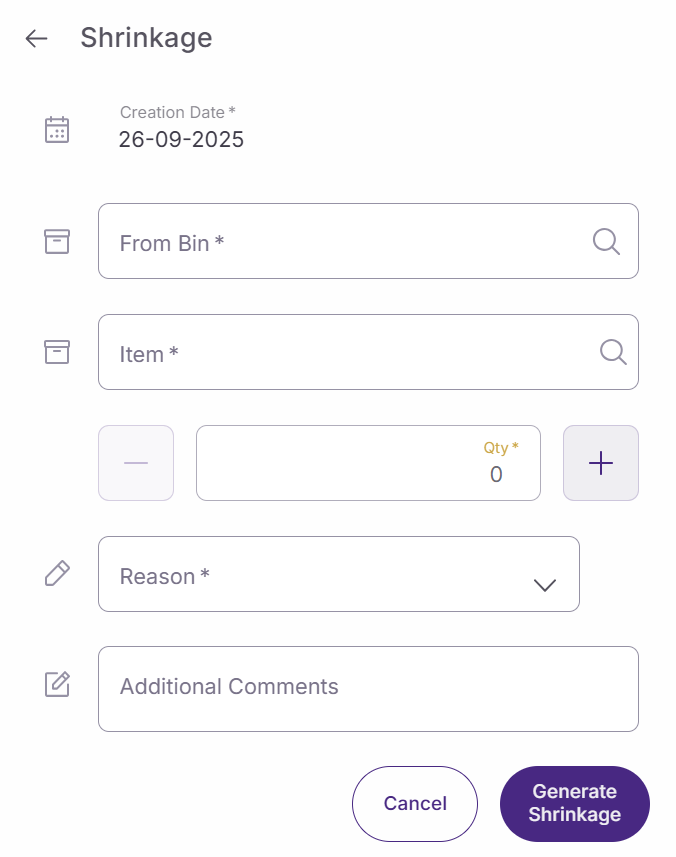
The 'Shrinkage' window opens with fields specifically configured for shrinkage reporting. Only destruction-related reasons appear in the reason dropdown for this function.
Fill out the following information:
-
Creation date. The system automatically populates today's date as the markdown report date. This represents when you're documenting the markdown action.
-
From bin. Select the storage location where the items to be destroyed are currently stored. This ensures accurate tracking of which store area is affected.
-
Item. Click to open the product search window. Locate and select the product that needs to be marked down. The search window closes after you make your selection.
-
Quantity selector. Enter the number of units to be destroyed. Use the minus (-) and plus (+) buttons to adjust the amount, or tap the field to enter the quantity directly.
-
Reason. Select from the available markdown reasons. These reasons are specifically configured for stock destruction actions and determine any additional processing requirements or confirmations needed.
-
Additional comments. Provide any relevant details about why the markdown is necessary. While optional, comments help maintain clear records for inventory auditing and loss prevention tracking.
Complete the shrinkage process
Double-check all entered information before submitting. Shrinkage reports permanently remove inventory from store stock and cannot be easily reversed.
Click 'Generate shrinkage' to process the markdown and update inventory records. The system removes the specified quantity from available stock.
Click 'Cancel' to exit without processing the markdown if you need to make changes or reconsider the action.