
The self-checkout (SCO) system provides customers with an intuitive, step-by-step process to complete their purchases independently. The user flow is designed to guide customers seamlessly from greeting to payment completion while offering flexibility and assistance when needed.
The appearance and behavior of each screen of this flow are managed through the back office.
Complete Transaction Flow
1. Welcome and Entry
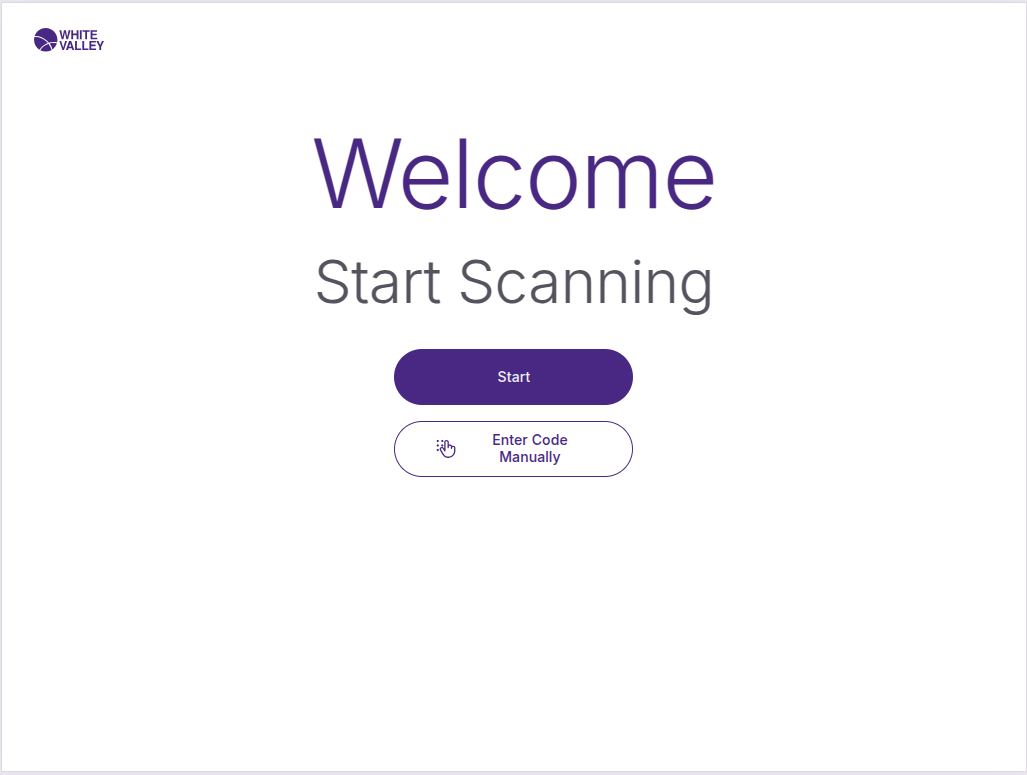
The customer journey begins at the Welcome screen, which serves as the friendly entry point to the SCO system. Customers can start their transaction by clicking anywhere on the screen, pressing the 'Start' button, or directly scanning their first item. The system also allows manual product code entry from this initial screen for customers who prefer not to scan barcodes.
2. Product Selection and Scanning
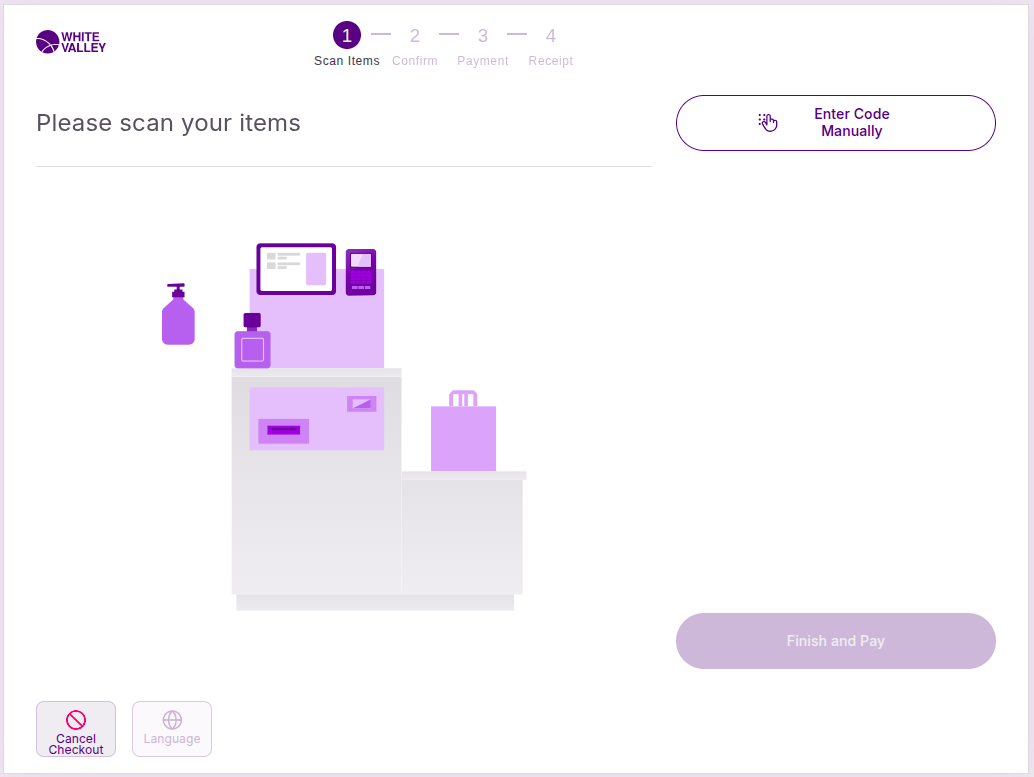
Once past the welcome screen, customers enter the Basket screen where they build their basket. The system accommodates different shopping preferences:
-
Barcode scanning: Customers scan product barcodes using the built-in scanner
-
Manual entry: Products can be added by entering codes through the 'Enter code manually' option
-
Order merging: Existing orders or draft orders can be scanned and merged with the current transaction
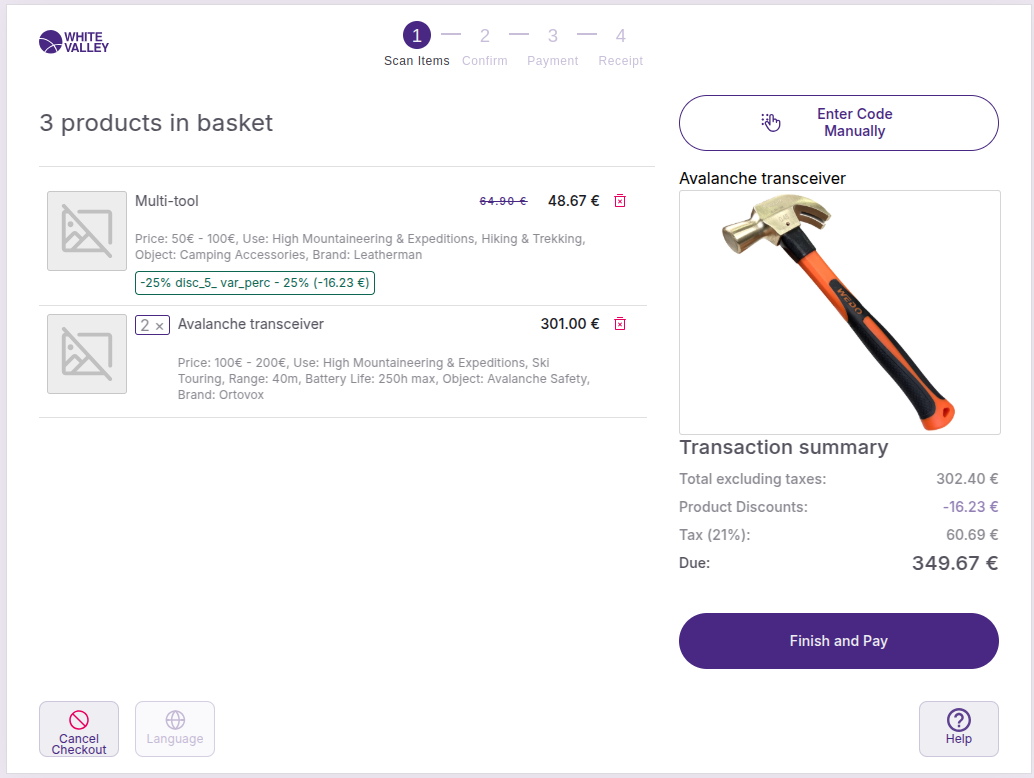
As products are added, they appear in real-time on the left side of the screen with complete details including images, names, prices, and any applied discounts. The right side displays the most recently added item for immediate confirmation.
3. Basket Management
The Basket screen allows customers to review and modify their selections. Customers can:
-
Remove individual items using the red trash bin icon
-
View comprehensive product information
-
Monitor their running total with tax and discount breakdowns
-
Add additional products or cancel the entire transaction if needed
4. Customer Identification (Optional)
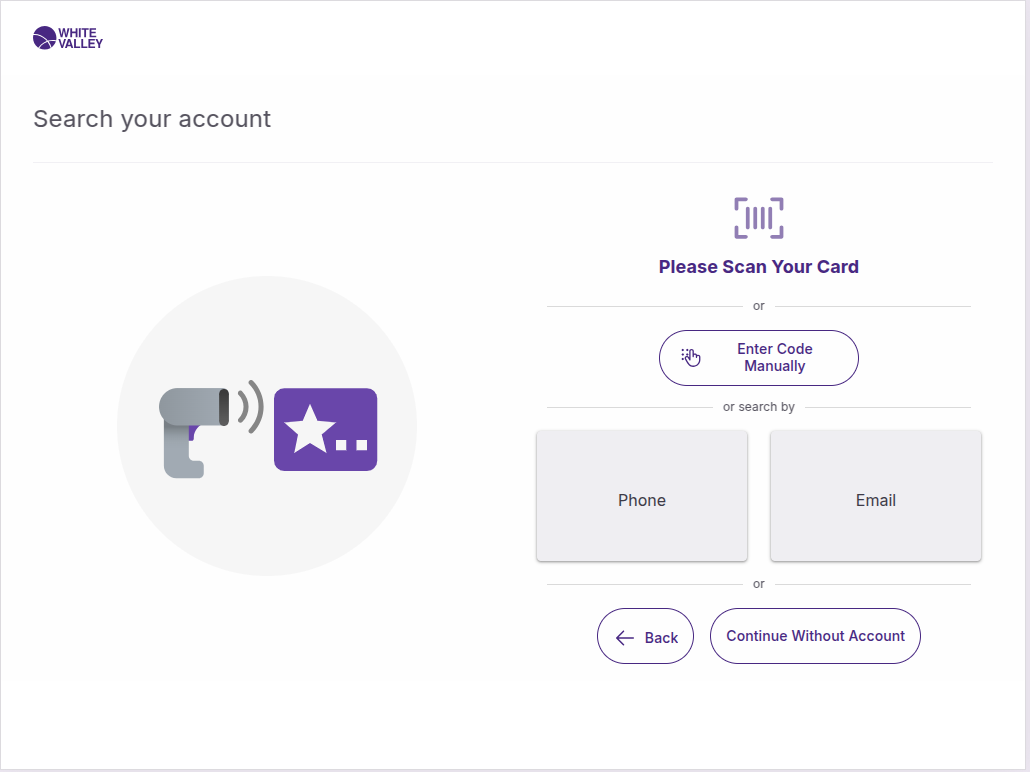
At any point during shopping, customers can identify themselves using the customer identification button. The Search account process involves:
-
Selecting from up to three configured identification methods (managed through CRM configuration)
-
Using appropriate input methods (alphanumeric or numeric keyboards)
-
Confirming their identity from search results
-
Unlocking personalized discounts and external discount opportunities
5. External Discounts Processing
For identified customers linked to an external discount engine through CRM configuration, the system automatically retrieves and applies eligible discounts:
-
Automatic discounts apply immediately with notification
-
Optional External Discount screens present choices for customer selection when the order qualifies for them
-
System unavailable scenarios offer retry, continue, or assistance options
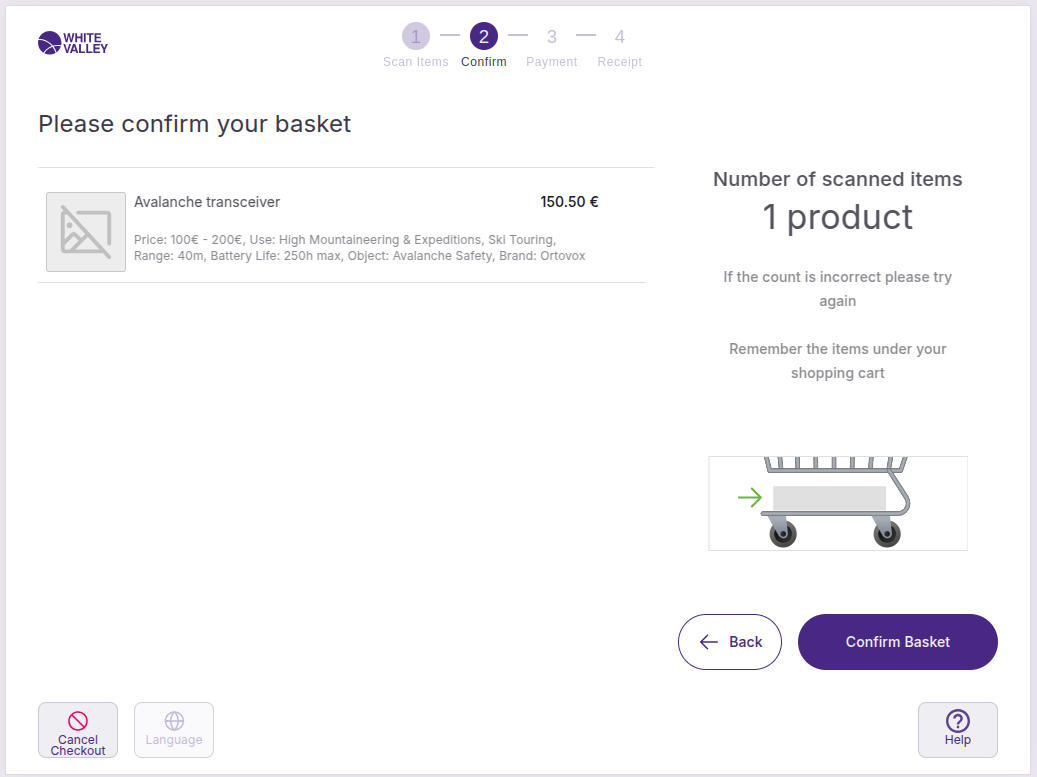
6. Transaction Confirmation
When ready to pay, customers click 'Finish and pay' to reach the Confirm basket screen. This screen provides a final review showing:
-
Total number of products scanned
-
Complete transaction summary
-
Options to return to scanning or proceed to payment
The system may require supervisor approval for transactions exceeding configured limits.
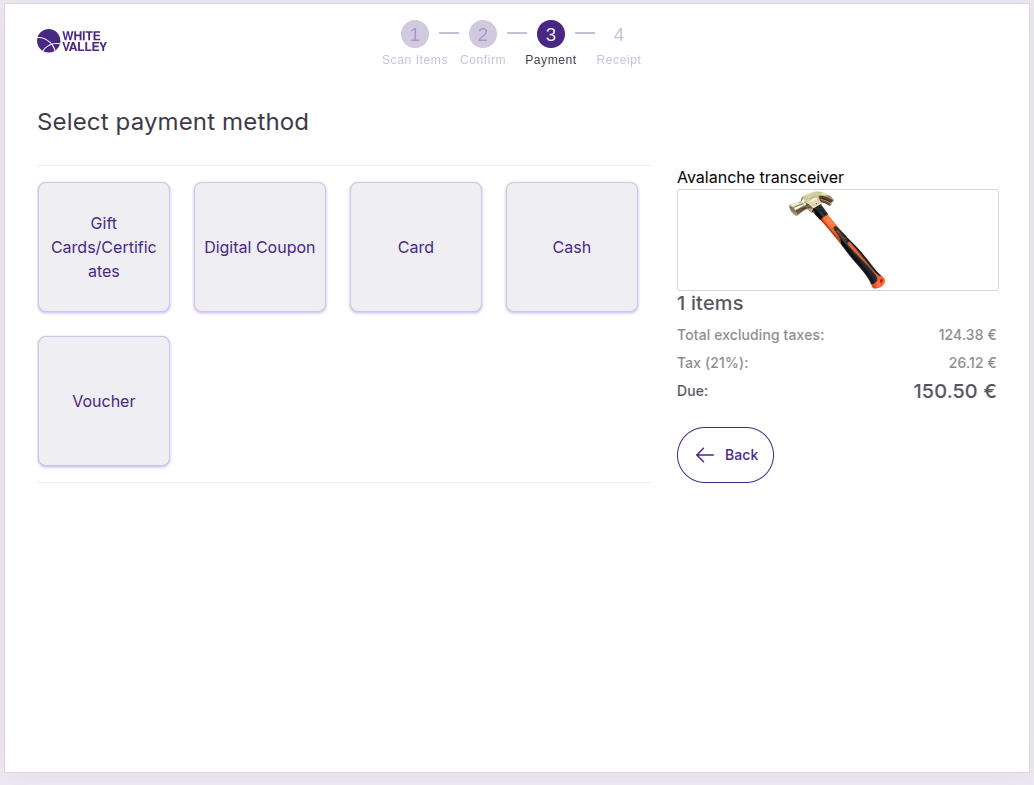
7. Payment Processing
The Payment screen displays available payment methods based on configuration, showing individual payment types or grouped providers with clear visual identification. Customers select their preferred method and complete the transaction through the integrated payment system.
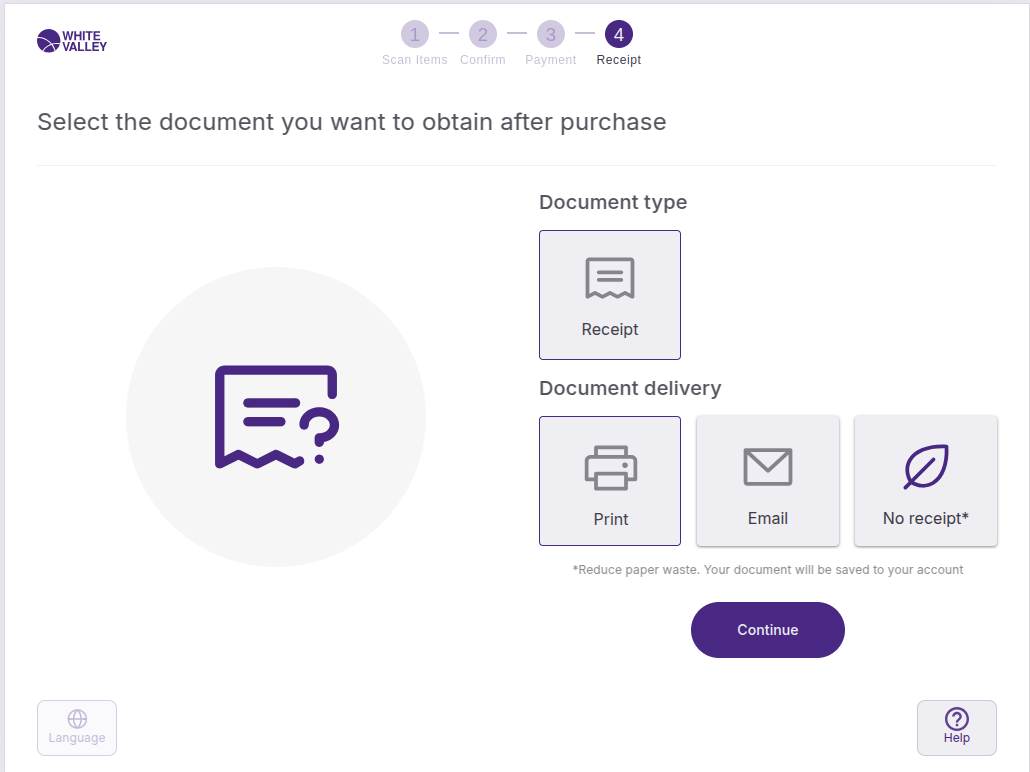
8. Receipt Delivery
After successful payment, the Ticket Delivery screen allows customers to choose how they receive their receipt:
-
Print: Immediate physical receipt printing
-
Email: Digital receipt sent to provided email address
-
Auto-selected: Predetermined delivery method based on configuration
The Receipt Sending process occurs automatically based on the customer's selection. The receipt is sent or printed in all cases, but the back office SCO Configuration window can be set to skip displaying the screen showing the sending/printing process to streamline the customer experience.
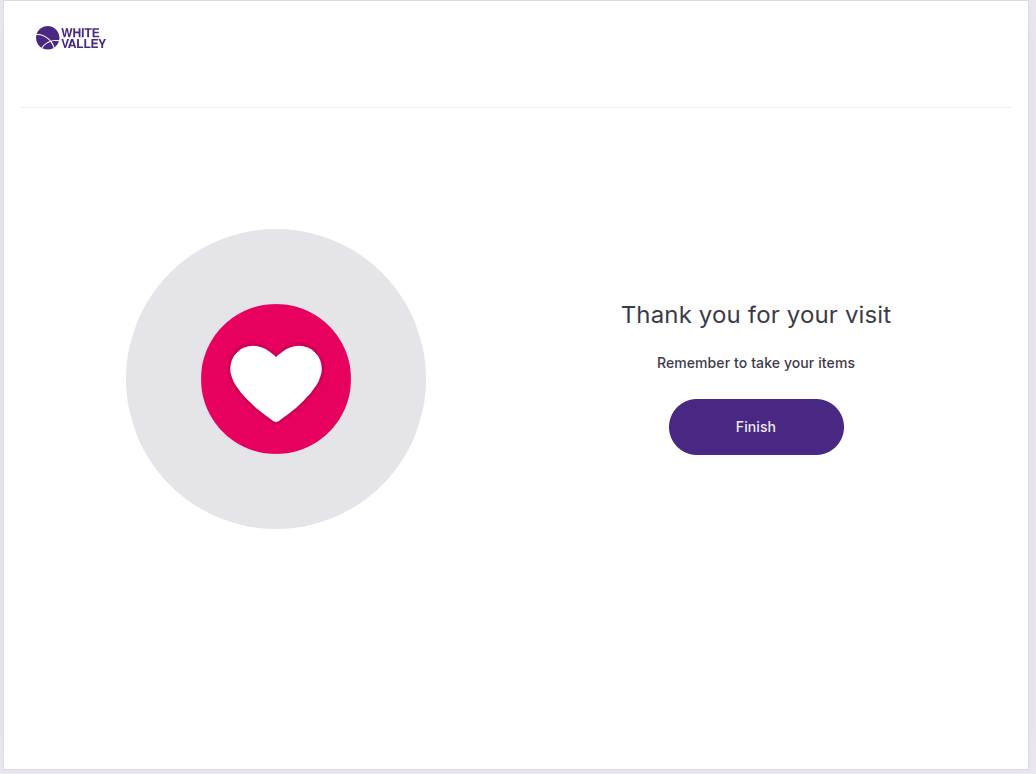
9. Transaction Completion
The flow concludes with the Goodbye screen, which displays for a configured timeout period before automatically returning to the Welcome screen for the next customer. The timeout duration is managed through the back office SCO Configuration window. Customers can also manually finish by clicking the 'Finish' button.
Configuration Management
The entire SCO user flow is managed through the back office ‘SCO Configuration’ window, which provides retailers with comprehensive control over:
-
Screen timeouts and automatic transitions
-
Button visibility and functionality
-
Error handling behaviors
-
Assistance call triggers
-
Display options for discounts and product information
-
Receipt delivery options and automation
CRM integration manages customer identification processes and external discount engine connections, ensuring seamless integration with existing customer relationship management systems.
Error Handling and Assistance
Throughout the entire flow, the SCO system provides robust error handling and assistance options:
-
Unknown Products: When scanned or entered codes don't match products, the system offers retry options, assistance calls, or supervisor approval based on configuration.
-
Product Issues: Special handling for obsolete products, price request items, and tax-exempt products ensures proper processing with appropriate notifications and approval workflows.
-
System Failures: Connection issues with external systems trigger clear messaging and alternative action options.
-
Customer Support: Assistance can be called at multiple points in the flow, with supervisor approval mechanisms integrated throughout the process.
Flow Flexibility
The SCO user flow maintains flexibility while ensuring security and accuracy:
-
Customers can move between POS and SCO modes while preserving transaction data
-
Multiple entry points accommodate different customer preferences
-
Timeout mechanisms ensure terminal availability
-
Configuration options through the back office SCO Configuration window allow retailers to customize the experience for their specific needs
-
CRM integration enables personalized customer experiences and external system connectivity
This comprehensive flow design ensures customers can complete their purchases efficiently while providing retailers with the control and oversight necessary for secure, accurate transactions.