
The stock operation 'Count' allows users to perform counting task for individual items previously created in the backend and to create new inventory count transactions.
Moreover, when working with shared counts and count tasks are generated for the manager to verify the differences, they are displayed in the stock operation ‘Count’.
Access counting tasks
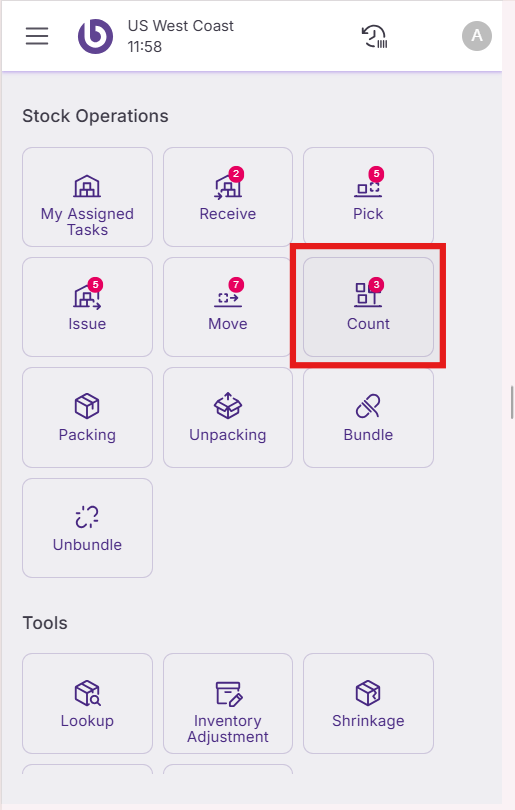
Open SSMS on your mobile device. Navigate to the 'Stock Operations' section and select 'Count'.
The ‘Inventory Count’ screen displays two main sections:
-
Pending: Shows the count of tasks waiting for confirmation, unassigned, or assigned to the logged user.
-
Confirmed: Shows the confirmed count of tasks during the current session.
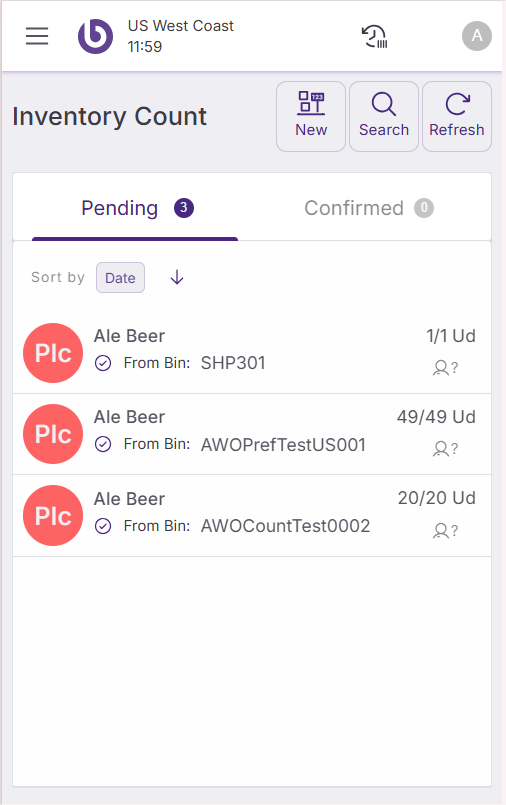
Use the ‘Search’ button to filter pending or confirmed count tasks by product or location.
The ‘Refresh’ button updates the list to show recently created tasks in real-time.
The ‘New’ button allows you to create new transactions and Inventory Counts.
Perform a counting task
If the user clicks on an unassigned count task, the ‘Assign Task’ pop-up is opened.
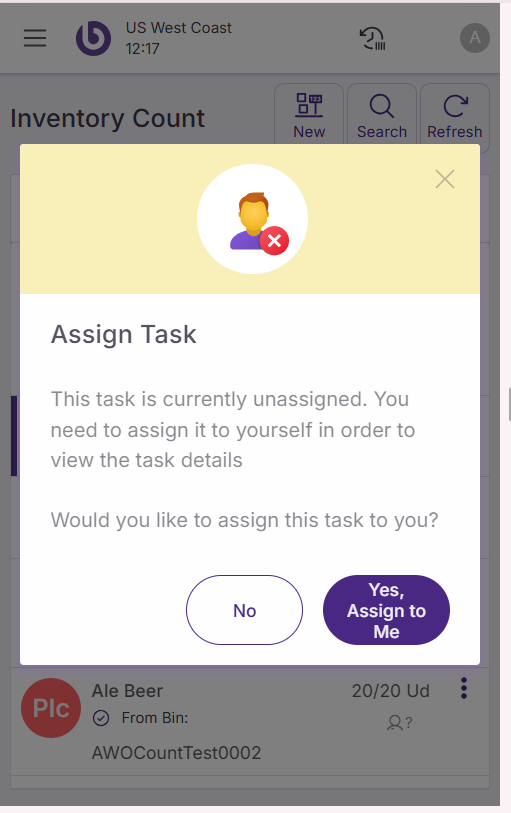
In the ‘Assign Task’ pop-up:
-
Click on ‘No’ to come back to the previous screen.
-
Tap ‘Yes, Assign to Me’ to open the count task.
If the user clicks on an assigned count task, it is open.
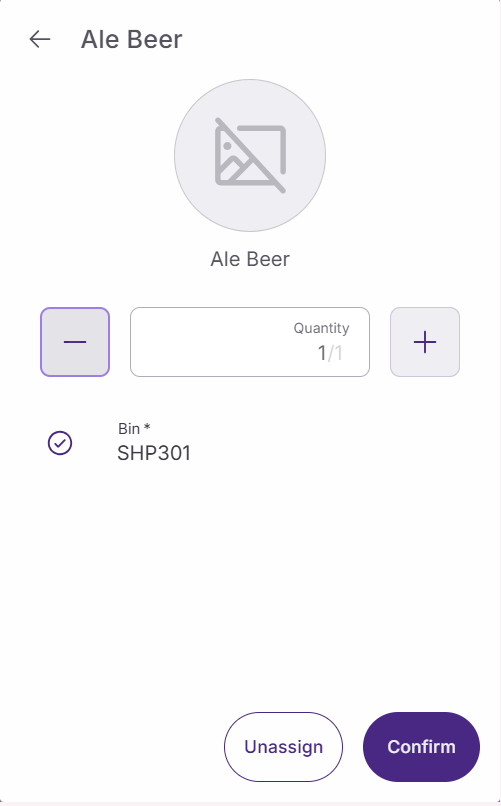
To count manually:
-
Tap the plus button next to each product to increase quantities.
-
Use the minus button to decrease quantities.
Quantity can also be increased using a scanner.
After counting,
-
Click ‘Unassign’ to return to the Inventory Count screen.
-
Tap ‘Confirm’ to update the stock level. The Count Task is moved to the ‘Confirmed’ section.
Action availability and access control
The actions and options shown in the ‘New Count’ dialog are role-dependent. By default, if a user does not have permission for a specific action, it will not appear in the interface.
This behavior can be overridden per warehouse by defining a custom UI configuration in the ‘Warehouse Definition’ window.
For more details on how access is configured, see the Role and User Action Setup in SSMS section.
|
Option |
User action |
|---|---|
|
By Location |
OpenNewLocationCountDialog |
|
By Item: Assisted |
OpenNewAssistedCountDialog |
|
By Item: On the Fly (OTF) |
OpenNewOTFCountDialog |