
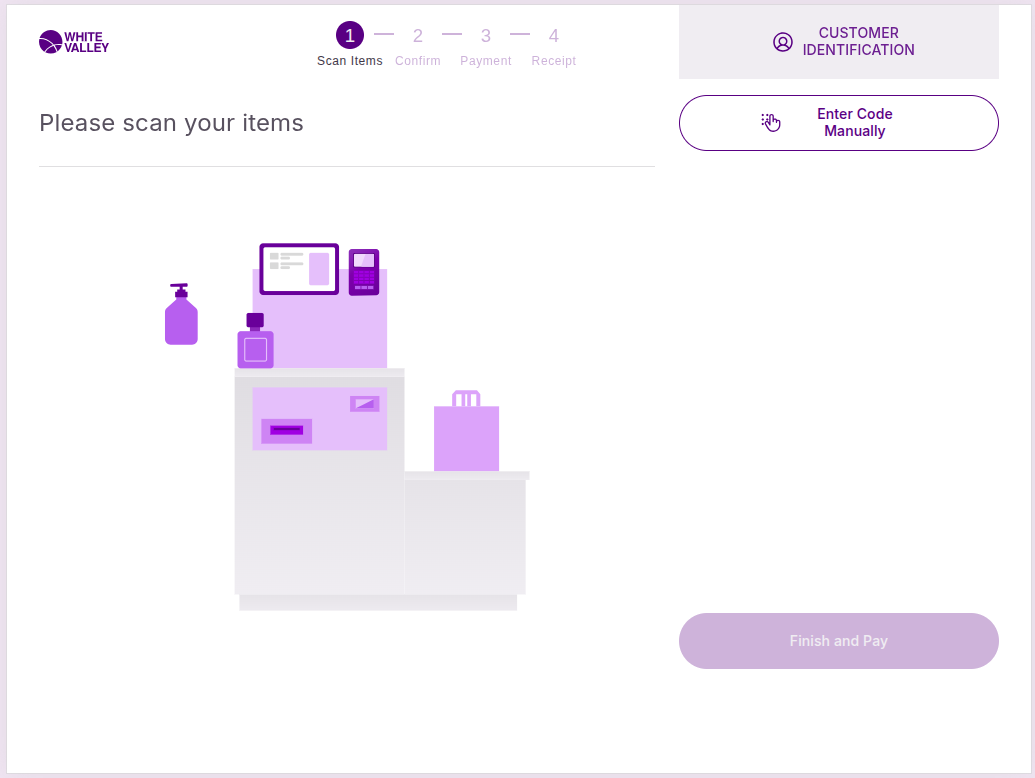
This guide explains how to use the SCO header in the self-checkout (SCO) system. The SCO header appears at the top of all SCO screens and contains navigation elements including the organization logo for mode switching, a stepper that shows their current progress through the checkout process and the customer identification button.
SCO header overview
The SCO header is located at the top of all SCO screens and provides essential navigation and progress information:
-
Organization logo for switching back to POS mode
-
Stepper showing current checkout progress (configurable)
-
Customer identification button (configurable)
The header remains visible throughout the entire checkout experience, providing constant access to navigation, progress information, and customer identification based on the system configuration.
Organization logo
The organization logo is located at the top left side of any SCO window and serves as the method to switch back to POS mode. This logo is always present in the header across all SCO screens.
Switch to POS mode
To return from SCO to POS mode:
-
Double-click the organization icon at the top left side of any SCO window
-
A popup will open requesting authentication
-
After entering the credentials correctly, the application will switch to POS mode
The double-click action is required to initiate the mode switching process. This prevents accidental switching during normal SCO operation.
Customer identification
The customer identification button is located at the top right corner of the terminal. This button appears based on system configuration and allows customers to identify themselves during their shopping experience.
Stepper
The stepper indicates what step customers are currently in during their purchase process. This visual indicator helps customers understand their progress through the checkout flow and shows how many steps remain to complete their transaction.
Progress tracking
The stepper displays the customer’s current position in the checkout process, showing:
-
Which step they are currently on
-
Overall progress through the checkout flow
-
Visual indication of completed and remaining steps
This helps customers understand where they are in the process and what comes next in their purchase.