
This guide explains how to unbundle products in the SSMS front-end application. Unbundling separates composite products back into their individual component items. You'll learn how to set up unbundling tasks, select stock to consume, and complete the unbundling process using a bill of materials (BOM) configured in the back office.
Understanding unbundling
Unbundling is the reverse of the bundling process, where you separate a composite product into its individual component items. This process requires an unbundle BOM production type to be configured in your organization's back office system.
The unbundling process helps you break down composite products when you need access to individual components for other warehouse operations.
Access the unbundling functionality
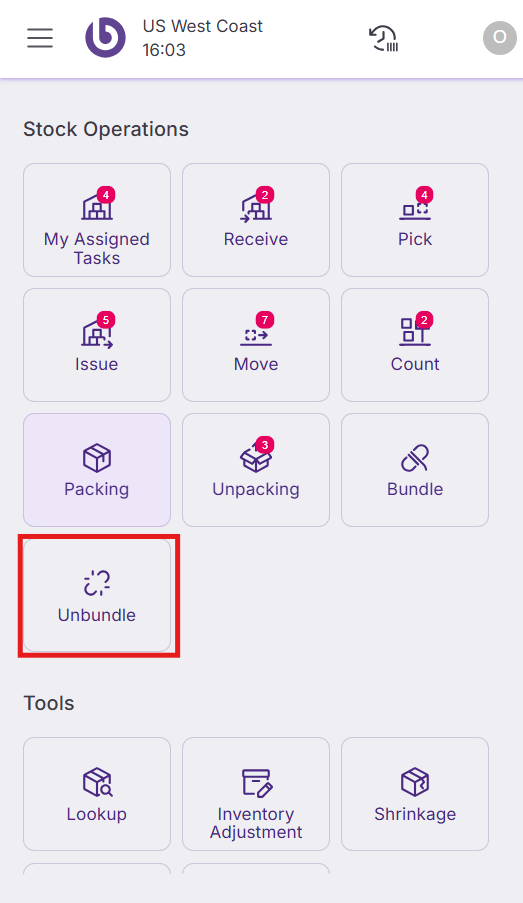
Navigate to 'Warehouse operations' in the SSMS menu and select the 'Unbundle' option. The system will verify that an unbundle BOM production type exists in your organization configuration.
Create a new unbundle task
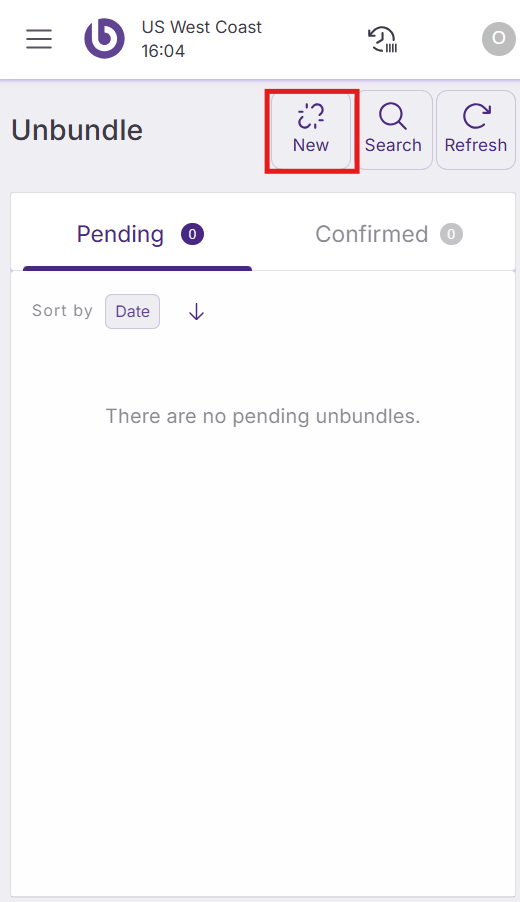
The unbundling creation process works similarly to bundling, with specific differences for breaking down products. To create a new unbundle task, click on ‘New’.
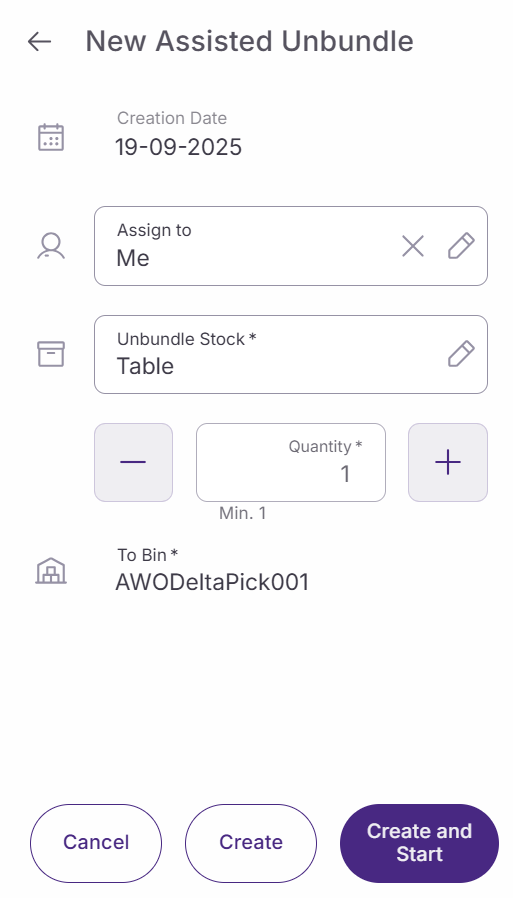
Configure the unbundle task with these fields:
-
Assign to. Select users who will perform the unbundling task. By default, you are assigned to the task.
-
Unbundle Stock. Choose the specific stock (product, bin, and attributes) that will be consumed during unbundling. This selector shows available bundle products that can be unbundled.
-
To bin. Select the destination bin where all component items will be stored after unbundling.
Complete the unbundle setup using these options:
-
Cancel. Returns to the previous screen without creating anything.
-
Create. Creates the unbundling task for later execution.
-
Create and start. Creates the task and immediately begins the unbundling process.
Execute unbundle tasks
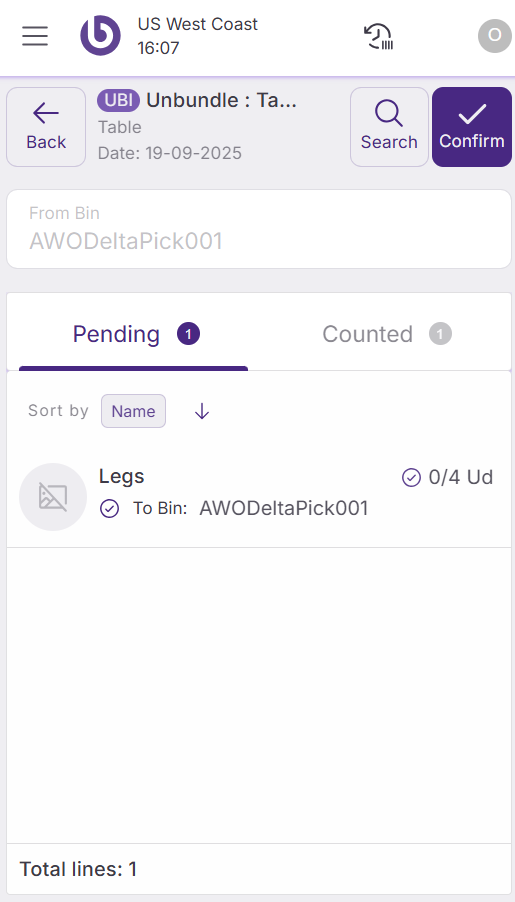
After creating and starting an unbundle task, the system displays the bundle product and its component items that will be produced.
You found the result product to count in the ‘Pending’ tab. When all line is counted, the item line will be moved to the ‘Counted’ tab.
The system automatically calculates the quantities of each component item based on the BOM configuration and the quantity of bundles being processed.
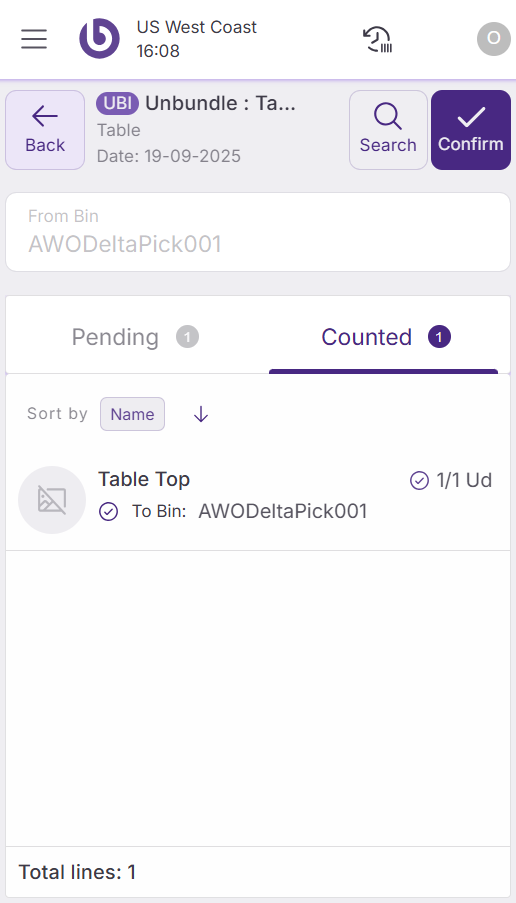
Complete an unbundling process
When the line is synchronized and all validations pass, select 'Confirm' to finalize the process.
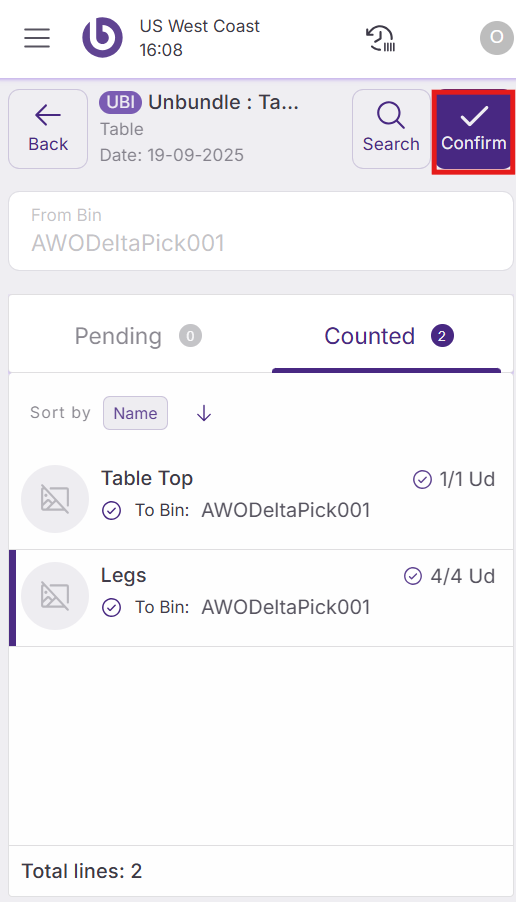
The system consumes the bundle product from its current location and produces the individual component items in the designated destination bin. Inventory levels update automatically for both the consumed bundle and the produced components.