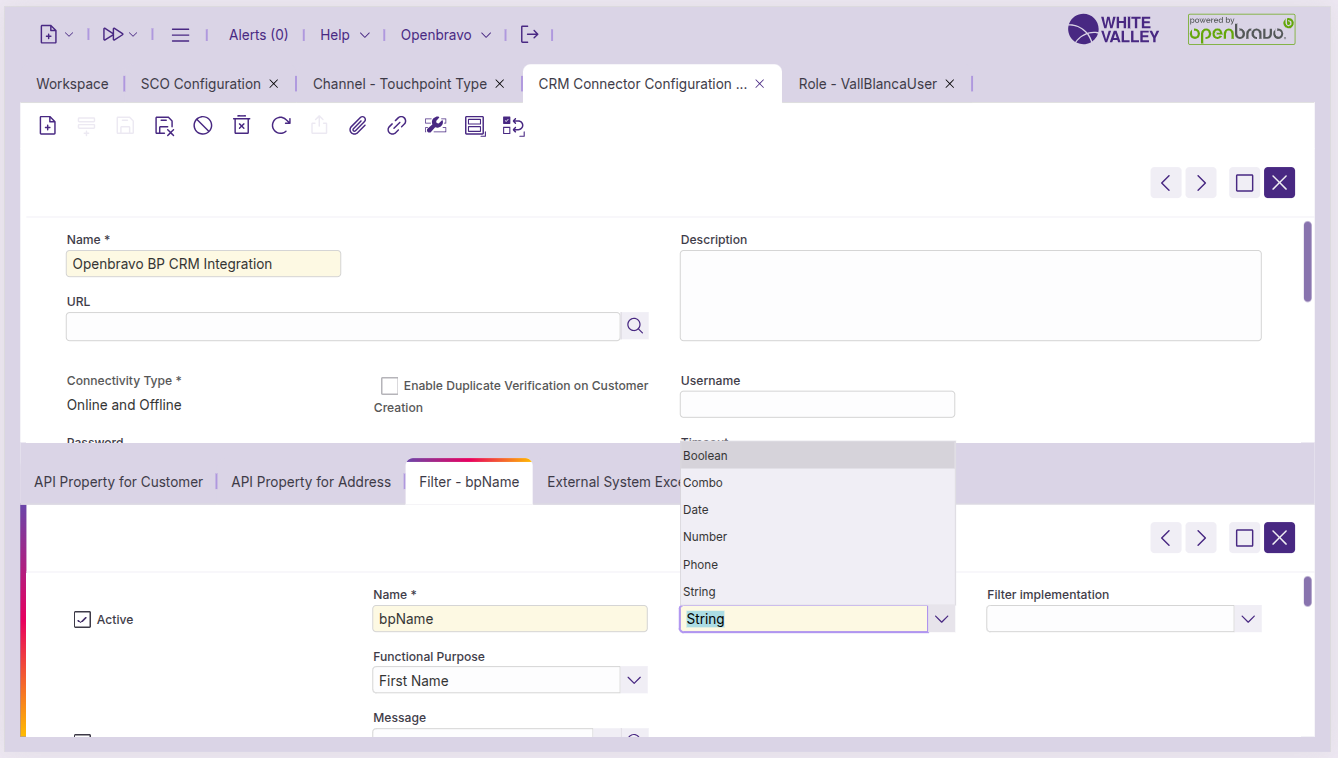
This guide explains how to configure the CRM connector for SCO functionality in the back office. The CRM configuration enables customer identification features in self-checkout mode, allowing customers to identify themselves during their shopping experience. Proper CRM configuration ensures seamless integration between customer data and SCO operations.
Access CRM connector configuration
To configure the CRM for SCO availability:
-
Navigate to the 'CRM connector configuration' window in the back office
-
Select the CRM connector record you want to activate for SCO functionality
-
This connector will provide customer identification capabilities in self-checkout mode
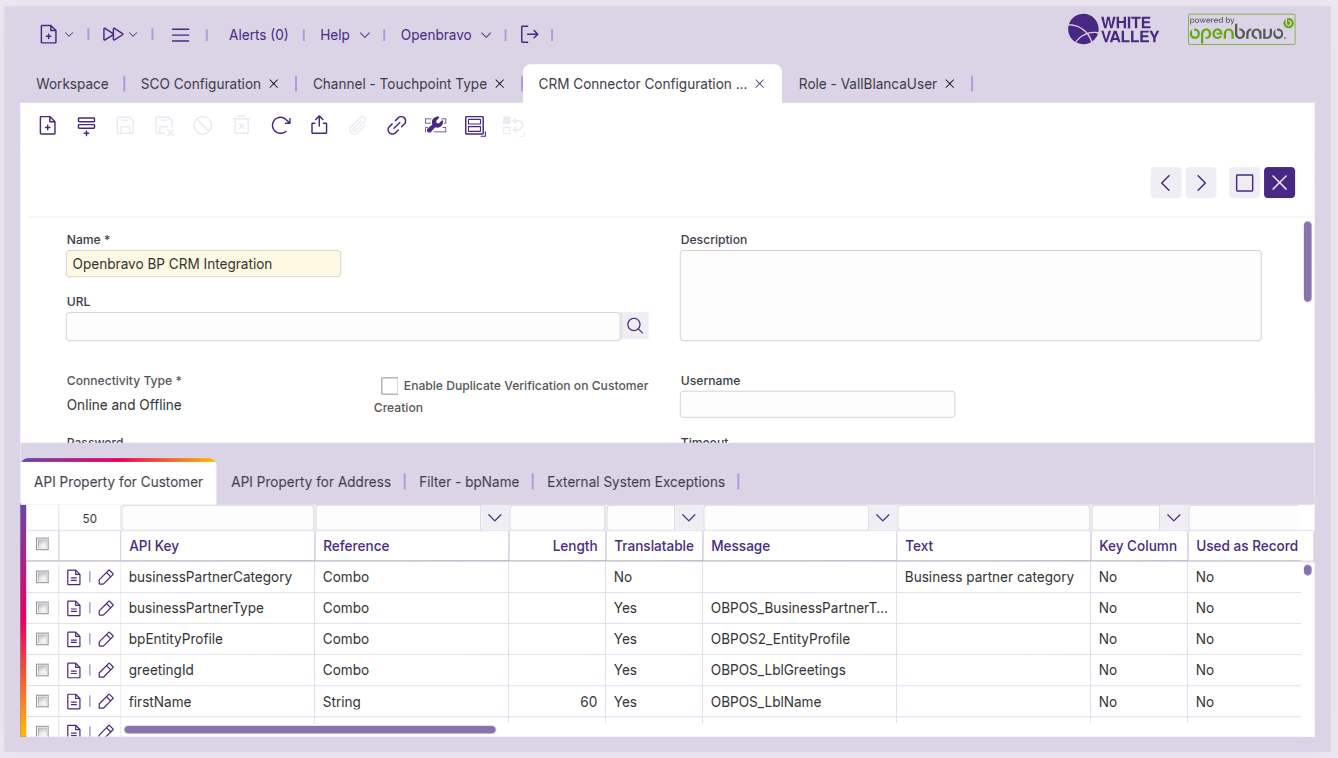
Configure identification methods
Set up the customer identification options that will be available in SCO:
Access filter configuration
-
Navigate to the 'Filter' subtab within the selected CRM connector configuration
-
This subtab contains the available methods for customer identification
-
Each filter represents a different way customers can identify themselves
Enable SCO display
For each identification method you want to make available in SCO:
-
Click on the specific filter method you want to configure
-
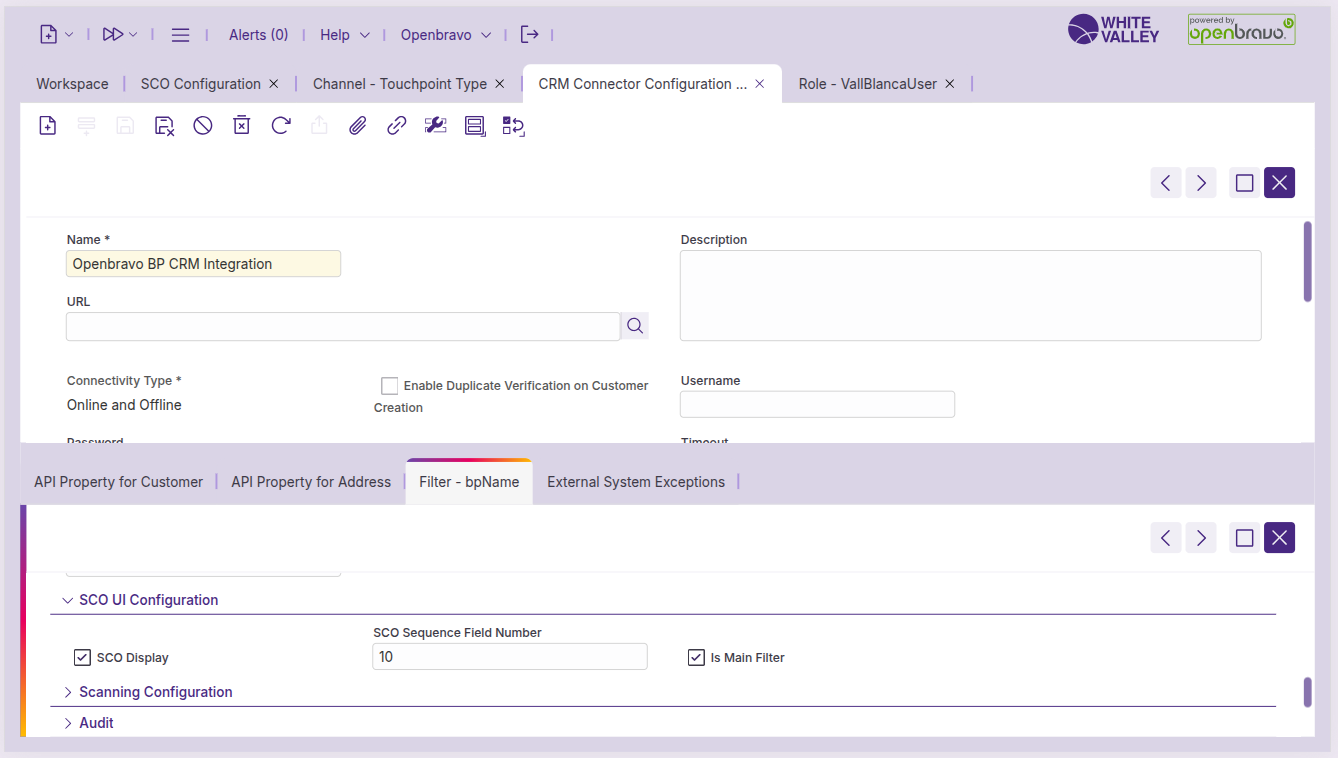
Locate the 'SCO UI configuration' section within the filter settings
-
Activate the 'SCO display' checkbox to enable this identification method in self-checkout mode
-
Fill in the 'SCO sequence number' field to define the display order of identification methods
The SCO sequence number determines the order in which identification options appear to customers in the self-checkout interface.
Configuration requirements
-
SCO display activation: The 'SCO display' checkbox must be checked to make the identification method available in SCO mode
-
Sequence number requirement: The 'SCO sequence number' field must be filled for the identification method to work properly in self-checkout
-
Is Main Filter: One filter can be configured as the main filter for SCO. When configured, the screen will inform customers they can directly scan or enter values manually, making this the default identification method
Note: The system supports a maximum of three identification methods in SCO mode, so configure only the most important methods for customer use.
Joined filters configuration
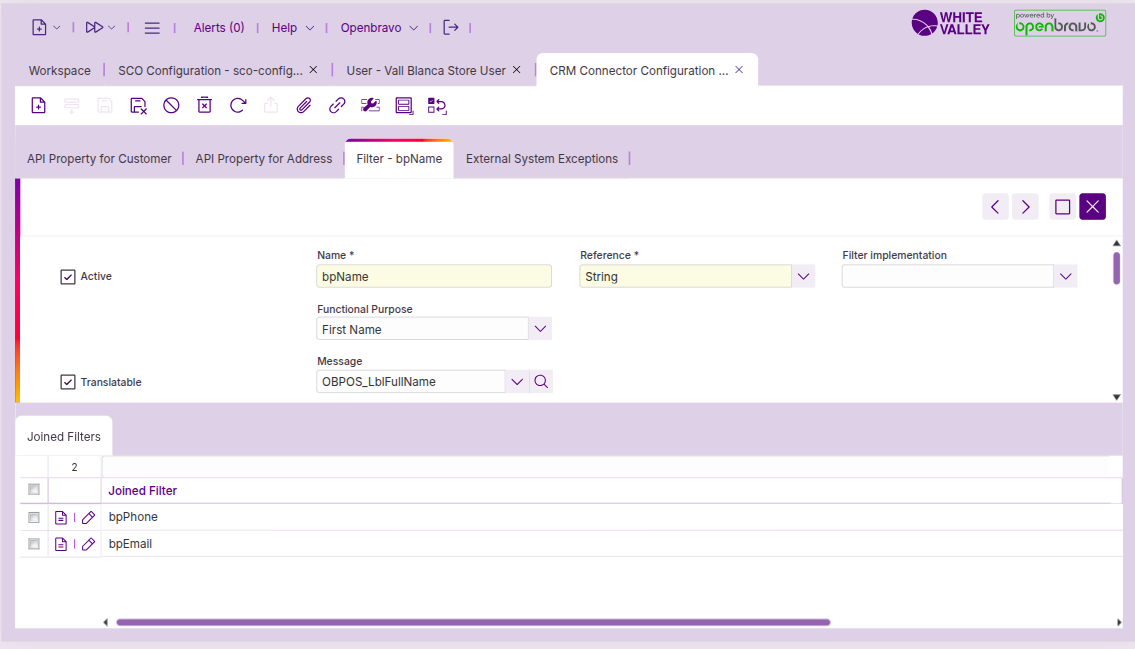
When 'SCO display' is enabled for a filter, a new subtab called 'Joined filters' is available. From this subtab, you can join additional filters.
For each joined filter, you can define:
Sequence number: Determines the order in which the filters will appear.
Skip on property: Conditionally skip a filter based on customer data.
When 'Skip on property' is checked, an additional 'Properties' subtab will appear, allowing you to select:
-
A property from the customer
-
A content value. If this value matches the customer's property during identification, the joined filter will be skipped
If a filter is used as part of a joined filter, it will no longer be available as a standalone option.
Customer data obfuscation configuration
Configure customer data obfuscation by entering any property defined in the CRM configuration:
Activate obfuscation: Check the 'Obfuscate application modes' checkbox within the 'UI configuration' section.
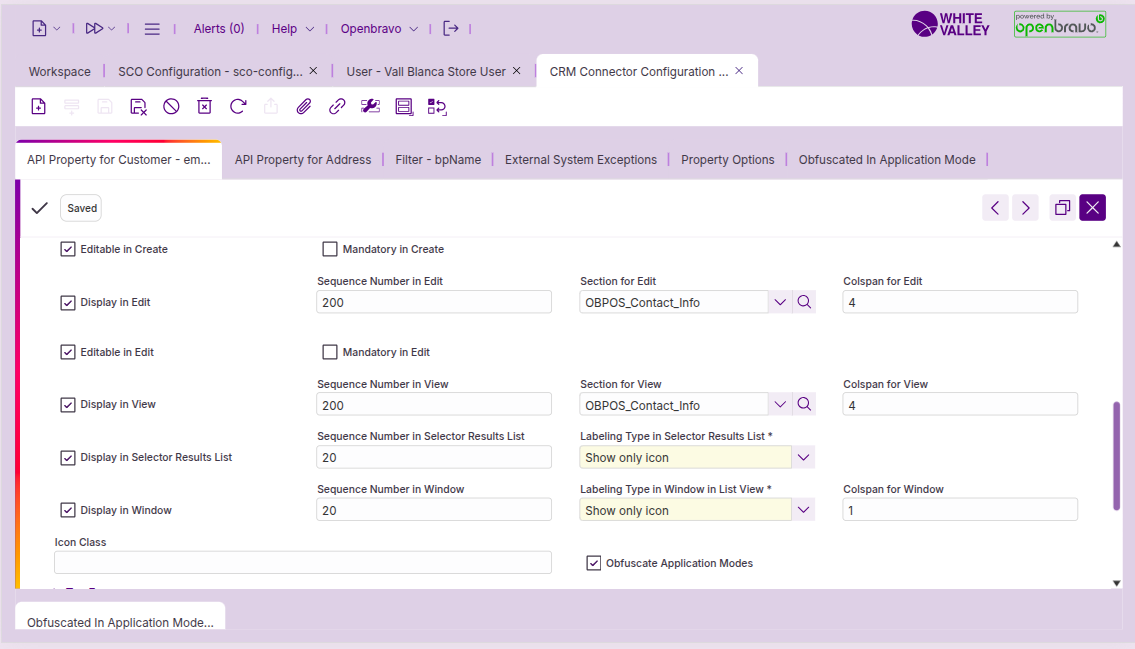
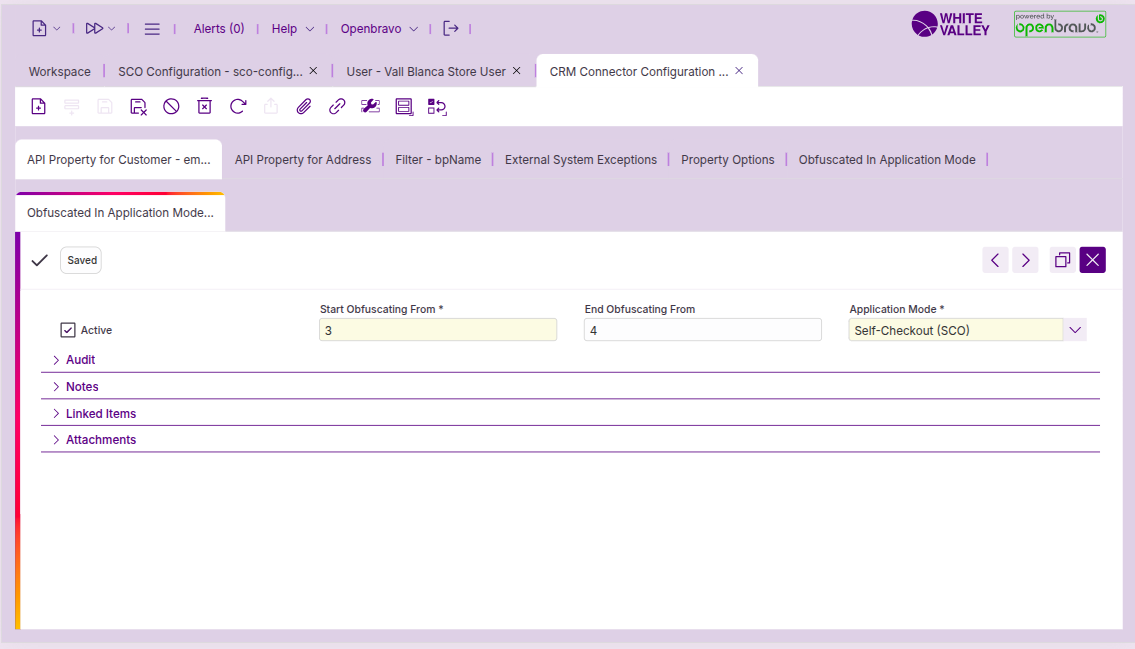
Configure obfuscation parameters: The previous step activates a subtab called 'Obfuscated in application mode', where a record can be created to control the obfuscation parameters.
Configure the following fields:
-
Active: Allows the obfuscation to be activated once defined
-
Start obfuscating from: How many characters will be shown at the beginning of the data before obfuscation starts
-
End obfuscating from: How many characters will be shown at the end of the data from where obfuscation ends
-
Application mode: Application where the data should be obfuscated
Filter type configuration
Input method determination. Configure the ‘Reference’ field of the filter to determine the appropriate keyboard interface for customer input:
-
Text type: Displays an alphanumeric keyboard for text-based identification methods
-
Number or Phone type: Displays a numeric keyboard for number-based identification methods
This configuration ensures customers receive the most suitable input interface based on the type of identification data they need to enter.