This guide explains how to use the search account in the self-checkout (SCO) system. The search account allows customers to identify themselves during their shopping experience to access personalized services, loyalty benefits, and account-specific features. This process integrates with the store's CRM system to provide a seamless identification experience.
Access customer identification
To identify as a customer:
-
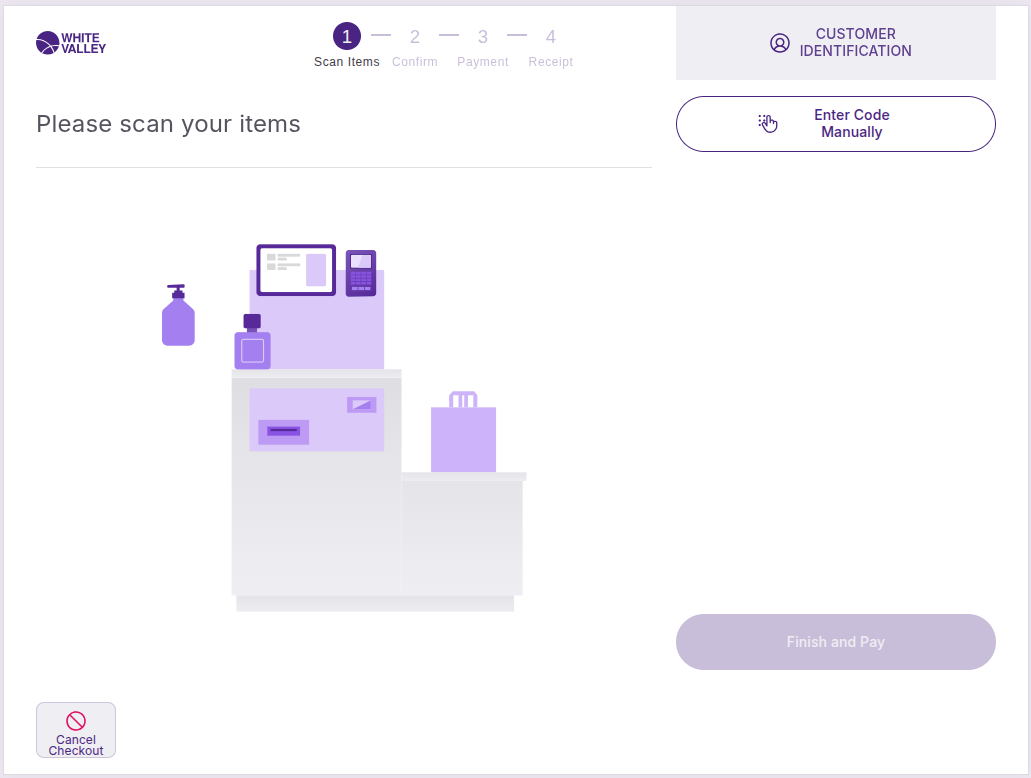
Click the 'Customer identification' button located at the top right corner of the terminal
-
The customer identification window will appear with available identification methods
-
Select the preferred identification method from the available options
The customer identification button remains accessible throughout the SCO process, allowing customers to identify themselves at any point during their transaction.
Identification methods
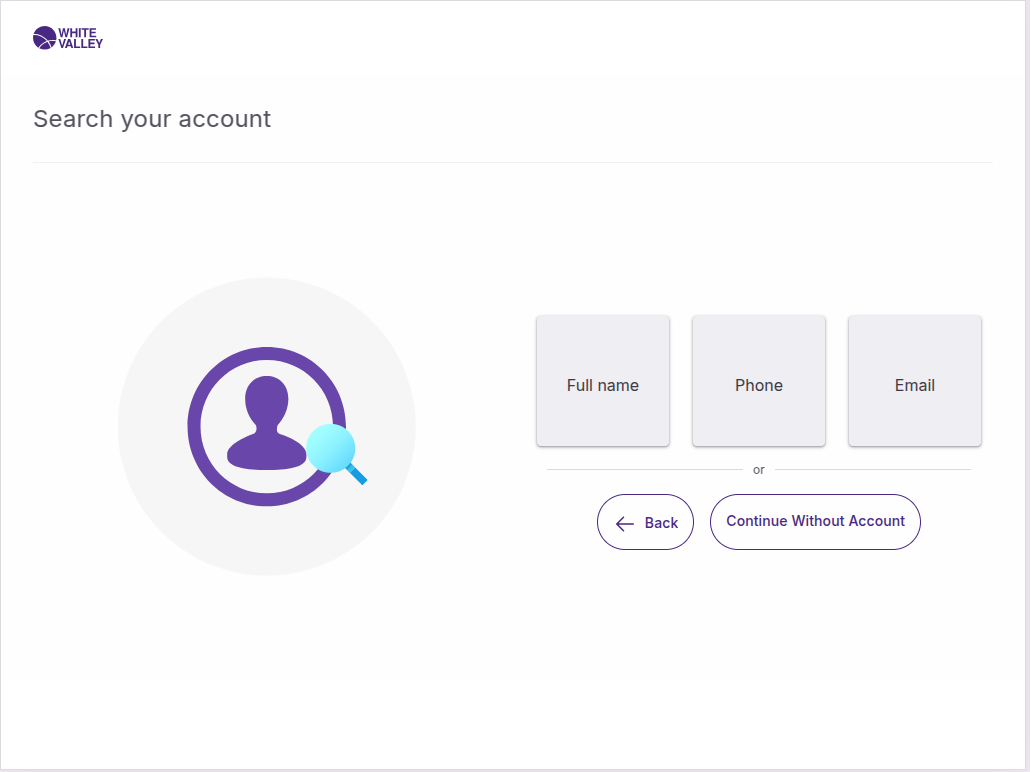
The system can display up to three different identification methods that have been previously configured. These methods appear as buttons in the search account screen and may include:
-
Full name
-
Phone number
-
Email address
-
Tax ID
Method selection
Customers can choose from the available identification methods by clicking the corresponding button. The available methods depend on the store's configuration.
Main filter configuration
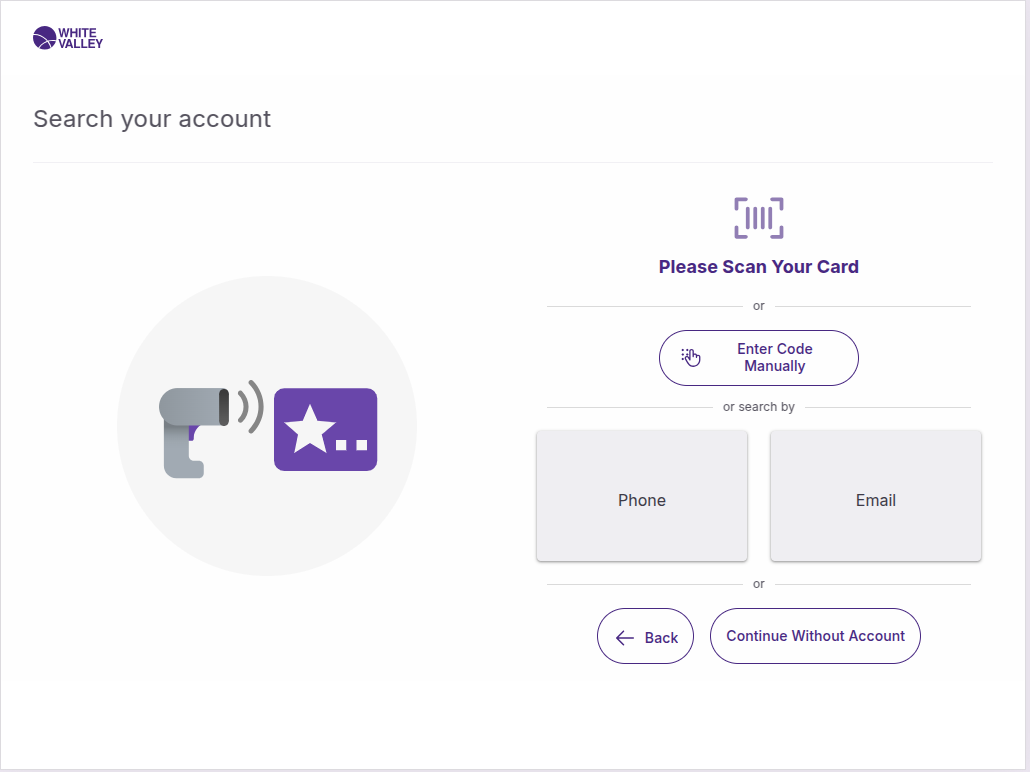
If one filter is configured as the main filter, the screen appearance will vary:
-
The screen will inform customers that it's possible to directly scan or enter the value manually
-
This main filter becomes the default method for quick identification
-
Customers can scan a barcode or use the 'Enter code manually' button for this method
Joined filters
The system supports multi-step customer identification by combining two search filters. This feature improves identification accuracy and reduces fraud by requesting multiple pieces of information sequentially.
When joined filters are configured, customers will see combined search options instead of individual filter options. The system requests two search filters one after another in a predetermined sequence order. Some filters may be conditionally skipped based on customer data properties.
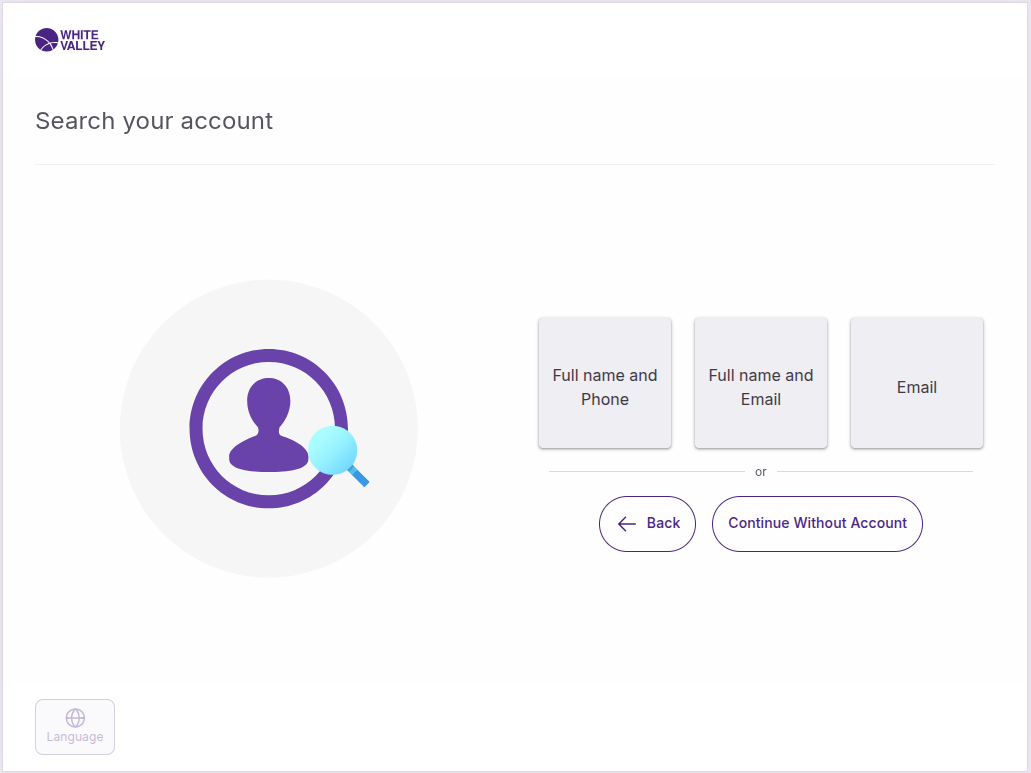
The joined filter process requires customers to complete multiple identification steps before the system processes their information and displays search results.
Identification process
Upon clicking one of the buttons, a new window will open to facilitate customer identification. This window will change depending on the type selected for the configured filter.
Text input method
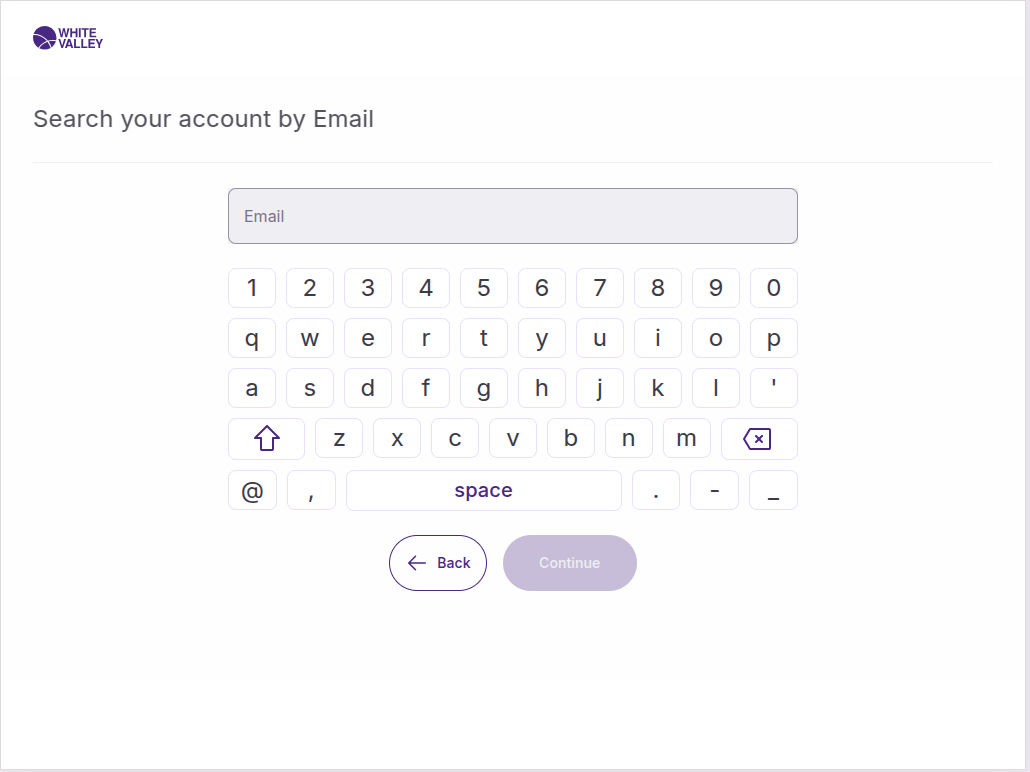
When selecting a text-based identification method (Type: Text):
-
Click the identification method button
-
A new window opens with an alphanumeric keyboard
-
Enter identification information using the on-screen keyboard
-
The system searches for matching customer records
Numeric input method
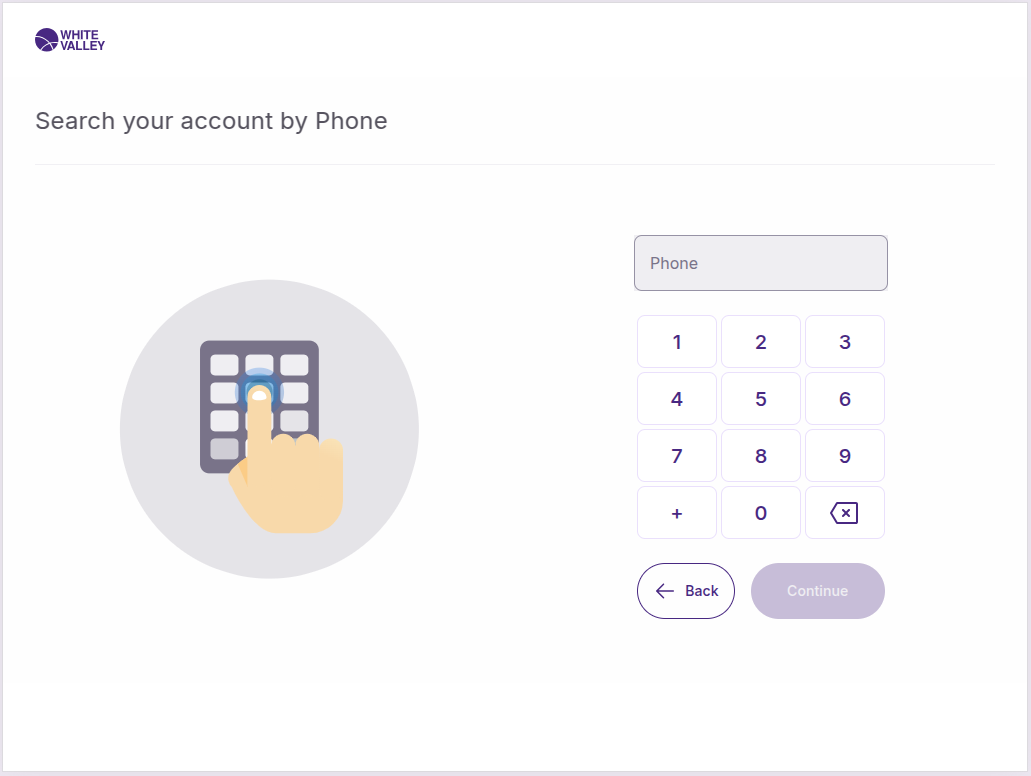
When selecting a numeric identification method (Type: Number or Phone):
-
Click the identification method button
-
A window opens with a simple numeric keyboard to speed up the process
-
Enter numeric identification using the number pad
-
The system processes the identification request
Search results
After performing the identification search, several outcomes are possible:
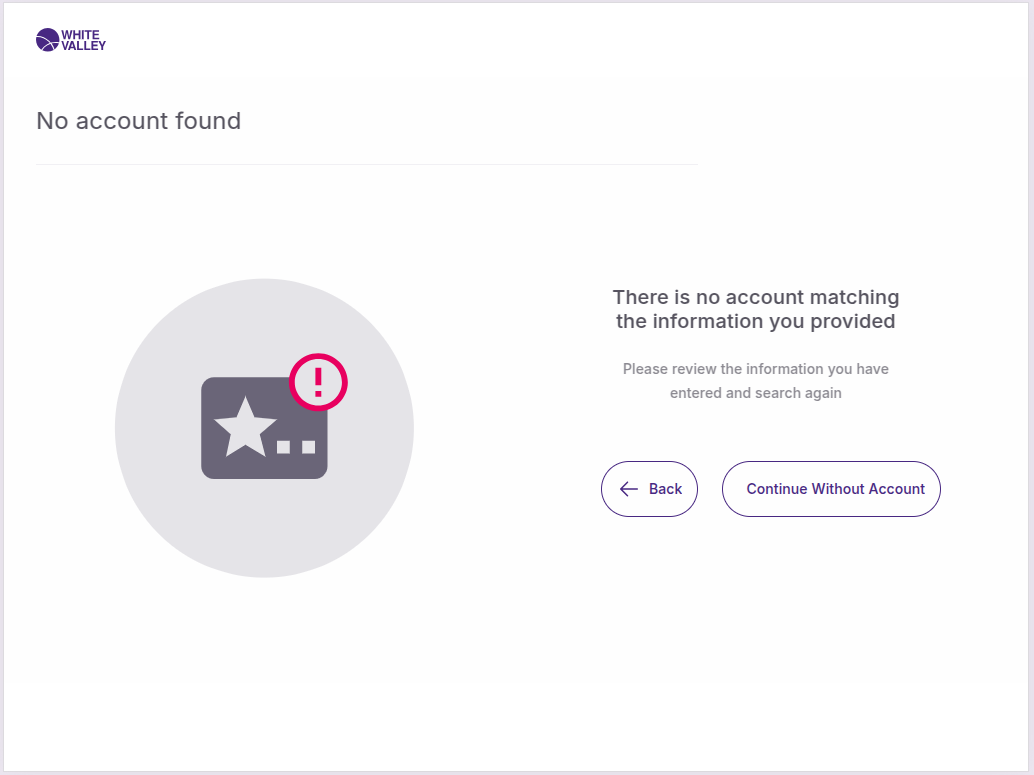
No results found
If the search returns no results, customers will be notified that no matching customer record was found. Customers can:
-
Try a different identification method
-
Re-enter their information
-
Continue as an anonymous customer
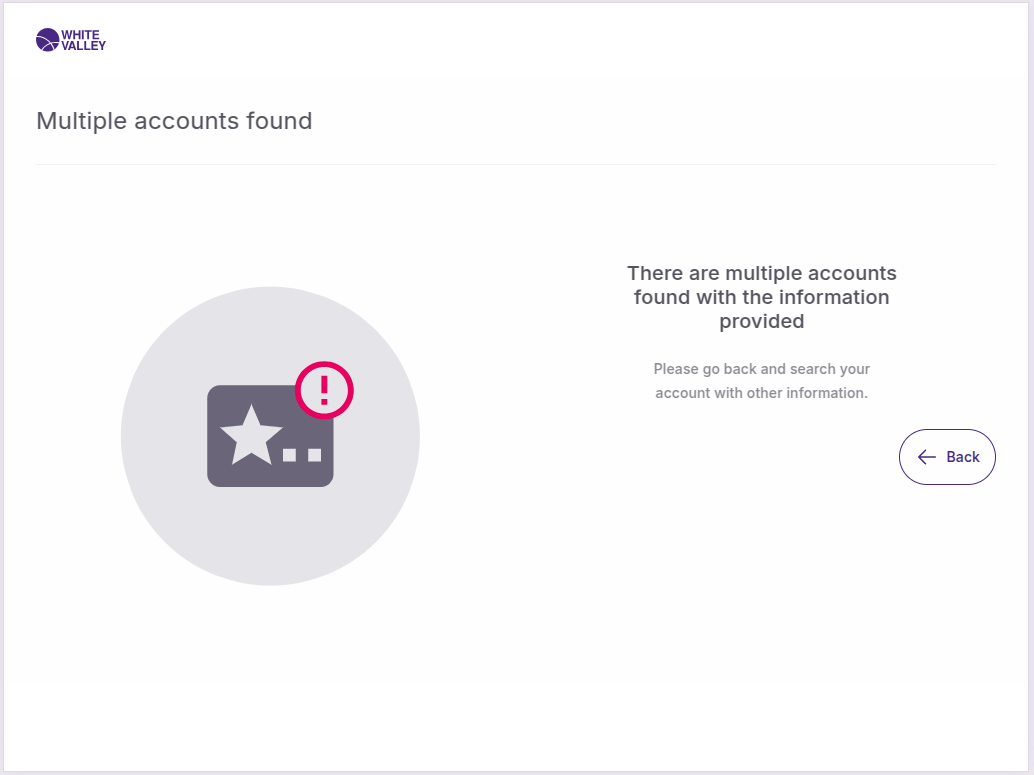
Multiple results found
If the search returns multiple matching results, customers will be informed that no specific account could be identified with the information provided.
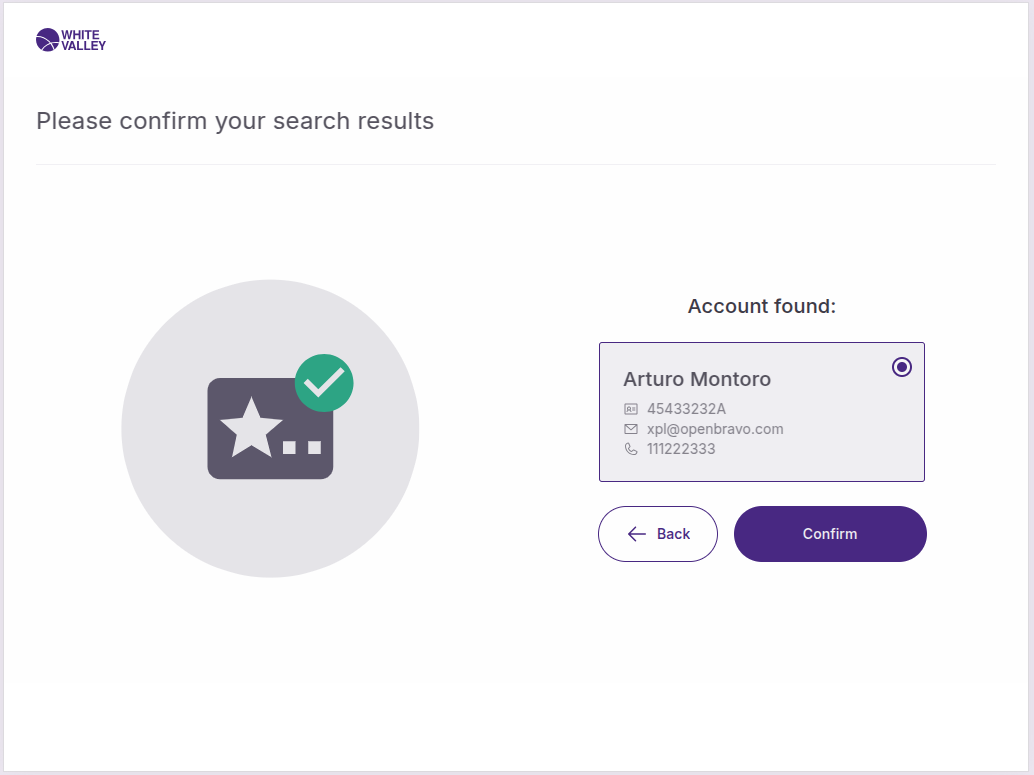
Single result found
If the search returns a single matching result, the customer record will be displayed for confirmation. Customers can confirm the selection to complete the identification process, and their customer information will be applied to the current transaction.
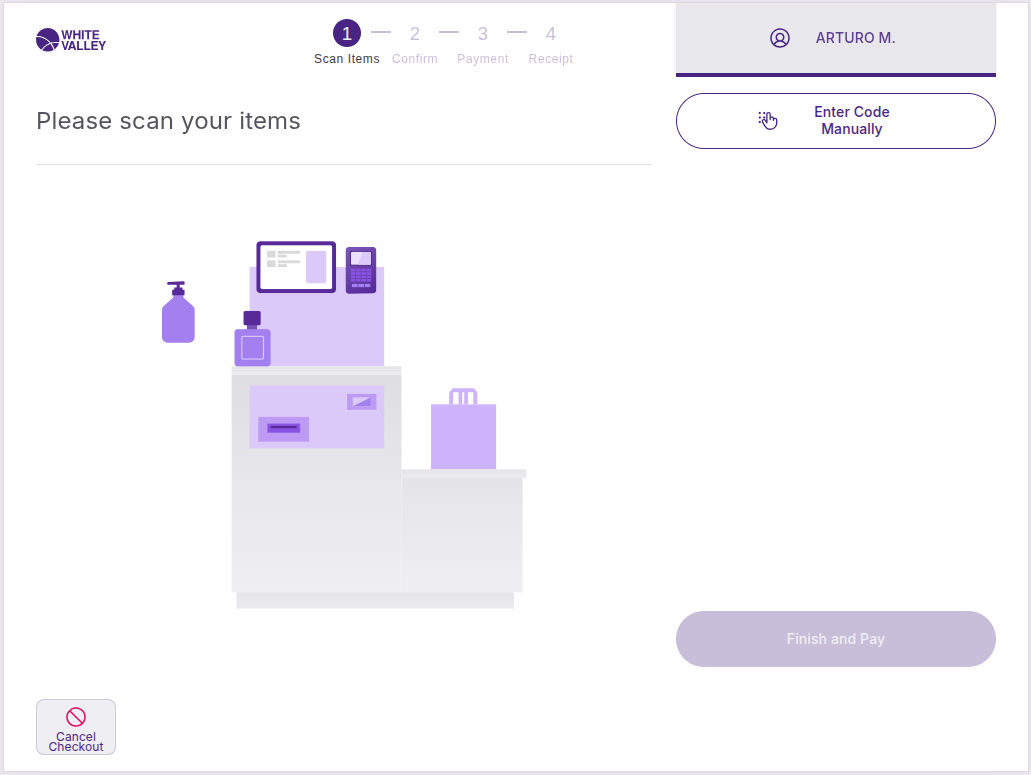
Identification confirmation
Once successfully identified:
-
The initial customer identification button changes to display the customer identifier
-
The button can no longer be clicked during the current transaction
-
Customer-specific benefits and settings are applied to the order
To identify a different customer, the current order must be canceled and a new transaction started.
Customer data obfuscation
Customer data can be obfuscated in the confirmation window when configured. This obfuscation partially hides customer information for privacy purposes while still displaying the customer identifier.
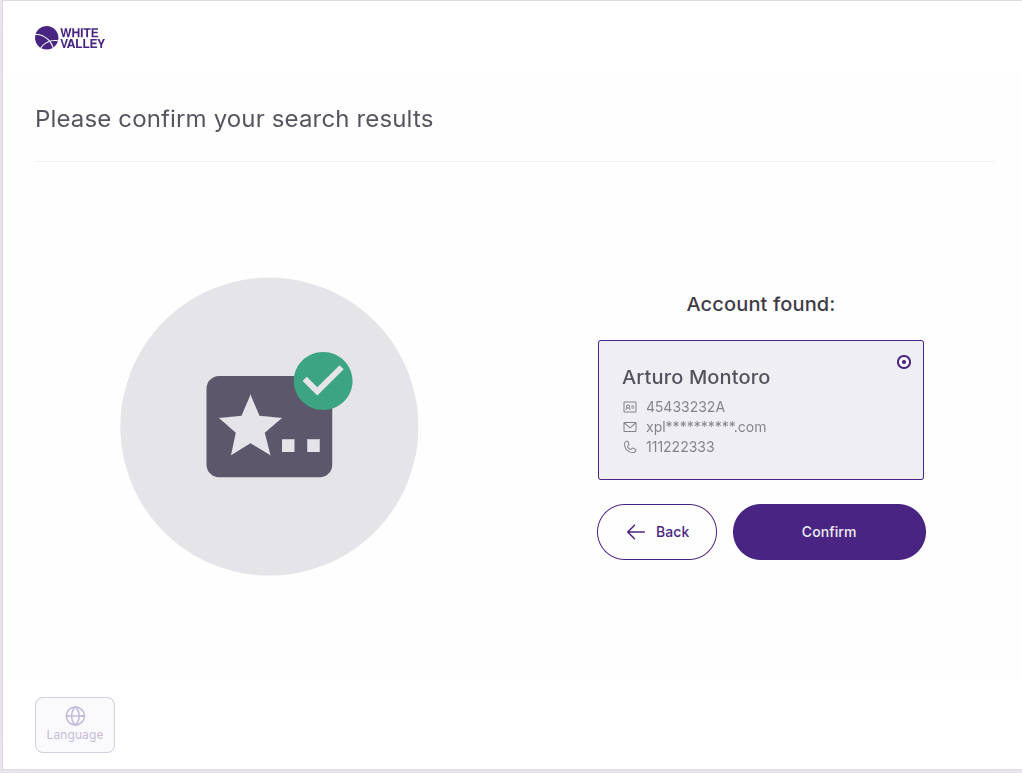
The obfuscation shows a limited number of characters at the beginning and end of the data, with the middle portion hidden. If the data does not have sufficient length according to the obfuscation parameters, it will be displayed in full without obfuscation.
Failed identification attempts
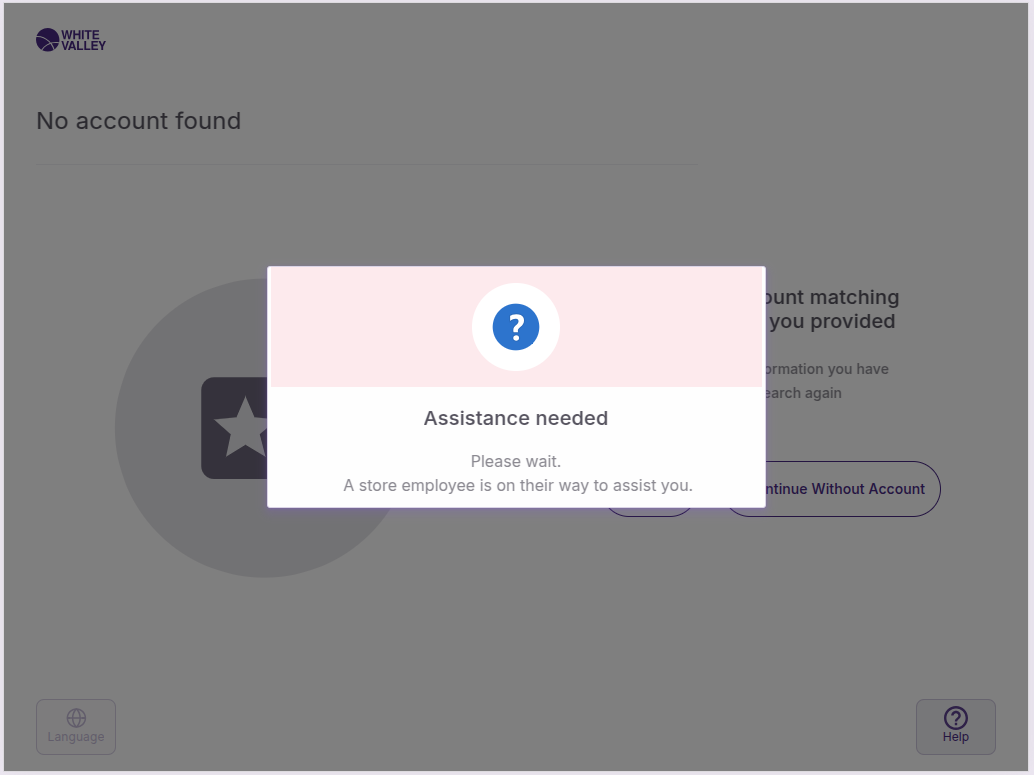
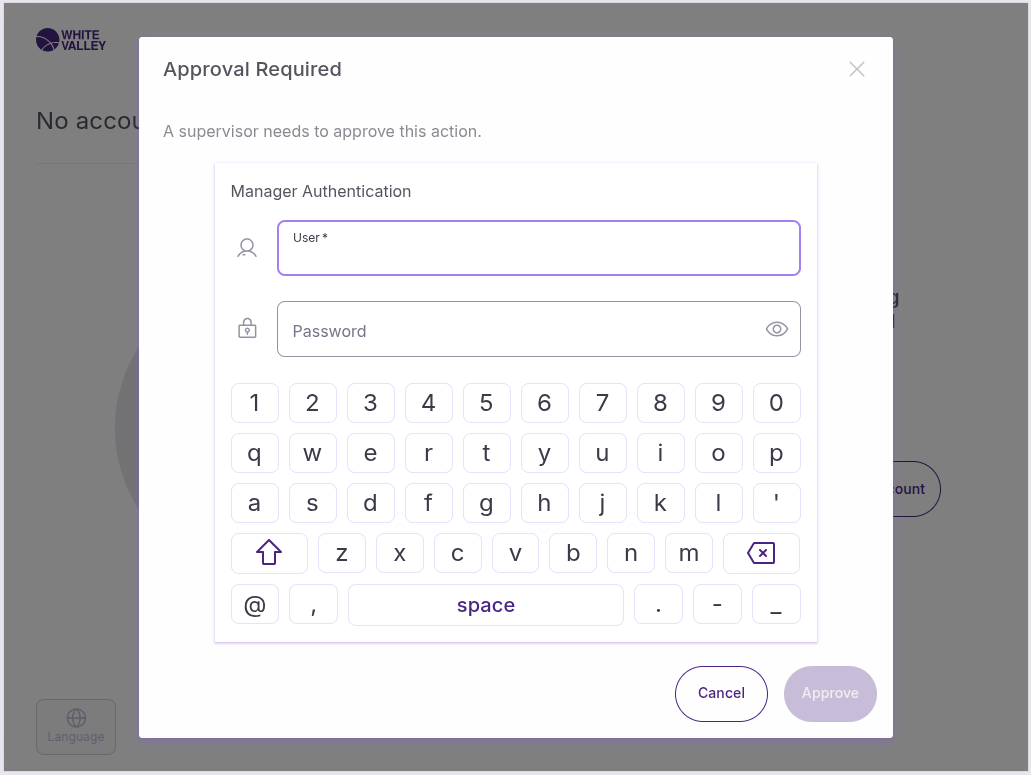
When customer search fails more times than the number specified in the 'Block & call assistance after how many identification tries' field, a popup will appear if the 'Block & call assistance when identification failed' field is checked requesting assistance. Also, if the user role has this user action assigned, a supervisor approval popup will appear requesting approval from a supervisor