
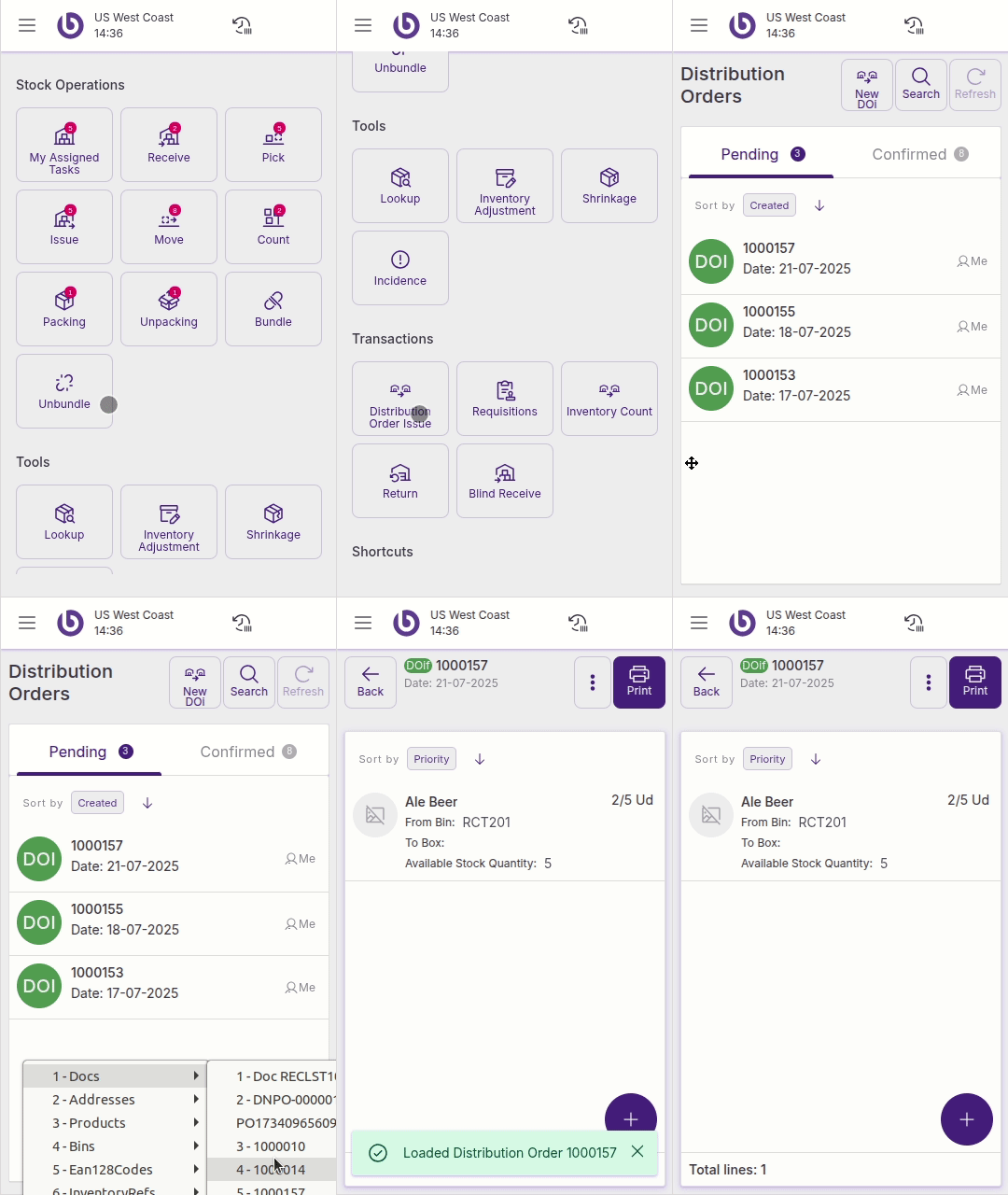
The SSMS app provides barcode scanning functionality across multiple windows. This guide describes what types of items can be scanned in each window.
Scanning capabilities by window
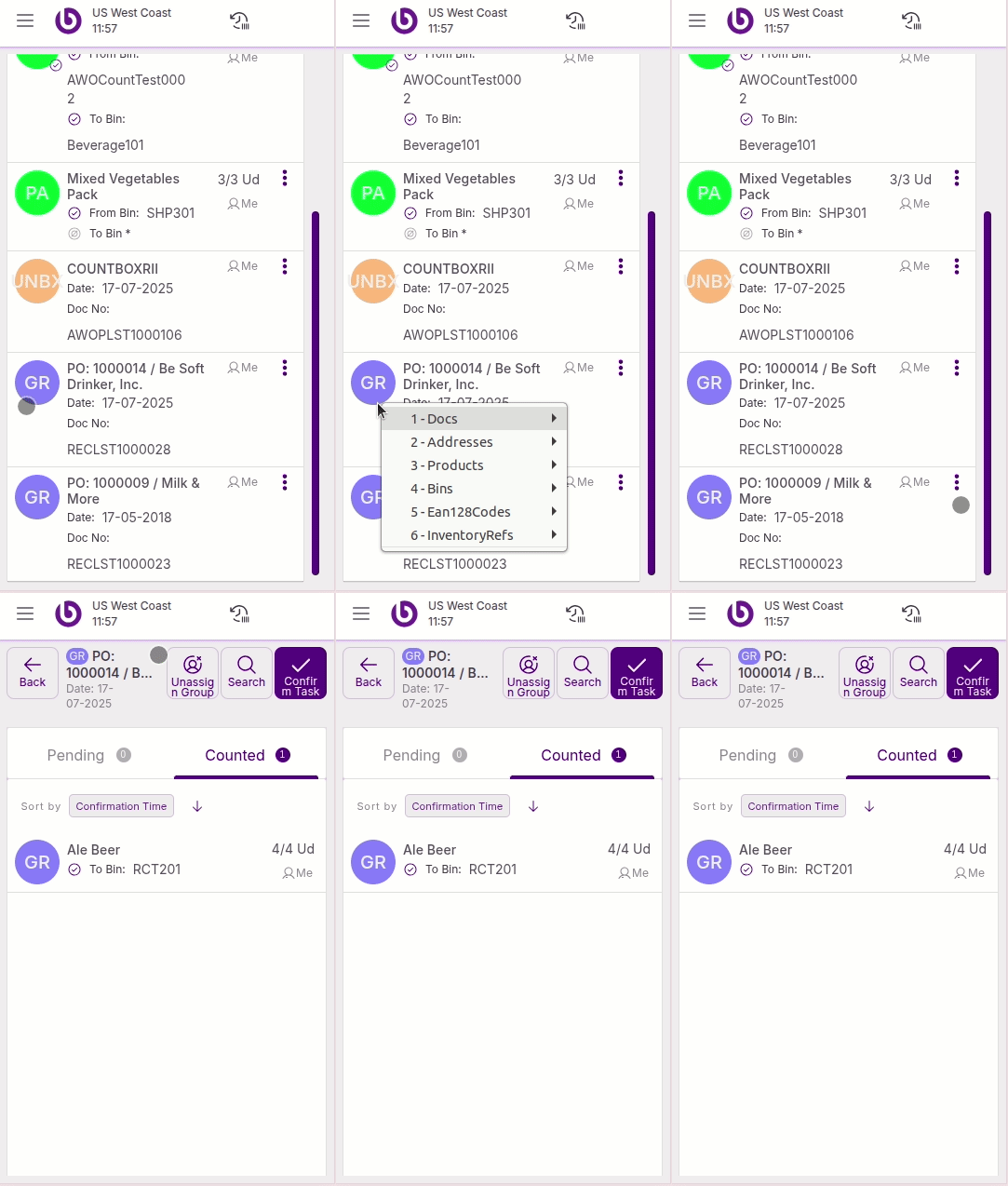
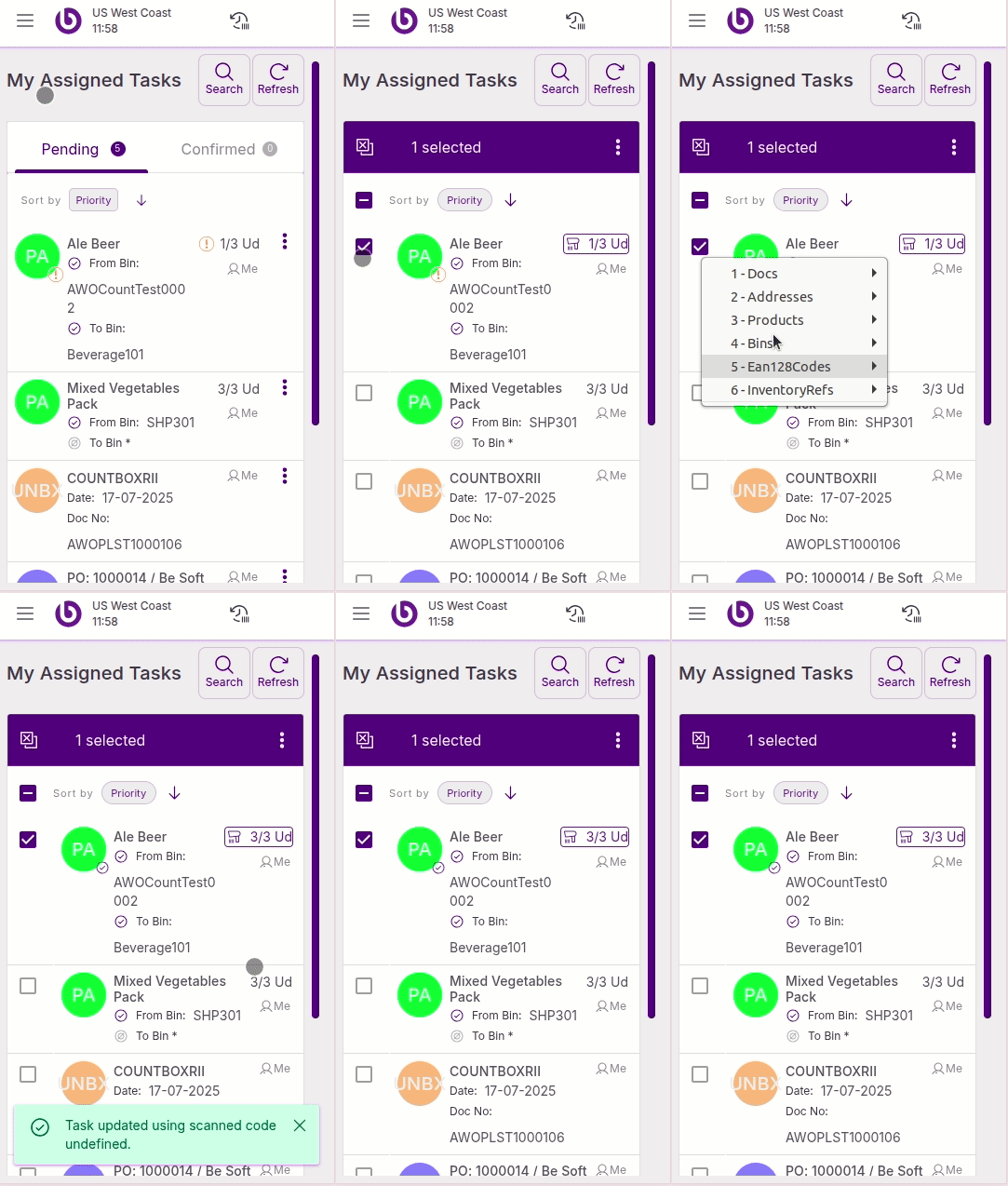
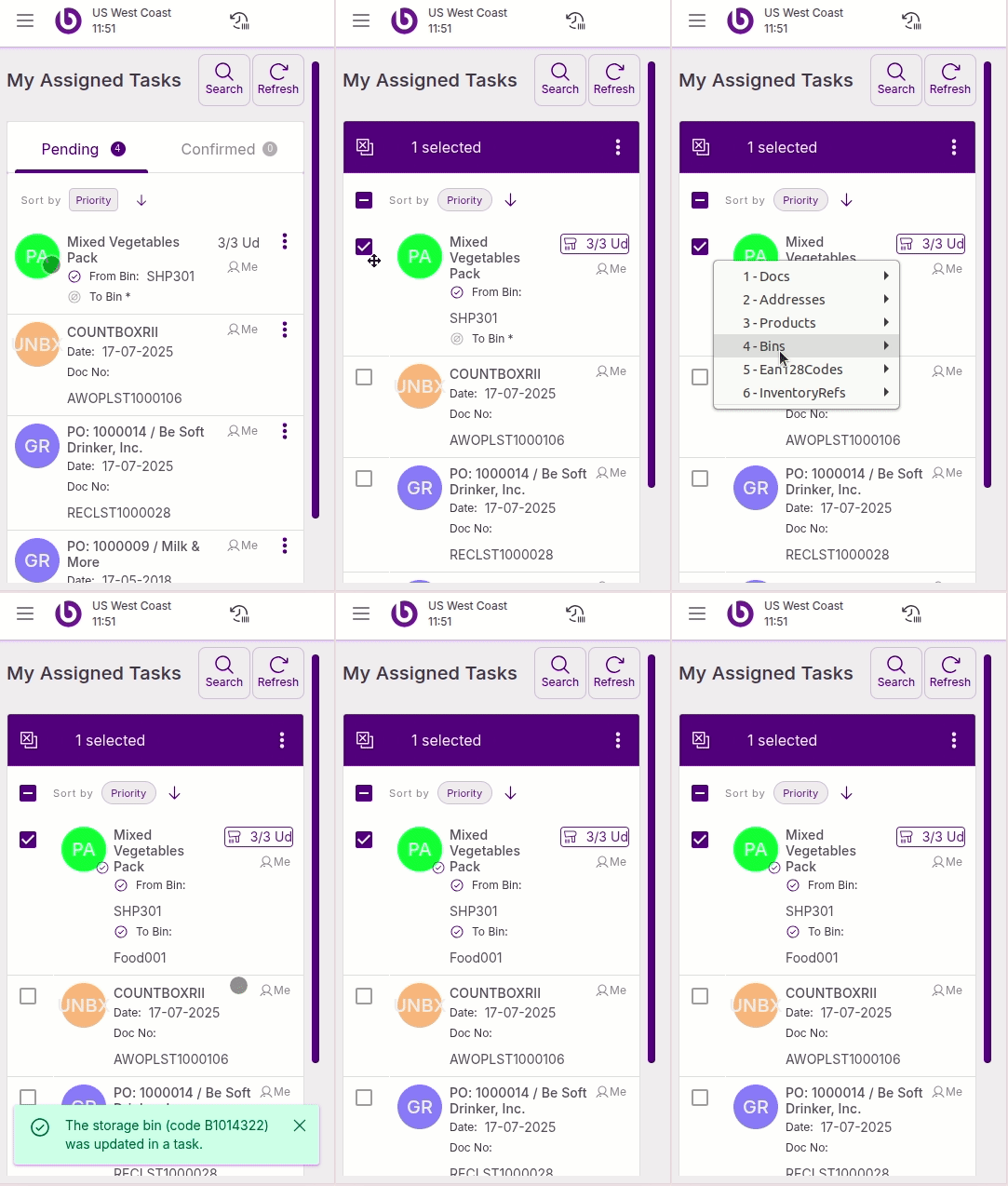
‘My Assigned Tasks’ window
-
Tasks
-
Personalized items
-
Storage bins
-
Products
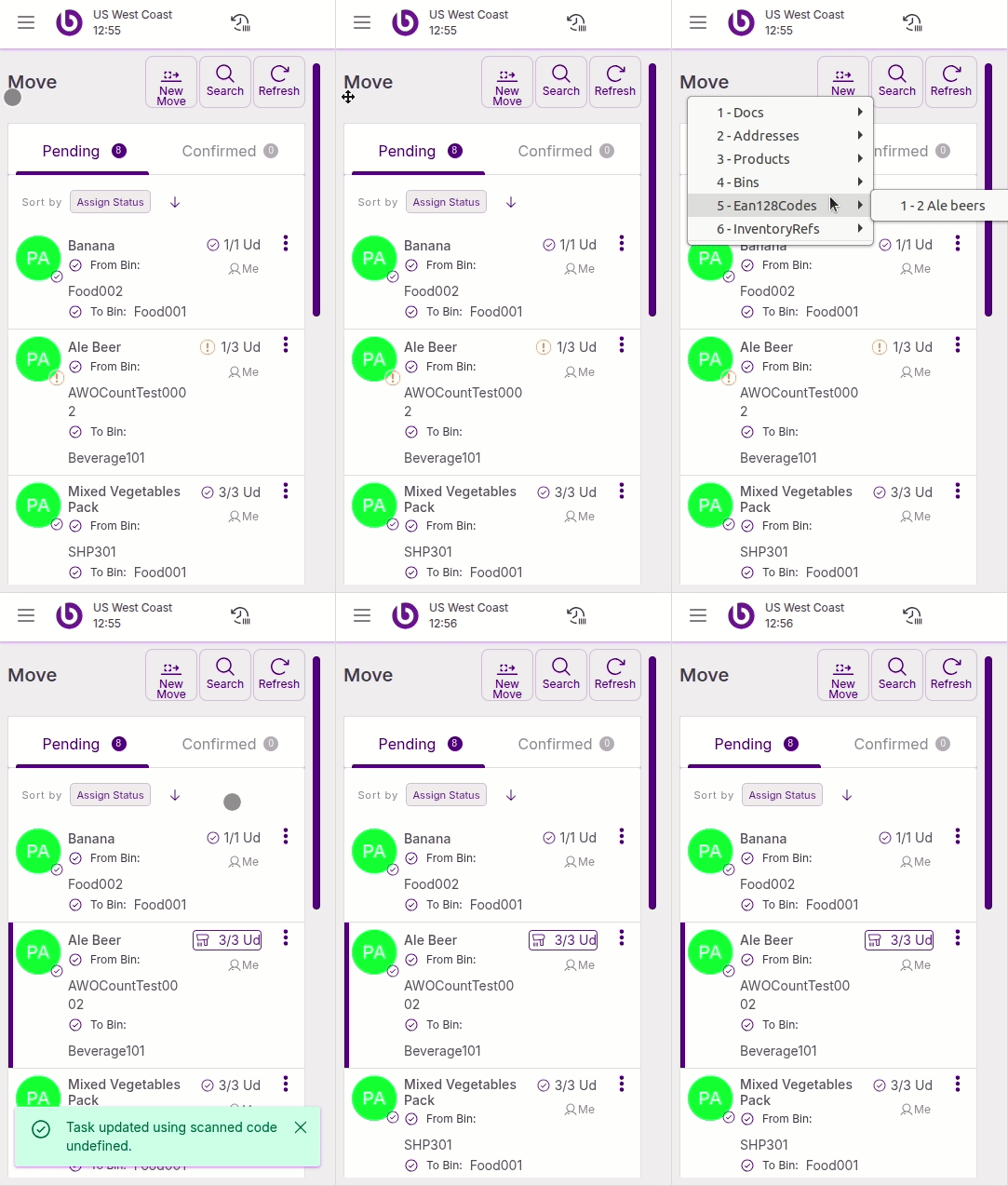
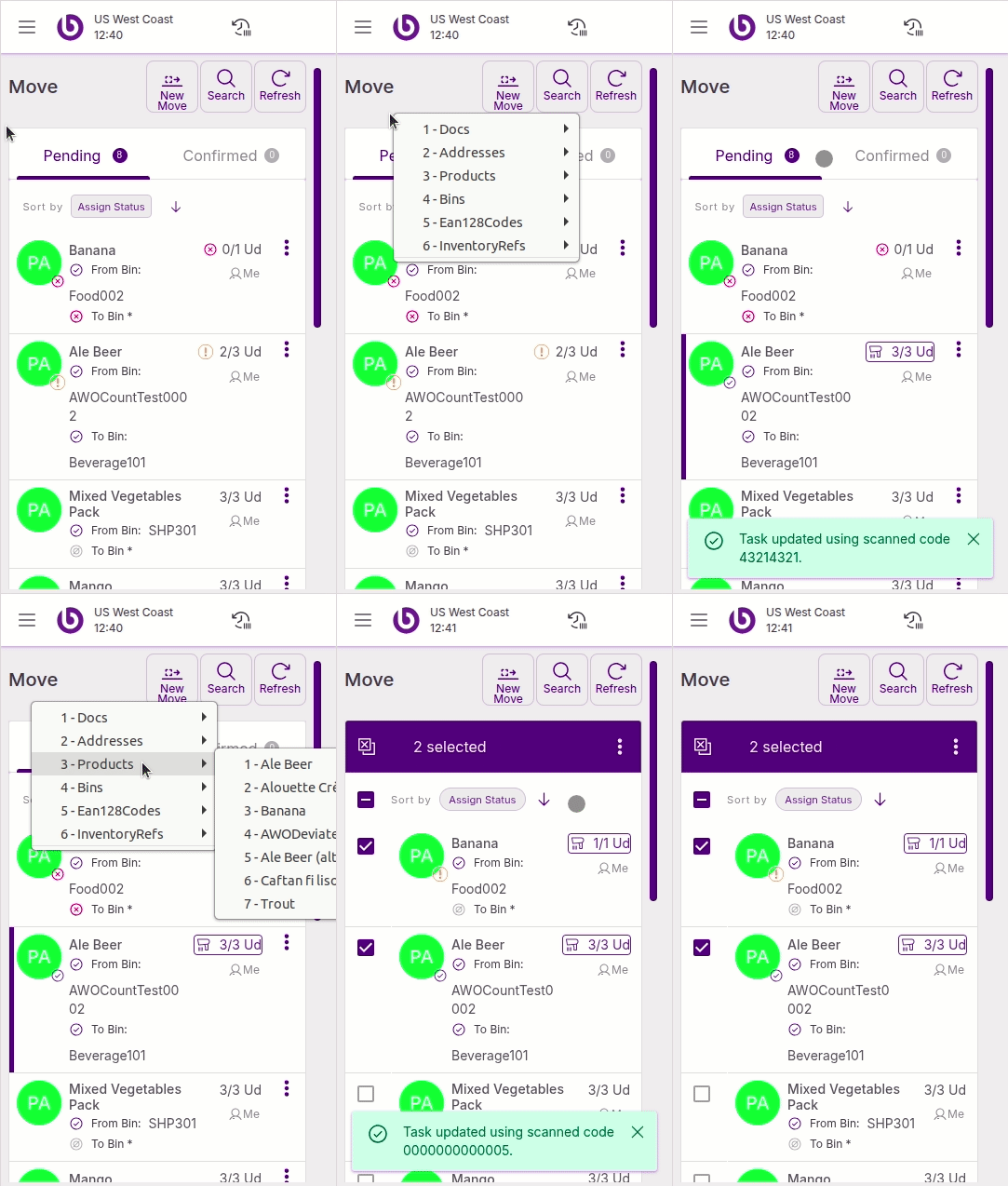
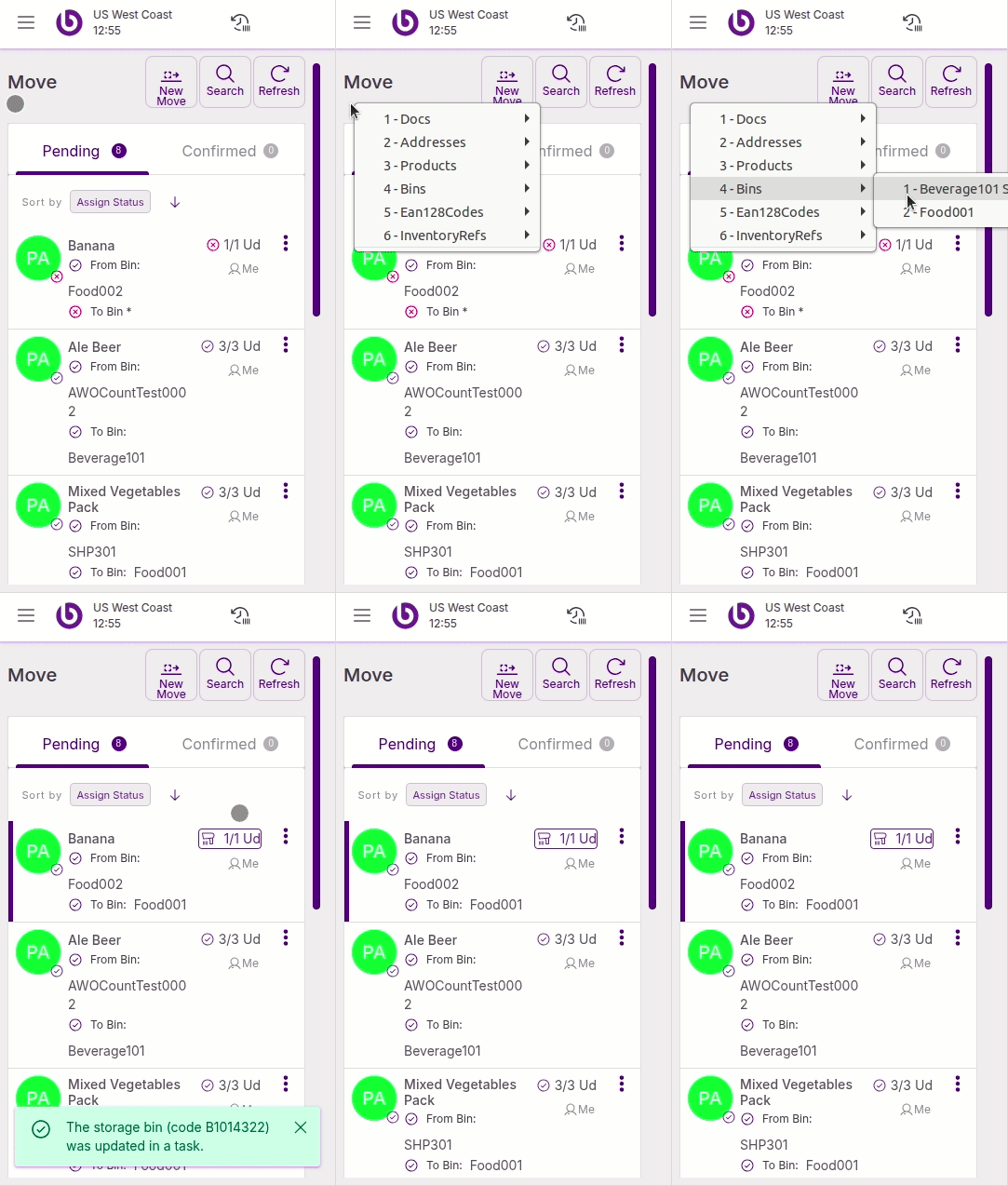
‘Move’ window
-
Personalized items
-
Products
-
Storage bins
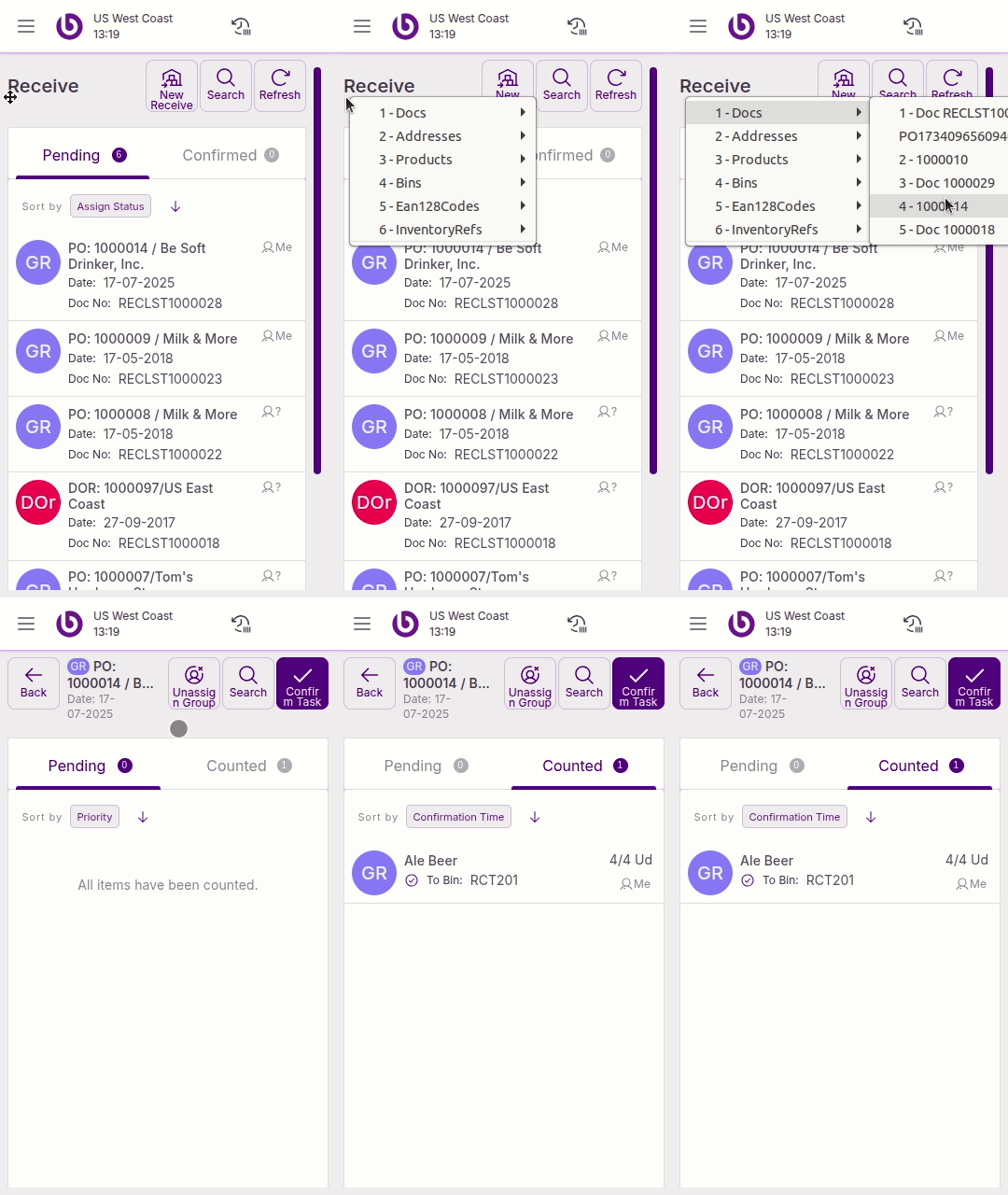
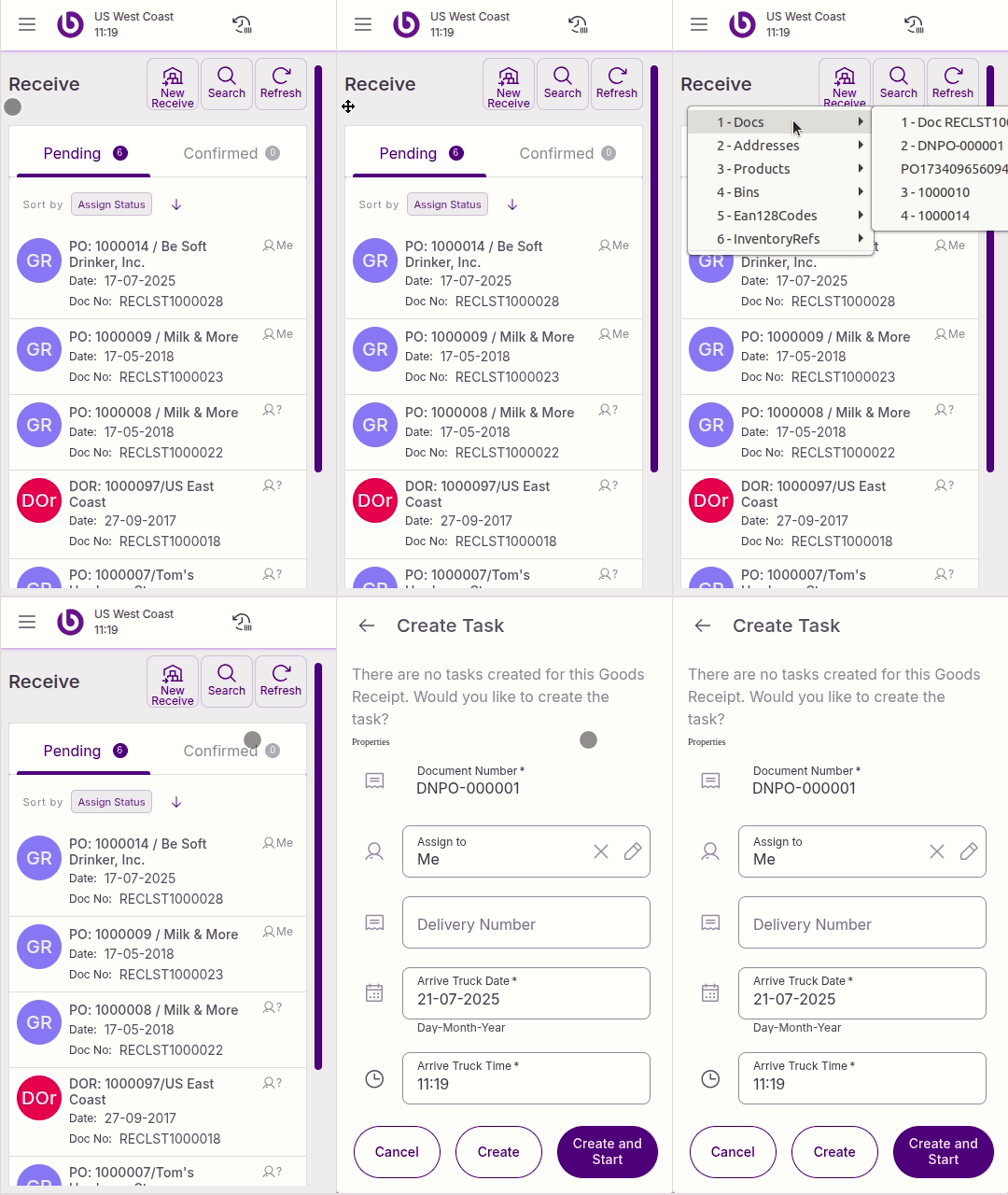
‘Receive’ / ‘Issue’ / ‘Pick’ windows
-
Tasks
-
Documents
‘Distribution Order Issue’ window
-
Distribution orders
‘Individual Packing’ / ‘Individual Unpacking’ / ‘Multi Move’ windows
-
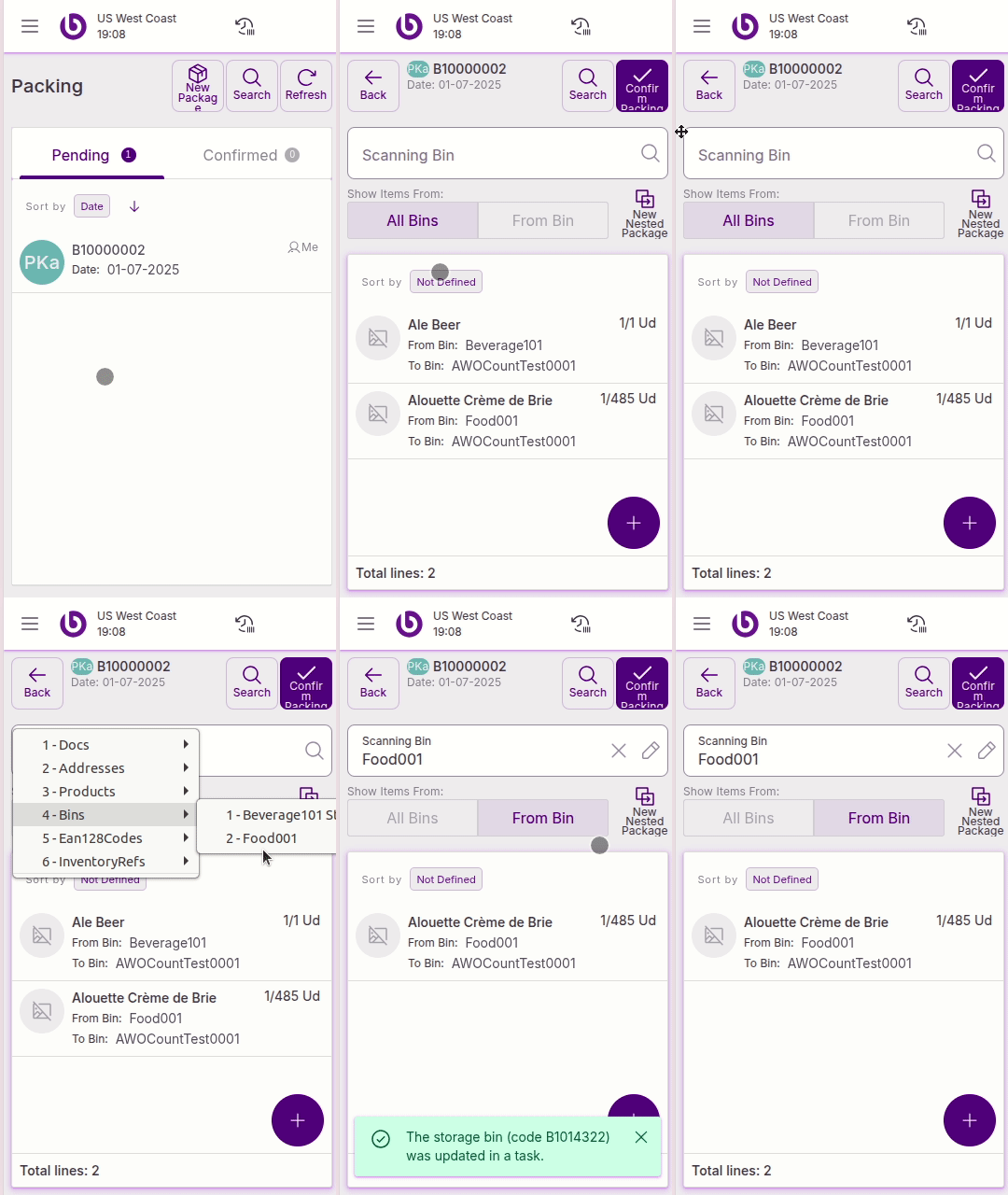
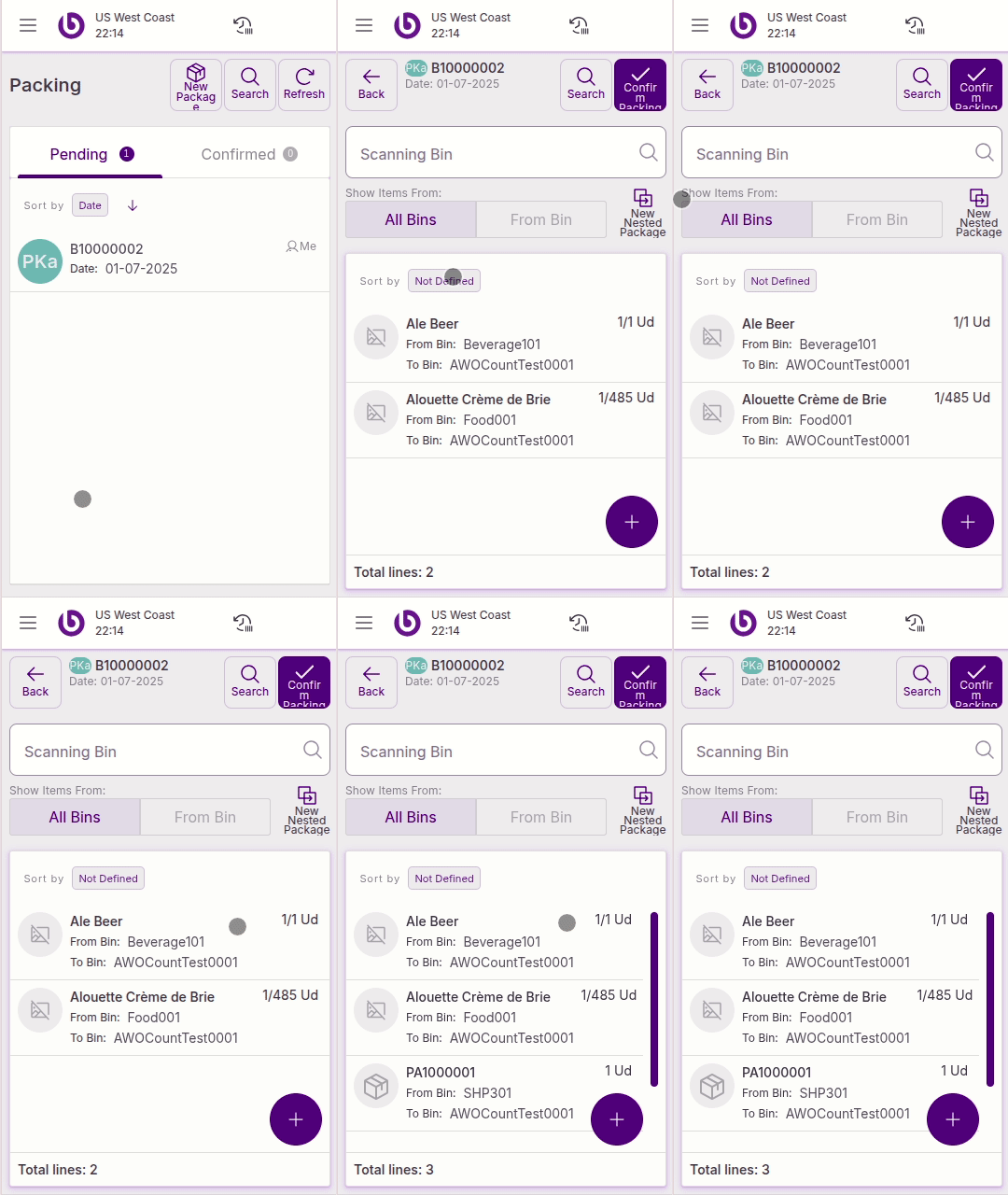
Storage bins
-
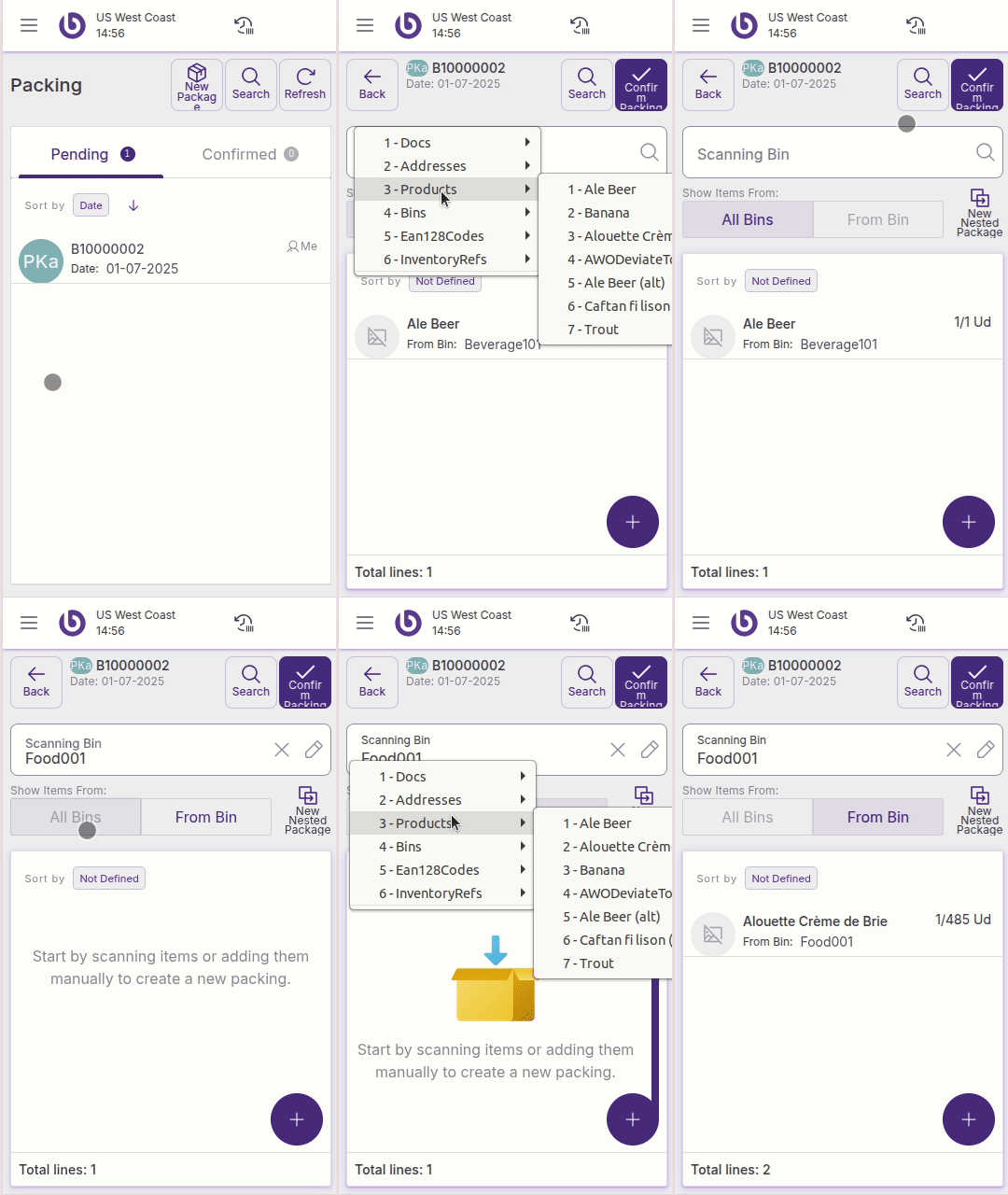
Storage details
-
If the product is stored in multiple locations and no bin is selected, the app will display a pop-up to allow you to choose the desired bin. If a bin is already selected and the product exists in that bin, it will be automatically added.
-
-
Referenced inventories
‘Grouped Tasks’ window
-
Personalized items
-
Products
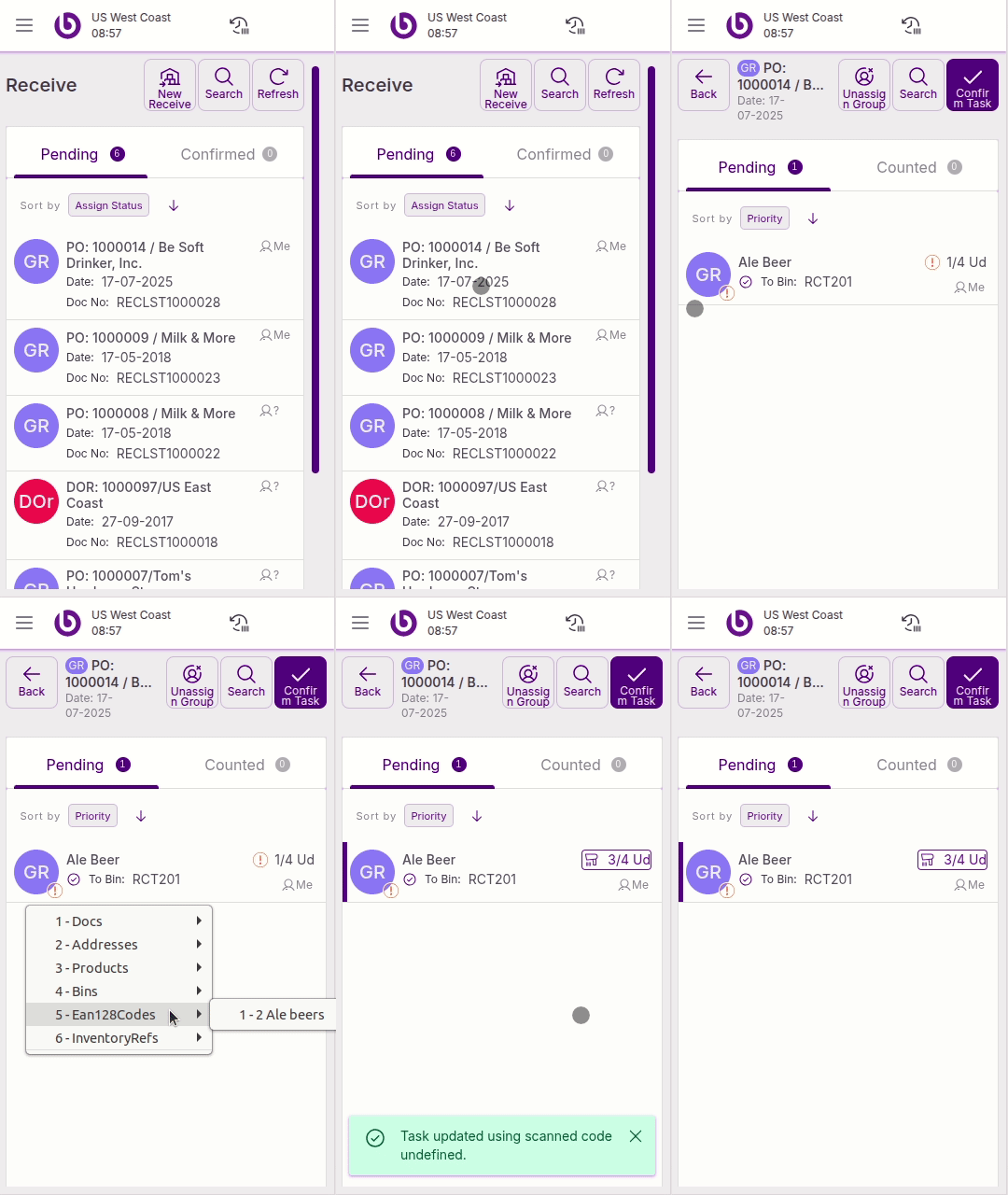
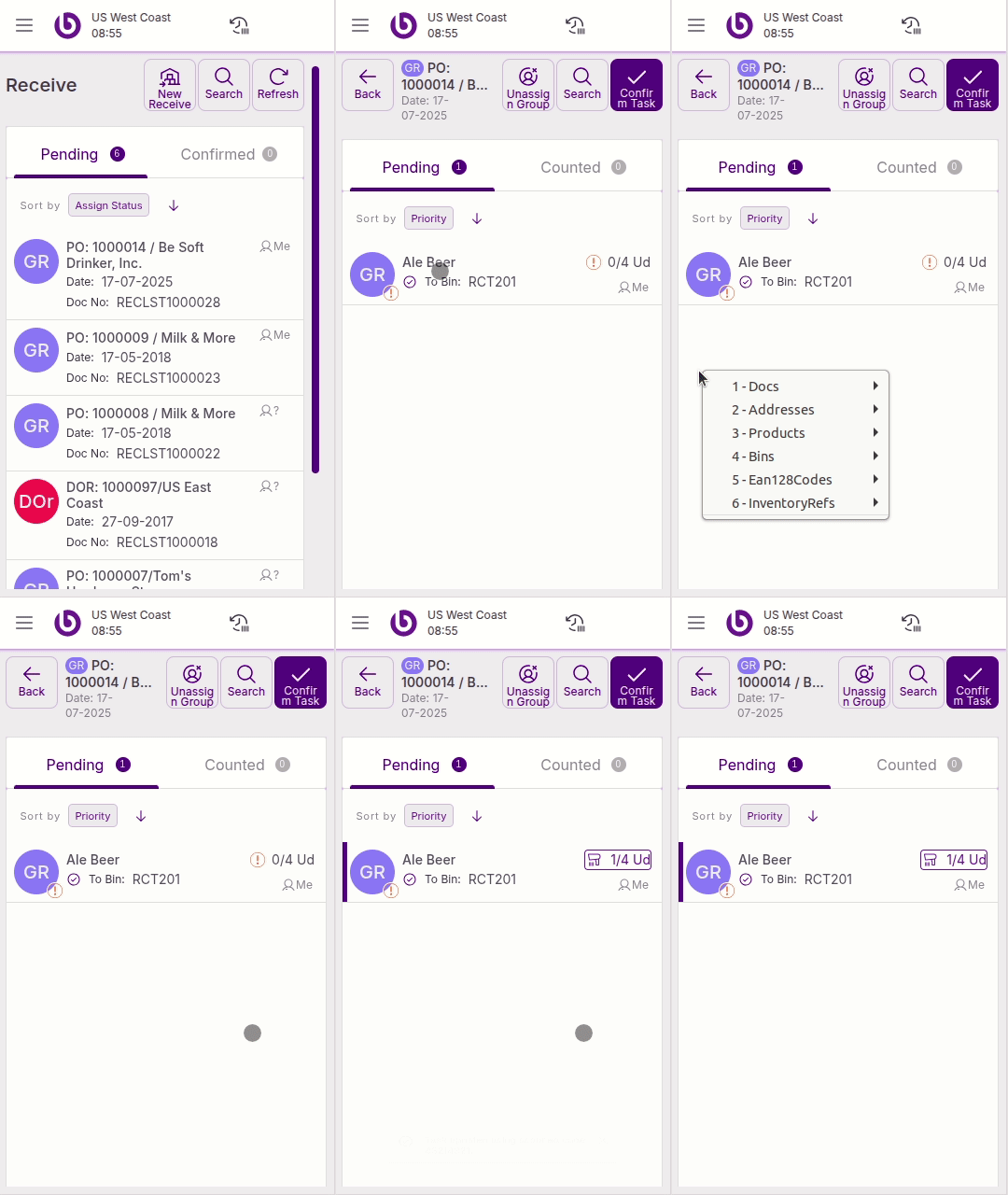
‘Ongoing Document’ window
-
Storage bins
-
Products
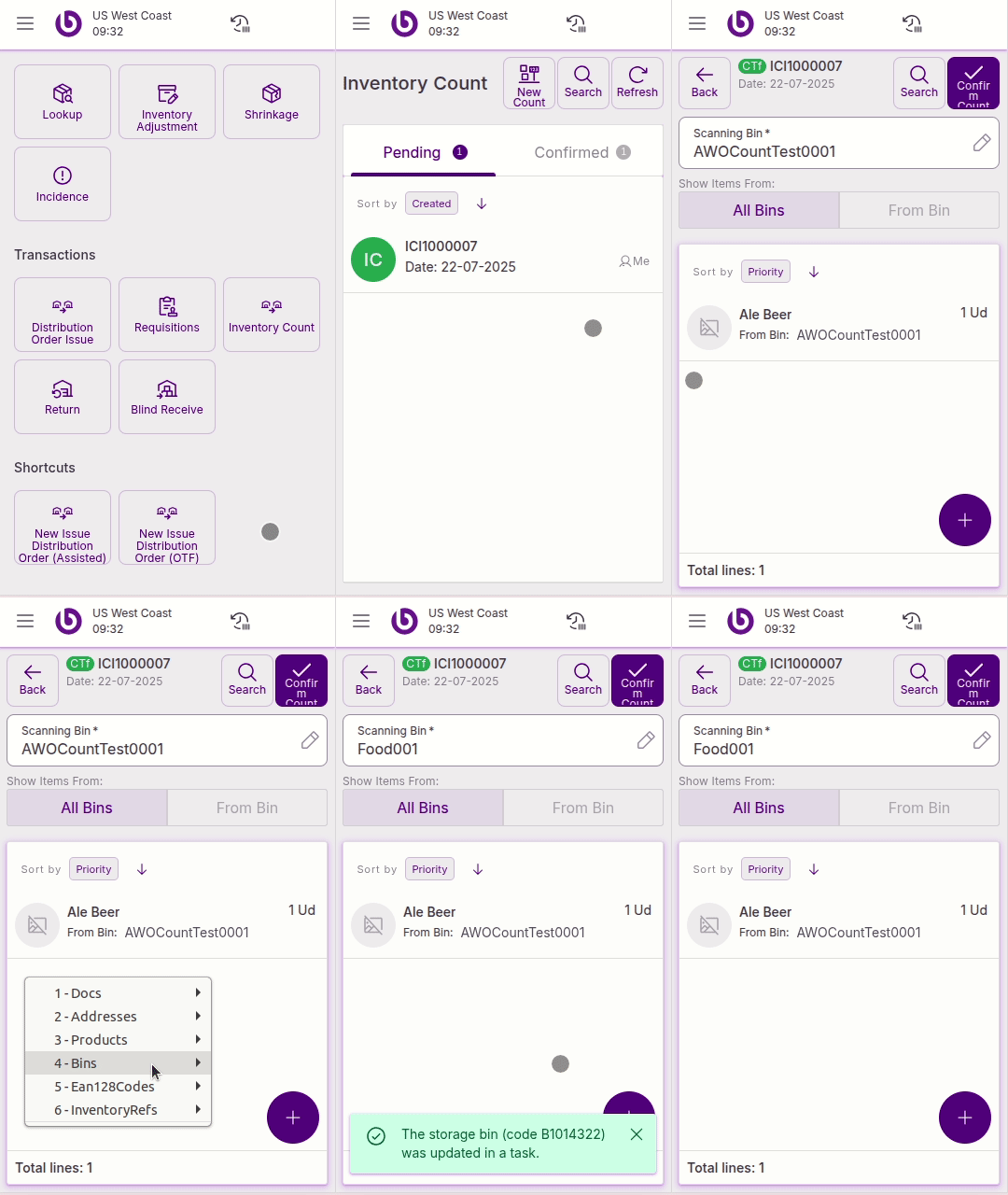
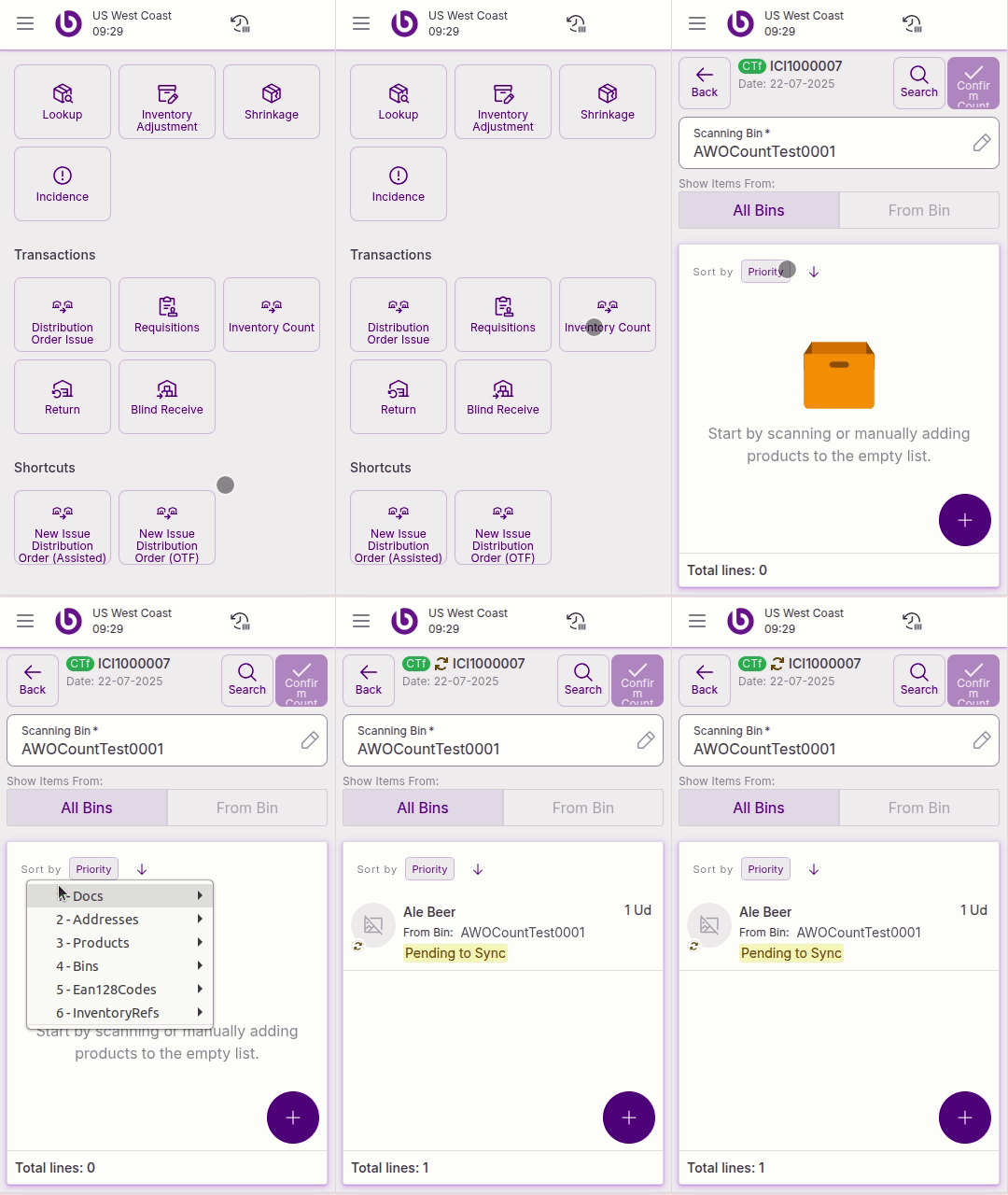
‘Transform Item’ window
-
Products
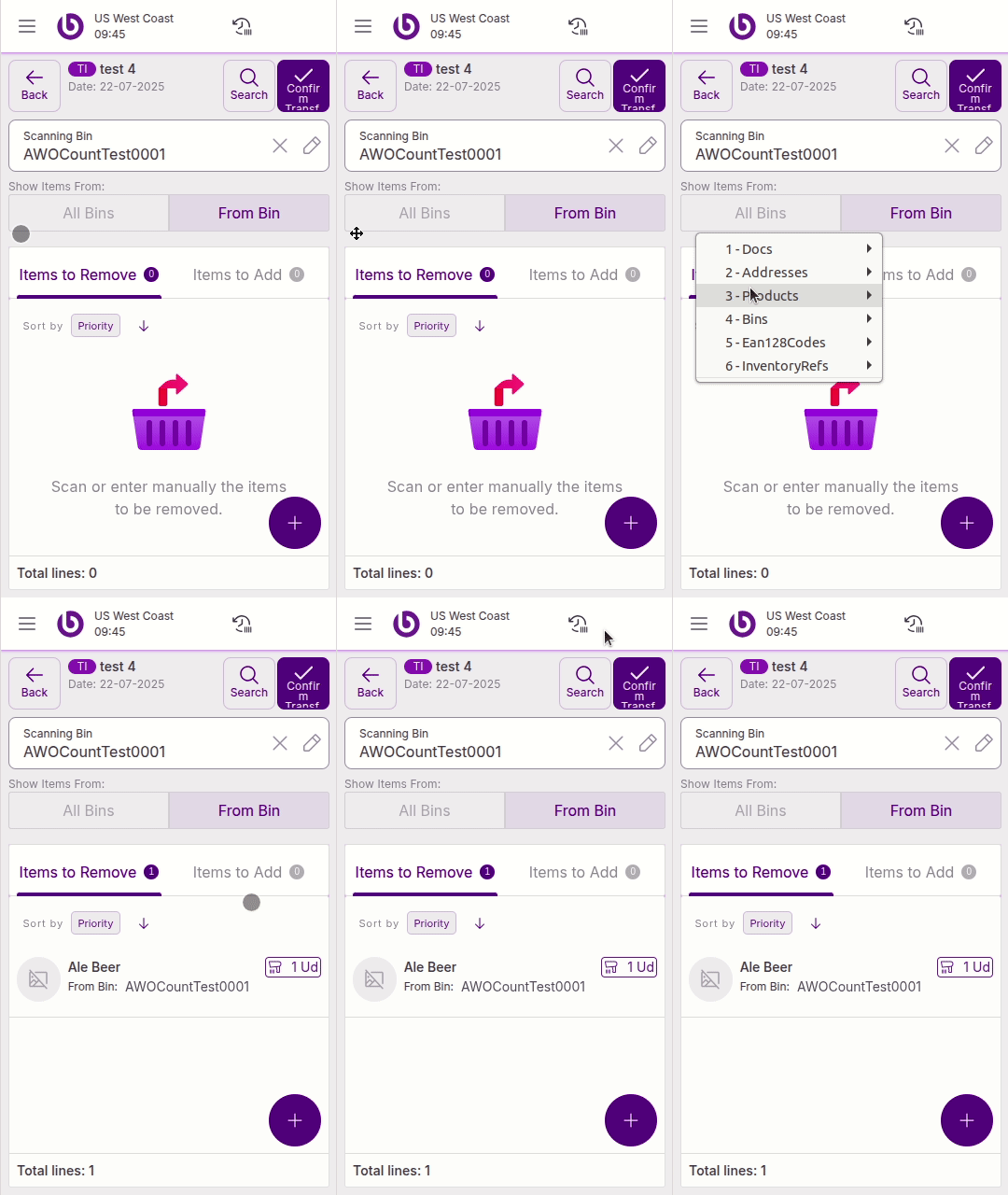
Scanning priority system
The scanning system uses a priority-based approach where lower numbers indicate higher priority:
-
Priority 125: Task-specific scanning
-
Priority 150: Personalized/custom scanning (extensible by other modules)
-
Priority 175: Storage bin/location scanning
-
Priority 200: Product and document scanning
-
Priority 225: Box/handle unit scanning
-
Priority 9999: Fallback handler for unknown items
When you scan a barcode, the system processes it through each handler in priority order until one successfully handles the scan or all handlers have been tried.
Scanning log
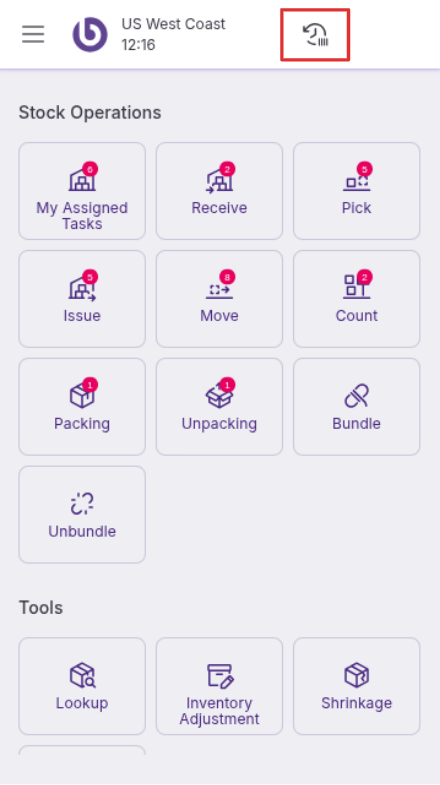
It is possible to view the latest barcode scans by clicking the ‘Scan Log’ button in the top bar:
%20(5).png?cb=64eb23d38df92baac8ad65bd3fde42a5)
Customization
The scanning system supports customization through the Personalized Scan Handler, which allows other modules to extend scanning functionality with custom behaviors specific to their requirements.
The base behaviour for SSMS is a simple EAN128 parser that admit 01 and 30 application identifiers (AI). First one for product upc and second one for the product quantity. This means that a valid EAN128 code would be 0101234567890123302 where 01234567890123 would be the UPC, and 2 the quantity
                              01|01234567890123|30|2
                              AI| Product UPC  |AI|Quantity