
This guide explains how to use the unpacking features in the SSMS front-end application. These features help you break down and manage containers like pallets and boxes for efficient warehouse operations. You'll learn how to unpack nested packages, where you can selectively remove smaller containers from larger ones, and how to handle individual items during the unpacking process.
Start unpacking process
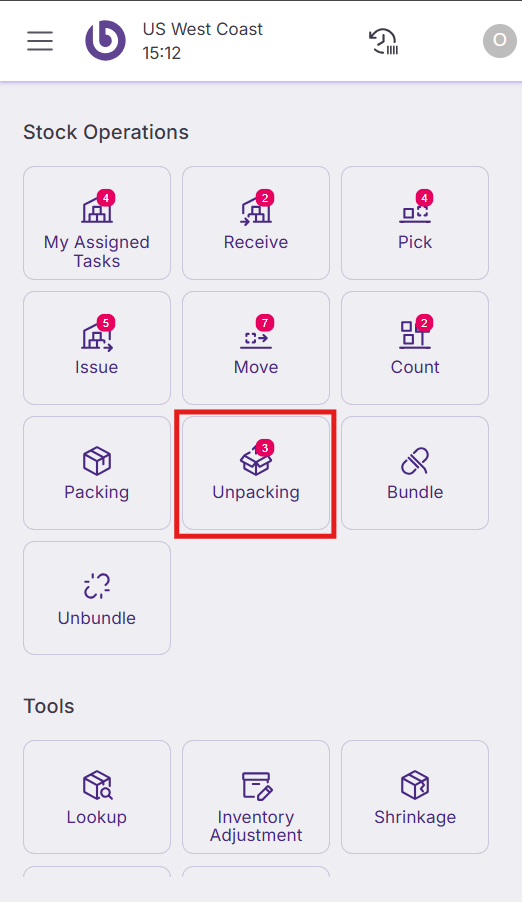
Select the 'Unpacking' button to access the unpacking functionality. You can view all pending unpacking tasks in the 'Pending' tab.
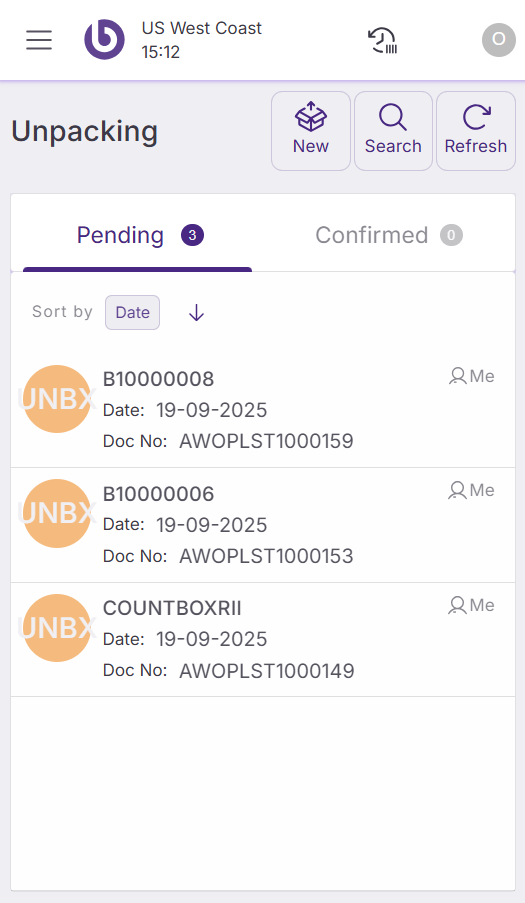
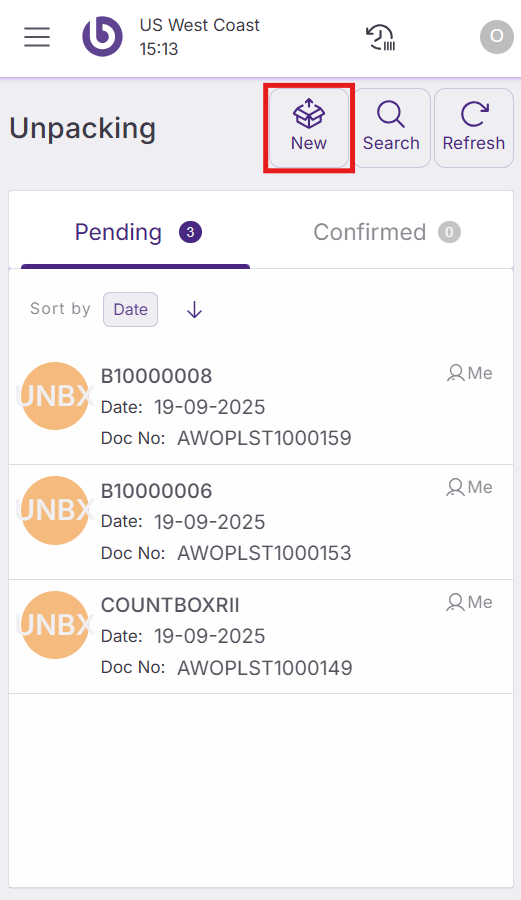
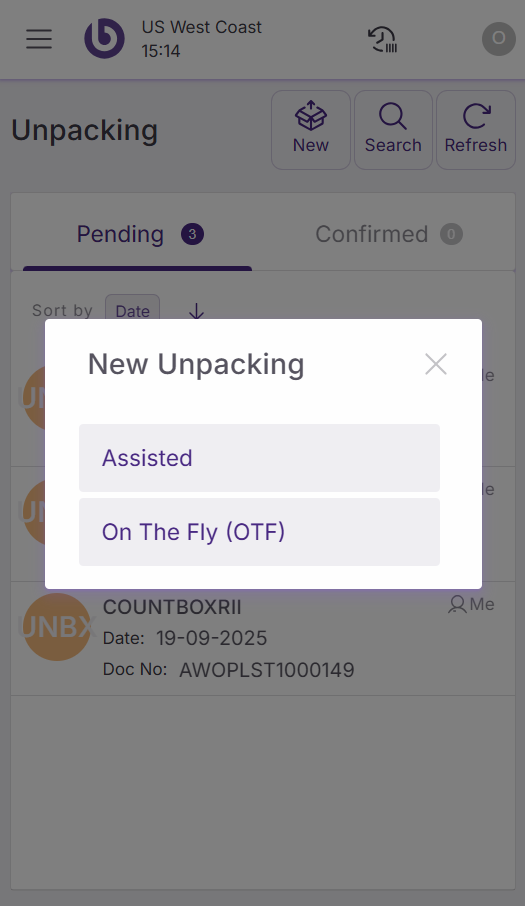
To create a new unpacking task, click 'New'. A popup will display two unpacking options:
-
Assisted. All quantities in the package are planned to be unpacked automatically.
-
On the fly. Only the items you count and scan are unpacked.
Select one of these options to continue with the unpacking process.
Configure unpacking settings
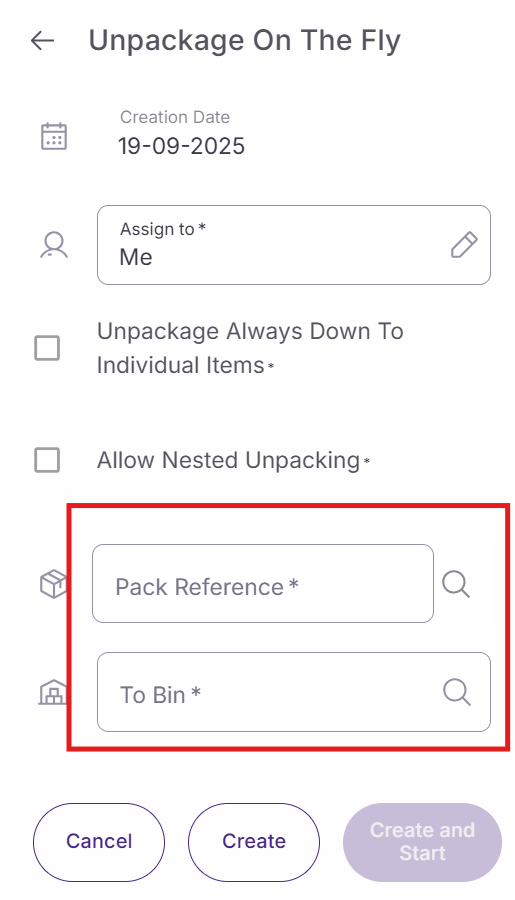
After selecting your unpacking method, a new window opens with configuration fields:
-
Assigned to. Select the user who will perform the unpacking task. By default, you are assigned to the task.
-
Unpackage always down to individual item. When checked, the system unpacks the main package and all nested packages until only individual items remain. When unchecked (default setting), the operation only unpacks the immediate next level.
-
Allow nested package. This option provides additional nested package functionality.
-
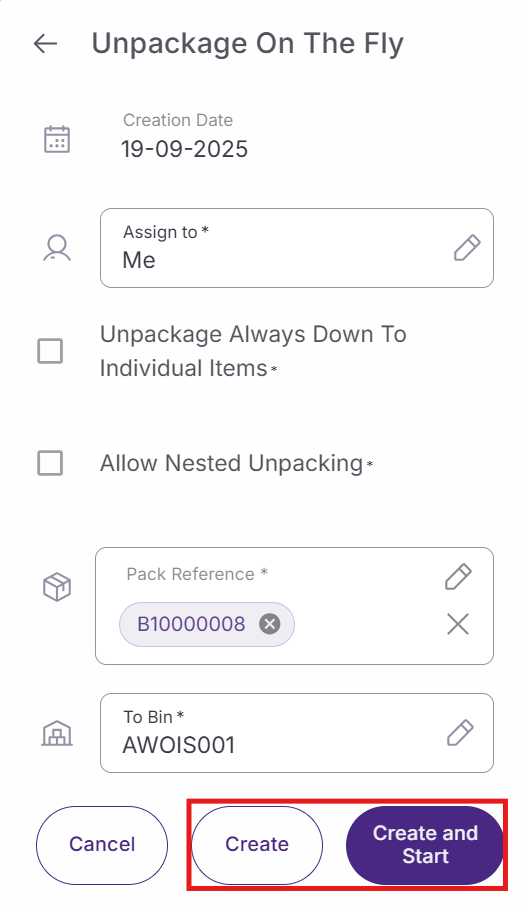
Pack reference. Choose the reference of the package you want to unpack.
-
To bin. Select or scan the destination bin where unpacked items will be stored. This field is mandatory.
The 'Unpackage always down to individual item' setting works as follows:
-
When enabled. The system unpacks directly to individual items. If you scan a pallet containing boxes, the system automatically opens all included boxes without additional user intervention until only individual items are available.
-
When disabled (default). The operation only unpacks the immediate next level of packaging.
Complete the setup by clicking 'Create' to save the task or 'Create and start' to begin unpacking immediately.
Perform unpacking operations
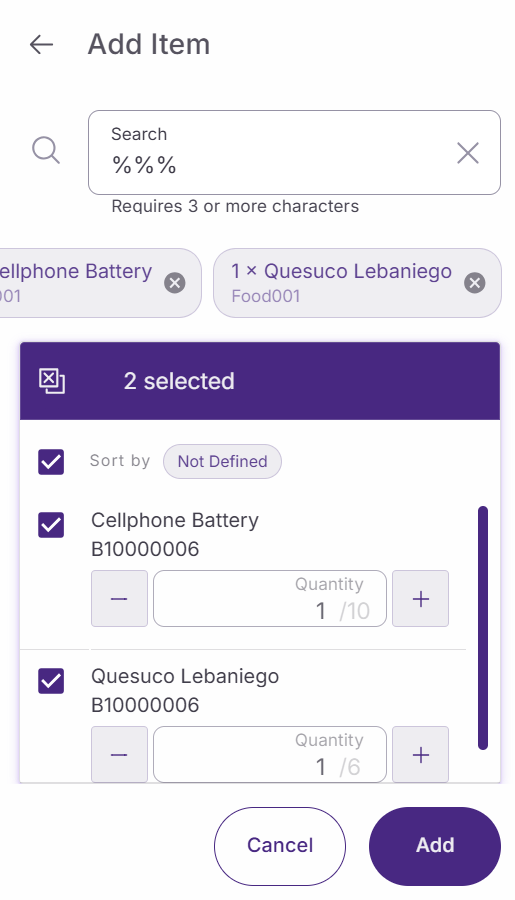
In the task window, you can unpack only specific parts of a package rather than the entire contents. This selective unpacking gives you control over which items to remove.
Add items to unpack using these methods:
-
Scanning. Use the device scanner to read product barcodes
-
Manual entry. Manually enter product information
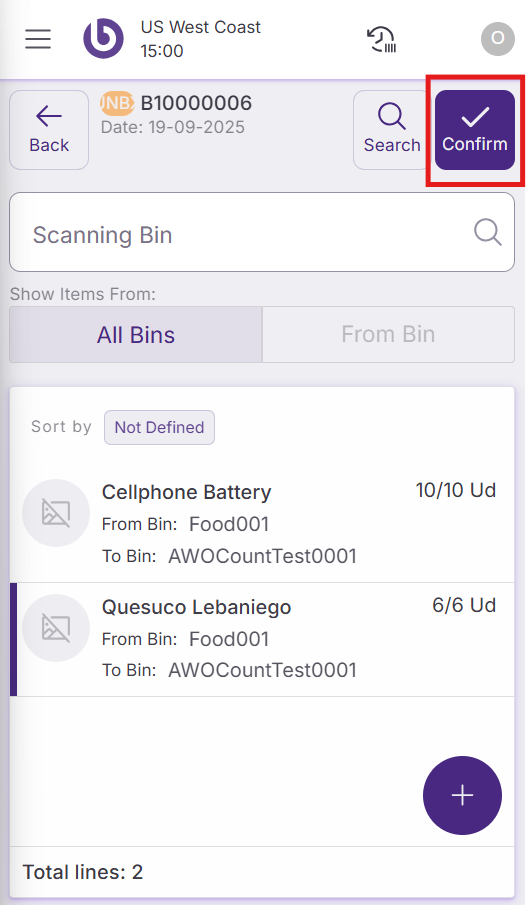
After adding items to the unpacking document, click 'Confirm' to complete the process. The system removes the selected items or nested packages from the main package, updating the inventory accordingly.
Action availability and access control
The actions and options shown in the ‘New Unpacking’ dialog are role-dependent. By default, if a user does not have permission for a specific action, it will not appear in the interface.
This behavior can be overridden per warehouse by defining a custom UI configuration in the ‘Warehouse Definition’ window.
For more details on how access is configured, see the Role and user action setup in SSMS section.
|
Option |
User Action |
|---|---|
|
Assisted Partial |
OpenNewAssistedPartialUnboxDialog |
|
Assisted Full |
OpenNewAssistedFullUnboxDialog |
|
On The Fly (OTF) Partial |
OpenNewOTFPartialUnboxDialog |
|
On The Fly (OTF) Full |
OpenNewOTFFullUnboxDialog |