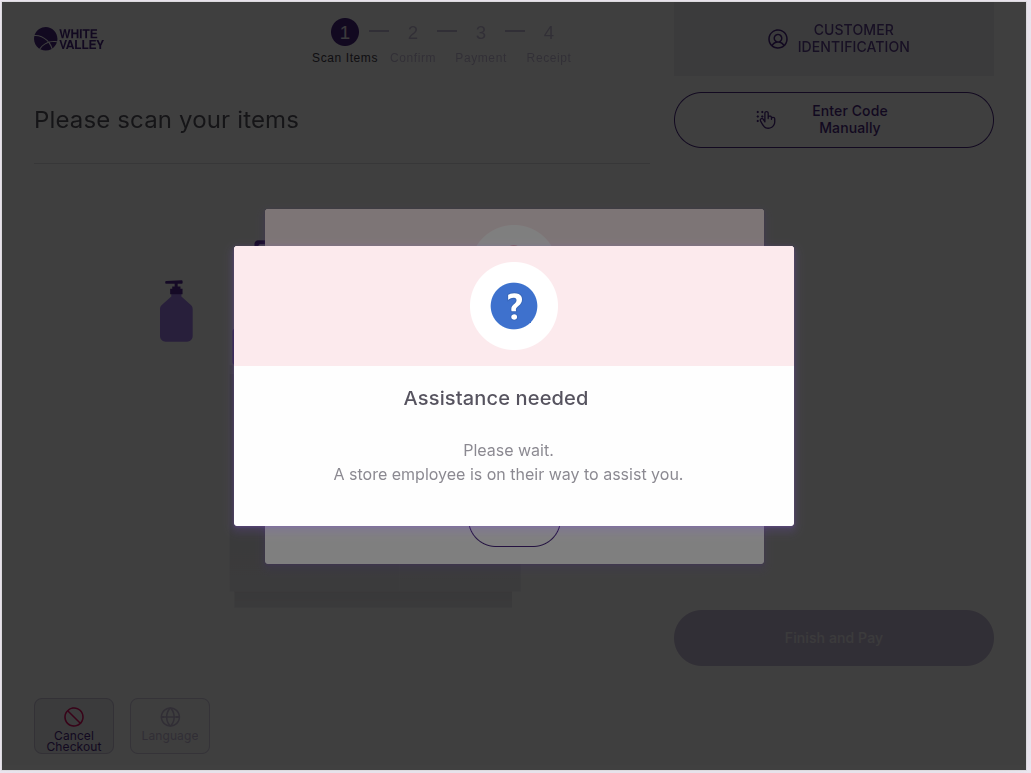
This guide explains the inactivity management feature in self-checkout (SCO) mode. The inactivity system monitors customer activity during the shopping process and automatically takes action when customers remain inactive for extended periods. This feature helps prevent abandoned transactions from occupying terminals indefinitely while providing customers with clear warnings before any automatic actions occur.
Introduction
There is now the possibility to manage the inactivity in self-checkout for the before payments screens, which are:
-
Add product to basket screen
-
Confirm basket screen (if displayed)
-
Payment method choice screen
-
Customer identification or loyalty (if it happens before any payment)
This inactivity infrastructure will be launched when the 'Before-Payment Inactivity Alert Lead Time (in Seconds)' field is filled and the 'Before-Payment Inactivity Timeout (in Seconds)' field value is greater than zero.
Moreover, when a call assistance popup is being displayed, the inactivity is not taken into account, because it does not make sense to manage the inactivity when the terminal is blocked.
How inactivity works
When the ‘Before-Payment Inactivity Alert Lead Time (in Seconds)’ field has a value greater than zero, an alert popup should appear the seconds indicated, before reaching to the end of the timer. This popup will show a countdown until reaching the end of the timer.
For example, in this case of having the following configuration:
-
Before-Payment Inactivity Alert Lead Time (in Seconds): 7
-
Before-Payment Inactivity Timeout (in Seconds): 10
The alert will appear after 3 (10-7) seconds of inactivity (in other words, 7 seconds before reaching the end of the timer), and the configured action will occur after 10 seconds of inactivity (in other words, 7 seconds after the alert display).
After 3 seconds of inactivity in add product to basket screen (or any of those before payments screens mentioned), the following alert should appear.
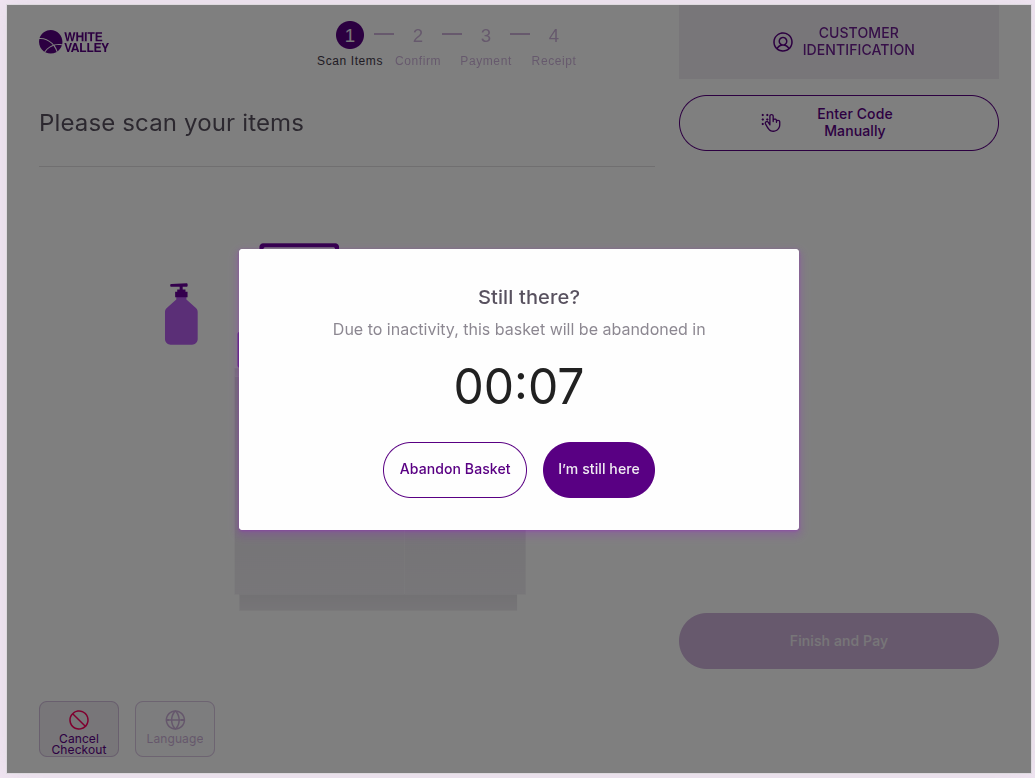
Each second the time will decrease until reaching the end of the timer (zero) when the alert popup will be closed and the behavior indicated in the 'Behavior on Reaching Time Out' will be launched.
Inactivity behaviors
If the behavior selected is 'Delete Basket and Go to Welcome Screen' the ticket will be closed and flow will go to the welcome screen.
If the behavior selected is 'Block the Terminal if Products were Added', if there are products added to the ticket, the terminal will be blocked showing the following popup.
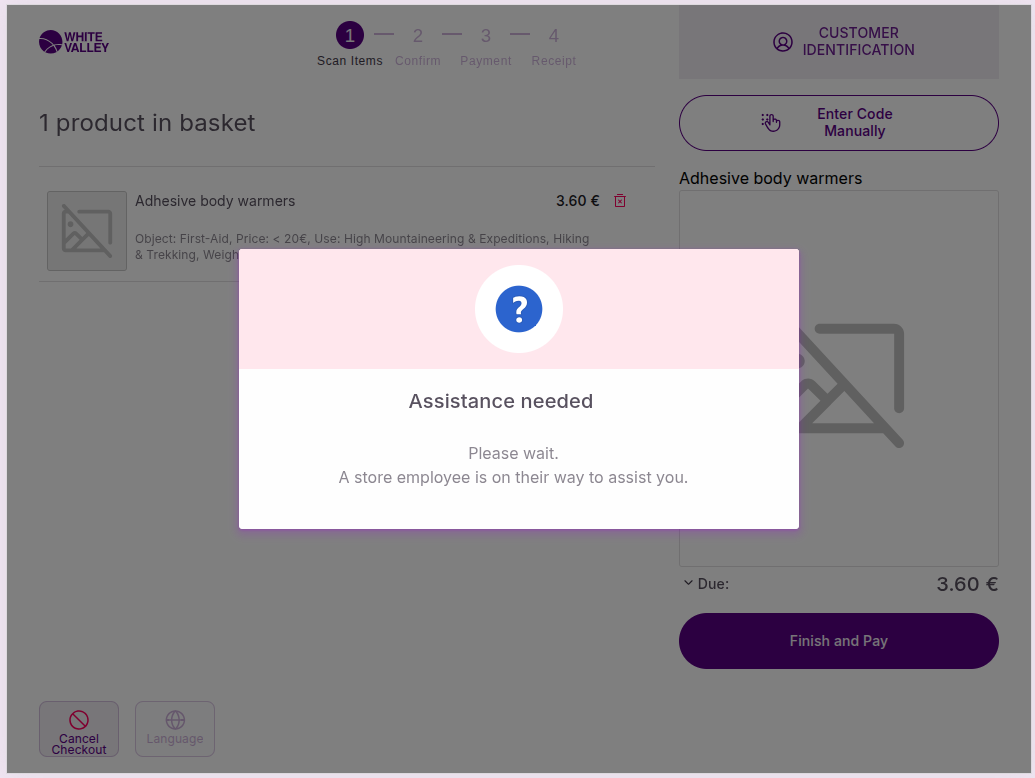
After a double tap outside that popup, the following approval should appear.
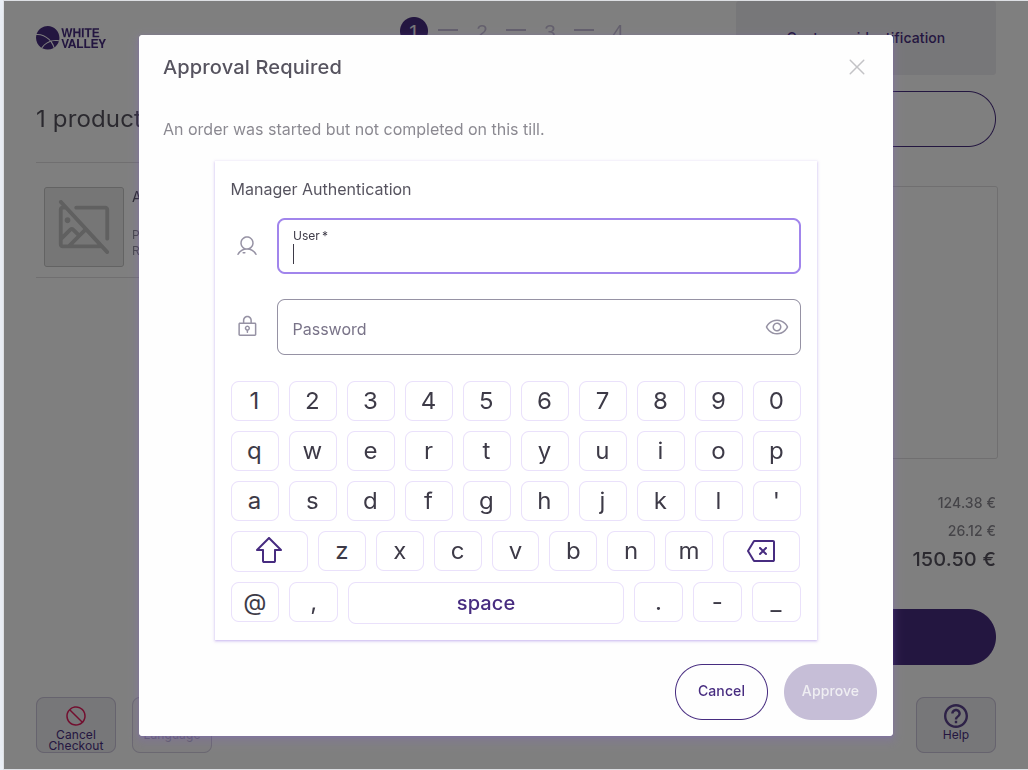
Otherwise, if there are not product in the basket, the behavior will be the same as the 'Delete Basket and Go to Welcome Screen' behavior.
User interaction with inactivity alert
If before reaching the end of the timer, one of the two buttons ('ABANDON BASKET' / 'I'M STILL HERE') are selected in the inactivity alert, it will be closed and the inactivity counter should be reset.
When the 'ABANDON BASKET' button is selected, the current ticket should be deleted and the flow should go to the welcome screen.
When the 'I'M STILL HERE' button is selected, the flow should remain unaltered.
When the 'Before-Payment Inactivity Alert Lead Time (in Seconds)' is zero the inactivity alert should not be displayed and the corresponding behavior should be triggered when reaching to the end of the timer.
Inactivity with other popups
When the inactivity alert is triggered while a popup is being shown (if is different from the call assistance popup and its corresponding approval), only the 'I'M STILL HERE' button should appear.
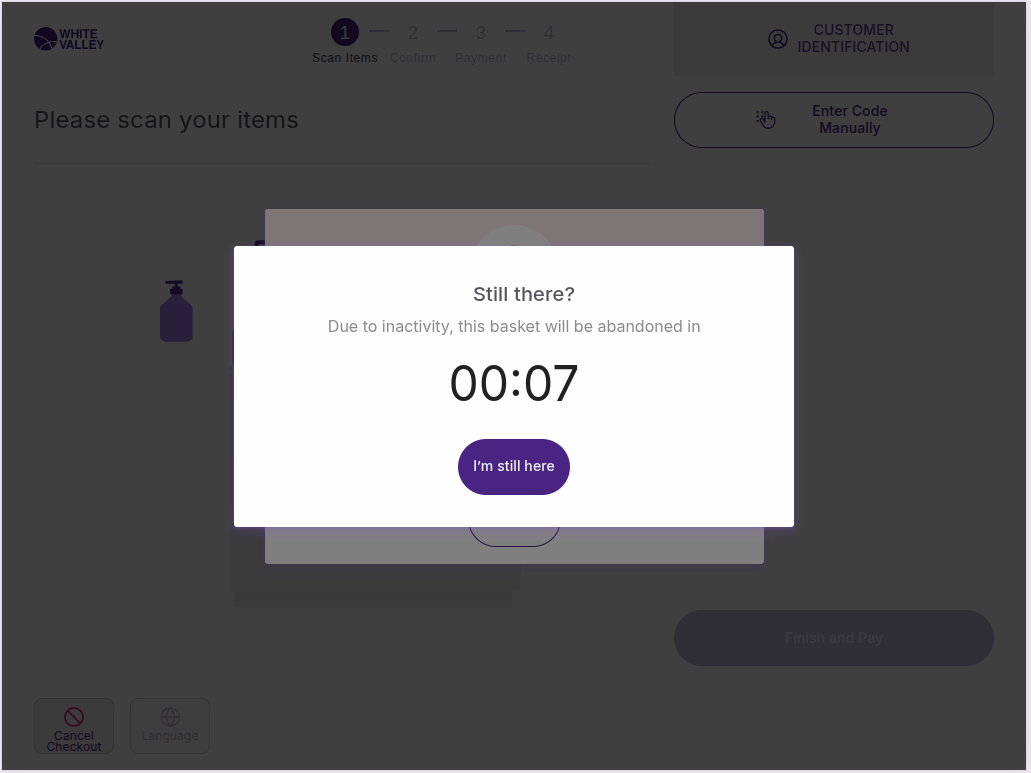
Once reached the end of the timer without activity, the terminal should be blocked regardless of the option specified in the 'Behavior on Reaching Time Out' field.