Requisitions help you create organized lists of products that need restocking or are required for specific campaigns. This guide explains how to use SSMS to build requisition lists that automatically integrate with back office systems for purchase order or distribution order processing.
Access requisition features
Navigate to the 'Transactions' menu in your SSMS workspace. The transactions section contains various inventory management tools, including requisitions creation.
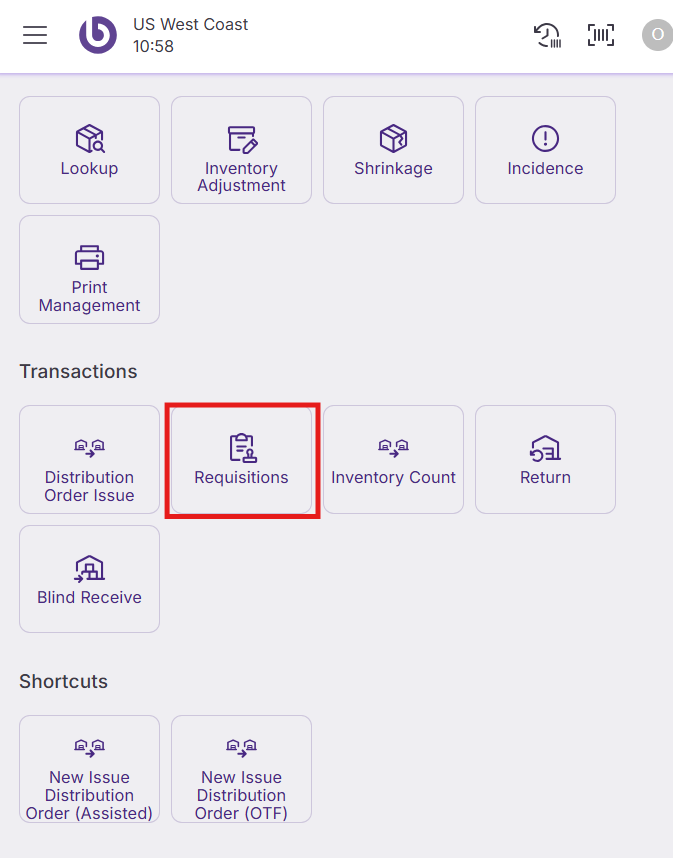
Click the 'Requisitions' button to begin creating a new requisition list.
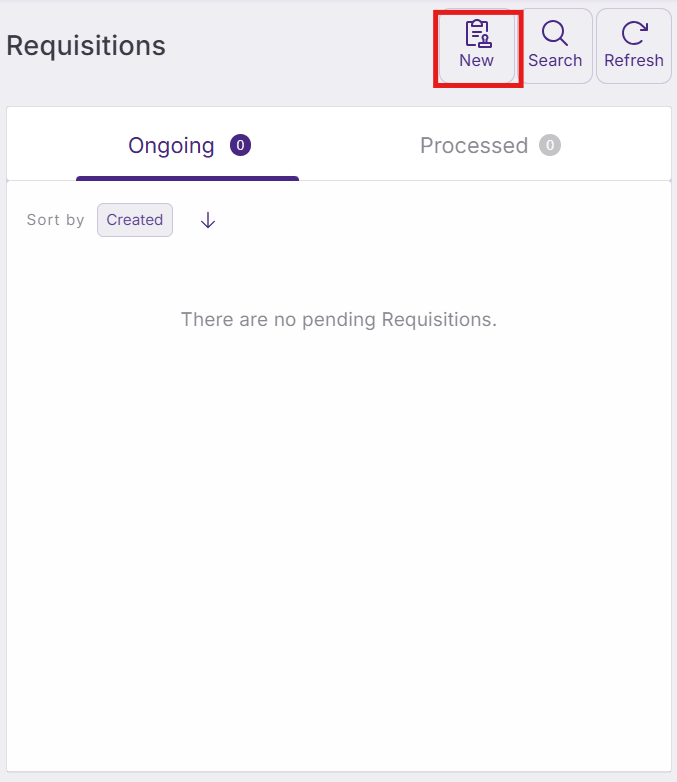
Start a new requisition
The 'New' dialog window opens with basic requisition settings that need to be configured before adding products.
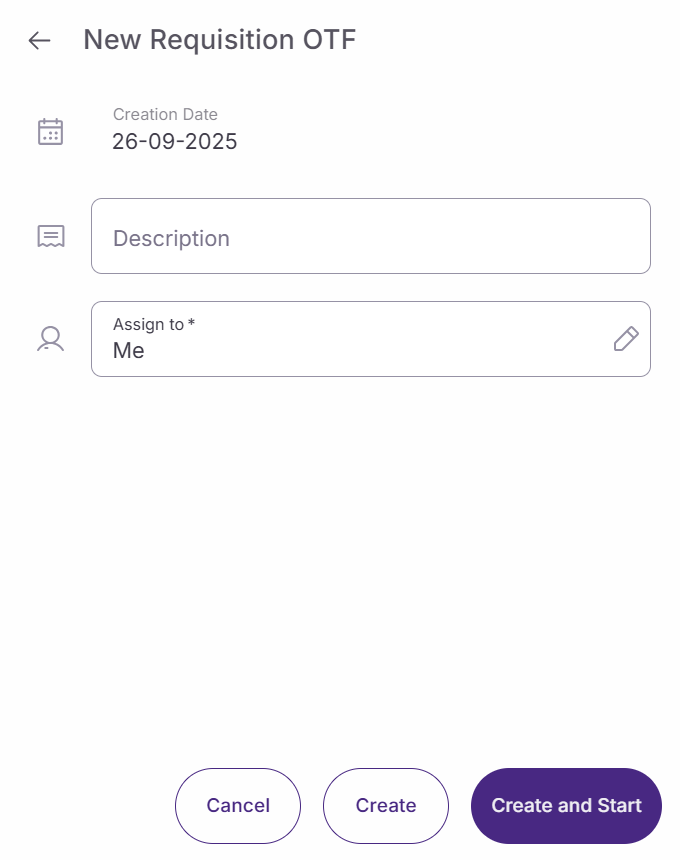
Configure the requisition details:
-
Creation date. This field displays today's date automatically and cannot be modified. It represents when the requisition was created in the system.
-
Description. Enter a clear, descriptive name for this requisition that helps identify its purpose. Use specific terms like "Weekly restock - Dairy products" or "Holiday campaign items" to make the requisition easily recognizable.
-
Assign to. This field shows your username by default and cannot be changed. The requisition will be assigned to you as the creator for tracking and responsibility purposes.
Choose one of the following actions:
Click 'Cancel' to close the dialog without creating a requisition. If you haven't made any changes, the dialog closes immediately. If you've entered information, the system asks for confirmation before discarding your work.
Click 'Create and start' to create the requisition and open the product selection window, where you can begin adding items to your list.
Add products to requisitions
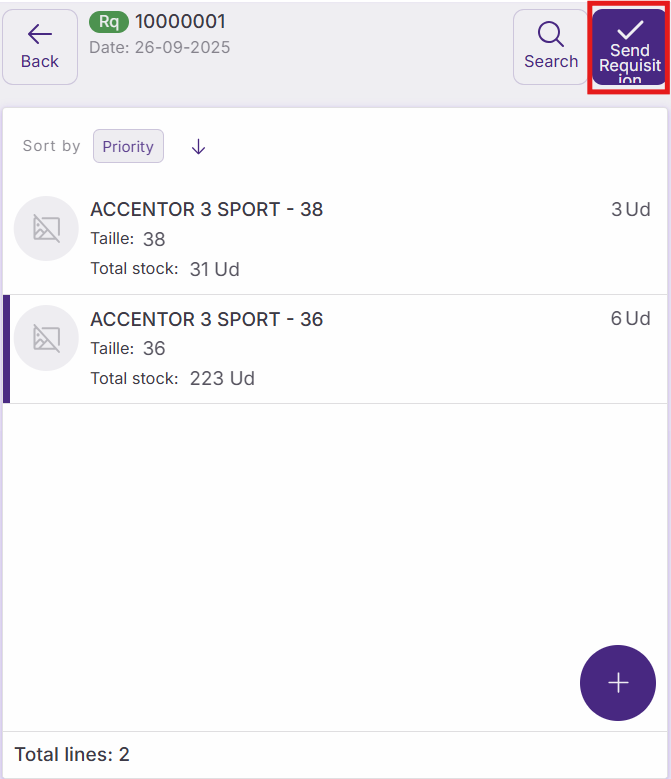
The requisition creation window allows you to build your product list using manual entry or scanning capabilities. The interface displays real-time stock information to help you make informed decisions about quantities needed.
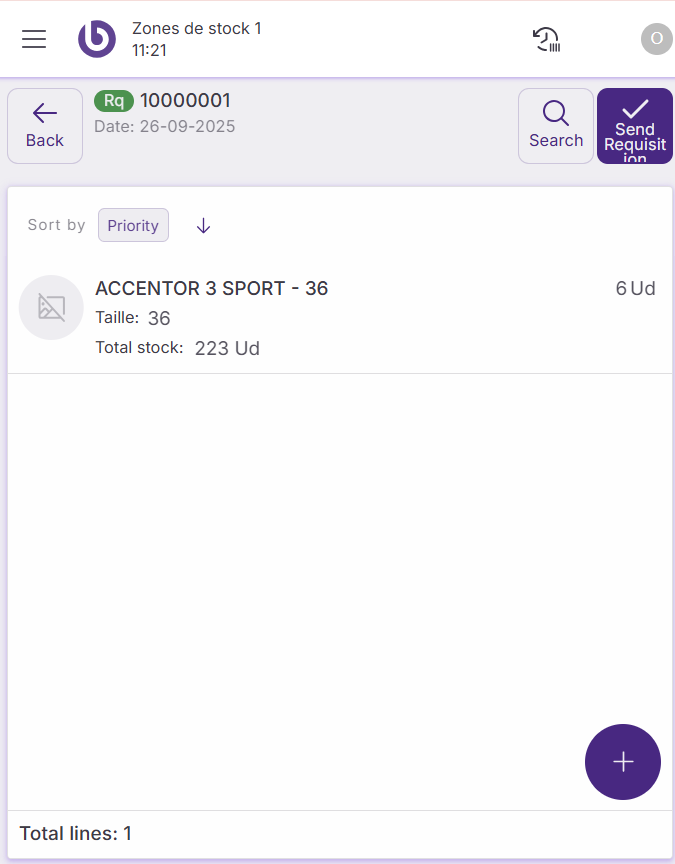
Enter products manually
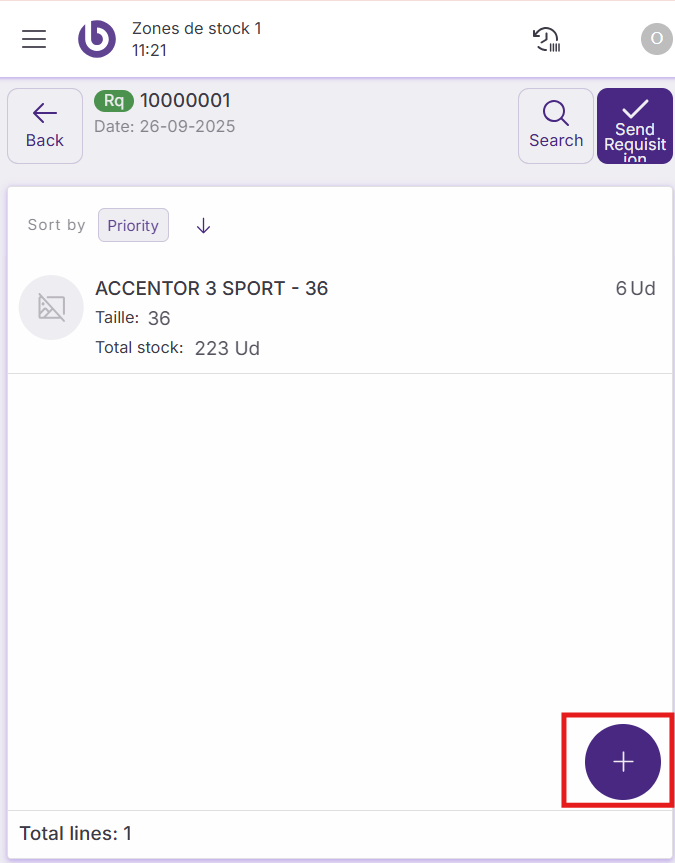
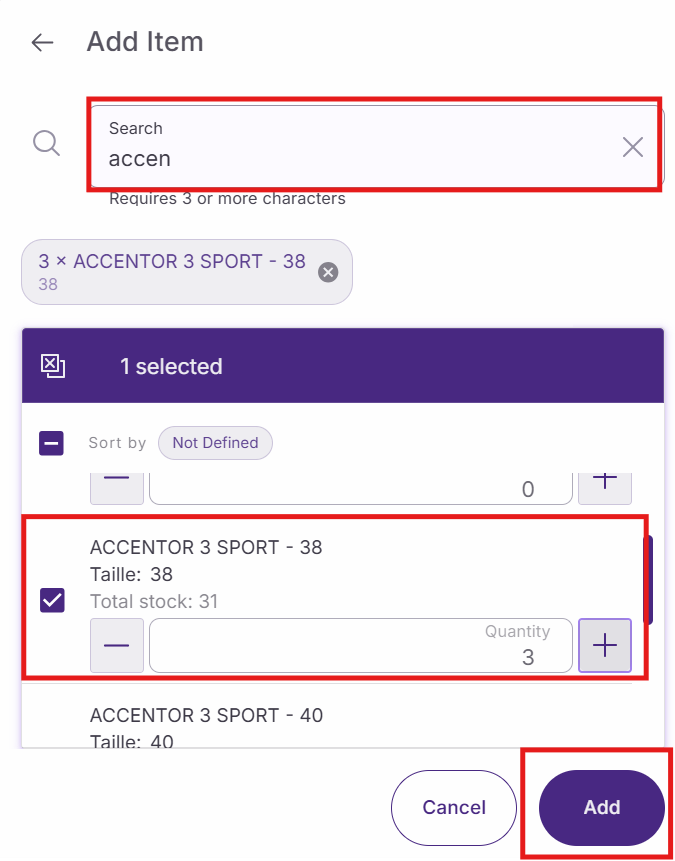
Use the product search field to locate items by name, SKU, or other identifiers. As you type, the system displays matching products from your inventory database.
Select products from the search results to add them to your requisition list. Each added product shows its current available quantity, which excludes any reserved stock already allocated to other orders or processes.
View product details
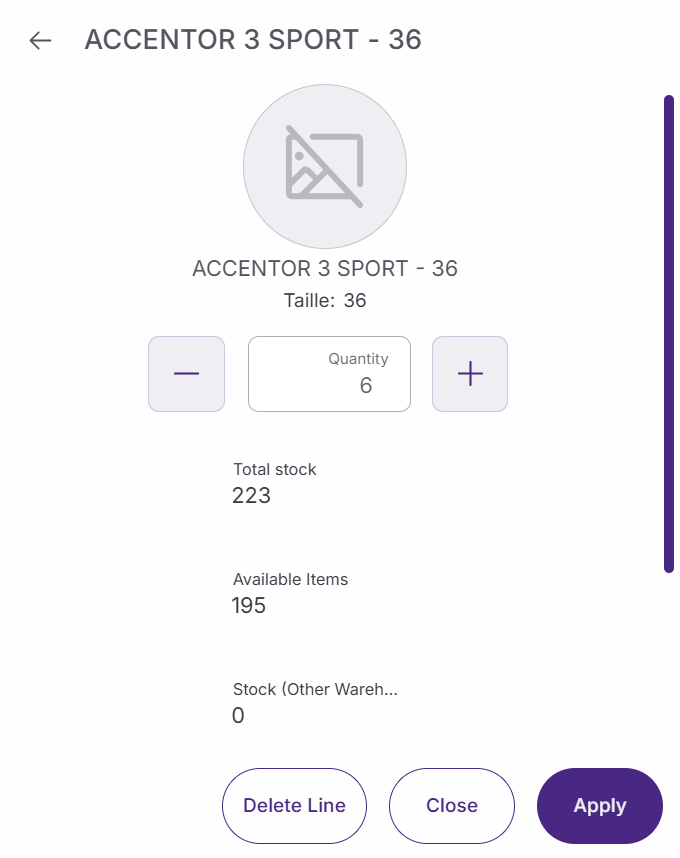
Click on any product in your requisition list to open detailed stock information. This dialog provides comprehensive inventory data to help you determine appropriate requisition quantities.
[Suggested visual: Screenshot of the product detail popup showing all stock information fields - Resolution: 360x640 pixels]
The detail dialog displays:
-
Total stock. The complete quantity of this product currently in your warehouse, including reserved items.
-
Available items. The number of units available for new orders or requisitions, excluding items already allocated to other documents.
-
External system stock. Quantities of this product held in connected external inventory systems.
-
Stock (other warehouse). The current stock level of this item in other store locations within your network.
-
Pending to receive. Quantities of this product that are on order but haven't arrived yet.
Submit requisitions for processing
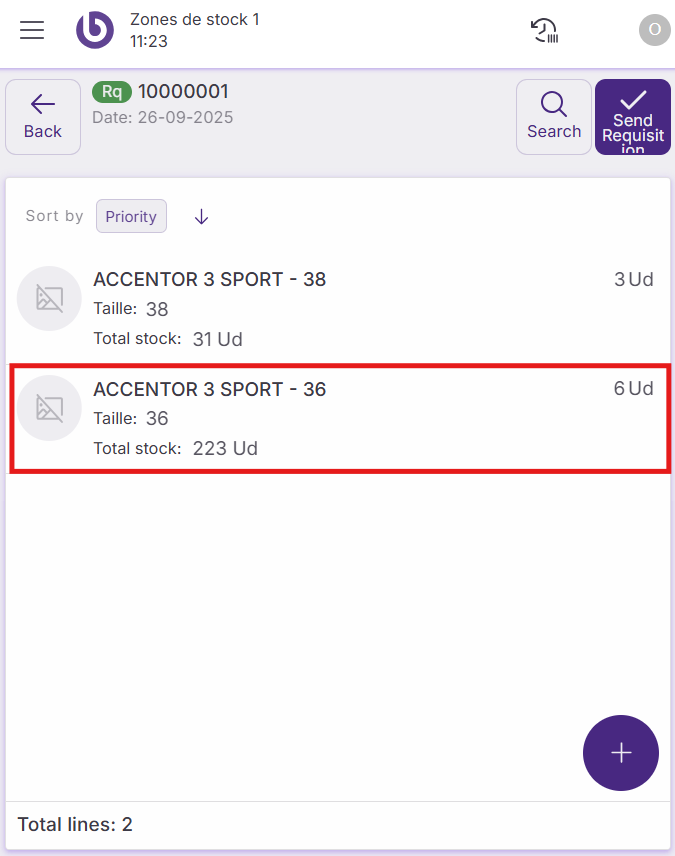
Once you've added all necessary products and verified quantities, your requisition is ready for submission to the back office team.
Review your complete requisition list to ensure all needed items are included with appropriate quantities. Check that product selections align with your restocking needs or campaign requirements.
Send the requisition to the processed list. The system automatically creates corresponding records in the back office system, where purchasing teams can convert your requisition into purchase orders or distribution orders as appropriate.
The requisition moves from your active workspace to the processed list, where you can track its status as it progresses through the fulfillment process.