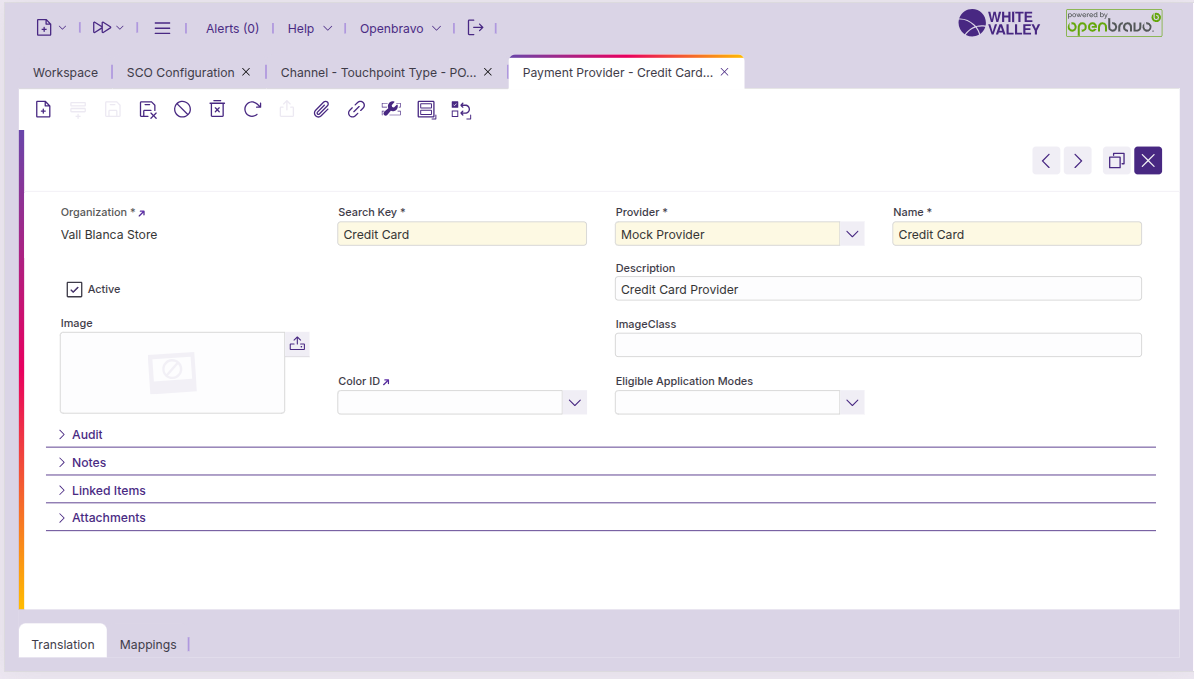
This guide describes the process of configuring payment methods for self-checkout (SCO) functionality within the back office. Payment method configuration determines which payment options are available in SCO mode and how these options are displayed to customers.
Proper configuration ensures that appropriate payment methods are accessible while maintaining visual and functional consistency in the SCO interface.
Payment filters by application mode
Configure payment method availability across different application modes:
Application mode filtering
For each payment type and payment provider, application mode filters may be applied.
These filters allow the following configurations:
-
Make the payment method available in all application modes
-
Restrict the payment method to specified application modes only
-
Exclude the payment method from selected application modes
This functionality provides flexibility in determining which payment methods are presented to customers during SCO transactions as opposed to standard POS operations.
Configuration
By payment type
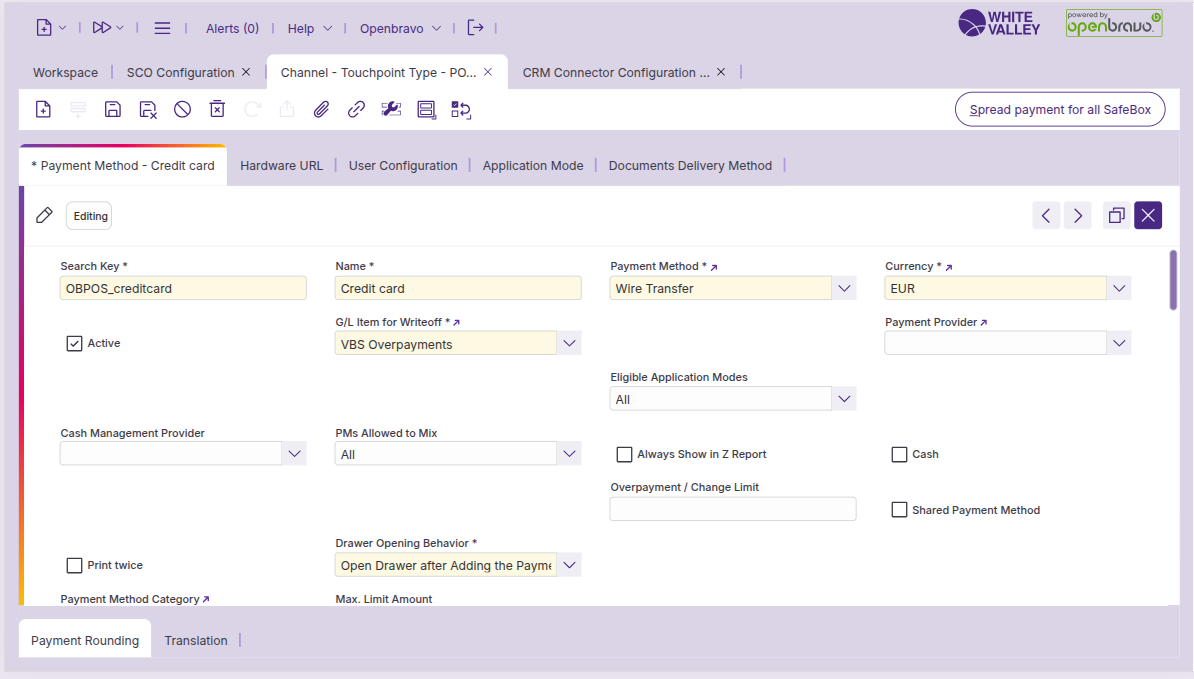
In the Channel-Touchpoint Type window, navigate to the ‘Payment Method’ subtab. In the 'Eligible Application Modes' field, specify the modes in which the payment method will be available or excluded.
By payment provider
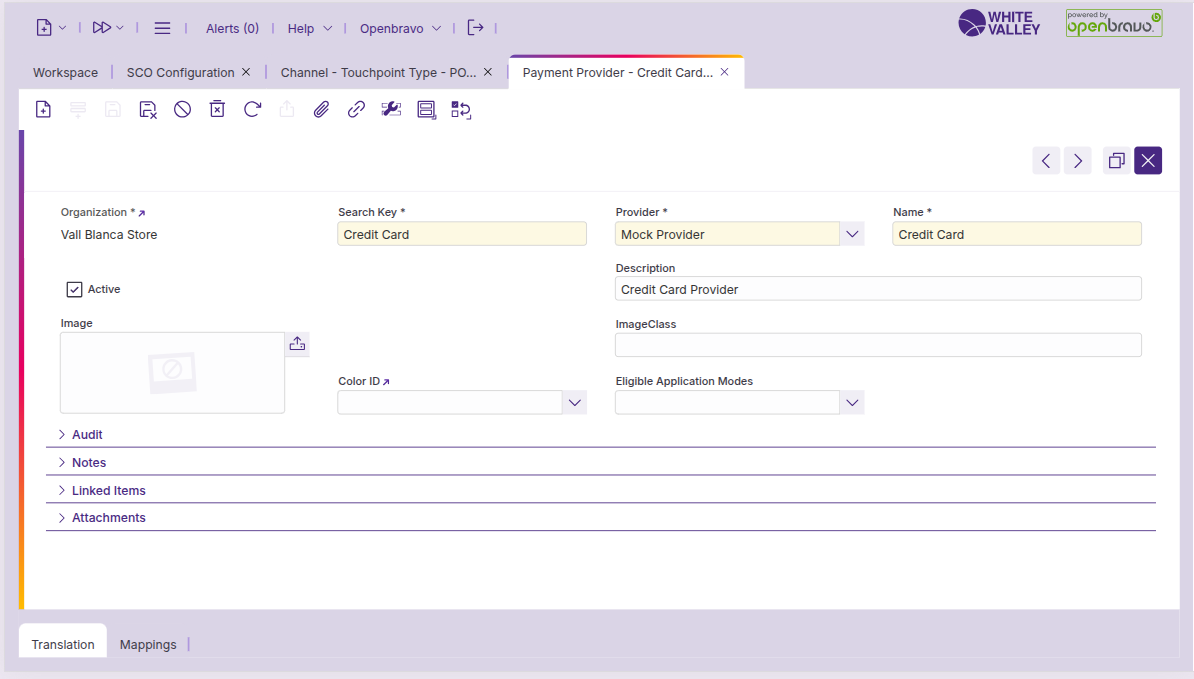
In the ‘Payment Provider’ window, select the desired payment method. Configure the 'Eligible Application Modes' field to define the modes in which the payment method will be available or excluded.
Payment method images
The SCO interface can display images for each payment method to facilitate visual recognition by customers. Images may be configured at both the payment type and payment provider levels.
Configuration
By payment type
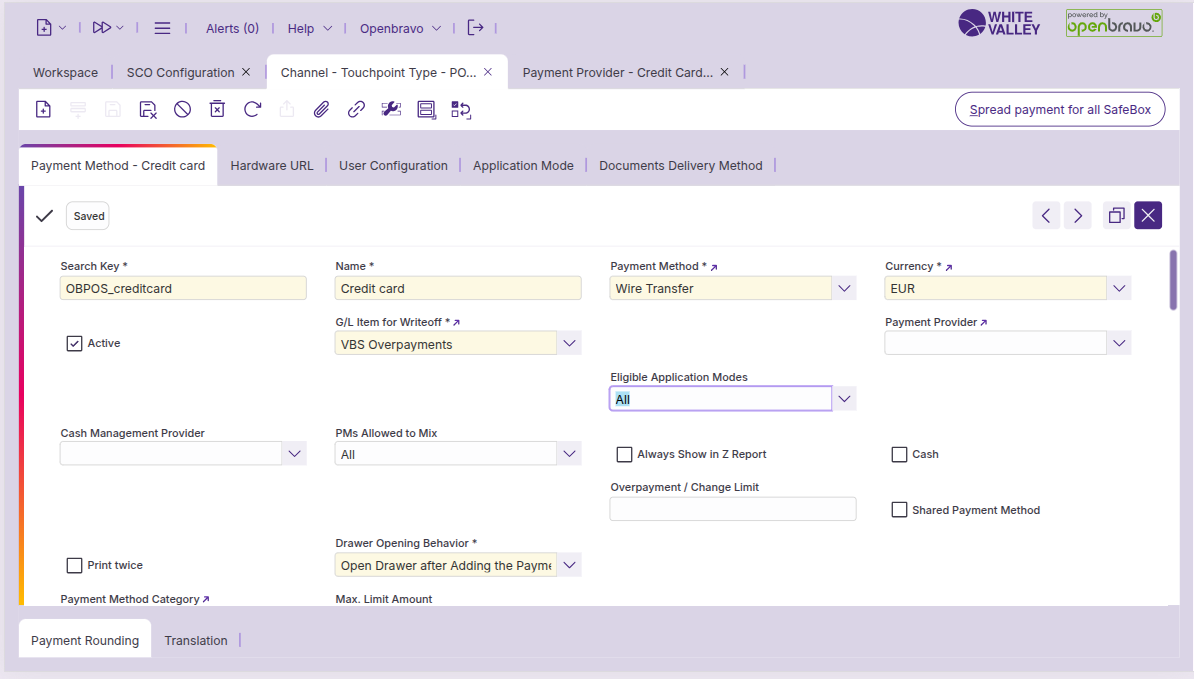
In the Channel-Touchpoint Type window, navigate to the ‘Payment Method’ subtab. In the 'Image' field, assign the desired image to the payment method.
By payment provider
In the payment provider window, select the required payment method and update the image in the ‘Image’ field.