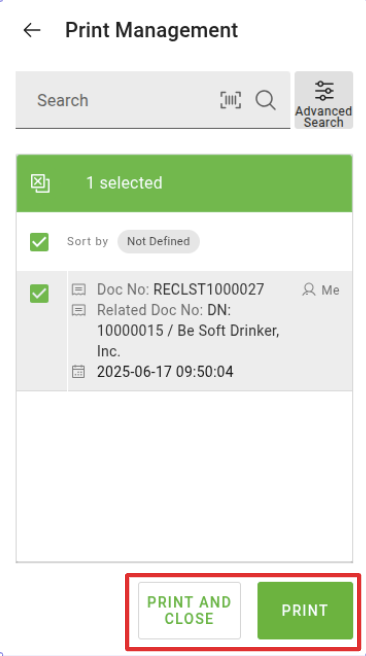
The print management dialog allows warehouse operators to print documents or labels after completing certain tasks. For example, after finishing a package, it allows the operator to print a label and stick it on the package. This helps complete the process and clearly identify the package without interrupting the workflow.
Access
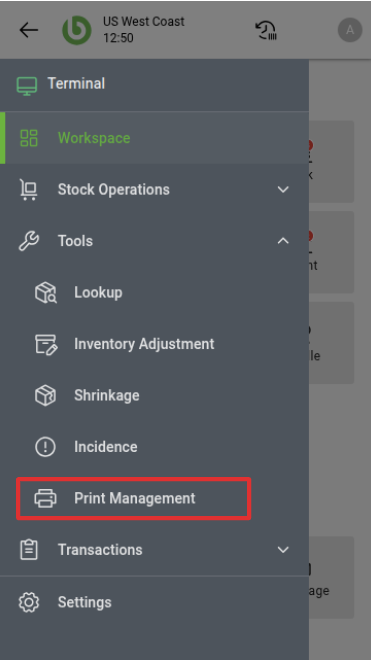
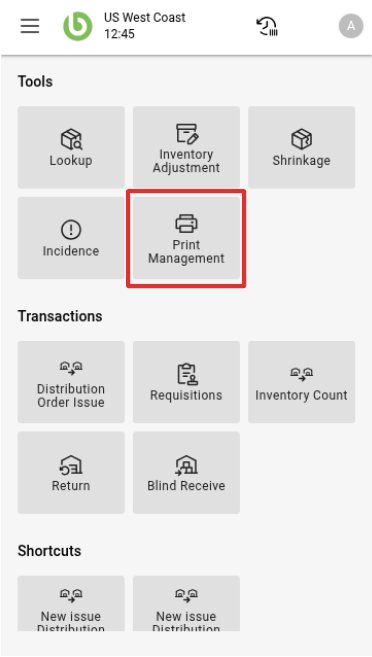
You can access the print management dialog from two places:
-
The main window
-
The drawer menu
Functionality
Once the printing options configuration is set in the back office, every time a task is confirmed, a new entry will appear in this dialog.
-20250620-103653.png?cb=f7defb358bac80fca87d8c6450cb611e)
The layout is divided into two tabs:
-
Pending. Displays print orders that are waiting to be printed.
-
Printed. Shows print orders that have already been printed. However, items in this tab can still be selected and printed again if needed.
Search functionality
When you open the dialog, it will show only the print orders for tasks assigned to the current user. To view print orders from other users, click the ‘Advanced search’ button and change the search scope to ‘All’.
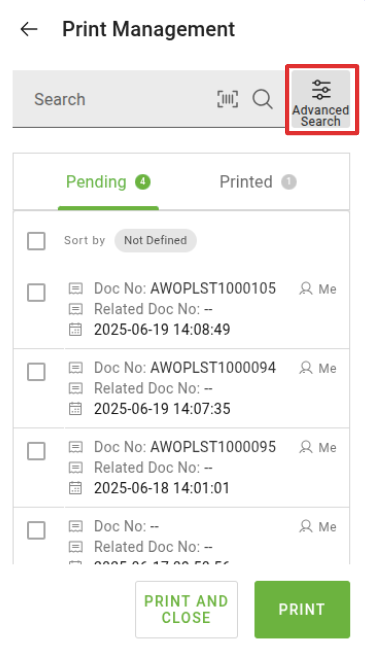
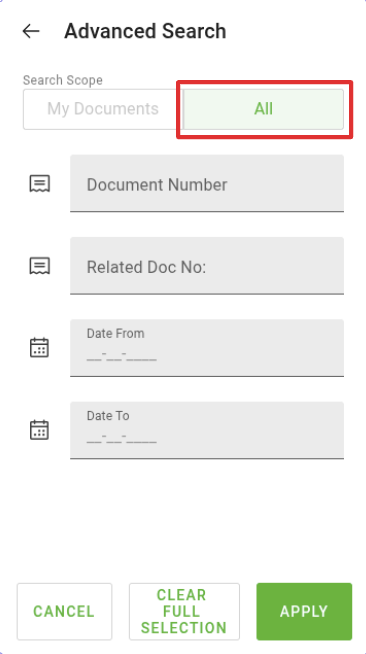
In addition, the advanced search allows you to filter results by date or document for more precise searches.
Print functionality
After selecting at least one line, you can click the ‘Print’ or ‘Print and Close’ button. The selected orders will be sent to the printer configured for the task.