This guide explains how to create bundles in the SSMS front-end application. Bundles are composite products made from multiple individual items, with their own stock and price. You'll learn how to set up bundling tasks, add component items, and complete the bundle creation process using bill of materials (BOM) configured in the back office.
Understanding bundles
A bundle is a single composite product created by combining multiple individual items. Each bundle maintains its own inventory levels and pricing separate from its component parts. The bundling process requires a bill of materials (BOM) to be properly configured in the back office system.
This feature helps you efficiently manage composite products and maintain accurate inventory levels for both individual components and finished bundles.
Access bundle functionality
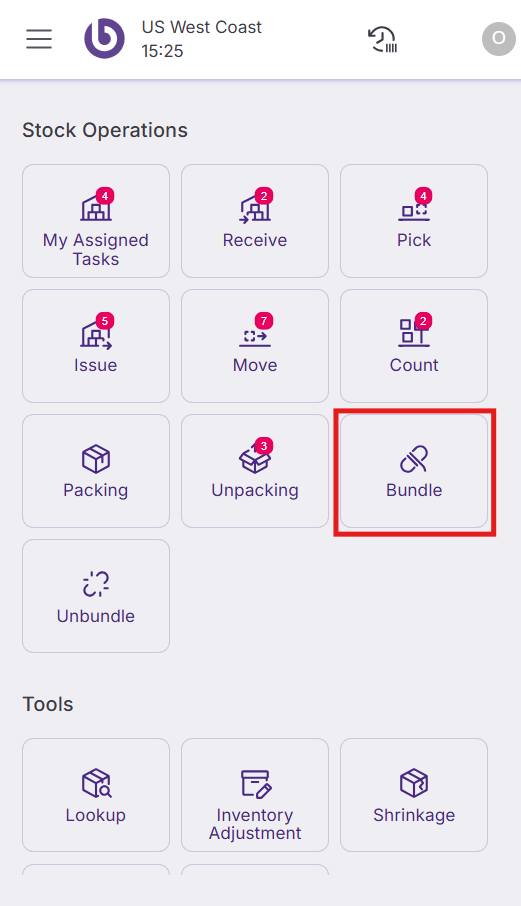
Navigate to 'Warehouse operations' in the SSMS menu and select the 'Bundle' option.
Create a new bundle task
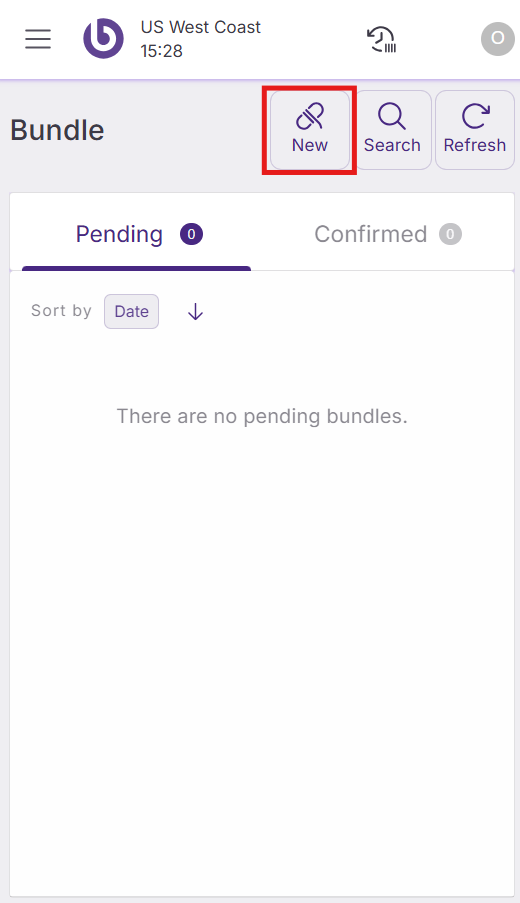
Select 'New' to start the bundling process. A creation form will appear with the following configuration fields:
-
Assign to. Select users who will handle this bundling task. By default, you are assigned to the task. Tasks can be left unassigned if needed.
-
Bundle item. Select the BOM product from the production plan. Only verified BOM products appear in this selector.
-
Quantity. Enter the number of bundles you want to produce.
-
To bin. Select the destination location where the completed bundle will be stored.
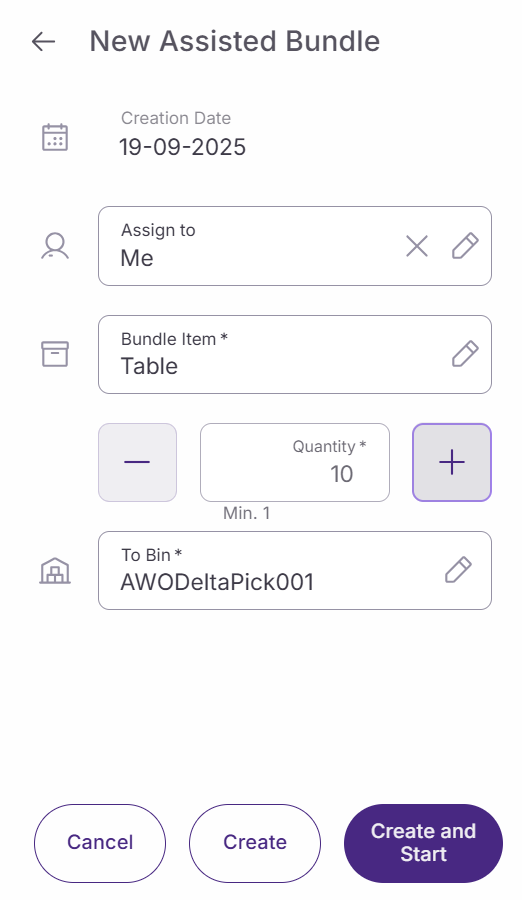
Complete the bundle setup using these options:
-
Cancel. Returns to the previous screen without creating anything.
-
Create. Creates the bundling task for later execution.
-
Create and start. Creates the task and immediately begins the bundling process.
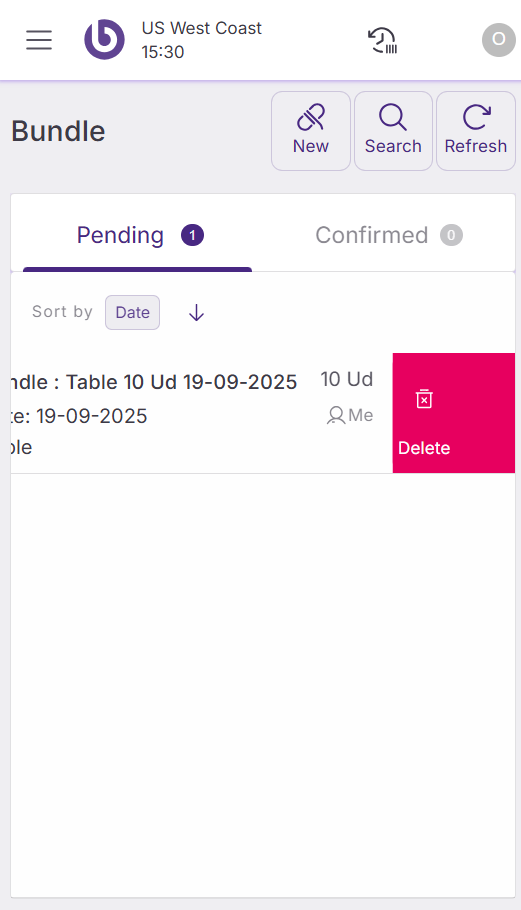
You can delete created tasks by swiping them to the left before starting the bundling process.
Execute bundle tasks
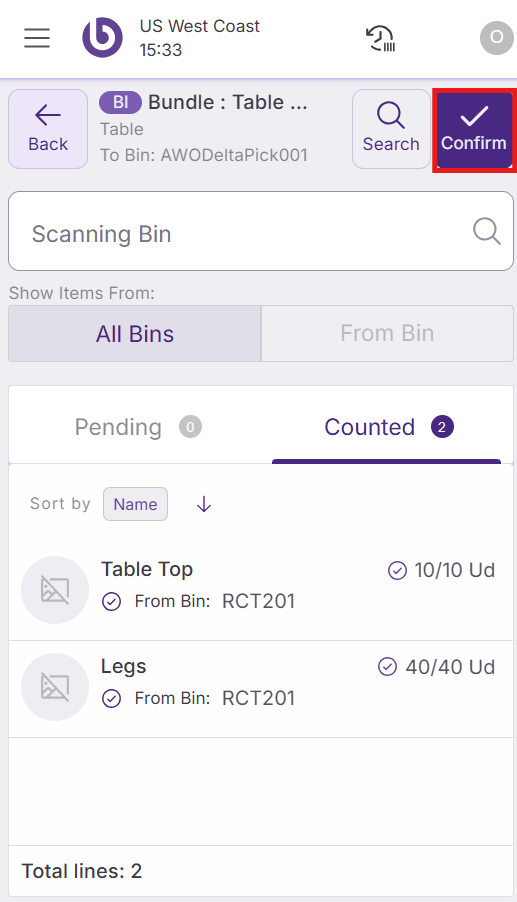
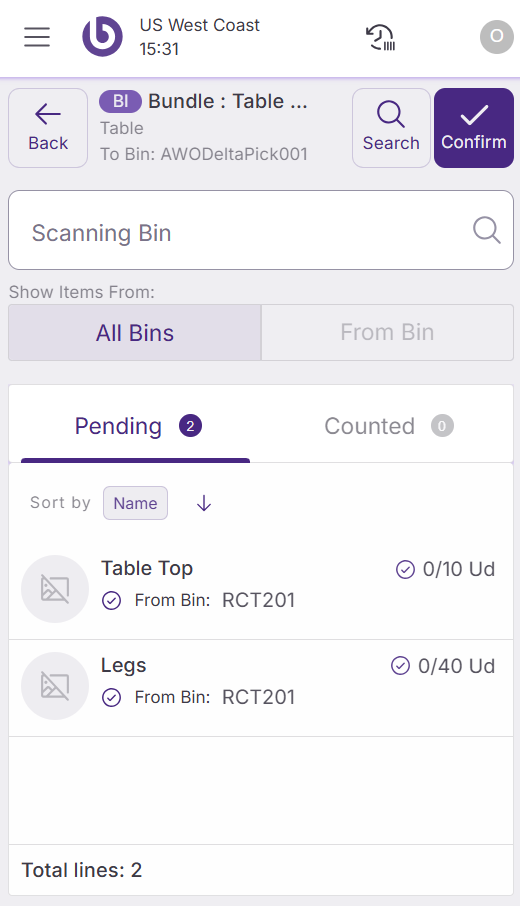
After creating and starting a bundle task, enter the task to view all component products with their expected quantities. The component to scan to create the bundle is listed in the ‘Pending’ tab.
Add components to the bundle by scanning product barcodes or manually entering product information. The system prevents you from scanning more items than expected for each component.
When an item line is fully counted, it will be moved to the ‘Counted’ tab. When you synchronize each line, the system performs validations based on your configuration settings, including product change restrictions if enabled.
Complete bundle creation
After adding all required components with the correct quantities, select the 'Confirm the bundle creation' option to finalize the process.
The system creates the bundle product, updates inventory levels for both components and the finished bundle, and stores the bundle in the designated bin location.