
This guide covers the navigation features and application bar tools available in SSMS, which help you move between sections and access essential functions. These navigation options allow you to switch between warehouse operations quickly without returning to the main workspace or taking multiple steps. The application bar provides instant access to common tools and settings that work across all screens, making your daily warehouse tasks more streamlined.
Navigation options
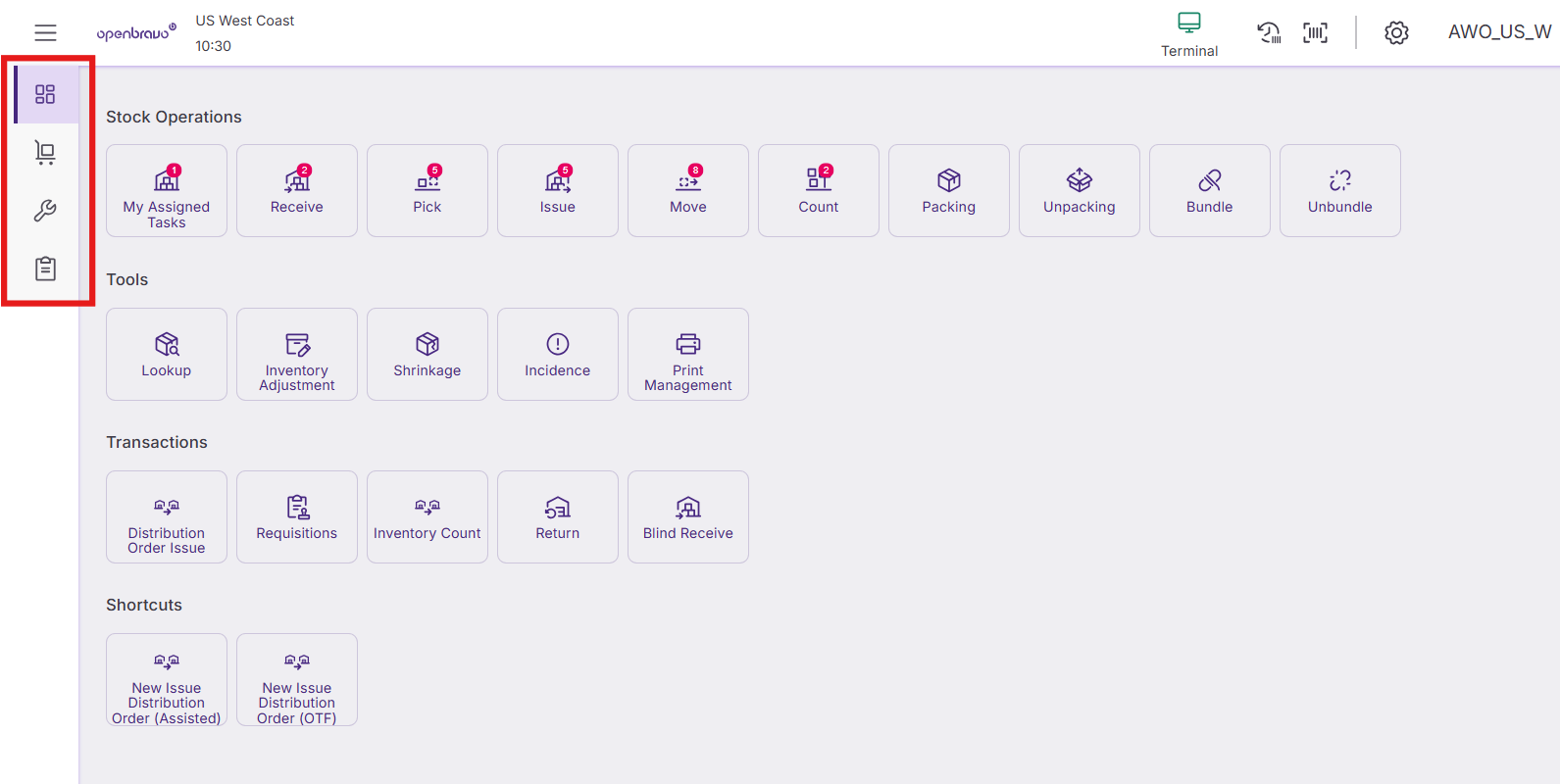
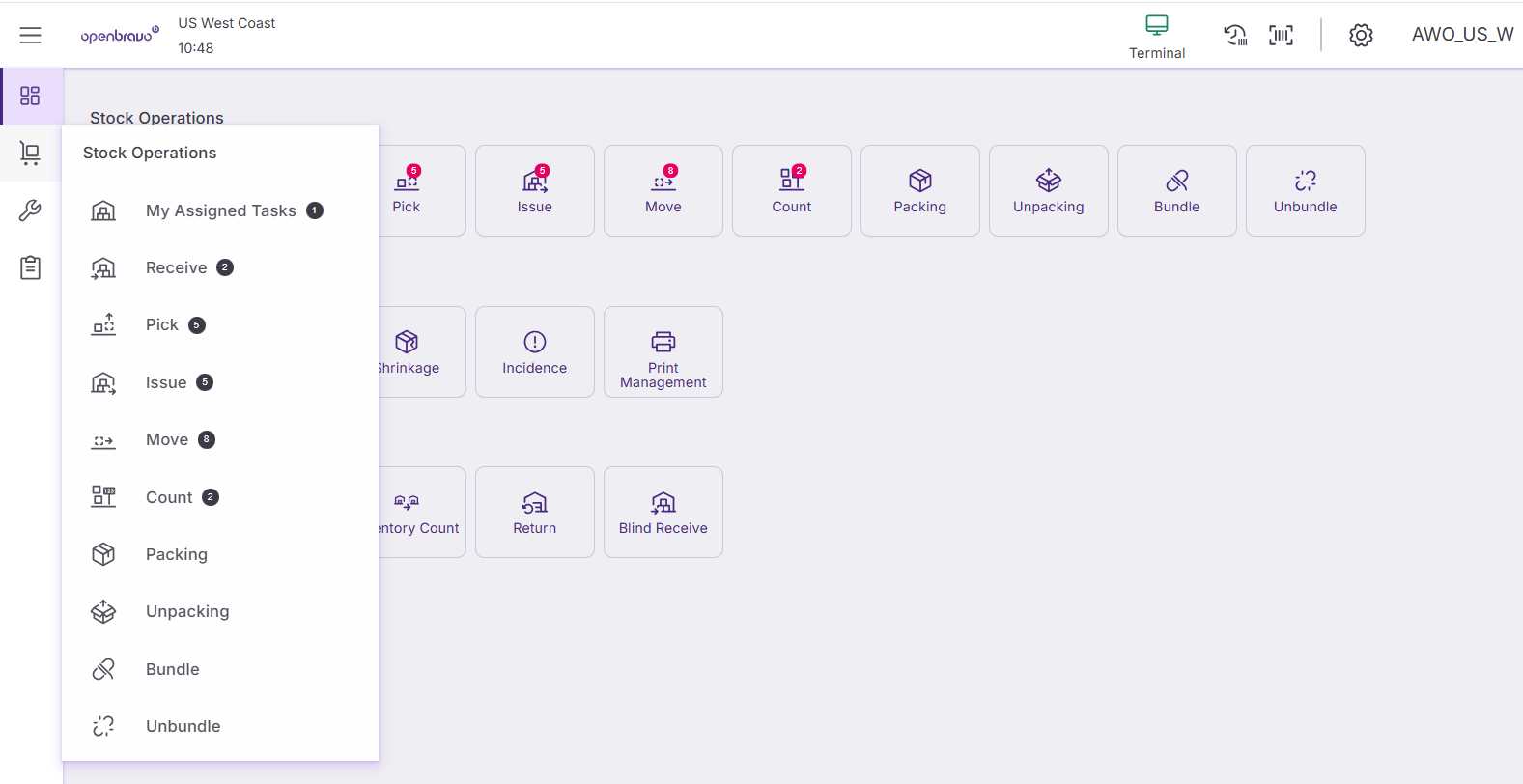
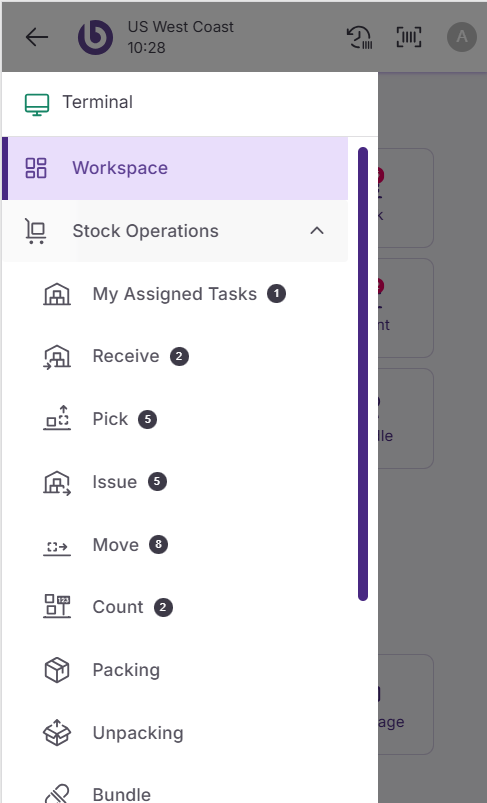
SSMS provides two ways to move between different sections: the navigation drawer and the menu.
Thanks to them, the user can swiftly move between different sections of the software without having to return to the home screen or use multiple navigation steps.
Navigation drawer: Swipe from the left edge of the screen to reveal the navigation menu. Each stock operation shows a counter indicating pending tasks.
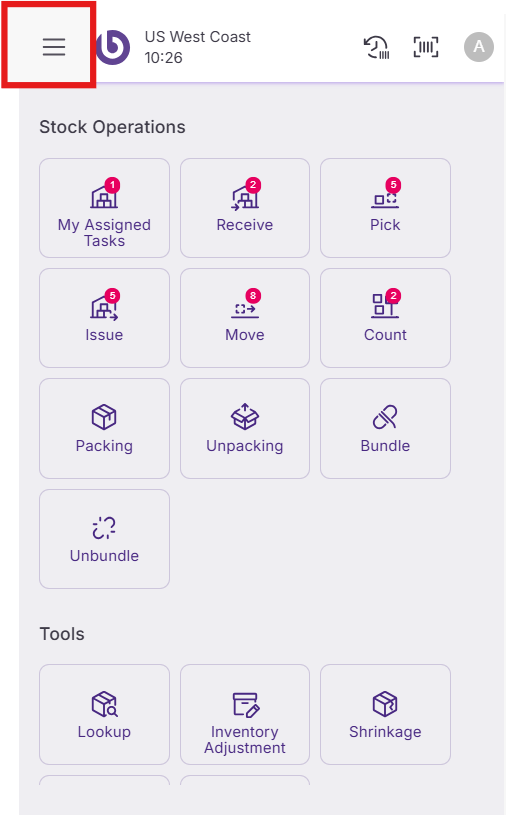
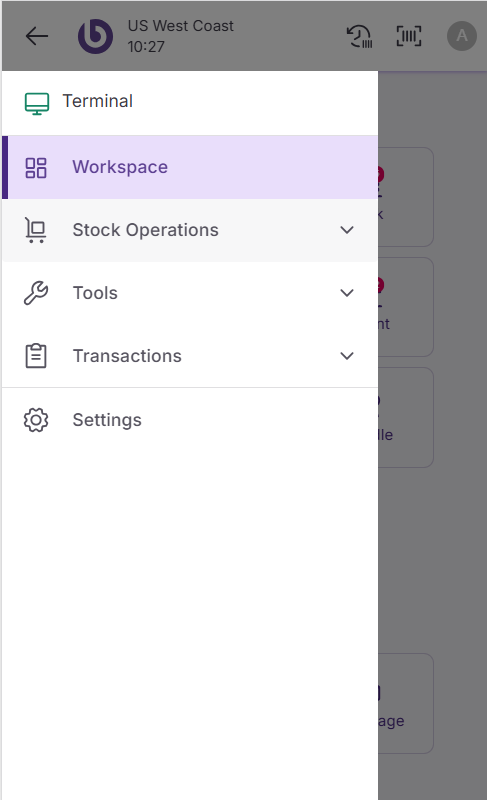
Menu button: Tap the menu icon in the application bar to display all available options.
Both methods show counters next to each section, helping you see at a glance how many pending items exist in each area.
Application bar features
The application bar allows users to execute actions that are applicable in any context or window, so that the user can quickly perform common tasks without needing to navigate away from the current screen.
The top application bar contains several useful tools:
-
Terminal status. The terminal icon shows your connection status: green for online mode, red for offline mode.
-
Scan function. Tap the ‘Scan’ button to activate the device camera for barcode scanning when no physical camera button is available.
-
Scan history. Access 'Last/past scans' to review recently scanned items, including timestamps, barcode numbers, and corresponding products or locations.
-
Settings menu. Customize basic features like scan sounds, virtual keyboard, log timings of user and state actions, theme mode, and refresh master data on demand.
-
Profile options. View your user information, change your password, or log out of the application.