
This guide explains how to switch between POS and self-checkout (SCO) modes within the same terminal. Mode switching allows cashiers and supervisors to transition seamlessly between assisted checkout and customer self-service operations. Understanding these switching procedures ensures efficient terminal management and proper transaction handling.
Switch to SCO mode
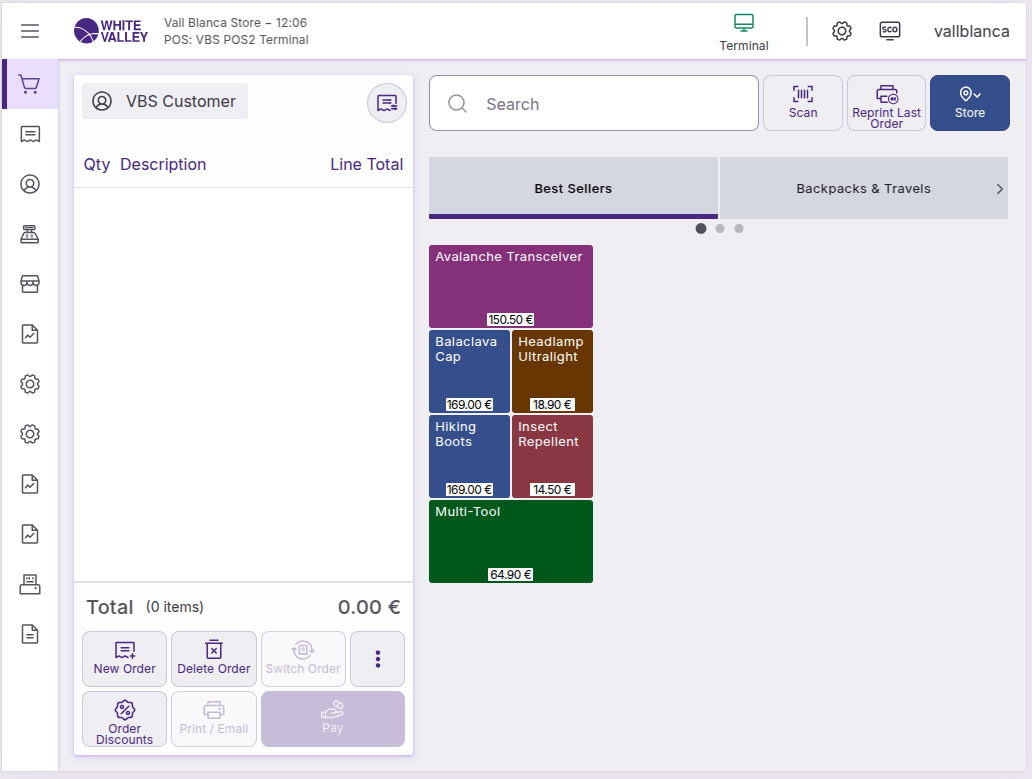
To activate SCO mode from the POS interface:
-
Click the SCO button in the POS interface
-
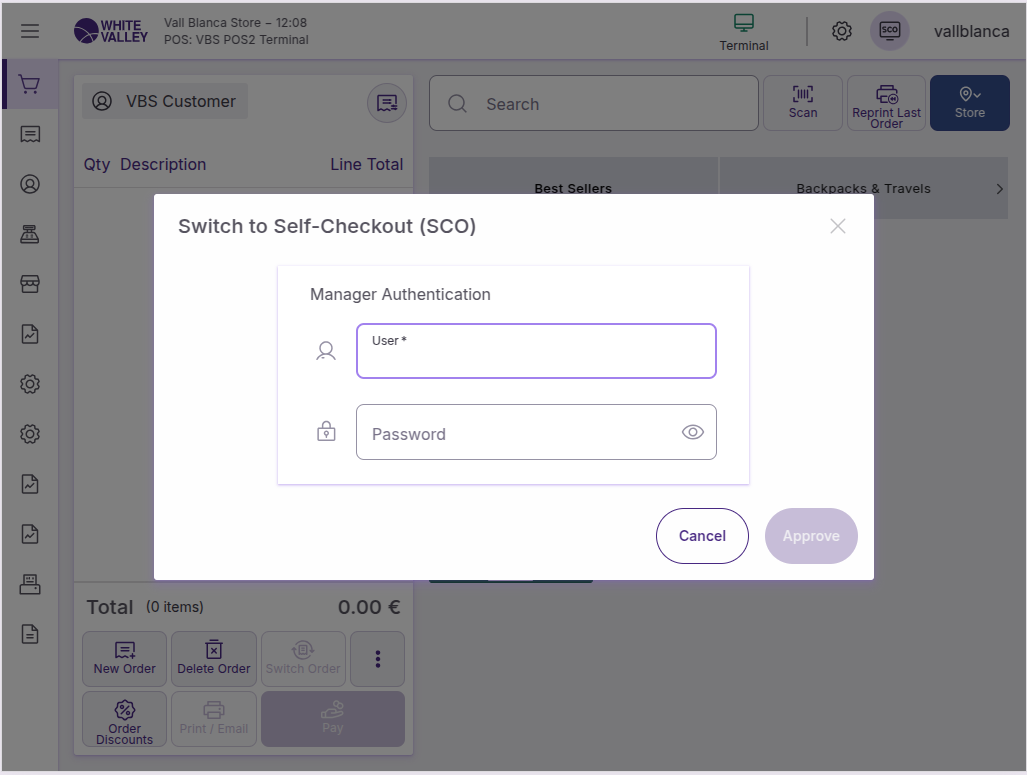
A popup will be opened requesting authentication
-
After entering the credentials correctly, the application will switch to SCO mode showing the Welcome window
However, if products have been added to the ticket in POS, the window displayed when the SCO button is clicked should be the Basket screen instead of the Welcome screen.
Authentication options for SCO
The system can be configured with different logging methods for switching to SCO mode.
Ask for credentials
This is the default mode. The application will always ask for the user credentials before switching the application mode.
Use POS user
If the user has access to SCO, the application switches the app mode without asking for the user credentials, using the same user logged in POS.
Autologin with Existing User
This option lets the system define a default user that will be the one that logs in automatically when switching to SCO from POS. The autologin user should only have one available role, and this role must have access to SCO application mode. This option requires terminal authentication to be enabled.
Switch restrictions to SCO
Customers cannot switch to SCO mode in certain situations.
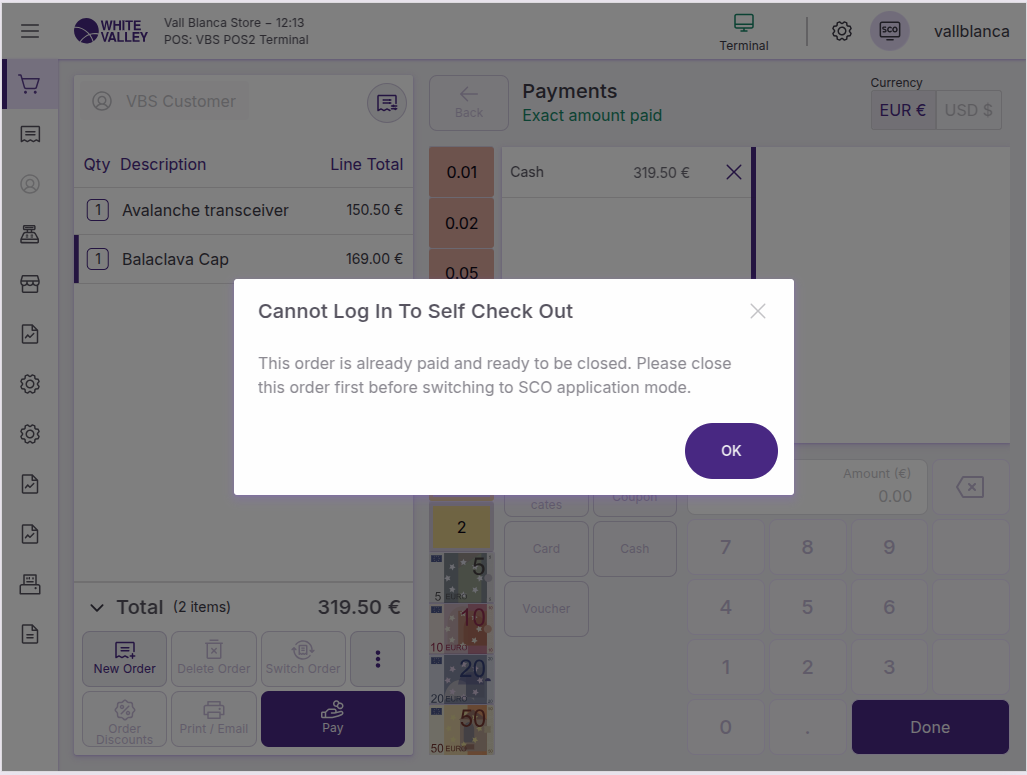
Payment in progress
If a ticket has been started in the POS and payment is proceeding, once the payment method has been selected, switching to SCO will not be allowed. An error popup will appear.
On the other hand, if the payment method has not yet been selected, switching to SCO will be possible without any issues.
Parked orders present
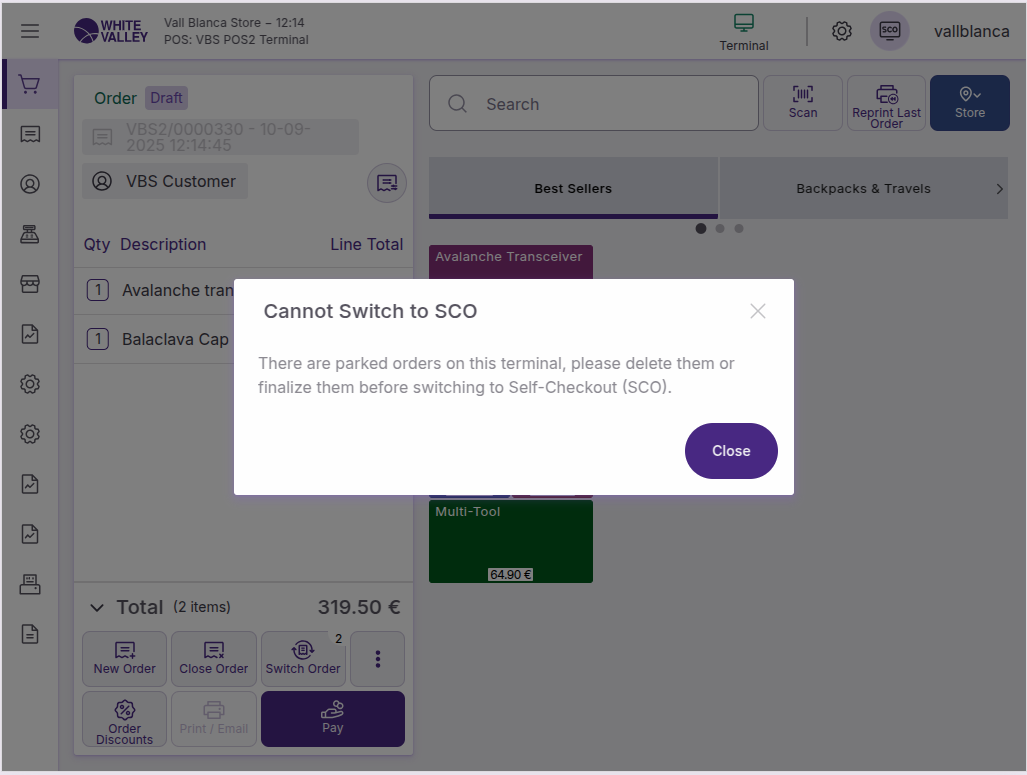
When parked orders exist in the POS system, an error message popup will display preventing the switch to SCO mode. All parked orders must be resolved before switching modes.
Switch to POS mode
To return from SCO to POS mode:
-
Double-click the organization icon at the top left side of any SCO window
-
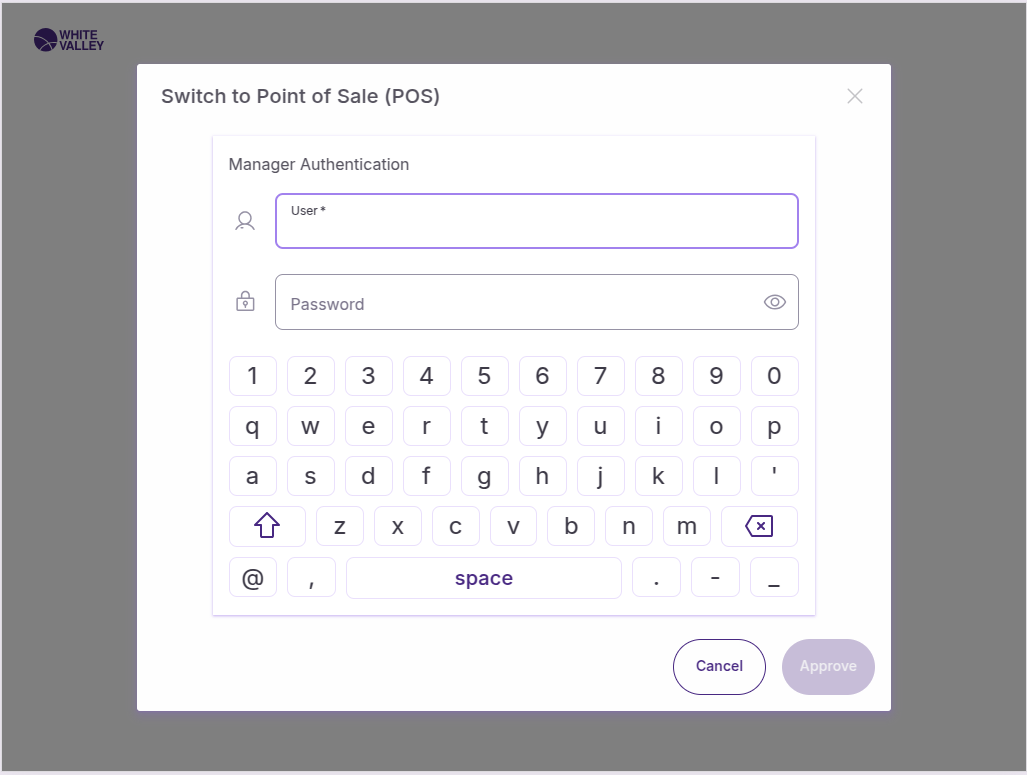
A popup will be opened requesting authentication
-
After entering the credentials correctly, the application will switch to POS mode
The double-click action on the organization icon is required to initiate the mode switching process from SCO back to POS.
Transaction data preservation
The same information including product lines, discounts, price modification, order, language etc. will be maintained after switching between each app mode.
This preservation ensures that customer transactions can continue seamlessly regardless of which mode is being used, without losing any previously entered data.