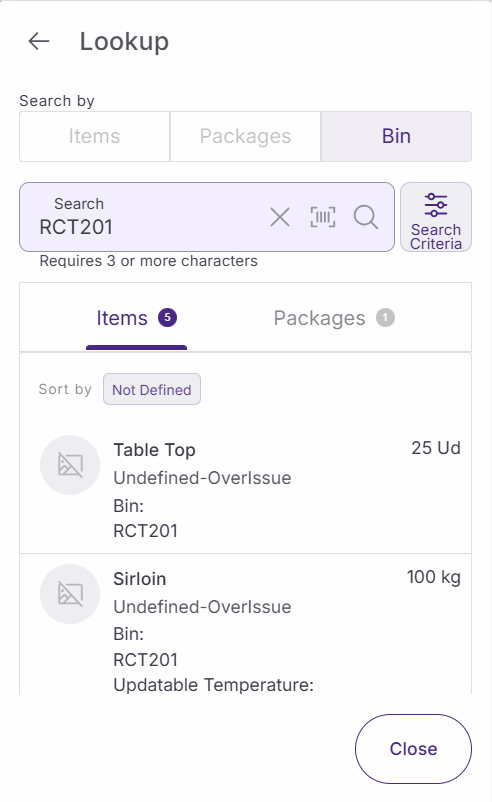
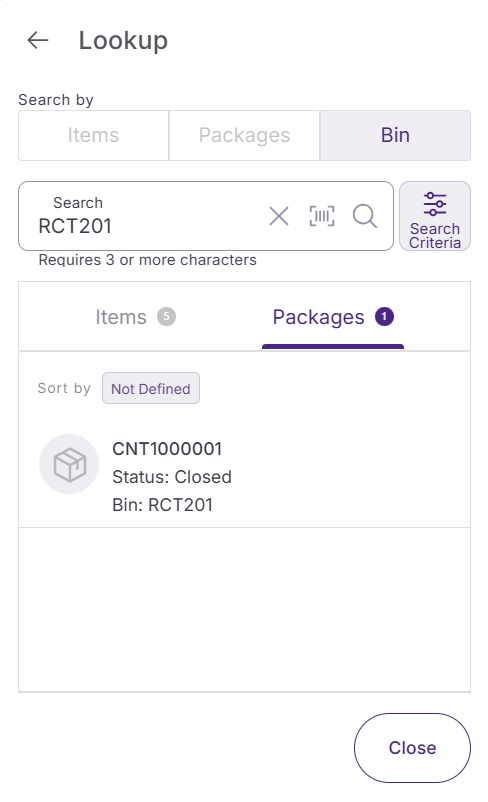
The SSMS lookup tool helps you quickly find items, packages, or bin locations in the warehouse. This search feature provides real-time inventory information, showing you what's available and where it's located without allowing you to make changes to the stock.
Use this tool when customers ask about product availability or when you need to verify stock levels during your shift.
Access the lookup tool
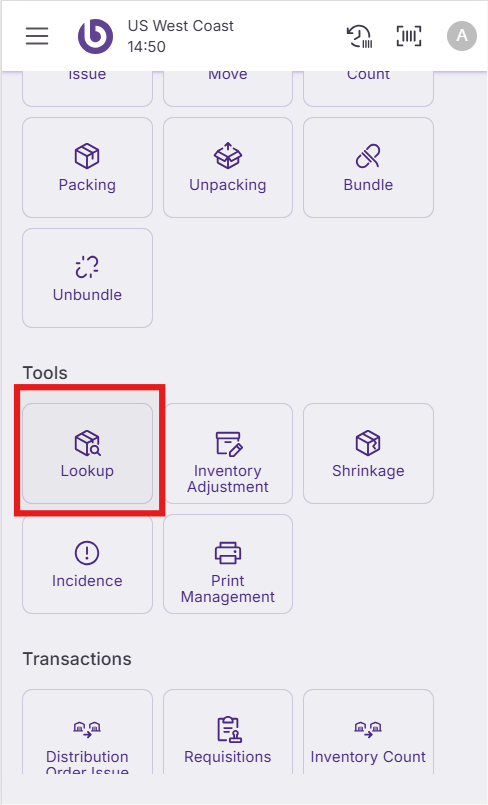
Open SSMS and, in the ‘Tools’ section, tap the 'Lookup' icon to launch the search interface.
Search for item
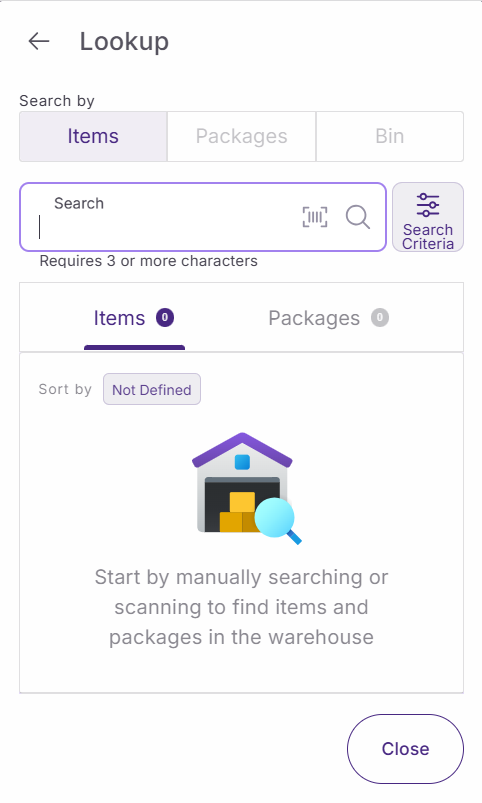
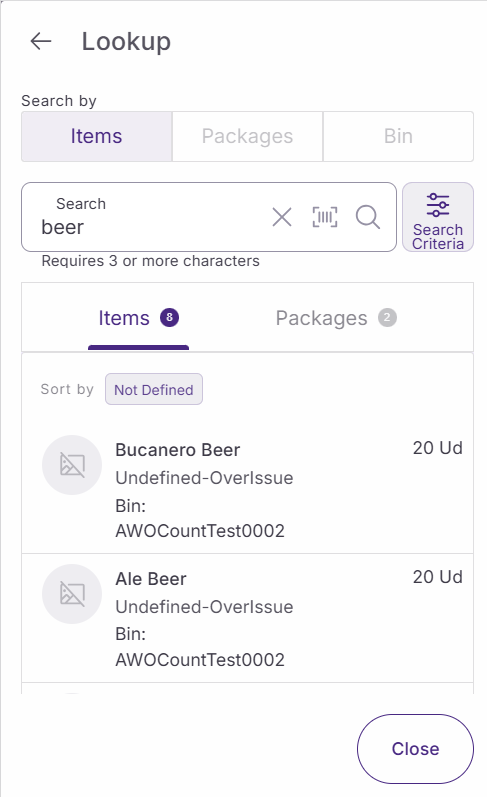
The 'Lookup' screen allows you to search by three different methods: item, package, or bin location.
Enter at least 3 characters in the search field to begin your search. The system requires this minimum to provide accurate results.
The 'Search criteria' button provides filtering options to refine your results.
Show items inside packages. This checkbox controls whether you see individual items contained within packages. When enabled (checked by default), the search displays both packages and their contents. When disabled, only the outer packages appear in the results.
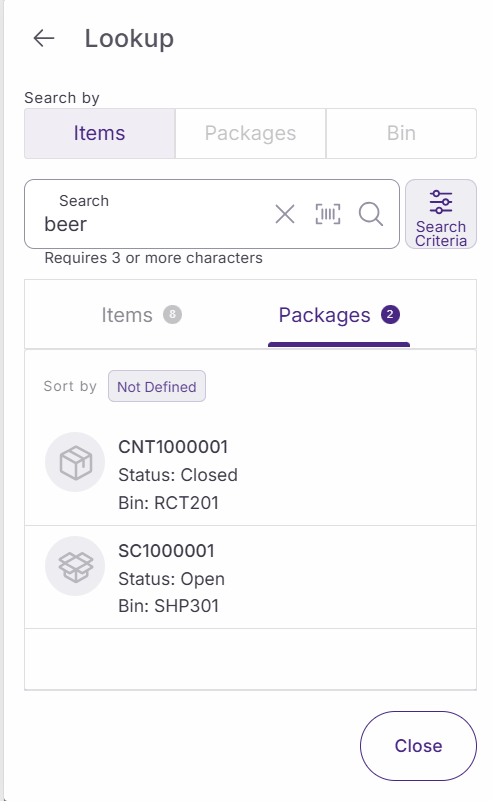
For example, when searching for "Beer":
-
With the option enabled, you'll see individual beer bottles plus any packs containing beer.
-
With the option disabled, you'll only see the individual bear bottles and boxes, not the ones in packs.
The three searching methods allow for seing the result by items or by packages in the corresponding tabs.
Search by package
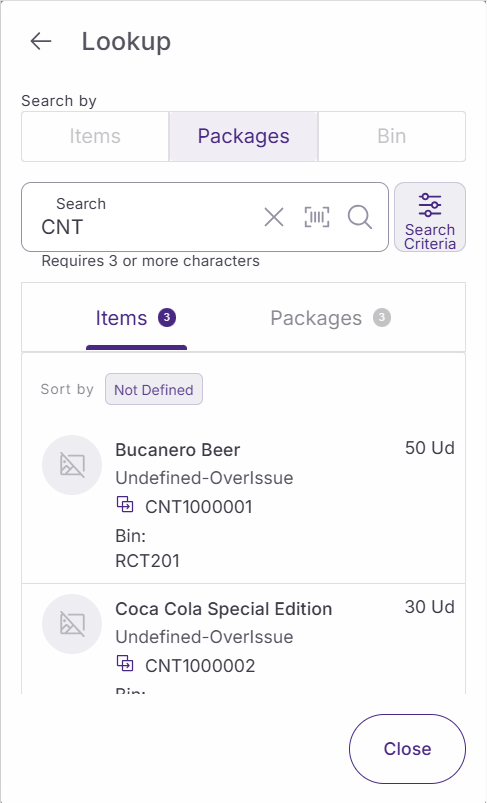
When you search for a specific package or box, the results display the complete contents of that package. This view helps you understand exactly what items are included in multi-item packages.
Into the ‘Packages’ option:
-
The ‘Items’ tab is where the products in the selected packages are listed. For each item, it is displayed the name, the inventory status, the box or boxes when the item is included, the bin and the amount. Clicking the option ‘Sort by’, the list can be sorted by name, quantity, and package.
-
The ‘Packages’ tab displays, for each package, its number, status, and bin. By clicking the option ‘Sort by’, the list can be sorted by name, quantity, and package.
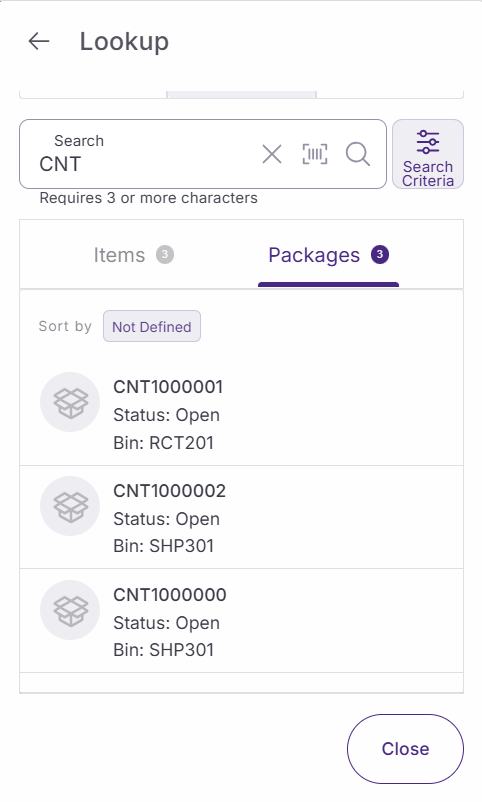
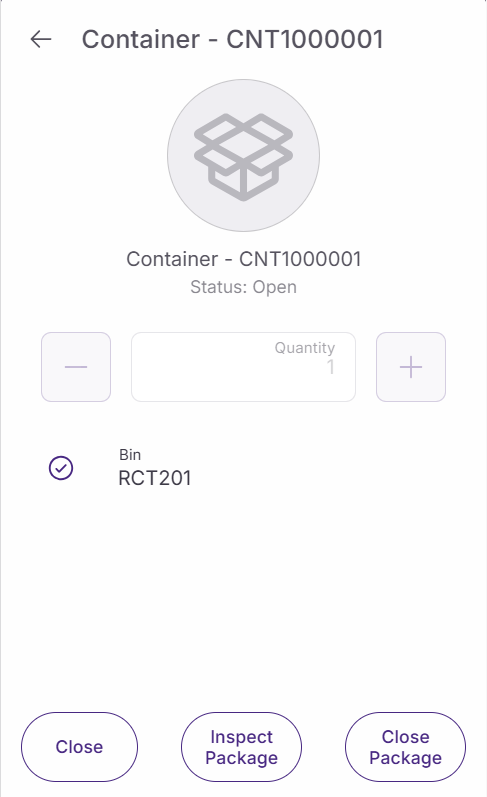
When clicking on a package, a new screen opens where some actions can be done:
-
Inspect Package allows for seeing the items or other packages in the selected package by
-
Close/Open Package allows changing the package status. Remember that only closed packages can be moved.
-
Close allows for closing that screen and returning to the ‘Lookup’ screen.
To close the Lookup tool, click on the ‘Close’ button.
Search by bin location
Enter a bin location code to see all items and/or packages currently stored in that specific warehouse location. This search method helps you verify what's available in a particular area of the warehouse.